


AI and ML domain has changed a lot over the past few years, with AI-powered assistants and large language models (LLMs) gaining widespread adoption. These advancements have optimized workflows across various industries, enabling users to automate routine tasks, generate and debug code and extract valuable insights from data. Moreover, they enhance productivity through natural language interactions. In line with this trend, Databricks introduced the Databricks Assistant, which debuted in July 2023 and is currently generally available for all users. What sets this AI assistant apart is its context-aware capabilities, tightly integrated with the Databricks Lakehouse platform. Users can leverage it to write Python and SQL code, troubleshoot code issues and obtain personalized data-driven insights—all through intuitive conversations in natural language.
Note: that as of March 2026, Databricks officially replaced Databricks Assistant with Genie Code.
In this article, we’ll cover both the original Databricks Assistant and the new Genie Code, so you’re equipped regardless of which version your workspace is running. We’ll walk through the key features, how to enable it and the best techniques to get faster, more accurate results from it.
What is Databricks Assistant?
Before we dive into what Databricks Assistant is, let’s first understand DatabricksIQ, the engine at its core. DatabricksIQ is a Data Intelligence Engine that uses AI to power all parts of the Databricks Data Intelligence Platform. It utilizes metadata from your entire Databricks environment, such as Unity Catalog, dashboards, notebooks and data pipelines, to create highly specialized AI models. These models learn your data, usage patterns and business-specific terminology, delivering optimized performance and governance.
Databricks Assistant, built on the foundation of DatabricksIQ, uses these insights to deliver contextually aware and personalized responses. It assists users by generating queries, suggesting visualizations and addressing code challenges, all while remaining tightly integrated into the Databricks workspace—ensuring responses are not only accurate but personalized to your unique needs.
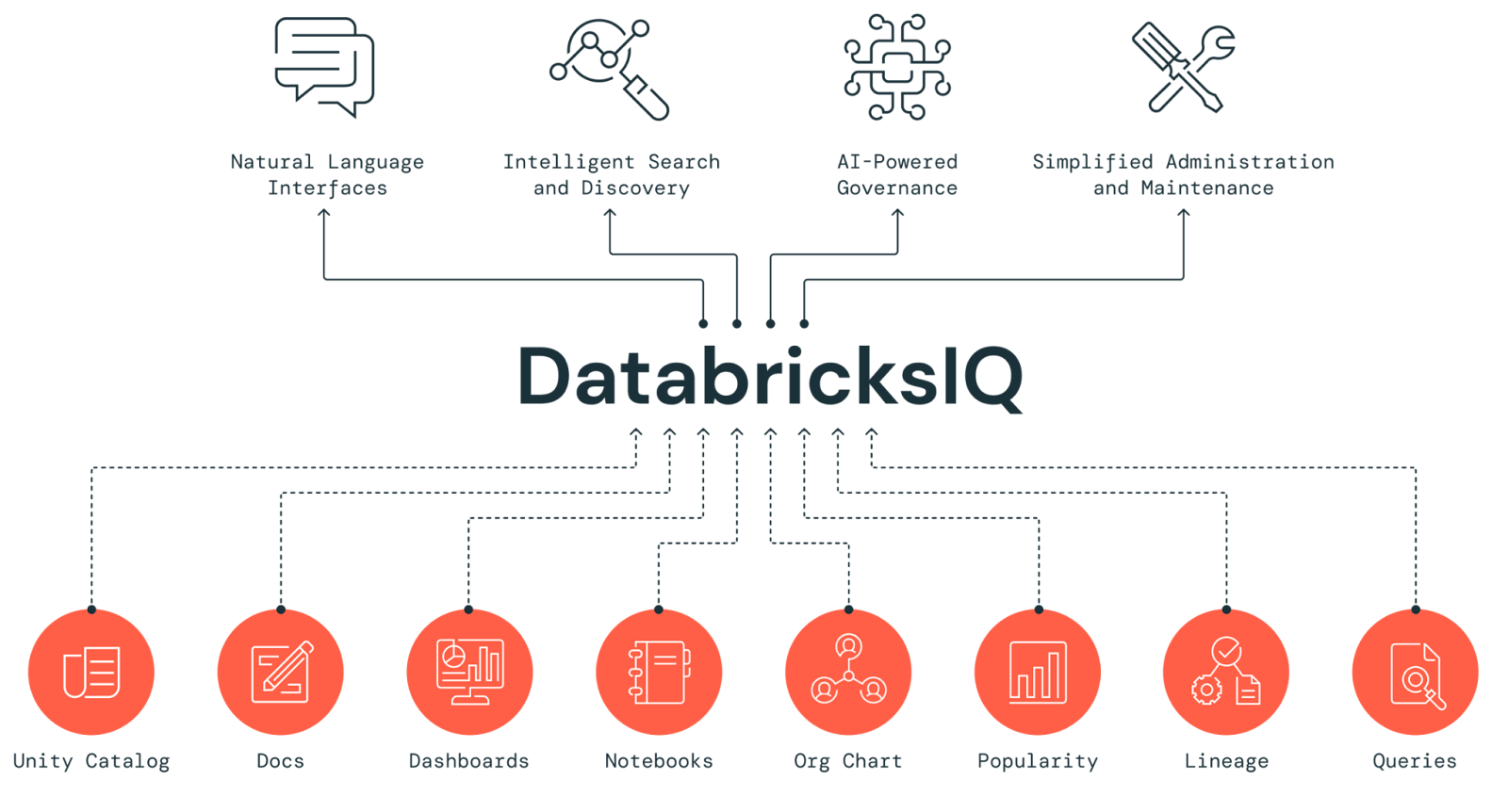
Databricks Assistant is a context-aware AI tool integrated within Databricks Notebooks, Databricks SQL Editor and File Editor. It enables users to interact with data through a conversational interface, enhancing productivity within the Databricks environment. Users can describe tasks in natural language and the Databricks Assistant generates corresponding SQL or Python code, explains complex snippets and suggests automatic fixes for errors. The Assistant leverages Databricks Unity Catalog metadata to understand tables, columns, descriptions and popular data assets across the organization, allowing it to provide personalized and contextually relevant solutions.
Want to see Databricks Assistant in action? Check out the video below for a full demo.
What changed with Genie Code?
The original Databricks Assistant was reactive. All you have to do is ask and it answers it. Genie Code is designed as an autonomous AI partner.
Where Databricks Assistant helped you write or debug a single code block, Genie Code can plan and execute multi-step workflows end-to-end: pulling relevant data assets from Unity Catalog, generating and running code, fixing errors it encounters along the way and delivering results; all from a single prompt. It’s also surface-aware, meaning its behavior adapts depending on where you are in the platform. In the SQL Editor, it focuses on query generation and analysis. In the Pipelines Editor, it prioritizes ETL and pipeline logic. In dashboards, it handles visualization creation.
The backend AI has also changed. The assistant previously relied on Azure OpenAI. Genie Code now chooses between Azure OpenAI or Anthropic on Databricks (endpoints hosted within Databricks’ security perimeter) depending on the task and your workspace configuration.
Features of Databricks Assistant / Genie Code
Databricks Assistant offers a range of features that can help streamline your workflows and get more done.
1. Three interaction modes
The assistant now operates in three distinct modes, selectable from the mode switcher at the bottom of the pane:
| Mode | What it does |
| Chat | Conversational Q&A with documentation citations. Good for quick questions and code help. |
| Edit | Makes suggestions across multiple notebook cells from a single prompt. Good for refactoring or restructuring existing code. |
| Agent | Automates full multi-step data science workflows—retrieves assets, generates code, runs it, fixes errors and visualizes results autonomously. |
Agent mode, powered by the Data Science Agent, became the default for most customers in December 2025. It’s the most powerful mode but also the one that consumes compute (more on pricing later).
2. Natural Language Processing (NLP) capabilities
Databricks Assistant uses advanced Natural Language Processing (NLP) techniques to make sense of user queries written in plain English. This feature allows users to interact with the assistant using natural language, making it easier to perform complex tasks without a ton of technical know-how. Whether you need to generate code, perform data transformations, or get some in-depth data insights, the Databricks Assistant figures out what you’re trying to do and responds accordingly.
Prompt example:
Can you generate SQL and Python code to create a list of numbers from 1 to 1000?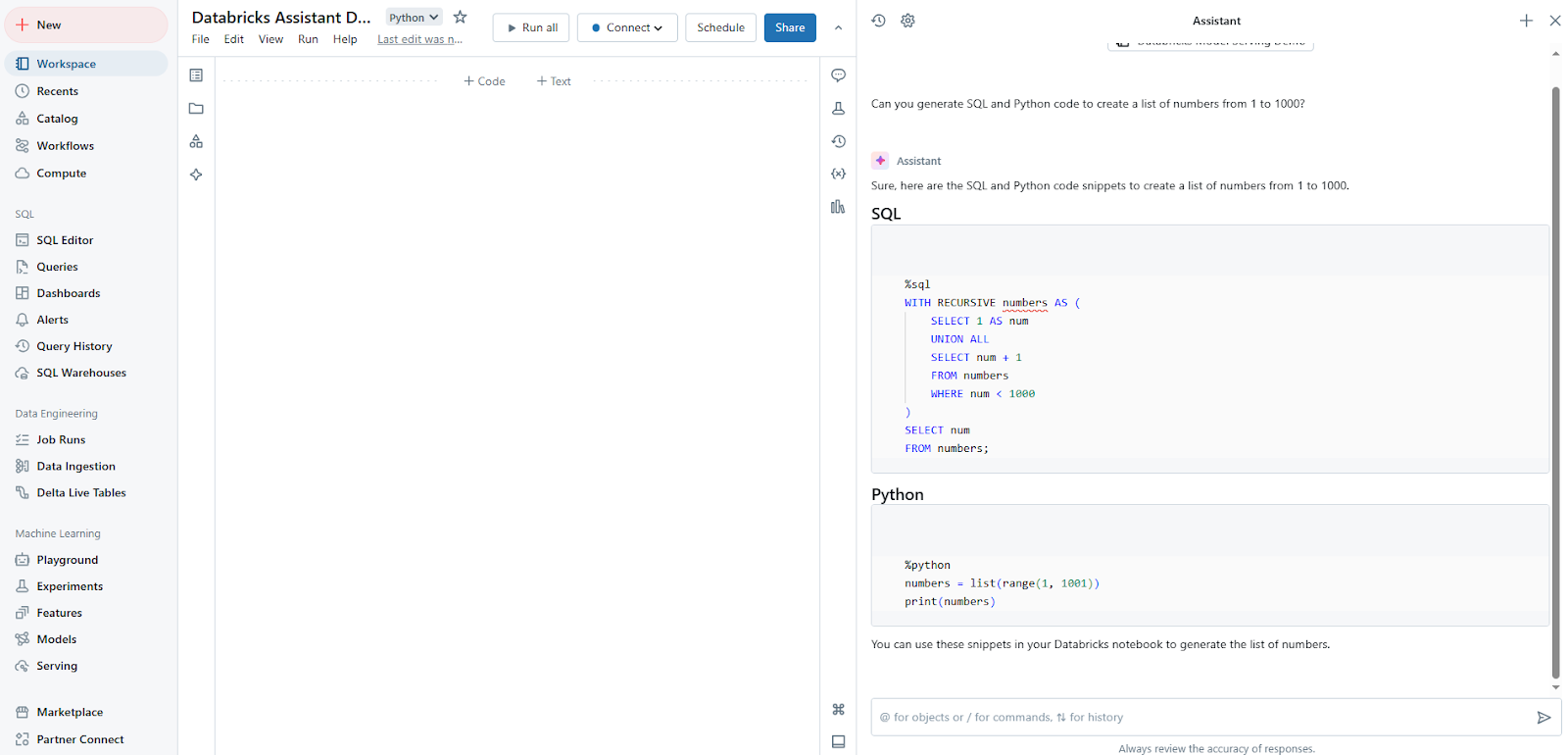
Generating SQL/Python using Natural Language Processing of Databricks Assistant
3. SQL and Python code generation
One of the most powerful features of Databricks Assistant is its ability to generate SQL queries and Python code based on user-provided descriptions. Users can describe what they want to achieve and the assistant will produce the corresponding code, saving significant development time. On top of that, it can help you accelerate projects by writing boilerplate code or providing initial code for you to start with. You can then run the code itself, copy it, or add it into a new cell for further development.
Prompt example:
Write a Python function that checks if a number is even or odd.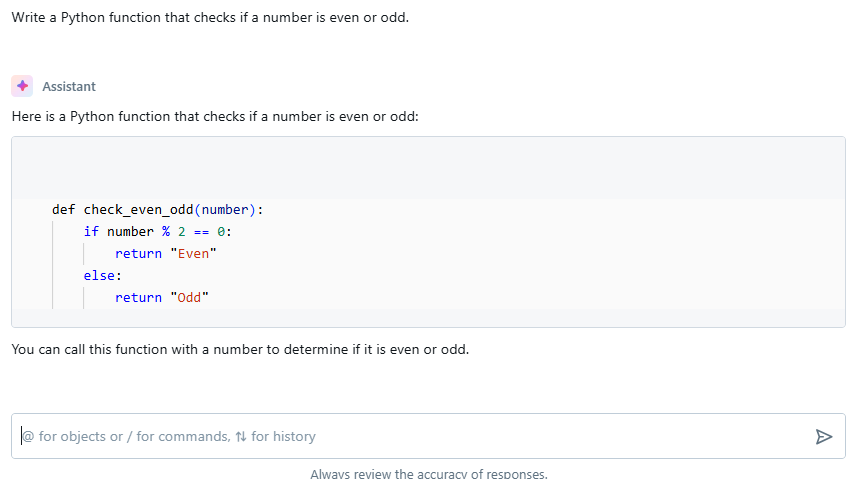
4. Autocomplete and inline code suggestions
s you type in a notebook or the SQL Editor, the assistant surfaces inline suggestions automatically. Press Tab to accept a suggestion. To trigger a suggestion manually:
- macOS: Option + Shift + Space
- Windows: Ctrl + Shift + Space
To use the assistant directly inside a notebook cell (without opening the pane), press Cmd + I (macOS) or Ctrl + I (Windows). A text box appears in the cell where you can enter a natural language prompt or slash command.
Prompt example:
Type the first part of a Python function.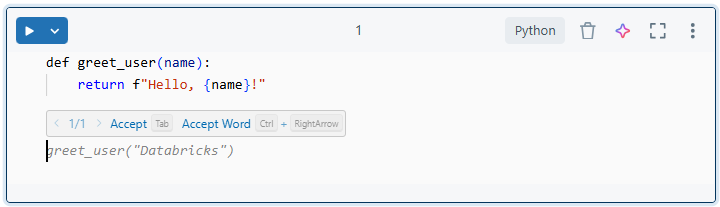
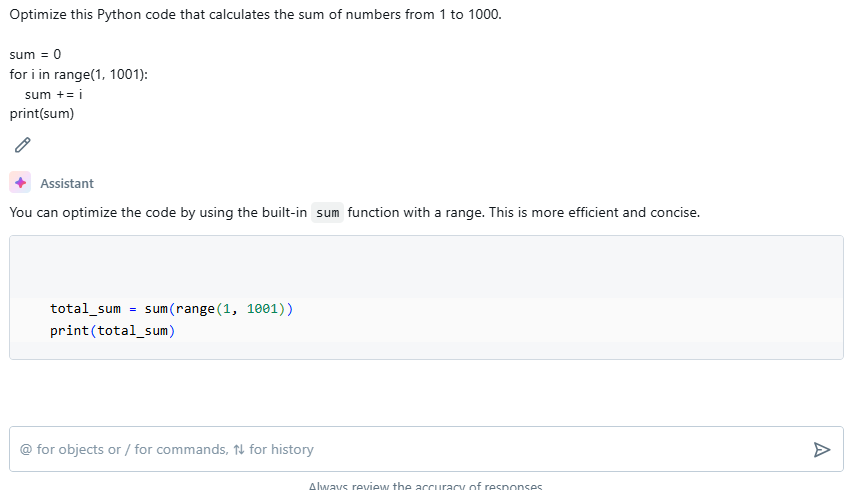
5. Code optimization and refactoring
Databricks Assistant can analyze existing code and suggest optimizations or refactoring opportunities. This feature helps improve code performance and maintainability without requiring extensive manual review.
Prompt example:
Optimize this Python code that calculates the sum of numbers from 1 to 1000.

sum = 0
for i in range(1, 1001):
		 sum += i
print(sum)
6. Code explanation
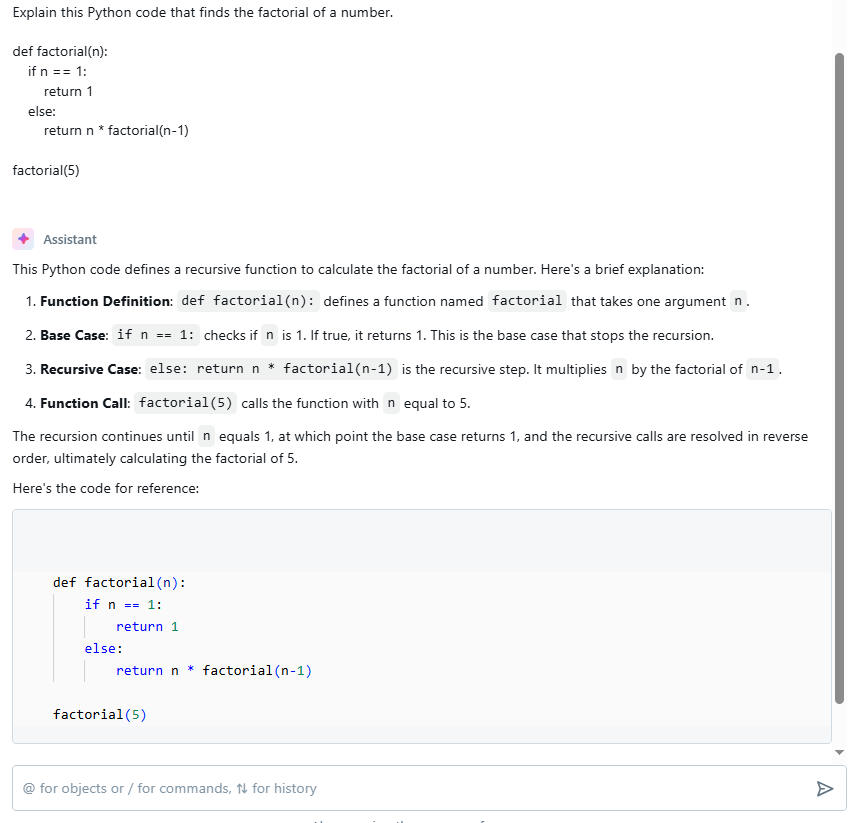
Paste in a complex snippet and ask the assistant to explain it. It returns a natural language breakdown, and you can request different levels of detail (“explain line by line” or “be concise”).
Prompt example:
Explain this Python code that finds the factorial of a number.

def factorial(n):
		if n == 1:
				return 1
		else:
				 return n * factorial(n-1)

factorial(5)
7. Error diagnosis and Quick fix
When your code errors out, two things can happen:
- Quick Fix kicks in automatically for simple, single-line errors—syntax mistakes, type mismatches and the like. It presents a suggested fix you can accept or reject.
- Diagnose Error handles more complex failures, including environment-level issues like library installation failures. Click the “Diagnose error” button on any failed cell output to trigger it.
You can also run /fix manually in the pane on a selected block. For environment errors (pip install failures, missing packages), the /repairEnvironment command triggers a targeted diagnosis.
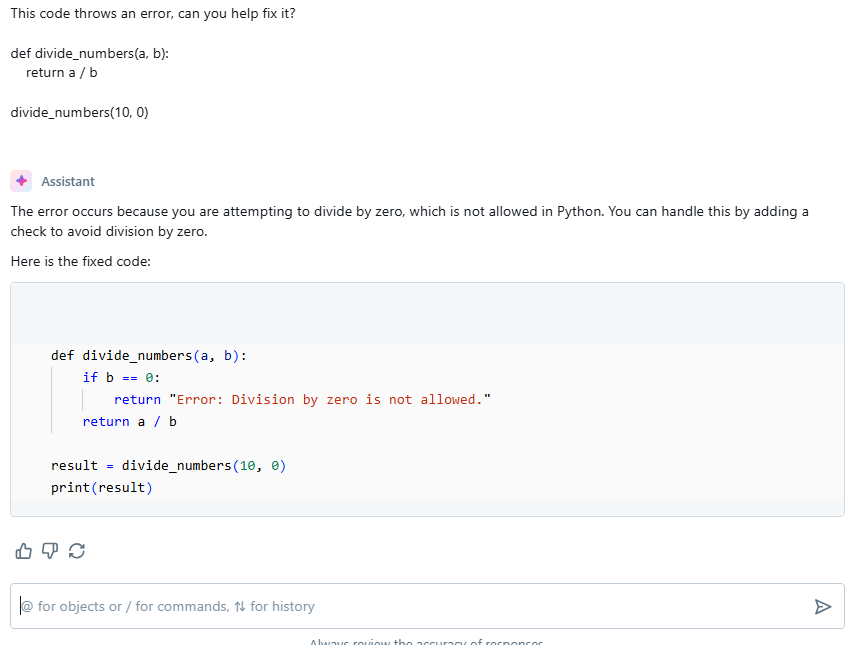
Prompt example:
This code throws an error, can you help fix it?

def divide_numbers(a, b):
		return a / b

divide_numbers(10, 0)
Step-by-step guide to enable Databricks Assistant / Genie Code
Enabling Databricks Assistant is a simple process that requires little configuration. Here’s a step-by-step guide to help you get started:
Step 1—Navigate and log in to Databricks portal
First, access the Databricks portal through your web browser and log in with your necessary credentials.
Step 2—Create Databricks workspace
If you haven’t already, create a new Databricks Workspace where you’ll be using the Databricks Assistant.
Check out this article for a step-by-step guide to setting up a Databricks Workspace.
Step 3—Launch the Databricks workspace
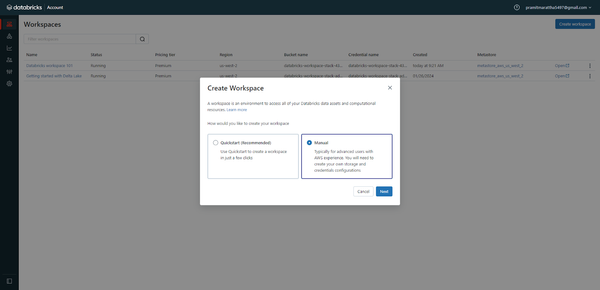
Once created, launch your Databricks workspace to access the Databricks environment. To do this, open the Databricks console and click on the “Create Workspace” button. This will take you to a page where you can choose between the Quickstart and Manual options. Select the “Manual” option and click “Next” to proceed.
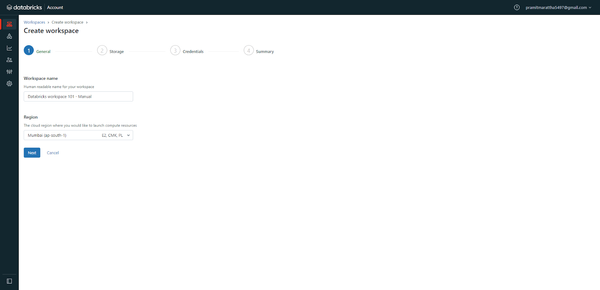
Enter the Databricks Workspace name and select the AWS region.
Choose a storage configuration, like an existing S3 bucket, or create a new one.
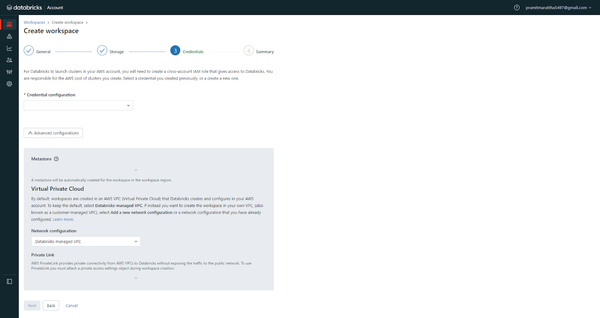
Configure credentials for database access, if any. Select/create VPCs, subnets and security groups as needed. Customize configurations for encryption, private endpoints, etc.
Review all configs entered in the previous step and then click “Create Workspace” to start the provisioning process.
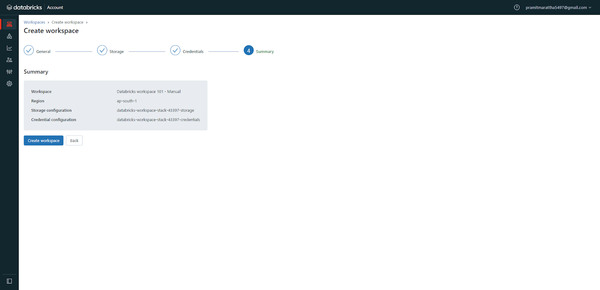
After submitting, check the workspace status on the Databricks Workspaces page in the console.
Once the stack is created, you can open your workspace and log in to it using your Databricks account email and password.
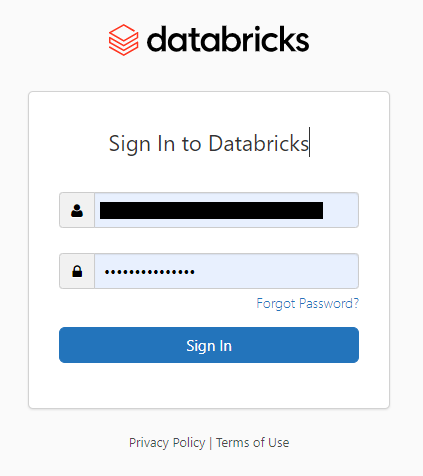
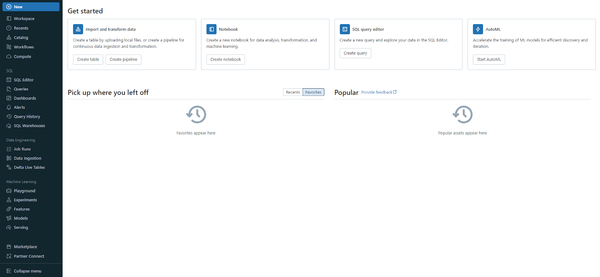
So there you have it! You’ve successfully created a Databricks Workspace.
Step 4—Enable Databricks Unity Catalog
While not required for basic assistant functionality, enabling Databricks Unity Catalog can enhance the Databricks Assistant’s capabilities by providing it with more context about your data environment.
If you need to manage multiple workspaces under one umbrella, enabling Databricks Unity Catalog is particularly beneficial.
Check out this article for a step-by-step guide to enable your workspace for the Databricks Unity Catalog.
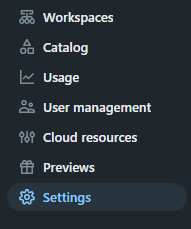
Step 5—Navigate to the admin portal
Access the admin portal through the workspace settings.

Step 6—Click on Settings
In the admin portal, locate and click on the Settings option.
Step 7—Find the “Feature enablement” tab
Search and find the tab named “Feature enablement” tab.
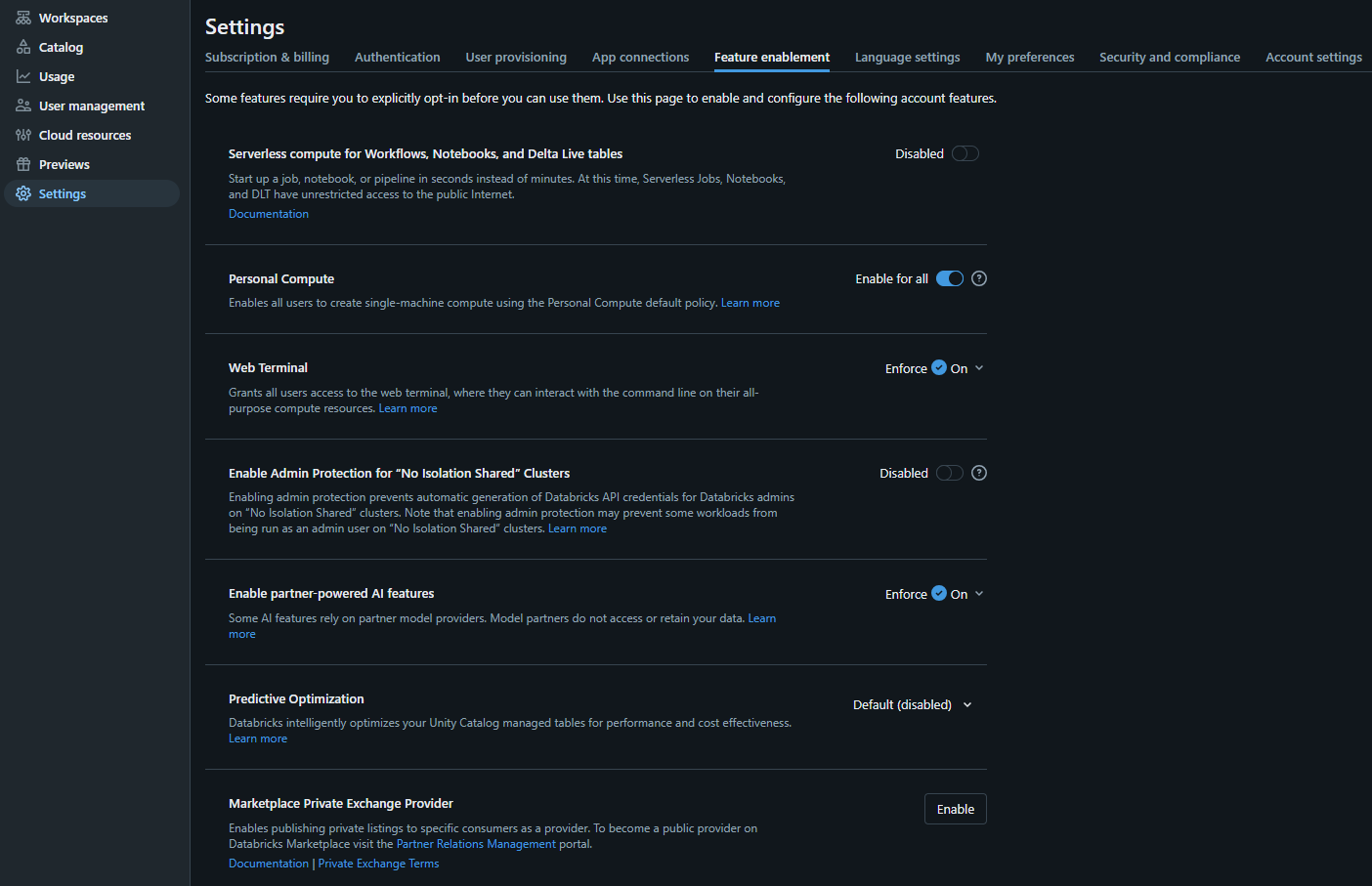
Step 8—Enable partner-powered AI features
Within the “Feature enablement” section, find the subsection for AI assistive features.
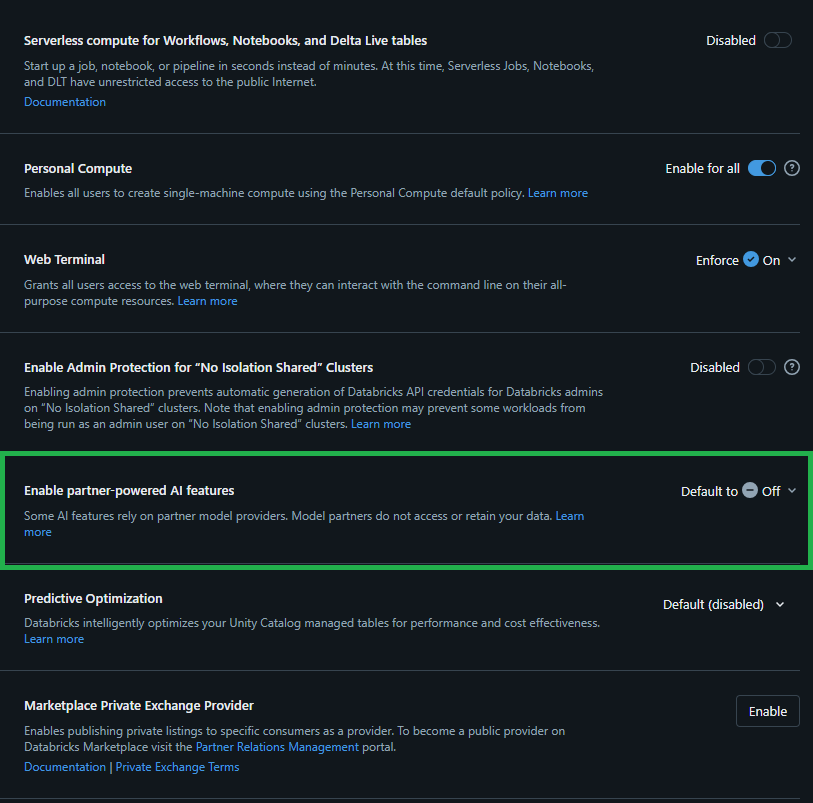
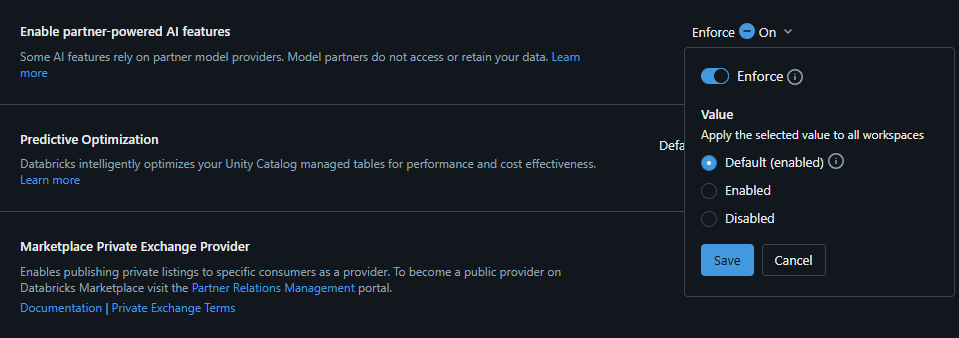
Step 9—Open the Databricks assistant pane
Finally, click the dropdown button, toggle the Enforce switch and then select Default (enable) to activate Databricks Assistant for your workspace.
Once you have enabled it, open the Assistant pane and click the Assistant icon or Ctrl + Alt + A in the left sidebar of your Databricks Notebook or Databricks SQL Editor.
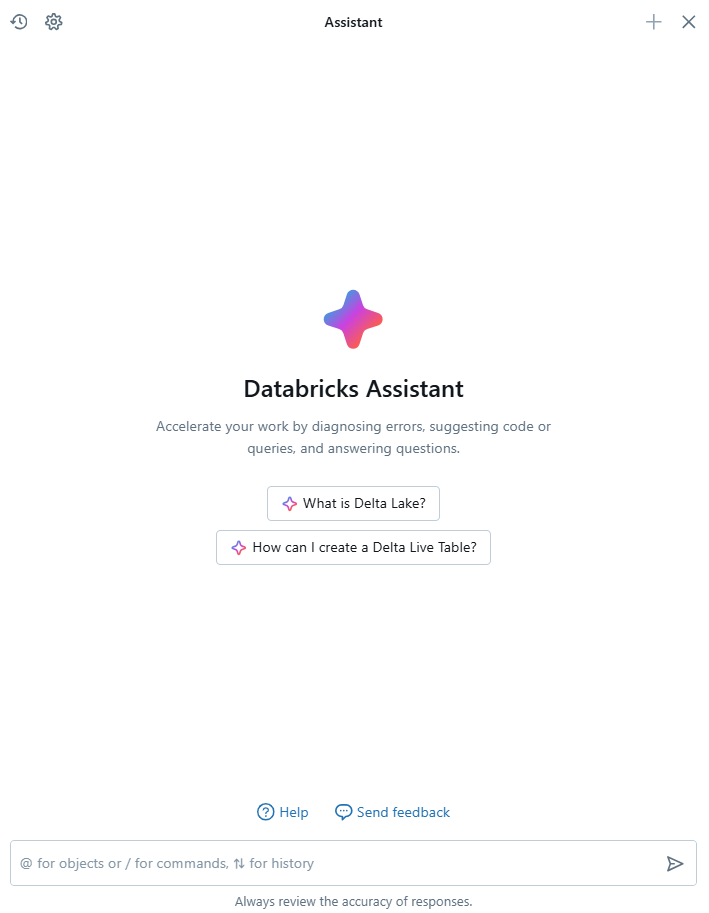
Start typing your questions and converse normally in the text box at the bottom of the Assistant pane, then press Enter. Databricks Assistant will display the answer right away.
How Databricks Assistant integrates with the Databricks ecosystem?
Databricks Assistant is deeply integrated into various components of the Databricks environment. Its integration is seamless and multifaceted, designed to assist users in various tasks, from coding to data management. Below are the key aspects of how Databricks Assistant integrates with the broader Databricks environment.
1. Contextual interaction
Databricks Assistant operates across different components of the Databricks environment. It provides seamless assistance for tasks such as code generation, query building and data visualization.
a. Notebook Integration
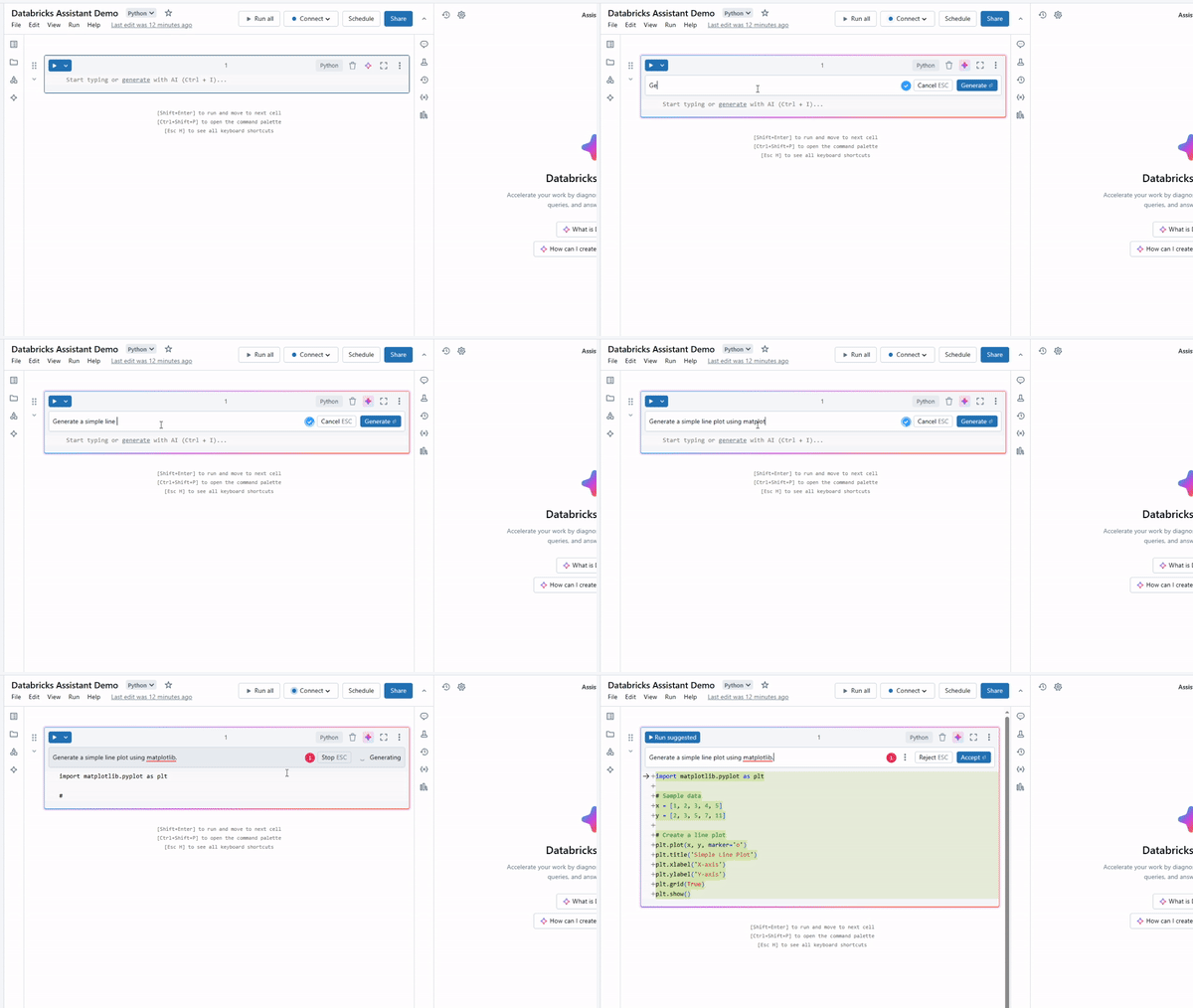
In Databricks notebooks, users can invoke Databricks Assistant via the Assistant pane or directly in code cells. By pressing Cmd + i (MacOS) or Ctrl + i (Windows), users can ask questions in natural language. For example, you can ask the assistant to “Generate a simple line plot using matplotlib”.
Databricks Assistant generates:
b. SQL Editor integration
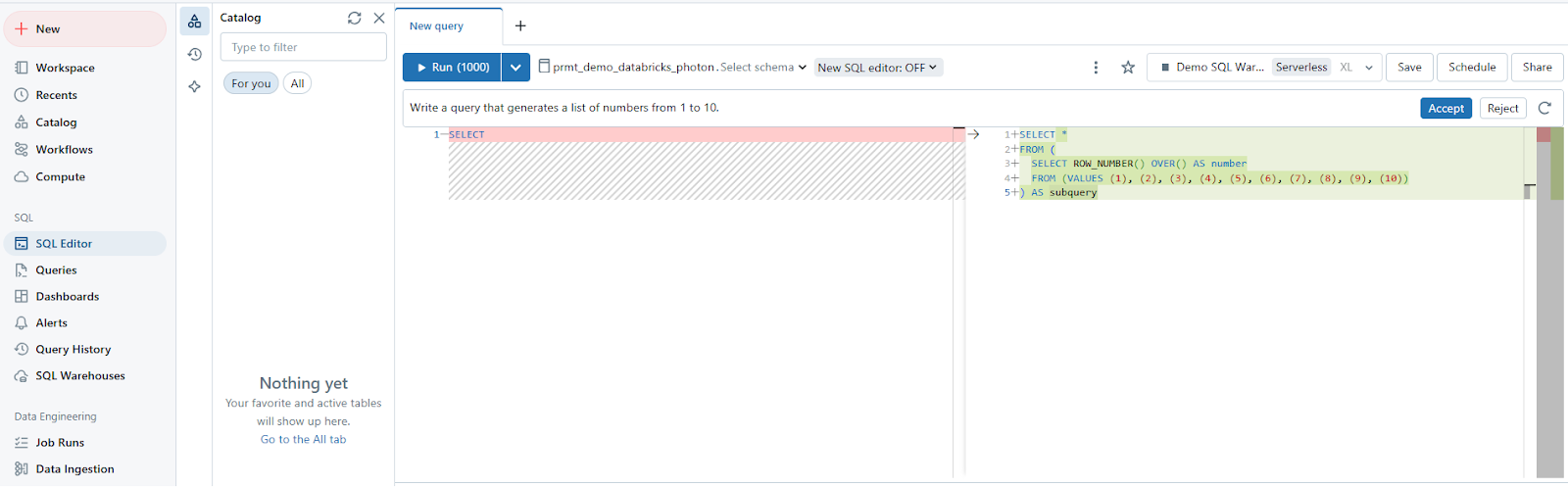
Databricks Assistant helps with SQL query generation by translating natural language into SQL code within the Databricks SQL editor itself. It can handle complex queries, such as filtering and aggregation and is able to utilize Databricks Unity Catalog metadata (such as tables and columns) to improve accuracy. For example, if you ask Databricks Assistant to generate a query that generates a list of numbers from 1 to 10.
Databricks Assistant generates:
Databricks Assistant leverages contextual information from the user’s workspace, such as:
-
- Code and queries: It understands the code or queries currently being worked on, providing relevant suggestions or corrections.
- Table and column metadata: By accessing Databricks Unity Catalog metadata, it can generate accurate SQL queries based on existing tables and columns within the user’s environment.
- User history: The Assistant utilizes previous interactions to refine its responses, making it more personalized and effective over time
2. Debugging and error resolution
Databricks Assistant has a feature called Quick Fix, which automatically corrects common errors like syntax mistakes, unresolved columns and type conversions. It streamlines the debugging process for both Python and SQL errors. Users can invoke the assistant for error explanations and solutions using commands like /fix, improving overall productivity.
3. Integration across Databricks features
Beyond coding assistance, the Databricks Assistant integrates with several other features:
a. Dashboard integration
Databricks Assistant helps when creating visualizations in Databricks dashboards. After selecting a dataset and adding a visualization widget, users can prompt the Assistant to generate specific charts. It allows for fast chart creation by understanding user descriptions and generating accurate visualizations based on the dataset.
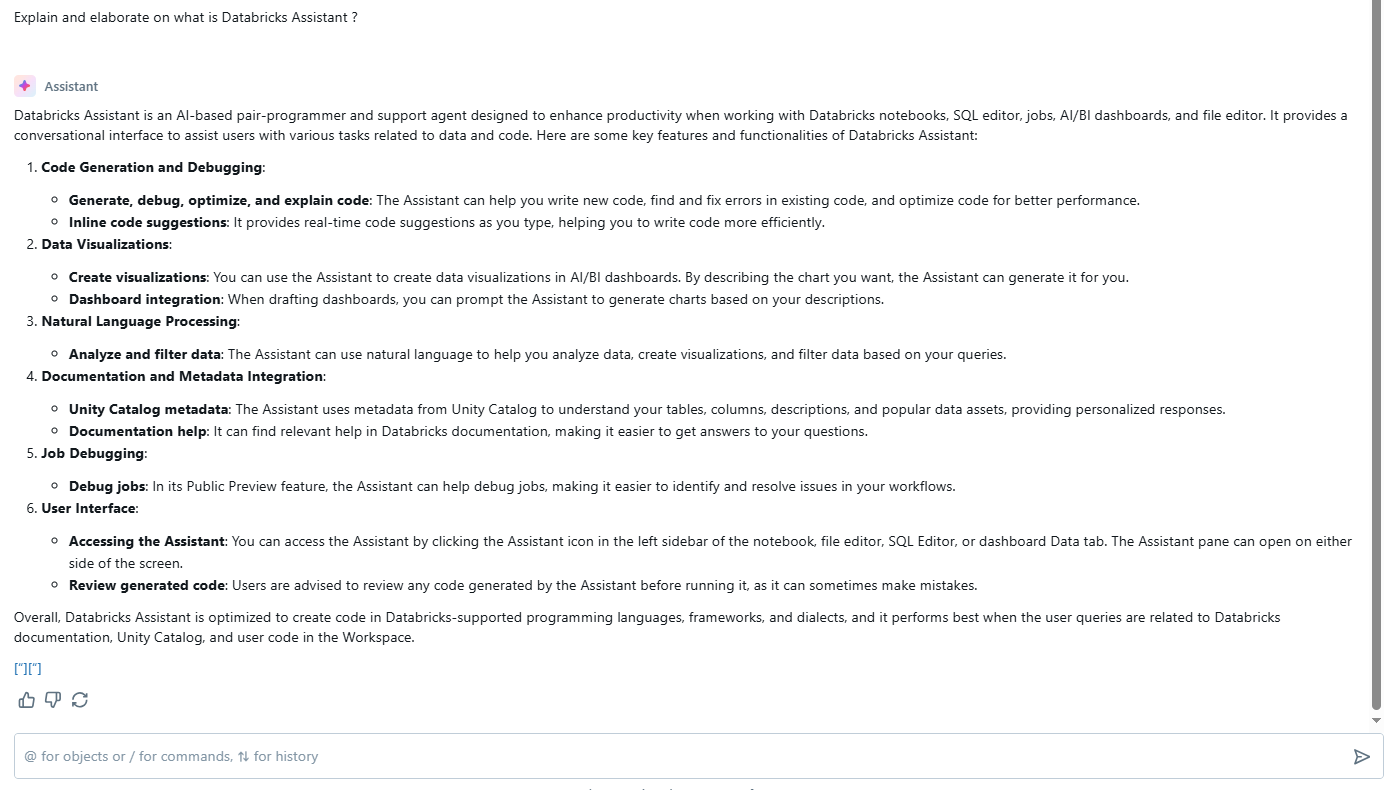
b. Documentation access
Databricks Assistant is integrated with the platform’s documentation, allowing users to quickly access relevant material and solutions without leaving their workspace. It helps users find functionalities, troubleshoot problems and learn more about available features.
4. Databricks Unity Catalog integration
When Databricks Unity Catalog is enabled, Databricks Assistant becomes more powerful, as it can access metadata such as table and column descriptions, relationships and data lineage. This allows the Assistant to generate more precise queries, tailored to the specific data models in the user’s environment.
What is the pricing for Databricks Assistant?
The short answer: the AI assistant capabilities themselves are available at no additional charge for all customers.
The longer answer: it depends on what the assistant is doing.
- Chat and edit modes: Essentially free. No meaningful compute cost beyond what you’d spend running queries anyway.
- Agent mode: When Genie Code autonomously runs code—spinning up a serverless cluster to execute queries, test transformations or validate results, that compute is billed in Databricks Units (DBUs). Agent mode uses PREMIUM_ALL_PURPOSE_SERVERLESS_COMPUTE, currently priced at approximately $0.75 per DBU depending on region and cloud provider.
For most individual use cases (code generation, debugging, explanation), you’re unlikely to notice any incremental cost. For teams running heavy agentic workflows; long multi-step analyses, pipeline generation with execution—it’s worth monitoring DBU consumption via the system.access.assistant_events system table or the billing usage dashboard.
Note: There are, however, fair usage limits in place to prevent abuse, though most users are not significantly impacted by these limits.
9 techniques to get the most out of Databricks Assistant
1. Write specific prompts
The quality of responses from Databricks Assistant is highly dependent on the clarity of your input. When asking the Assistant to generate code or explain queries, make sure to provide explicit details, especially when dealing with complex datasets or multiple tables. Clear, specific prompts yield better results. So, instead of asking “show me sales data“, try “generate a query to show total sales by region for Q1 2024, sorted in descending order“.
Bad prompt: "Show some customer data"Good prompt: "Create a query to display customer names, their total purchases,
and average order value for customers who have made at least 300 purchases in the last 30 days"
2. Use the /findTables command before querying data
Before asking the assistant to write a query, use /findTables to surface relevant tables from Unity Catalog. This gives the assistant the right schema context before it generates any SQL.
Example:
User: /findTables related to customer orders

Assistant: Found the following relevant tables:

1) sales.orders
2) crm.customer_accounts
3) finance.order_line_items

User: Now show me the average order value by customer segment from those tables.
This two-step approach produces queries that actually reference real tables rather than placeholder names.
3. Use the @<table-name> syntax to pin context
When you already know which table you want to work with, reference it directly with the @ syntax in your prompt. The assistant locks onto that table’s schema immediately, without needing to search for it.
@sales.orders Show me total revenue by region for Q1 2025.
You can also click Add context in the chat pane to manually select tables, notebooks or files.
4. Iterate in the assistant pane before moving code to your notebook
The pane maintains conversation history within a thread. Use it as a scratchpad; refine code, test partial queries and adjust parameters in the pane before committing anything to a notebook cell. This is faster than running cells repeatedly and is particularly useful when building complex transformations or multi-step pipelines.
5. Use slash commands for quick prompts
Slash commands streamline interaction with the Databricks Assistant by providing quick shortcuts to predefined actions. Slash commands are a fast way to trigger specific actions, especially in environments where efficiency is crucial. Here is the list of all available Slash commands.
| Command | What it does |
| / | Displays available commands |
| /doc | Adds comments to selected code in a diff view |
| /explain | Explains code in the selected cell |
| /fix | Suggests fixes for code errors in a diff view |
| /optimize | Evaluates and optimizes Python, PySpark or SQL code |
| /findTables | Searches Unity Catalog for relevant tables |
| /repairEnvironment | Diagnoses and fixes library installation or environment failures |
| /settings | Opens assistant settings directly from the pane |
6. Optimize workflow with Notebook cell actions
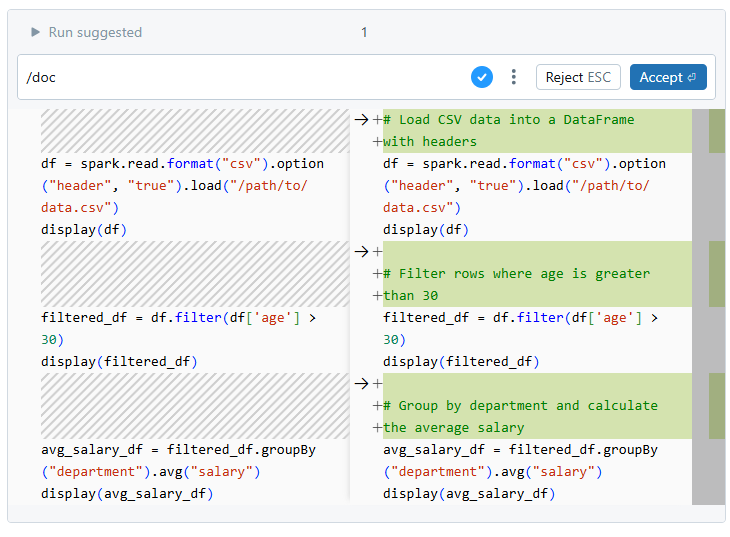
Cell Actions enable users to interact with Databricks Assistant and generate code directly within notebooks, without needing the chat window. These actions include shortcuts for quickly accessing common tasks, such as documenting, debugging and explaining code.
For instance, if you want to add a comment to your code, you can use a Cell Action command like /doc, or you can request the Assistant to generate a comment by typing a prompt, such as “write a comment for this code”.
7. Provide sample row-level data when the assistant lacks table access
The assistant doesn’t see actual data values—only schema metadata. If you’re working with a table that isn’t in Unity Catalog (or whose descriptions are sparse), include example rows in your prompt to help it generate accurate code.
Example:
Write a SQL query to calculate the average salary by department from the 'Employee' table.

The table has columns: EmployeeID (int), EmployeeName (string), Salary (float), Department (string).

Example row: EmployeeID = 101, EmployeeName = 'A. Patel', Salary = 95000.00, Department = 'Engineering'.
This gives the assistant enough context to generate a query that uses the correct column names and data types.
8. Use Agent mode for complex, multi-step workflows
For tasks that span multiple steps (exploratory data analysis, model training pipelines, end-to-end ETL construction) switch to Agent mode. A single prompt like “Analyze the sales table, identify the top 10 regions by revenue growth over the past 12 months and generate a dashboard summarizing the results” can produce a full working output with minimal manual intervention.
Keep in mind that Agent mode runs code autonomously. It’s good practice to start with a scoped task, review the plan the agent proposes (it shows a structured plan before execution) and approve it before it runs.
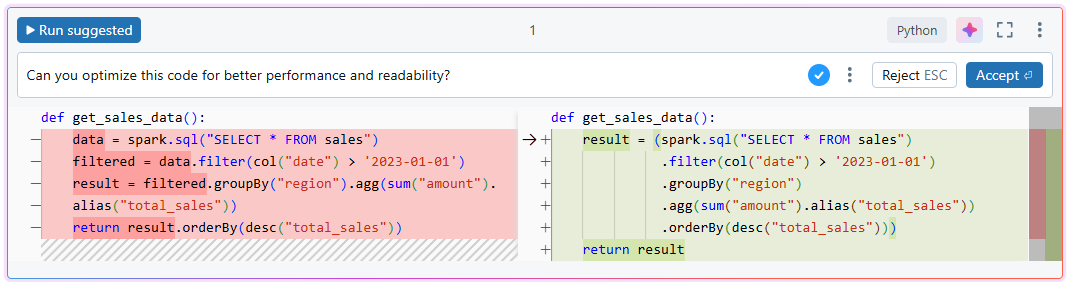
9. Refactor and optimize existing code
Make use of the Databricks Assistant to improve existing code. You can ask it to make your code more efficient and readable, or to follow specific best practices.
For Example:
# Original code
def get_sales_data():
		 data = spark.sql("SELECT * FROM sales")
		filtered = data.filter(col("date") > '2023-01-01')
		 result = filtered.groupBy("region").agg(sum("amount").alias("total_sales"))
		return result.orderBy(desc("total_sales"))
Ask Databricks Assistant to optimize
User: "Can you optimize this code for better performance and readability?"Optimized code suggested by Databricks Assistant:
10. Generate visualizations In Databricks Dashboard
Databricks Assistant can help streamline the creation of visualizations in your Databricks dashboards. By providing prompts, you can generate charts directly from your dataset.
Steps to use Databricks Assistant for visualizations in Databricks dashboard:
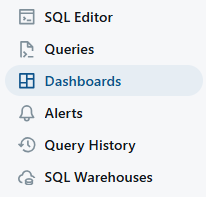
Step 1—Open Dashboards
Click the Dashboards icon to view the list of available dashboards.
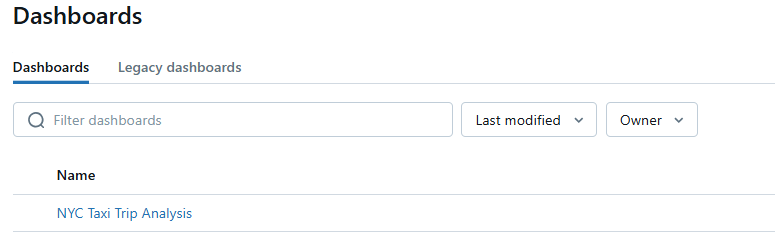
Step 2—Select a Dashboard
Choose a dashboard title to start editing.
Step 3—Verify Dataset
Go to the Data tab to confirm the dataset being used in the dashboard. For example, a dataset might be defined by a SQL query on the samples catalog. At least one dataset must be present for chart generation. If multiple datasets are available, Databricks Assistant will select the most relevant one based on your input.
Step 4—Switch to Canvas
Return to the Canvas tab to begin working on your dashboard.

Step 5—Add Visualization widget
Click the “Add Visualization” icon and place the widget on the canvas.
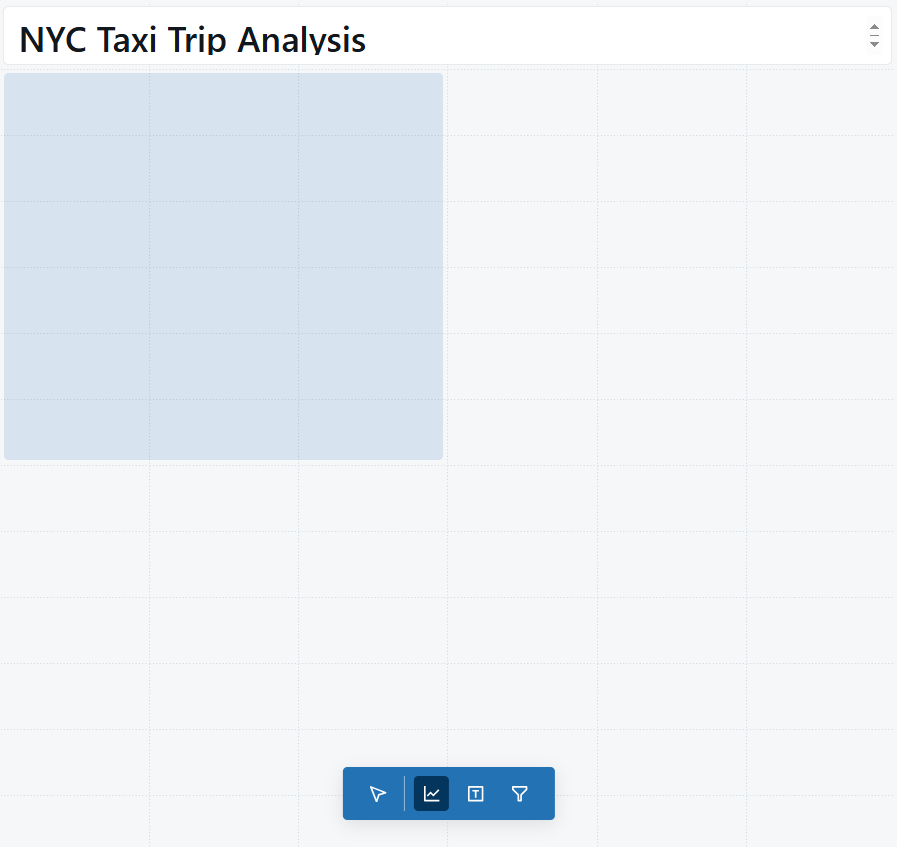
Step 6—Enter a prompt
Type a description of the chart you want in the widget’s prompt box, then press Enter. The Databricks Assistant will generate a chart based on your description. You can accept or reject it, or revise the prompt to generate a new chart. If needed, use the “Regenerate” button to retry the chart generation.
Step 7—Editing Databricks Dashboard Visualizations
If the generated chart isn’t satisfactory, modify your input prompt to refine the chart.
Save up to 50% on your Databricks spend in a few minutes!
Conclusion
Databricks Assistant is a big leap forward in AI-powered coding assistant, specifically made for the Databricks ecosystem. It uses DatabricksIQ to provide smart, context-aware support, which can significantly speed up your work as a data professional. To get the most out of it, you need to know what it can do and how to use it effectively. Put the tips and techniques in this article to the test and see how they work with different kinds of queries. With a bit of practice, this assistant can become a daily go-to tool. As AI and LLM tech keeps improving, Databricks Assistant is likely to get even more advanced.
In this article, we have covered:
- What is a Databricks Assistant?
- Step-by-step guide to enable Databricks Assistant
- How Databricks Assistant integrates with the Databricks Ecosystem?
- What is the pricing for Databricks Assistant?
- 9 effective techniques to get the most out of Databricks Assistant
… and more!
FAQs
What is Databricks Assistant?
Databricks Assistant is a context-aware AI tool integrated into Databricks Notebooks, the SQL Editor, the File Editor and AI/BI Dashboards. It generates, explains, debugs and optimizes SQL and Python code using a conversational interface. As of March 2026, Databricks has rebranded and expanded the coding assistant as Genie Code.
What is Genie Code and how is it different from Databricks Assistant?
Genie Code is Databricks’ replacement for Databricks Assistant, released in March 2026. The core difference is agentic capability: Genie Code can plan and autonomously execute multi-step data workflows (retrieving assets, running code, fixing errors and generating visualizations) from a single prompt. The original Databricks Assistant was reactive; Genie Code is proactive.
How much does Databricks Assistant / Genie Code cost?
LoreThe AI assistant capabilities themselves are available at no additional cost for all customers. You pay only for compute consumed running notebooks, queries and jobs. In Agent mode, autonomous code execution uses serverless compute billed in DBUs (approximately $0.75/DBU depending on region and cloud). Chat and Edit mode interactions are effectively free. Fair usage limits apply but rarely affect most users.
m
What data does the assistant send to AI models?
The assistant sends code, metadata and context from your current notebook cell or SQL Editor tab, table and column names and descriptions, previous questions in the current thread and any tables you’ve explicitly added as context. It strictly respects Unity Catalog permissions; it won’t send metadata for tables the current user isn’t authorized to access.
How does the assistant handle privacy?
The assistant uses Azure OpenAI or Anthropic on Databricks (endpoints hosted within Databricks’ security perimeter) as its backend AI. It respects Unity Catalog permissions and only surfaces metadata for tables the user has access to. Databricks has opted out of model provider abuse monitoring to protect customer data. For workspaces with compliance requirements (HIPAA, PCI-DSS, FedRAMP, IRAP), specific configuration steps are required before using the assistant with regulated data.
What languages does the assistant support?
The assistant is optimized for Python, PySpark and SQL. It has some capability with R and Scala, but those are not the primary focus. It’s built for the Databricks environment specifically; it’s not a general-purpose programming assistant.
Do I need Unity Catalog to use the assistant?
No, but the experience is significantly better with Unity Catalog enabled. Without it, the assistant can’t access table metadata, column descriptions or lineage, which limits the accuracy of generated queries and schema-aware suggestions.
Does the assistant respect Unity Catalog permissions?
Yes. It won’t send metadata for tables the current user doesn’t have permission to view, and it respects row-level security and column masking policies.
Will the assistant execute unsafe code?
No. The assistant doesn’t automatically run code on your behalf (except in Agent mode, where you approve a structured plan before execution). Always review AI-generated code before running it; the assistant can misunderstand intent or make incorrect assumptions about your data.
Can I use the assistant with tables containing regulated data?
Yes, but you must meet specific configuration requirements: enable the compliance security profile and add the relevant compliance standard (PHI, PCI, IRAP, FedRAMP) to your workspace configuration before using the assistant with regulated tables.
Pramit Marattha
Pramit Marattha is a technical content writer and strategist with 5+ years of experience covering AI, data engineering, data cloud platforms and open source technologies. He turns complex technical concepts into clear, useful content for engineers and developers.







