


Data is all around us and plays a huge role in our daily lives in countless ways. With so much data and information floating around, it’s critically important to keep data safe, accurate and well-organized. That’s where data governance comes in! It’s fundamentally about establishing guidelines and implementing the right tools to make sure data is secure, accurate and properly managed throughout its lifecycle, which involves overseeing data access, understanding its origins and guaranteeing its protection. To facilitate this, Databricks developed Unity Catalog which is a unified governance layer for data and AI within the Databricks Data Intelligence Platform. It allows users and organizations to centralize the management of various assets, from structured and unstructured data to ML models, notebooks, dashboards and files, all while operating across any cloud or platform.
In this article, we will cover everything about Databricks Unity Catalog, its architecture, features and best practices for effective data governance within the Databricks platform. Plus, we’ve got you covered with a simple step-by-step guide to set up and manage Unity Catalog with ease.
What is Databricks Unity Catalog?
Databricks first announced Unity Catalog at the Data + AI Summit in 2021. The main goal of Unity Catalog was to replace the patchwork of third-party governance tools that teams were stitching together with something purpose-built for the lakehouse. Before Unity Catalog, Databricks governance typically relied on tools like Apache Ranger or workspace-level Hive metastores. These were functional but fragmented. They lacked fine-grained security controls for data lakes, had limited cross-cloud portability and didn’t integrate cleanly into the Databricks ecosystem.
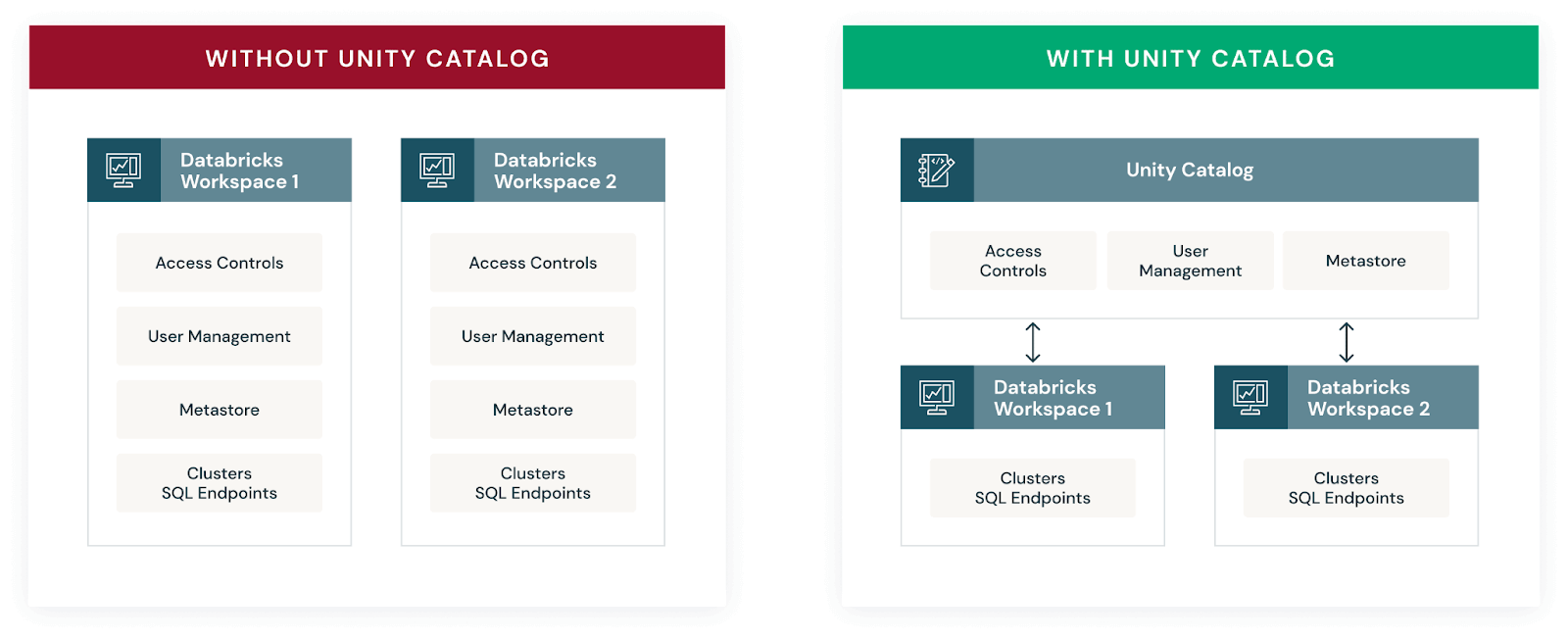
Unity Catalog addresses all of that in one layer.
It centralizes governance for structured and unstructured data, Delta Lake and Apache Iceberg tables, machine learning (ML) models, notebooks, dashboards and files. It supports a three-level namespace (catalog.schema.table) across workspaces and clouds, with SQL-based access control that any data practitioner familiar with ANSI SQL can pick up quickly.
A few things to note:
- Since November 8, 2023, Databricks has automatically enabled Unity Catalog for all new workspaces. If your workspace predates that rollout, you’ll need to manually attach it to a metastore.
- In June 2024, Databricks open-sourced Unity Catalog under the Apache 2.0 license, hosted under the LF AI & Data Foundation. The open-source implementation supports the Apache Iceberg REST catalog API and the Apache Hive metastore API, making it engine-agnostic.
- Unity Catalog is available on Databricks Premium and Enterprise plans.
Key features and benefits of Databricks Unity Catalog:
- Define once, secure everywhere. You set access policies in one place. They propagate automatically across all attached workspaces and user identities.
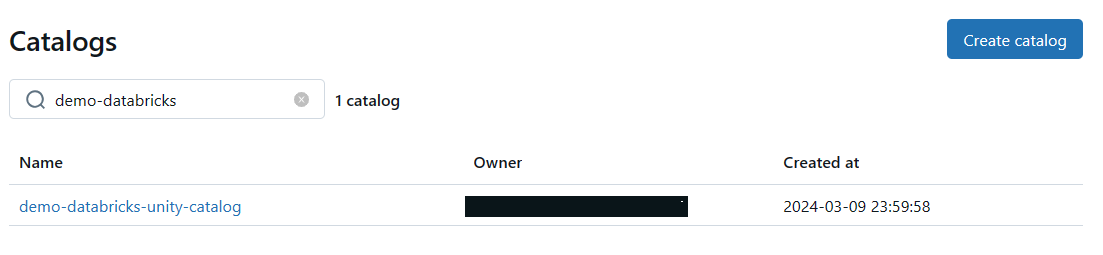
- ANSI SQL-based security model. Admins grant permissions using standard SQL syntax at the catalog, schema, table or column level. No proprietary DSL to learn.
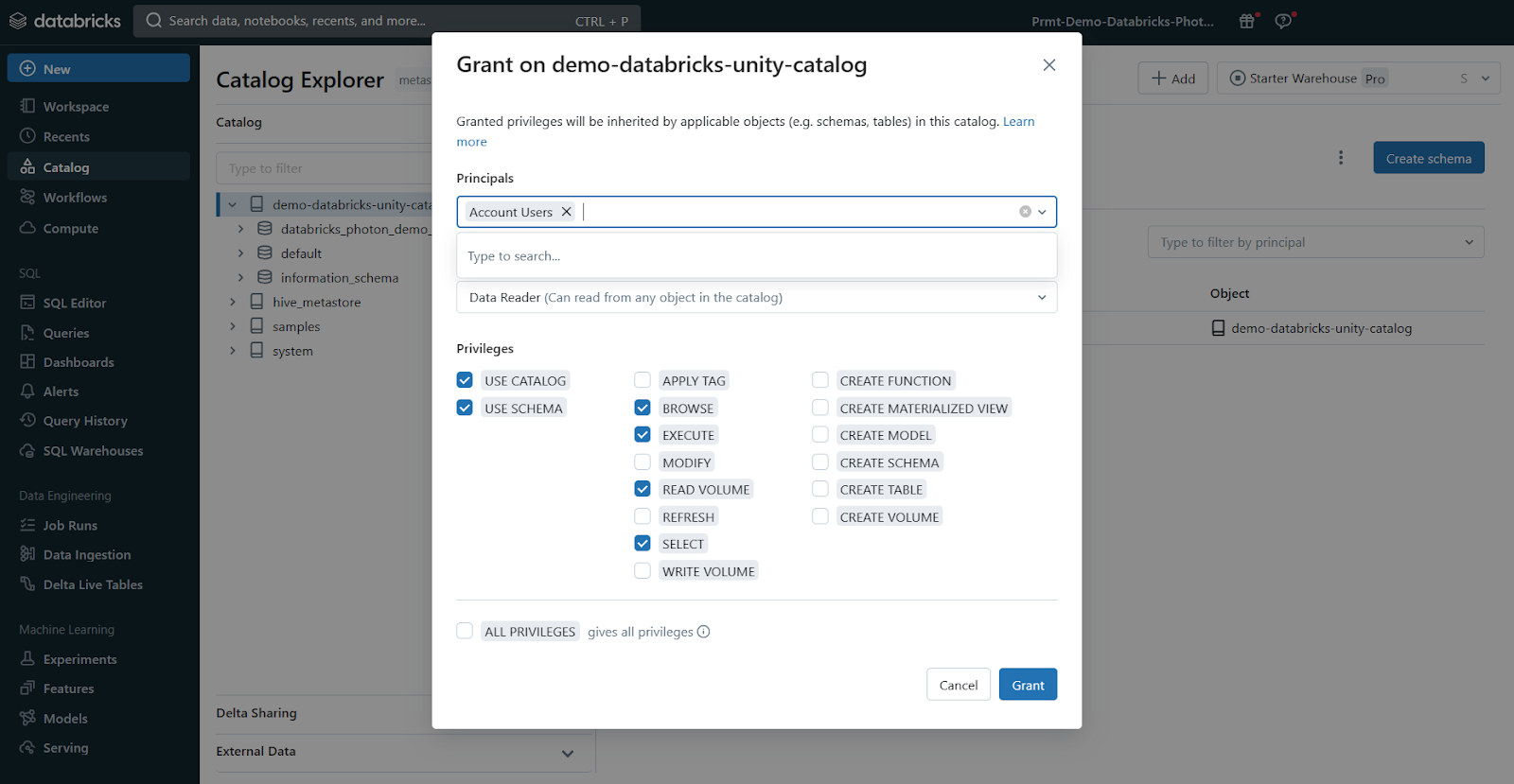
- Built-in audit logging and lineage. Unity Catalog captures user-level audit logs automatically. It also tracks column-level data lineage across notebooks, SQL queries and jobs, without any extra configuration.
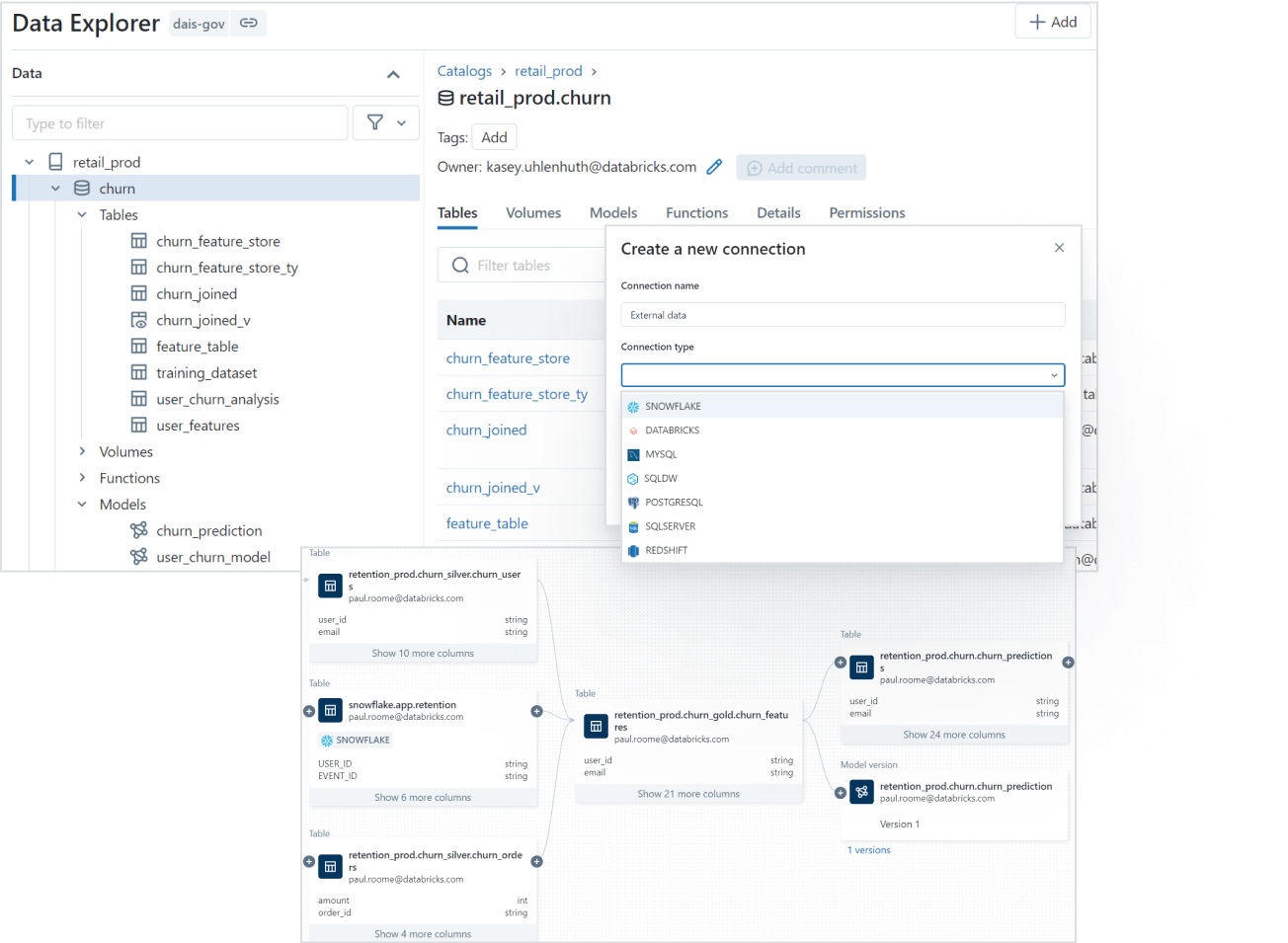
- Data discovery. You can tag and document assets in Unity Catalog, then search by keyword, tag or metadata. Teams spend less time hunting for data and more time using it.
- System tables. Unity Catalog exposes operational data including audit logs, billable usage and lineage via system tables. These are generally available (GA) and queryable directly from Databricks SQL.
- Managed storage. Storage locations can be configured at the metastore, catalog or schema level. This gives organizations physical data isolation where compliance policies require it.
- External data access. Via external locations and Lakehouse Federation, Unity Catalog governs access to data sitting in cloud object storage, databases and external data lakes.
- Open data sharing. Unity Catalog integrates with Delta Sharing, an open protocol for securely sharing data and AI assets across clouds, platforms and organizations without proprietary formats or ETL pipelines.
Source: Databricks
Databricks Unity Catalog architecture breakdown
Here’s an architecture breakdown of Databricks Unity Catalog:
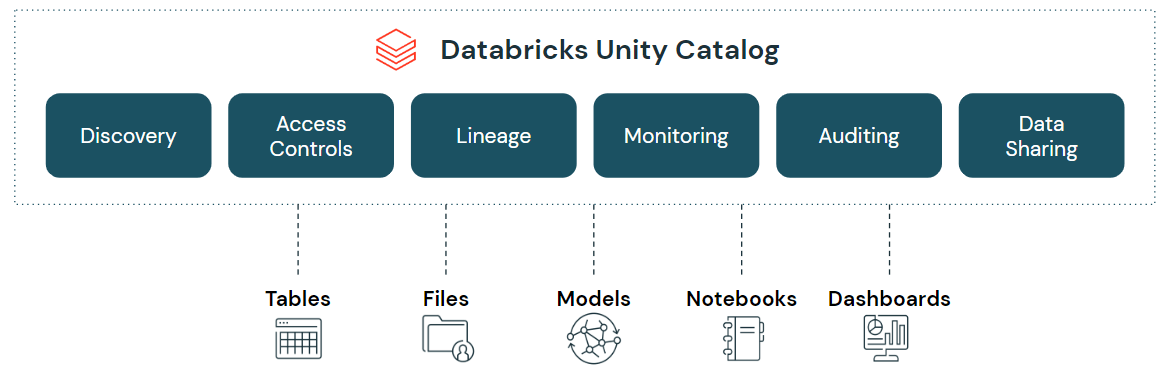
1. Unified governance layer
Databricks Unity Catalog provides a single governance interface across structured data, unstructured data, ML models, notebooks, dashboards and files. It works across AWS, Azure and Google Cloud, meaning governance policies don’t have to be re-created per cloud environment.
2. Data discovery
Unity Catalog makes it easier to find data. You tag and document assets, and the built-in search interface lets users locate specific datasets by keyword, tag or other metadata attributes.
3. Access control and security
Access policies are defined once and applied across all workspaces. Unity Catalog supports fine-grained control at the row and column level, with both SQL-based and attribute-based access policies. Dynamic views let you filter or mask data based on the accessing user’s identity or group membership.
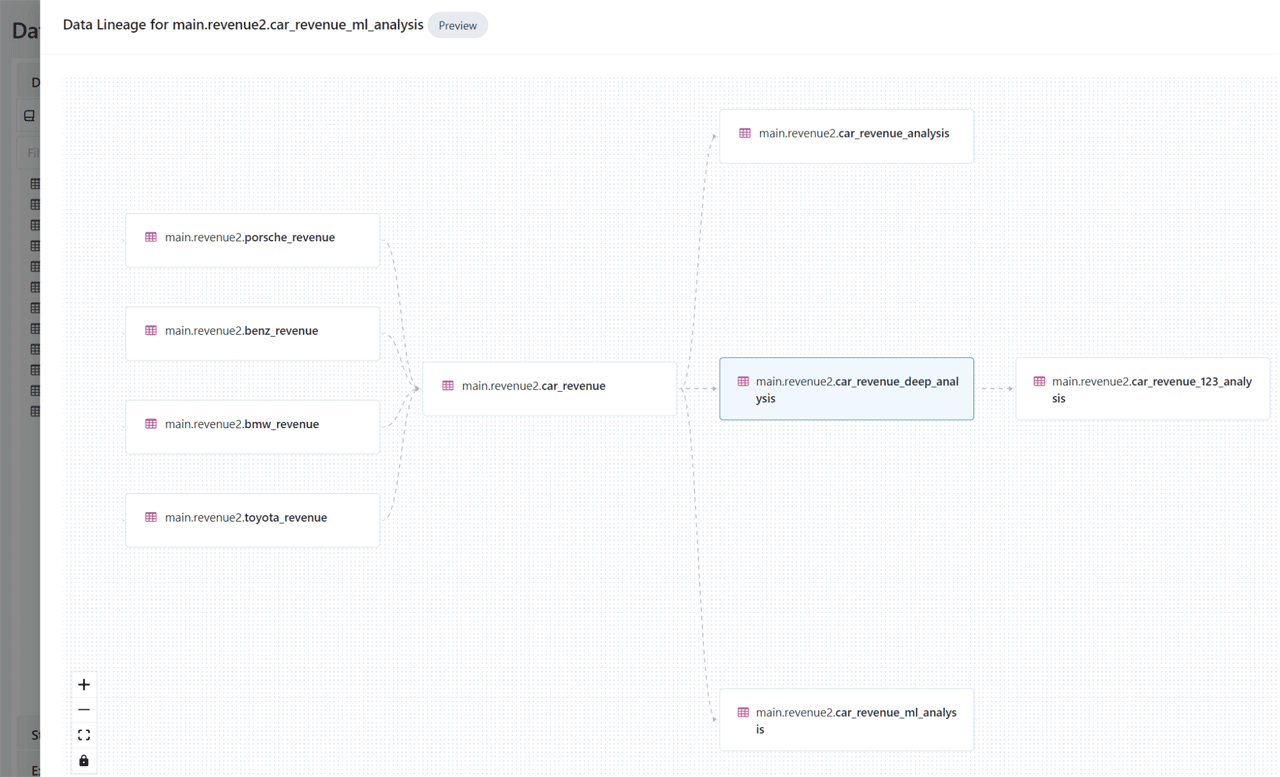
4. Auditing and lineage
Every data access event generates an audit log entry automatically. Unity Catalog also tracks the full lineage of data assets across different languages and workflows, showing how data was created, transformed and consumed. This is table-level and column-level lineage, not just job-level.
5. Open data sharing
Databricks Unity Catalog integrates with open source Delta Sharing, which allows you to securely share data and AI assets across clouds, regions and platforms without relying on proprietary formats or complex ETL processes.

6. Object model
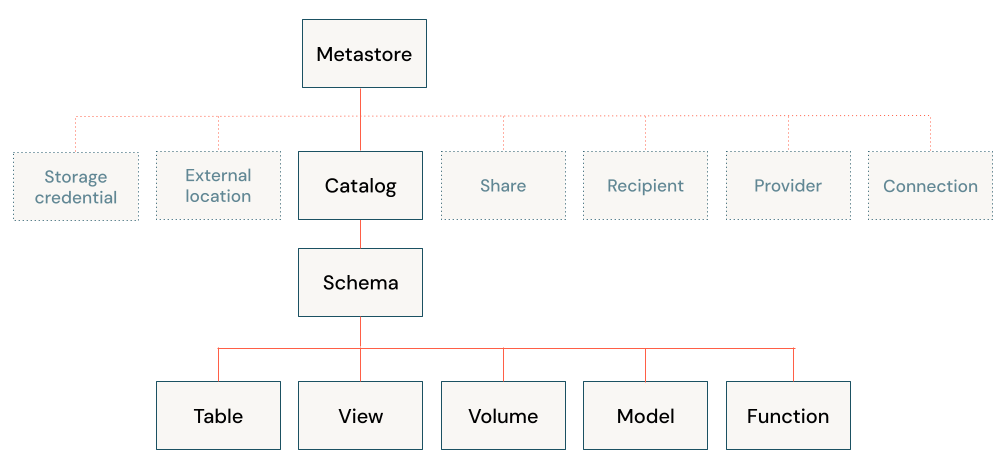
Unity Catalog organizes assets into a hierarchy: Metastore => Catalog => Schema => Tables, Views, Volumes and Models. More on this in the next section.
7. Operational intelligence
Databricks Lakehouse Monitoring, when used alongside Unity Catalog, adds AI-powered monitoring and observability. You get column-level lineage tracking, active alerting, data quality monitoring and comprehensive visibility into asset usage.
Databricks Unity Catalog object model
The object model follows a hierarchy. Here’s how it breaks down:
Metastore is the top-level container for all metadata in Unity Catalog. It exposes the three-level namespace (catalog.schema.table) and holds securable objects, permissions and policies. You get one metastore per cloud region per Databricks account.
Catalog is the first layer of organization. It acts as the primary unit of data isolation. Catalogs typically map to organizational units, data domains or software development lifecycle scopes (e.g., a production catalog vs. a development catalog). There’s also a special hive_metastore catalog, which surfaces data from a legacy workspace-level Hive metastore when you transition to Unity Catalog.
Schema (also called a database) is the second layer. It sits inside a catalog and contains tables, views, volumes and functions.
Tables, views and volumes sit at the lowest level:
- Table: A structured data asset with a defined schema
- View: A virtual table defined by a query
- Volume: A container for non-tabular (unstructured) data files
Models: ML models registered via MLflow Model Registry are also managed as first-class objects within Unity Catalog, sitting at the schema level alongside tables.
To reference any object, you use the three-part naming convention:
<catalog>.<schema>.<object>
Other securable objects like storage credentials, external locations and Delta Sharing shares sit directly under the metastore, outside the three-level namespace.
Supported compute and cluster access modes
Unity Catalog is supported on clusters running Databricks Runtime 11.3 LTS or later. All SQL warehouse compute versions support Unity Catalog by default.
Note: Access mode names were updated in 2024. “Shared access mode” is now called Standard access mode. “Single user access mode” is now called Dedicated access mode. The old names still appear in some documentation but are considered legacy terminology.
Unity Catalog is secure by default. A cluster not configured with Standard or Dedicated access mode cannot access data governed by Unity Catalog.
Supported access modes:
- Standard access mode (formerly Shared): Recommended for most workloads, including multi-user clusters. Supports fine-grained access control with full privilege enforcement.
- Dedicated access mode (formerly Single user/Assigned): Designed for single-principal workloads such as ML jobs, automated pipelines and GPU-accelerated tasks. On Databricks Runtime 15.4 LTS and above, fine-grained access control (row filters, column masks, dynamic views) is fully supported. On Runtime 15.3 and below, these features are not available on Dedicated compute.
Unsupported (legacy) modes:
- No-isolation shared mode: Does not meet Unity Catalog’s security requirements
- Credential passthrough: A legacy mode; also not supported in Unity Catalog
Databricks recommends Standard access mode for the majority of workloads and Dedicated mode only when specific functionality (like ML runtimes or custom libraries) requires it.
Use compute policies to enforce which access modes users can create. All serverless compute and Databricks SQL (DBSQL) warehouses support Unity Catalog without any additional configuration.
Supported regions and data file formats
Unity Catalog is region-aware. Each Databricks account gets one Unity Catalog metastore per cloud region. Workspaces must be in the same region as the metastore to attach to it. Databricks supports Unity Catalog across AWS, Azure and Google Cloud in all standard regions.
Supported data file formats:
| Table type | Supported formats |
| Managed tables | Delta, Apache Iceberg |
| External tables | Delta, CSV, JSON, Avro, Parquet, ORC, Text |
Databricks Unity Catalog vs Hive Metastore: What’s the difference?
Databricks Unity Catalog and Hive Metastore are both metadata management systems, but they serve different purposes and have distinct functionalities within their respective ecosystems. Here’s a table that highlights the key differences between Databricks Unity Catalog and Hive Metastore:
| Feature | Databricks Unity Catalog | Hive Metastore |
| Scope | Centralized, cross-workspace governance within Databricks | Per-workspace or per-Hadoop-cluster metadata repository |
| Data sources | Spark tables, Delta Lake, Iceberg, AWS S3, Azure Blob Storage, ADLS, GCS and more | Primarily Hive tables, HDFS and some external sources |
| Access control | Fine-grained (column/row-level), SQL-based, account-level group policies | Hadoop permissions or external tools like Apache Ranger |
| Data lineage | Built-in, column-level lineage across all workloads | Not natively supported |
| Data sharing | Delta Sharing (open protocol, cross-cloud) | Hadoop permissions or external tooling |
| Integration | Databricks-native; works across all clouds | Hadoop ecosystem; works with Spark, Impala, Ranger |
| Discovery | Searchable catalog UI with tags and metadata | Command-line or direct database interaction |
| Scalability | Built for large-scale, multi-workspace environments | Dependent on underlying metastore database and configuration |
| Audit logging | Automatic, user-level audit logs | Not natively available |
How to create Unity Catalog metastore (AWS)
To create a Databricks Unity Catalog metastore in the AWS cloud environment, follow these prerequisites and steps:
Prerequisites
- A Databricks account on Premium plan or above
- Account admin privileges
- IAM permissions to create resources in your AWS account
- The AWS region selected for your metastore
- An S3 bucket ready (optional, but recommended for managed storage)
Step 1—Configure storage
Create an S3 bucket for managed table storage. This is where Unity Catalog will store managed tables and volumes by default. While Databricks provides default storage, using your own bucket gives you more control over data residency and security policy alignment.
Follow the AWS S3 documentation to Create your first S3 bucket guide if needed.
Step 2—Create an IAM role to access the storage location
Next, create an AWS IAM role to allow Databricks to access the S3 bucket you created in Step 1. This role should have the necessary permissions to read and write data to the bucket.
Follow the AWS IAM documentation to Creating IAM roles guide if needed.
Step 3—Create the metastore and attach a workspace
Finally, create the Unity Catalog metastore in the Databricks account console. To do so:
1. Log in to the Databricks account console as an account admin.
2. Click “Create Metastore“.

3. Provide a name and choose the region. The region must match your workspaces.
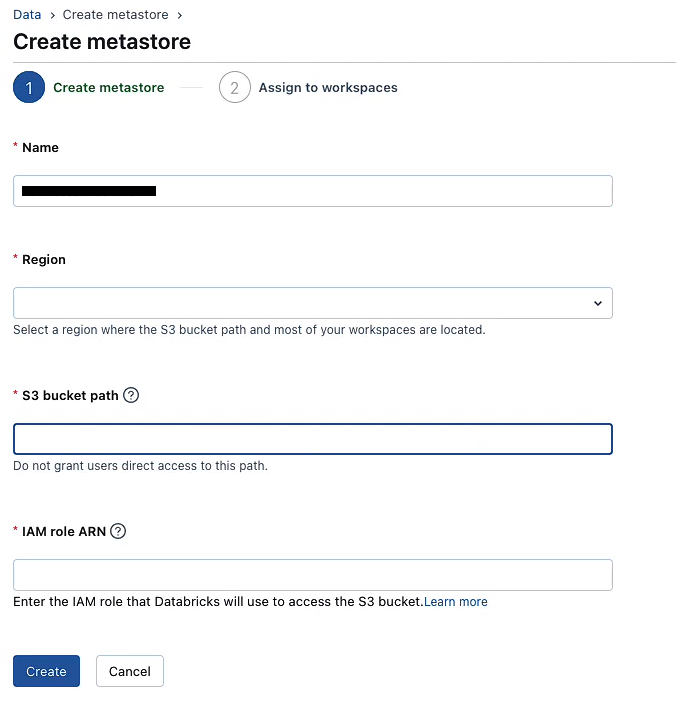
4. Optionally, attach the storage location (S3 bucket and IAM role) you created in Step 1 and 2. This will be the default managed storage for the Metastore.
5. Assign the Metastore to one or more workspaces.

Check out the official Databricks documentation for a full guide on creating a Databricks Unity Catalog Metastore in AWS.
Step-by-step guide to enable your workspace for Databricks Unity Catalog
Follow these step-by-step instructions to enable Databricks Unity Catalog for an existing workspace:
Note: If your workspace was created after November 8, 2023, it’s likely already enabled for Unity Catalog automatically. Check the Workspaces page in your account console to confirm.
Step 1—Log in to the Databricks account
Log in to the Databricks account console as an account admin.
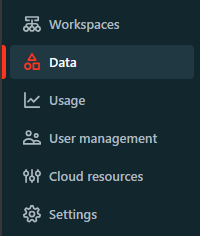
Step 2—Click on “Data” option
Click on the “Data” option in the left-hand navigation panel.
Step 3—Access the metastore
Access the metastore by clicking on the metastore name.

Step 4—Navigate to the Workspaces tab
Within the metastore, head over to the “Workspaces” tab.

Step 5—Assign to workspaces
Click the “Assign to workspaces” button to enable Databricks Unity Catalog on one or more workspaces.
Step 6—Select the workspaces to enable for Unity Catalog
In the “Assign Workspaces” dialog, select one or more workspaces you want to enable for Databricks Unity Catalog.
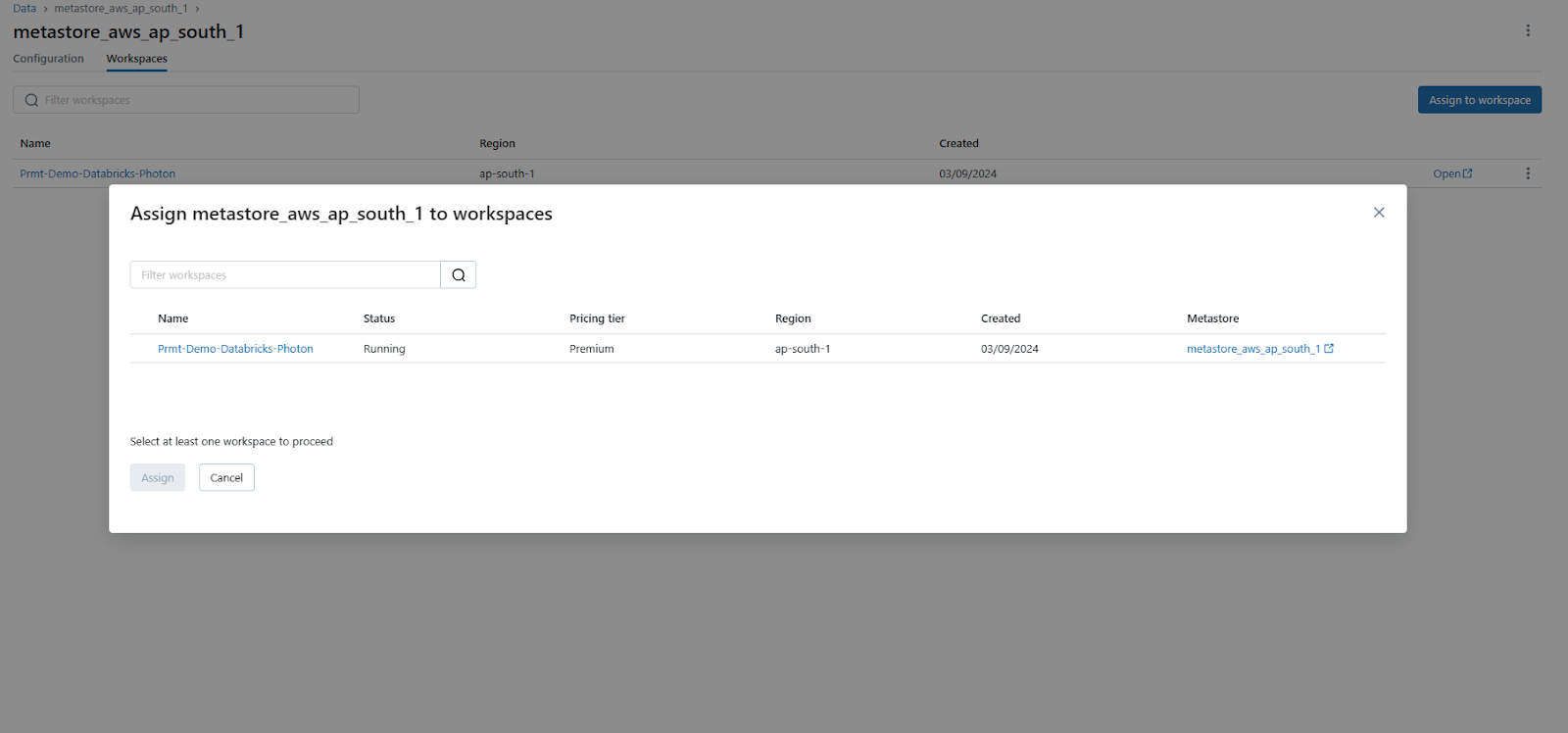
Step 7—Assign and confirm
Click “Assign” and then confirm by clicking “Enable” on the dialog that appears.
Optional—Enable Unity Catalog during workspace creation
If you are creating a new workspace, you can enable Databricks Unity Catalog during the workspace creation process:
1. Toggle the “Enable Unity Catalog” option
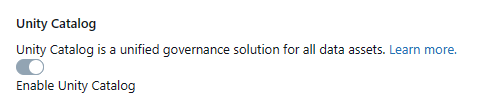
2. Select the metastore you want to associate with the new workspace
3. Confirm by clicking “Enable”
4. Complete the process by providing the necessary configuration settings and clicking “Save“.
Step 8—Confirm the workspace assignment
Confirm the workspace assignment by checking the “Workspaces” tab within the metastore. The workspace(s) you enabled should now be listed.

If you follow these steps thoroughly, you will have successfully enabled Databricks Unity Catalog for your workspace(s), allowing you to take advantage of its governance capabilities within the Databricks ecosystem.
Step-by-step guide to set up and manage Unity Catalog
Setting up and managing Databricks Unity Catalog involves several steps to ensure proper configuration, access control and object management. Here’s a step-by-step guide to help you through the process:
Prerequisites
- Databricks account on Premium plan or above
- Unity Catalog metastore created and associated with your workspace
- Familiarity with SQL and data management concepts
- Appropriate roles: account admin, metastore admin or workspace admin
Step 1—Verify your workspace is Unity Catalog enabled
To verify if your Databricks workspace is enabled for Unity Catalog, sign in to your Databricks account console as an account admin. Click on the Workspaces icon and locate your workspace. Check the Metastore column—if there’s a metastore name listed, your workspace is connected to a Databricks Unity Catalog metastore, indicating Unity Catalog is enabled.

Or
Run a quick SQL query in the SQL query editor or a notebook connected to a cluster:
SELECT CURRENT_METASTORE();If the query result shows a metastore ID, your workspace is attached to a Unity Catalog metastore.
Step 2—Add users and assign roles
Account admins manage users, service principals and account-level groups within the Databricks account console. These account-level identities are used for granting permissions in Unity Catalog. Workspace admins can add users to their specific workspace and manage workspace-local groups, but for Unity Catalog permissions, account-level groups are generally required.
Check out the official Databricks documentation for more information on managing Databricks users.
Step 3—Configure compute for Unity Catalog workloads
Unity Catalog workloads require compute resources like SQL warehouses or clusters. These resources must meet certain security requirements to access data and objects within Unity Catalog. SQL warehouses are always compliant, but cluster access modes may vary.
As a workspace admin, decide whether to restrict compute resource creation to admins or allow users to create their own SQL warehouses and clusters. To ensure compliance, set up cluster policies that guide users in creating Unity Catalog-compliant resources.
See “Supported Compute and Cluster Access Modes of Databricks Unity Catalog” section above for more details.
Step 4—Grant user privileges
To create and access objects in Databricks Unity Catalog catalogs and schemas, users must have proper permissions. Let’s discuss default user privileges and how to grant additional privileges.
Default user access:
- If your workspace was auto-provisioned with a workspace catalog, all workspace users typically have the USE CATALOG privilege on that catalog and often USE SCHEMA on a default schema, allowing them to read and potentially create objects within specific default schemas.
- If your workspace was manually enabled for Unity Catalog, it has a main catalog. Users typically have the USE CATALOG privilege on this main catalog by default, allowing them to discover and work with existing objects but not create new ones initially.
- Some workspaces may not have default catalogs or user privileges set up, requiring explicit grants from a metastore or catalog admin.
Admin privileges:
- Account admins: Can create metastores, link workspaces to metastores, add account-level users/groups and assign the Metastore Admin role.
- Metastore admins: This optional role, assigned by an account admin, has full control over a specific Unity Catalog metastore, including creating catalogs and granting permissions at the metastore level.
- Workspace admins: Manage users and resources within their workspace. Their Unity Catalog privileges are typically limited to objects within their workspace’s assigned catalogs for which they have been explicitly granted permissions by a metastore or catalog owner/admin. They are not automatically metastore admins.
Granting more access:
To allow a user group to create new schemas in a catalog you own, run this SQL command:
GRANT CREATE SCHEMA ON <my-catalog> TO `data-consumers`;Or for the auto-provisioned workspace catalog:
GRANT CREATE SCHEMA ON <workspace-catalog> TO `data-consumers`;You can also manage privileges through the Catalog Explorer UI.
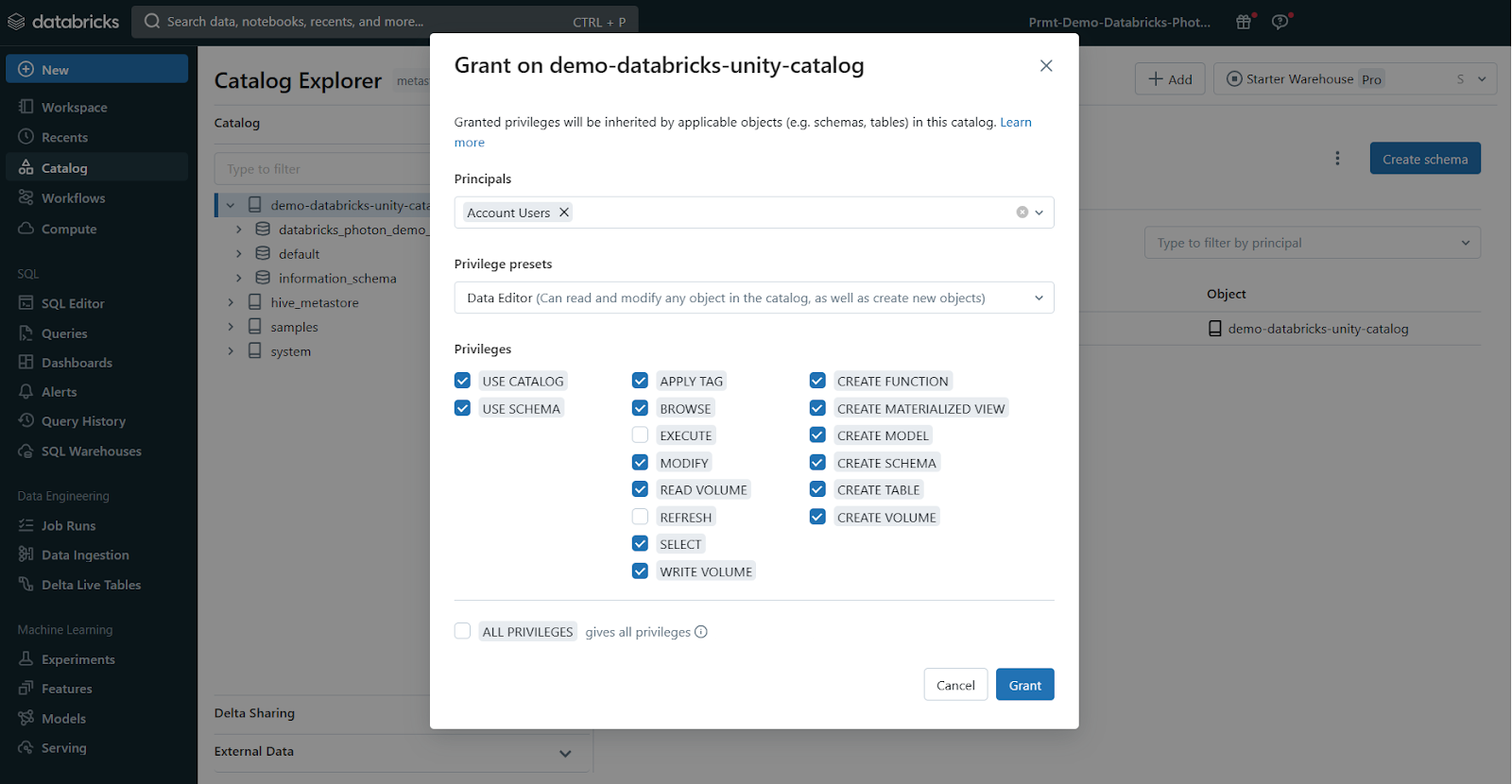
Note: You can only grant Unity Catalog privileges to account-level groups, not workspace-local groups. Make sure your groups are defined at the account level for effective Unity Catalog governance.
Step 5—Create catalogs and schemas
To start using Unity Catalog, you need at least one catalog, which is the primary way to organize and isolate data in Unity Catalog. Catalogs contain schemas, tables, volumes, views and models. Some workspaces don’t have an automatically-provisioned catalog and in these cases, a workspace admin must create the first catalog.
Other workspaces have access to a pre-provisioned catalog that users can immediately use, either the workspace catalog or the main catalog, depending on how Unity Catalog was enabled for your workspace. As you add more data and AI assets to Databricks, you can create additional catalogs to logically group assets, simplifying data governance.
If you follow these steps, you’ll have a well-configured Unity Catalog environment with users, computing resources and a data organization structure ready to go.
Step-by-step guide to creating and managing objects in Unity Catalog
Prerequisites
- Workspace enabled for Unity Catalog
- Access to a SQL warehouse or Unity Catalog-compatible cluster
- USE CATALOG, USE SCHEMA and CREATE TABLE privileges
- Account-level groups configured
A note on the three-level namespace
Unity Catalog organizes objects into three levels: catalogs, schemas and tables (or other objects). Every object reference uses this format:
<catalog>.<schema>.<table>If you have data in your Databricks workspace’s local Hive metastore or an external Hive metastore, it becomes a catalog called hive_metastore and you can access tables like this:
hive_metastore.<schema>.<table>Step 1—Create a Catalog
Create a new catalog using the CREATE CATALOG command with spark.sql. To create a catalog, you must be a metastore admin or have the CREATE CATALOG privilege on the metastore.
CREATE CATALOG IF NOT EXISTS <catalog>;If your workspace was enabled for Databricks Unity Catalog by default, you might need to specify a managed location for the new catalog.
CREATE CATALOG IF NOT EXISTS <catalog> MANAGED LOCATION '<location-path>';Step 2—Set the current catalog and grant permissions
Once your catalog is created, you can set it as the current catalog and grant permissions to other users or groups as needed.
-- Set the current catalog
USE CATALOG <catalog>;

-- Grant permissions to all users
GRANT CREATE SCHEMA, CREATE TABLE, USE CATALOG
ON CATALOG <catalog>
TO `account users`;
Step 3—Create and manage schemas
Next, let’s create schemas (databases) to logically organize tables and views.
-- Create a new schema
CREATE SCHEMA IF NOT EXISTS <schema>
COMMENT "A new Unity Catalog schema called <schema>";

-- Show schemas in the selected catalog
SHOW SCHEMAS;

-- Describe a schema
DESCRIBE SCHEMA EXTENDED <schema>;
Step 4—Create a managed table
Managed tables are the default and recommended way to create tables with Unity Catalog. The table data is stored in the managed storage location configured for the metastore, catalog, or schema and Unity Catalog fully manages its lifecycle.
-- Set the current schema
USE <schema>;

-- Create a managed Delta table and insert records
CREATE TABLE IF NOT EXISTS <table>
	(columnA Int, columnB String) PARTITIONED BY (columnA);

INSERT INTO TABLE <table>
VALUES
  (1, "one"),
  (2, "two"),
  (3, "three"),
  (4, "four"),
  (5, "five"),
  (6, "six"),
  (7, "seven"),
  (8, "eight"),
  (9, "nine"),
  (10, "ten");

-- View all tables in the schema
SHOW TABLES IN <schema>;

-- Describe the table
DESCRIBE TABLE EXTENDED <table>;
Step 5—Drop a table
Drop a managed table using the DROP TABLE command. This removes the table and its underlying data files. For external tables, dropping the table removes the metadata but leaves the data files untouched.
-- Drop the managed table
DROP TABLE <catalog>.<schema>.<table>
Databricks Unity Catalog Example
Step 6—Manage permissions on data (optional)
Lastly, use GRANT and REVOKE statements to manage access to your data. Unity Catalog is secure by default, so access isn’t automatically granted. Metastore admins and data object owners can control access for users and groups.
-- Grant USE SCHEMA privilege on a schema
GRANT USE SCHEMA
ON SCHEMA <schema>
TO `account users`;

-- Grant SELECT privilege on a table
GRANT SELECTON TABLE <schema>.<table>
TO `account users`;

-- Show grants on a table
SHOW GRANTS
ON TABLE <catalog>.<schema>.<table>;

-- Revoke a privilege
REVOKE SELECT
ON TABLE <schema>.<table>
FROM `account users`;
Well, that’s all for now! I hope this guide has given you a solid starting point for exploring Databricks Unity Catalog.
How to control access to data and objects in Unity Catalog
Unity Catalog’s access control model has several layers worth understanding:
Admin privileges
- Account admins have the highest-level control. They create metastores, link workspaces and assign the Metastore Admin role.
- Metastore admins (optional, assigned by an account admin) have full control over a specific metastore, including all catalogs and their permissions.
- Workspace admins manage users and compute within their workspace. Their Unity Catalog privileges are limited to what’s been explicitly granted by a metastore or catalog admin.
Object ownership
Every securable object (catalog, schema, table, view, volume, function) has an owner. By default, the creator becomes the owner. Owners have full privileges on their objects and can grant access to others.
Privilege inheritance
Permissions flow downward through the hierarchy. Granting a privilege at the catalog level automatically applies it to all schemas, tables and views within that catalog. This makes it easy to set broad access policies at the top and refine them lower down.
Basic object privileges
Use standard SQL GRANT and REVOKE statements:
GRANT SELECT ON TABLE <catalog>.<schema>.<table> TO `<group>`;

REVOKE SELECT ON TABLE <catalog>.<schema>.<table> FROM `<group>`;
Transferring ownership
ALTER TABLE <catalog>.<schema>.<table> OWNER TO <user_or_group>;
You can also do this through the Catalog Explorer UI.
External locations and storage credentials
For data in external cloud storage (S3, ADLS Gen2, GCS), configure external locations and storage credentials in Unity Catalog. This establishes a governed pathway so Databricks can access external data without bypassing Unity Catalog controls.
Dynamic views for row and column-level security
Dynamic views let you filter or mask data at the row or column level based on the querying user’s identity. For example:
CREATE VIEW <catalog>.<schema>.<view_name> AS

SELECT

  user_id,

  CASE WHEN is_account_group_member('sensitive-data-team')

    THEN email

    ELSE 'REDACTED'

  END AS email

FROM <catalog>.<schema>.<table>;
This is how you implement column-level masking for personally identifiable information (PII) without duplicating datasets.
Databricks Unity Catalog best practices
To maximize the benefits of Databricks Unity Catalog and ensure efficient and secure data governance, follow these best practices:
1. Catalogs as isolation units
Use catalogs as your primary unit of isolation. Separate production from non-production, sensitive from non-sensitive and data from different organizational units into distinct catalogs.
2. Storage isolation
Configure separate managed storage locations at the catalog or schema level when regulatory or corporate policies require physical data boundaries.
3. Workspace boundaries
Bind specific catalogs to specific workspaces to restrict data access to authorized compute environments.
4. Use group ownership
Always assign ownership to groups, not individuals. When someone leaves or changes roles, group-based ownership prevents access gaps or accidental data lockouts.
5. Leverage inheritance
Grant coarse-grained permissions at the catalog or schema level, then apply more restrictive permissions lower in the hierarchy. Avoid one-off table-level grants wherever possible—they become a maintenance burden at scale.
6. Attribute-based access control (ABAC)
Use dynamic views with is_account_group_member() for advanced access scenarios that go beyond role-based controls. ABAC lets you filter data based on a user’s group membership or other attributes from the identity provider.
7. Column and row security
Use dynamic views to implement column masking and row filtering for sensitive data. Higher-privileged users can query the base table directly, while others see the filtered view.
8. External location boundaries
Limit external location creation to a small set of administrators. Unrestricted external location access can bypass Unity Catalog controls entirely.
9. Standard access mode by default
Configure clusters with Standard access mode unless there’s a specific technical reason to use Dedicated mode. Use compute policies to enforce this across your workspace.
10. Audit and monitor
Deliver Databricks audit logs (including Unity Catalog audit events) to your centralized security monitoring system. In addition to access events, watch for unusual patterns of CREATE, ALTER or DROP operations on catalogs, schemas and tables.
11. Delta Sharing for collaboration
When sharing data across teams, domains or external partners, use Delta Sharing rather than granting direct cross-workspace access. It keeps data governance controls intact.
Limitations of Databricks Unity Catalog
Databricks Unity Catalog offers comprehensive data management capabilities, but it’s essential to understand its limitations to plan your implementation accordingly. Here are some key limitations:
- Older databricks runtimes. Clusters on Databricks Runtime below 11.3 LTS don’t support Unity Catalog features fully. Upgrade to 11.3 LTS or later, and to 15.4 LTS or later if you need fine-grained access control on Dedicated mode compute.
- Shallow clone version requirements. Managed-to-managed shallow clones require Databricks Runtime 13.3 LTS or above. External-to-external shallow clones require Runtime 14.2 or above. You can’t shallow clone a managed table to an external table or vice versa.
- No bucketing. Unity Catalog doesn’t support bucketing. Attempting to create a bucketed table throws an exception.
- Multi-region writes. Writing to the same path or Delta table from workspaces in multiple regions can cause reliability issues if some clusters access Unity Catalog and others don’t. Maintain consistency across your cluster configurations.
- No custom partition schemes. Unity Catalog doesn’t support ALTER TABLE ADD PARTITION. Directory-style partitioning is still accessible.
- Overwrite mode for non-Delta formats. Overwrite mode for DataFrame writes is only supported for Delta tables. For other formats, it’s not available.
- Python UDFs. Python scalar UDFs are supported on Databricks Runtime 13.2 and above. Other Python UDFs (UDAFs, UDTFs, Pandas on Spark) are not supported on Runtime 13.1 and below.
- Scala UDFs on Standard mode clusters. Scala scalar UDFs require Databricks Runtime 14.2 or above on Standard access mode clusters.
- Workspace-level groups in GRANT statements. You cannot use workspace-local groups in Unity Catalog GRANT statements. Use account-level groups only.
- Object name constraints:
- Names cannot exceed 255 characters
- Periods, spaces, forward slashes, ASCII control characters (00-1F hex) and the DELETE character (7F hex) are not allowed
- Unity Catalog stores all object names in lowercase
- Use backticks to escape names with special characters like hyphens
- Column name case sensitivity. Column names preserve case but queries against Unity Catalog tables are case-insensitive. Use backticks in SQL if column names include special characters.
- S3 external location writes. Grant write access on a table backed by an external S3 location only if that external location is defined in a single metastore. Concurrent writes from multiple metastores to the same S3 path can cause consistency issues. Reading from a single external S3 location across multiple metastores is fine.
Don’t forget to check the official documentation for more advanced topics and scenarios.
Save up to 50% on your Databricks spend in a few minutes!
Conclusion
And that’s a wrap! We’ve covered the ins and outs of Databricks Unity Catalog, exploring its architecture, features and how it fits into the world of data governance. Unity Catalog serves as a powerful tool for centralizing and managing data assets, making data discovery, access control and collaboration a breeze for organizations.
Here are some key things to take away from this guide:
- Unity Catalog uses a three-level hierarchy (metastore, catalog, schema) and ANSI SQL for permissions
- Access modes were renamed in 2024: Shared is now Standard, Single User is now Dedicated
- Managed tables support both Delta and Iceberg formats
- New workspaces are automatically Unity Catalog-enabled since November 2023
- The open-source version (Apache 2.0) is available on GitHub under LF AI & Data
FAQs
What is Databricks Unity Catalog?
Databricks Unity Catalog is the unified governance layer for the Databricks Data Intelligence Platform. It centralizes access control, auditing, data lineage and discovery for structured data, unstructured data, ML models, notebooks, dashboards and files across any cloud and workspace.
How does Unity Catalog differ from Hive Metastore?
Unity Catalog is account-wide and cross-workspace. Hive Metastore is workspace-local and built for Hadoop-era environments. Unity Catalog adds built-in lineage, fine-grained access control (including column/row-level security), Delta Sharing and audit logging that Hive Metastore doesn’t support natively.
What are the supported access modes for Unity Catalog?
Standard access mode (formerly Shared) and Dedicated access mode (formerly Single User/Assigned). No-isolation shared and credential passthrough modes are legacy modes that don’t support Unity Catalog.
What data formats are supported for managed tables?
Managed tables support Delta and Apache Iceberg formats. External tables support Delta, CSV, JSON, Avro, Parquet, ORC and Text.
How do you enable an existing workspace for Unity Catalog?
Navigate to the Databricks account console, open your metastore, go to the Workspaces tab and click Assign to workspaces. New workspaces created after November 8, 2023 are automatically enabled.
Is Unity Catalog open source?
Yes. Databricks open-sourced Unity Catalog in June 2024 under the Apache 2.0 license. The open-source implementation is hosted by LF AI & Data Foundation and available on GitHub at github.com/unitycatalog/unitycatalog.
What is the Unity Catalog object model?
The hierarchy is: Metastore => Catalog => Schema => Tables, Views, Volumes and Models. Objects like storage credentials, external locations and Delta Sharing shares sit directly under the metastore outside the three-level namespace.
Can you use workspace-level groups for Unity Catalog permissions?
No. Unity Catalog GRANT statements only work with account-level groups. Workspace-local groups cannot be used.
What’s the syntax for referencing a table in Unity Catalog?
Use the three-part format: <catalog>.<schema>.<table>. For Hive metastore data, use hive_metastore.<schema>.<table>.
Can you transfer ownership of Unity Catalog objects?
Yes. Use ALTER <object> OWNER TO <user_or_group> in SQL or use the Catalog Explorer UI.
How does Unity Catalog help with GDPR and HIPAA compliance?
Unity Catalog provides column-level masking, row-level filtering, fine-grained access control, automated audit logs and end-to-end data lineage. These controls help organizations implement least-privilege data access policies, demonstrate data handling accountability and respond to regulatory audit requests.
What is Delta Sharing in Unity Catalog?
Delta Sharing is an open protocol built into Unity Catalog for securely sharing data and AI assets across clouds, regions and organizations. Recipients don’t need to be on Databricks. Data is shared in open formats without ETL or data duplication.
Does Unity Catalog support Apache Iceberg?
Yes. As of 2025, Unity Catalog supports Apache Iceberg natively, including as a managed table format. It also supports the Iceberg REST Catalog API, so Iceberg-compatible clients can query data governed by Unity Catalog directly.
What are system tables in Unity Catalog?
System tables are operational data tables exposed by Unity Catalog that contain audit logs, billable usage data and lineage information. They’re generally available (GA) and queryable from Databricks SQL using the system catalog.
What is the minimum Databricks Runtime for Unity Catalog?
Databricks Runtime 11.3 LTS is the minimum for general Unity Catalog support. For fine-grained access control (row filters, column masks, dynamic views) on Dedicated access mode clusters, Databricks Runtime 15.4 LTS or above is required.
Pramit Marattha
Pramit Marattha is a technical content writer and strategist with 5+ years of experience covering AI, data engineering, data cloud platforms and open source technologies. He turns complex technical concepts into clear, useful content for engineers and developers.







