


Databricks SQL is a cloud-native data warehouse experience built on the lakehouse architecture. In other words, you get a unified platform for BI and analytics without wrestling with cluster setup. Behind the scenes it leverages the scalability and flexibility of cloud platforms like Azure, AWS and GCP. You can forget about manually configuring clusters and resources as you would when configuring all-purpose compute clusters or job compute clusters. Instead, focus on querying data without worrying about the underlying infrastructure. Databricks SQL helps you effortlessly run SQL queries, create interactive visualizations and build intuitive dashboards to unlock the full potential of your data.
In this article, we will cover everything you need to know about what Databricks SQL has to offer, including an in-depth exploration of its features, capabilities and best practices. We’ll also provide a detailed, step-by-step tutorial on creating your own Databricks SQL warehouse and much more!!
What is Databricks SQL?
Databricks SQL (aka DBSQL) is the analytics layer of the Databricks Lakehouse Platform. It lets you run ANSI-compliant SQL queries and BI/ETL workloads directly on data in the lakehouse. You get the flexibility and cost-efficiency of a data lake (via Delta Lake) and the familiar governance and performance of a data warehouse.
A key advantage of Databricks SQL is the fully managed compute for analytics. Instead of launching Spark clusters and configuring them, you create a SQL warehouse (compute endpoint) and start querying. Databricks handles auto-provisioning and scaling of compute. This pay-as-you-go model means you get good performance and only pay for actual use. Databricks even touts a modern vectorized engine called Photon (written in C++), which can deliver up to 12× higher price/performance than conventional cloud warehouses. Photon is tuned for fast analytics on large datasets and it’s one of the reasons Databricks SQL can be so efficient.
Here’s what makes Databricks SQL stand out:
- Serverless architecture. You don’t manage VMs or clusters. A SQL warehouse (serverless or provisioned) auto-scales with query load.
- Lakehouse storage. Your tables live on Delta Lake (open Parquet-based storage with transactions). You get a unified data repository (raw, cleaned, modeled all in one place) without extra copies.
- Unified governance. Databricks Unity Catalog provides a single security and governance layer. It automatically enforces access policies on every query, tracks data lineage, and logs audit info. In practice this means all teams work in one catalog of data assets, with row/column filters and sharing enabled enterprise-wide.
- Open formats and APIs. Delta Lake is an open format, and Databricks SQL works with any tool that speaks SQL or JDBC/ODBC. There is no vendor lock-in – you can even use the open Delta Sharing protocol to share tables externally.
- Extreme performance. Photon’s vectorized engine is tuned for cloud hardware. Databricks reports up to 12× improvements on typical BI queries. Other optimizations – like automatic file reorganization and intelligent caching – mean queries fly.
- Rich ecosystem. Databricks SQL plugs into popular data tools. You can ingest data with Fivetran, transform it with dbt, and visualize with Power BI, Tableau or Looker. The SQL UI supports direct connectors to these tools, so analysts use the software they know.
- Unified analytics. No more silos. Analysts can run SQL and then call ML notebooks in the same workspace. You move seamlessly from BI dashboards to predictive models on the same tables.
- AI-driven optimizations. Under the hood, Databricks SQL adds smart features like predictive I/O (using ML to prefetch just the data needed) and liquid clustering (adaptive data clustering) to speed up queries. The platform even automatically runs OPTIMIZE, VACUUM, and ANALYZE on your tables so that files stay the right size and statistics stay updated.
Databricks SQL pricing
Databricks SQL uses a consumption model based on Databricks Units (DBUs) for compute usage. Pricing depends on the warehouse type (Classic, Pro or Serverless) and your cloud/provider. For example, on AWS or Azure or GCP the premium plan currently starts at:
| Plan type | Base rate per DBU (USD) |
| SQL Classic | $0.22 |
| SQL Pro | $0.55 |
| SQL Serverless | $0.70 |
These are starting rates – your actual cost will vary by region, cloud, and whether you use the latest serverless features.
In general, Serverless is more expensive per-DBU, but it can spin to zero when idle so you pay only for active queries. Always check the Databricks pricing page for the latest DBU rates and any volume discounts.
How Databricks SQL handles large datasets?
Databricks SQL is an integral part of the Databricks Lakehouse platform. To understand how it works, we’ll first explore the architecture of Databricks Lakehouse Platform.
The Lakehouse Platform combines the best features of data warehouses and data lakes, enabling teams to extract valuable insights from raw data quickly. Its key strength lies in handling batch processing and data streaming, making it versatile for various use cases. Plus, it facilitates the transition from descriptive to predictive analytics, empowering data teams to uncover deeper insights with ease.
The platform offers the reliability of traditional data warehouses, such as ACID transactions and robust data governance (via Delta Lake and Unity Catalog), while retaining the adaptability and cost-effectiveness of data lakes. As a result, data teams can benefit from both the trustworthiness of data warehouses and the flexibility of data lakes.
Databricks SQL itself is built on Apache Spark’s query engine in a specialized way. When you run a SQL query, Databricks scales out Spark clusters behind the scenes (if needed) to scan data in parallel across many nodes. This massively parallel processing lets you crunch trillions of rows efficiently. Because Spark can read columnar Parquet files directly, Databricks SQL can push computation down to the file scan step, skipping unneeded columns or partitions.
Thanks to the Photon engine and other optimizations, Databricks SQL avoids the performance penalties you might see if you just ran raw Spark SQL. As queries run, the engine automatically prunes files based on predicates (skipping unneeded data) and uses caching and I/O prefetch to cut latency. In practice, this means queries on large fact tables or event logs run much faster than they would on a vanilla Spark cluster.
Key benefits of Databricks SQL
Databricks SQL offers a wide range of benefits that make it a compelling choice for organizations looking to unlock the full potential of their data. Here are some of the key advantages of using Databricks SQL:
- Serverless and cost-effective: You don’t have to manage clusters or servers for BI workloads. You can create a serverless SQL warehouse and let Databricks handle all scaling. That means no idle clusters sitting around to bill you. Compared to running a fixed-size cloud data warehouse, you typically get better utilization and lower total cost.
- Unified data governance: You define tables on Delta Lake once and consume them everywhere. Instead of moving data into separate silos, you point all tools to the same lakehouse. Unity Catalog then enforces security and governance for any tool or user accessing the data. This avoids costly data duplication and inconsistencies. As a bonus, since Delta Lake is open, you’re not locked into proprietary formats – you own your data.
- Seamless tool integrations: Databricks SQL plugs in to the rest of your stack. For ingest, you can use platforms like Fivetran or Spark jobs to get data into cloud storage. For transform, you can use dbt or native Spark jobs. For BI, any SQL-compatible tool (Power BI, Tableau, Looker, Chartio, etc.) can connect directly to a SQL warehouse on Databricks. The data stays put in Delta; no EXPORT/IMPORT steps are needed.
- Unified analytics (BI + ML): With Databricks, the same data and compute can serve dashboards and models. Analysts get fresh data for dashboards without waiting on pipelines. Data scientists can use Spark or MLflow on the same tables without rebuilding ETL to a separate database. In short, you break down silos between BI and data science.
- Advanced query optimizations: Databricks SQL comes with multiple performance features. It uses predictive I/O (machine learning–driven prefetching) to skip unnecessary file reads. It supports liquid clustering, which automatically reorganizes data around your query patterns. It has a sophisticated result cache that stores repeated query outputs. And with predictive optimization, Databricks will automatically run maintenance commands (OPTIMIZE, VACUUM, ANALYZE) for you to keep data layout optimal. You get a lot of low-maintenance speed-up without manual tuning.
- Open standards: All data lives in open formats (Delta Lake, Parquet) and you use standard APIs. Databricks does not lock your data away. You can always query Delta tables from open-source engines or share data via Delta Sharing if needed.
Key features and tools in Databricks SQL
Databricks SQL offers a comprehensive suite of features and tools designed to streamline data analytics workflows and empower users with powerful insights. Here are some of the key features and tools provided by Databricks SQL:
1. SQL Editor
The Databricks SQL Editor is an interactive interface designed to facilitate the process of writing, executing and managing SQL queries. It shows your database schema on the side, lets you browse tables, and supports multiple tabs. You can share queries with teammates or pin query shortcuts. Recently (Jan 2025), Databricks rolled out a new charting engine in the SQL UI; it has faster rendering and richer color schemes for visuals.
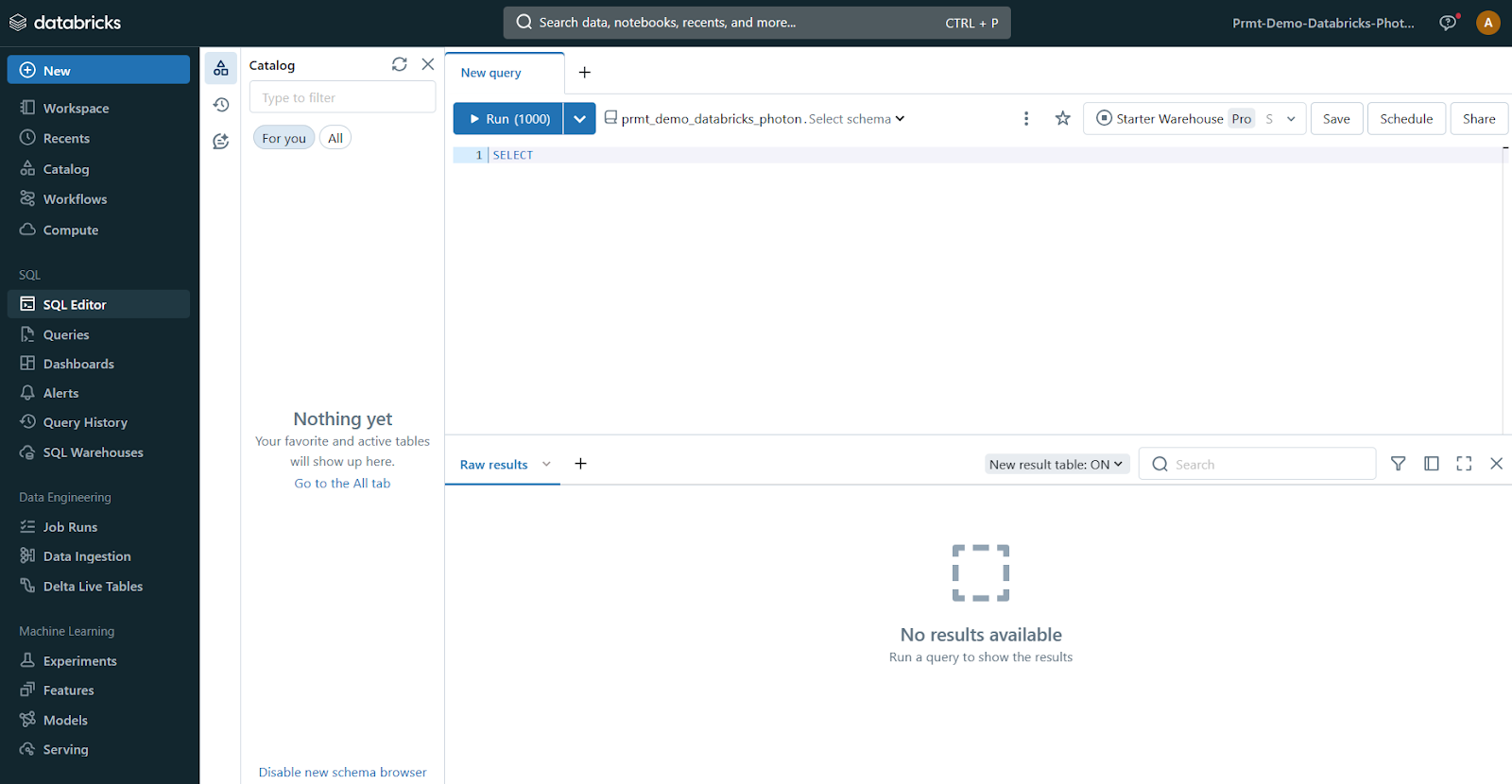
Databricks SQL’s editor makes it easy to write and run queries on your lakehouse data. The updated chart system (released Jan 2025) means visualizations drawn from these queries run more smoothly and look nicer.
2. Dashboards
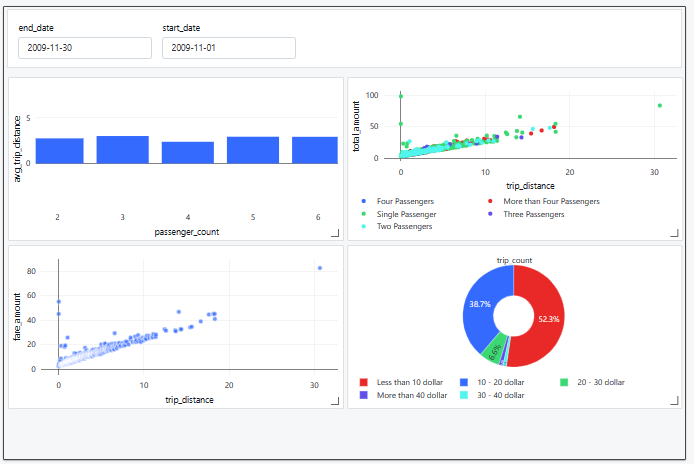
Databricks SQL enables users to create dynamic and interactive dashboards for data visualization and storytelling. These are web dashboards that refresh with the latest query results on a schedule. You drag query results and visualizations onto a dashboard canvas, arrange charts and filters, and set parameters. Dashboards are interactive (you can add filters or drill-down) and can be shared with other analysts. This makes it simple to turn raw queries into compelling BI reports.
3. Alerts
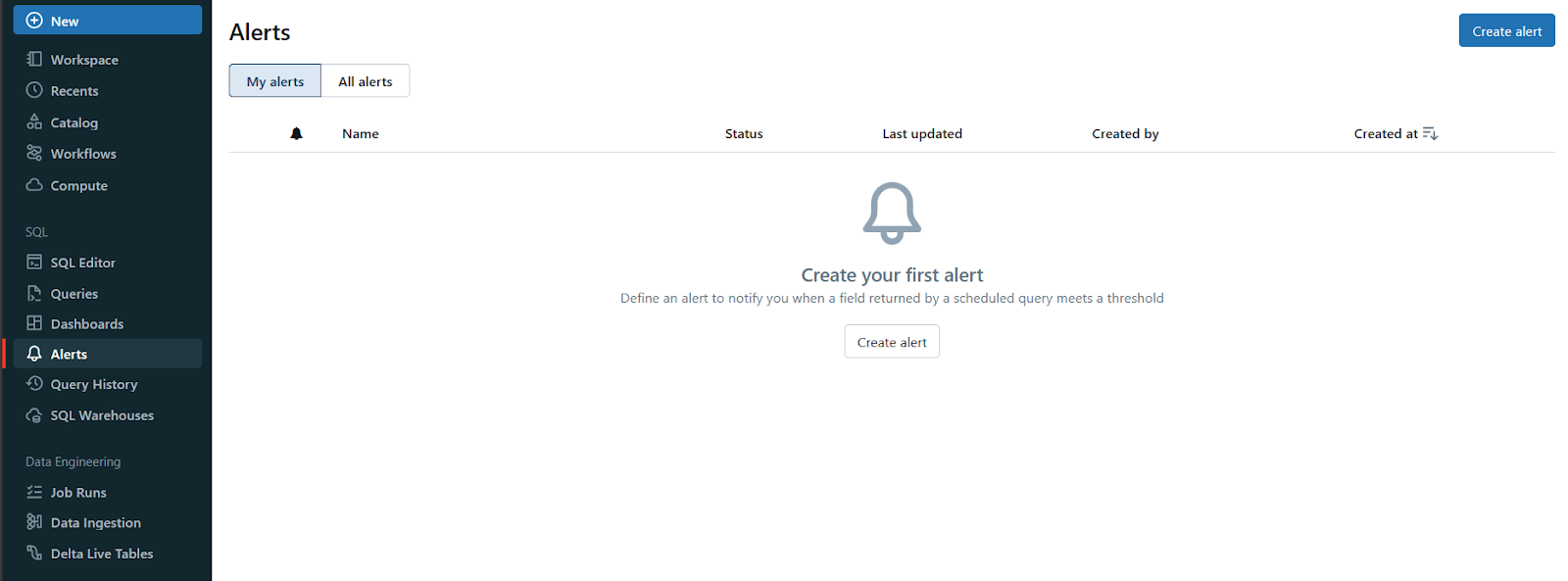
Using Databricks SQL, users can set up alerts to monitor their data and receive notifications when specific conditions are met. These alerts can be based on thresholds, data anomalies, or any other predefined criteria. This feature enables active monitoring and timely response to critical events or changes in the data.
4. Query history and profiling
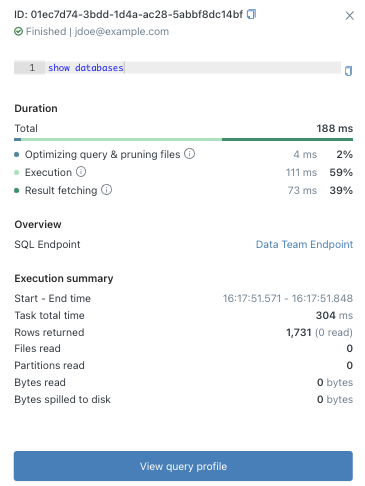
Every time you run a query in a SQL warehouse or editor, Databricks logs it. The Query History pane shows the last 30 days of queries (by default), including runtimes and data scanned. You can filter by user or warehouse and see SQL text and runtime. For each completed query, you can open the query profile (execution plan) to see detailed stats (e.g. which operators took time). This helps us pinpoint slow queries or optimize performance. (Note: by default Databricks retains history for 30 days and then purges it.)
5. SQL warehouses
The core compute in Databricks SQL is called a SQL warehouse. Think of it as a cluster optimized for SQL workloads. When you create or start a SQL warehouse, you choose its type (Serverless, Pro or Classic) and size. These warehouses auto-scale to match your queries, and they handle queueing if many people run queries simultaneously. You can start/stop, clone or autoscale them from the UI or API.
On top of these core features, Databricks SQL integrates seamlessly with a wide range of popular tools and technologies, enabling users to leverage their existing skill sets and workflows. Some notable integrations are:
- dbt Integration: Databricks SQL supports integration with dbt (Data Build Tool), a popular open-source tool for data transformation and modeling. This integration allows data engineers and analysts to leverage dbt’s powerful transformation capabilities within the Databricks SQL environment, streamlining the data pipeline process.
- Fivetran Integration: Fivetran is a widely-used data integration platform and its integration with Databricks SQL simplifies the process of ingesting data from various sources, including databases, SaaS applications and cloud storage services. This integration ensures that users have access to the most up-to-date and comprehensive data for their analytics workloads.
- Business Intelligence (BI) tool integrations: Databricks SQL seamlessly integrates with popular business intelligence tools like Power BI and Tableau. This integration helps analysts leverage their preferred BI tools to discover new insights based on the data stored and processed within the Databricks Lakehouse.
Databricks SQL warehouses types
A Databricks SQL warehouse is a computing resource that allows you to execute SQL commands on SQL data objects. It is part of the computational resources that DBSQL utilizes. The SQL warehouse is designed to handle SQL queries and data manipulation tasks efficiently. It is built on the lakehouse architecture, which enables it to scale up and down as needed to accommodate varying workloads.
Databricks SQL offers three types of SQL warehouses: Serverless, Pro and Classic.

Each warehouse type is available to address specific performance needs and budgets, allowing you to find the perfect fit for your unique requirements.
1. Serverless Databricks SQL warehouses
Serverless Databricks SQL warehouses are fully managed by Databricks. They auto-scale to zero when idle and back up to workload instantly. Serverless warehouses support all of Databricks SQL’s advanced features: the Photon engine, Predictive I/O, Intelligent Workload Management, Predictive Query Execution, vectorized shuffle, etc. They typically start up very quickly (2–6 seconds) and can handle highly bursty workloads without manual tuning. In practice, serverless is the top choice for most BI and ETL workloads, since it delivers peak performance with minimal ops effort.
2. Pro Databricks SQL warehouses
Pro Databricks SQL warehouses are user-managed clusters (your cloud account holds the VMs) but tuned for SQL. Pro warehouses support Photon and Predictive I/O (for faster reads), but they do not include the built-in workload management features of serverless. They also start more slowly (on the order of minutes, not seconds). You might use a Pro warehouse if your region doesn’t support serverless yet, or if you need to access on-prem or VPC-restricted data via a managed VNet. Otherwise, Pro offers similar performance to serverless when warm, but you lose some agility.
3. Classic Databricks SQL warehouses
Classic Databricks SQL warehouses are the legacy option. They support the basic Photon engine but none of the new predictive features. They also use user-managed clusters and start on the order of several minutes. Classic is entry-level – good for simple data exploration queries with a few users. Because they lack auto-scale and AI optimizations, Classic warehouses tend to be less performant. We generally recommend Serverless whenever possible.
Each warehouse type has its place, but overall the trend is toward serverless as the default. (In fact, Databricks will default to a serverless warehouse in new workspaces or regions that support it.) If you do use Pro or Classic, make sure to size the cluster appropriately for your concurrency.
Step-by-step guide to create Databricks SQL warehouse
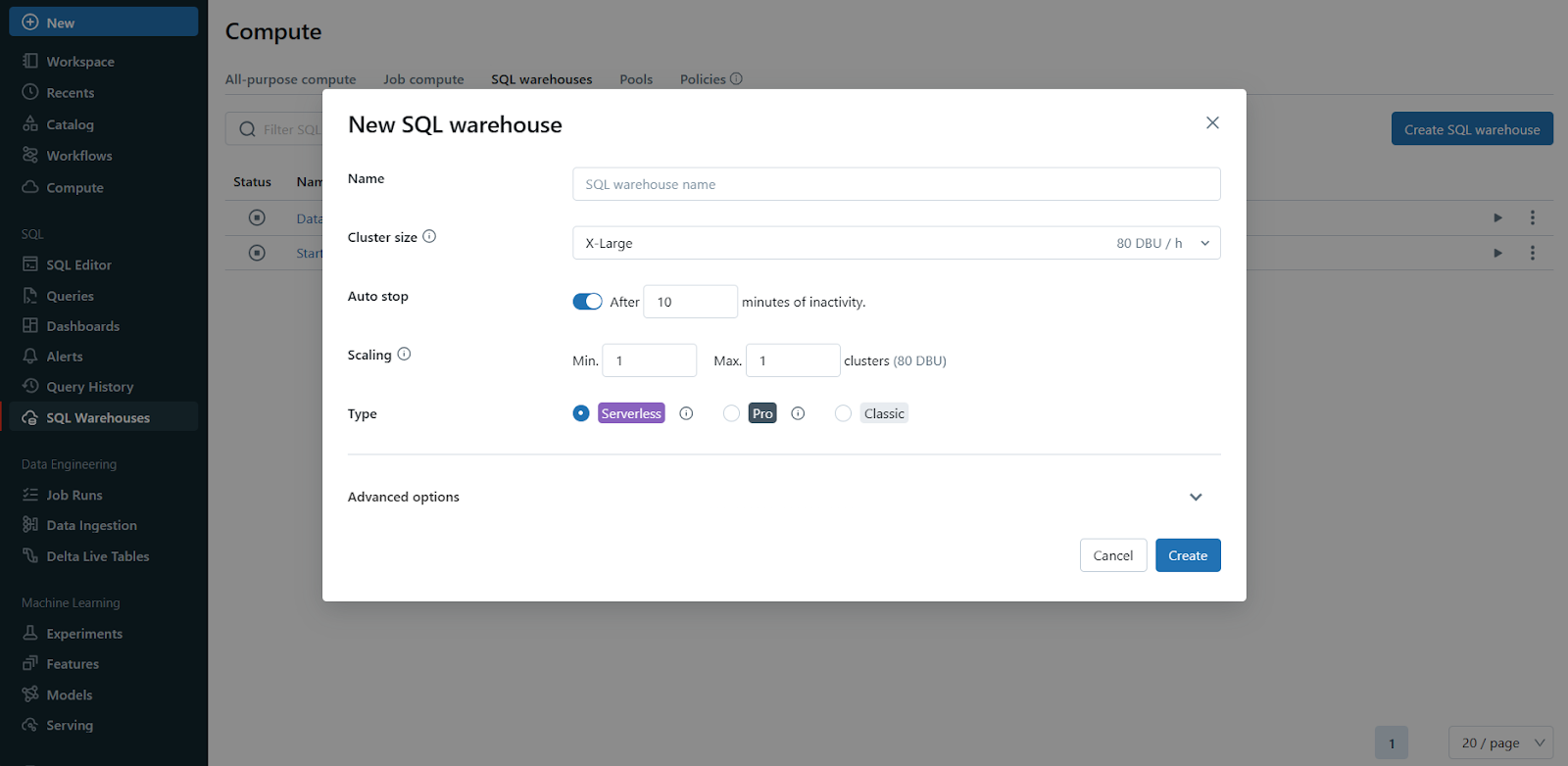
Creating a Databricks SQL warehouse is a straightforward process that can be accomplished through the Databricks web UI or programmatically. In this section, we’ll walk through the step-by-step process of creating a SQL warehouse using the web UI.
Prerequisite
- To create an SQL warehouse, you must be a workspace admin or a user with unrestricted cluster creation permissions.
- Make sure that serverless SQL warehouses are enabled in your region/workspace
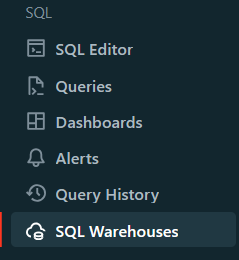
Step 1—Navigate to SQL warehouses
Click on the “SQL Warehouses” option in the sidebar of your Databricks workspace. This will take you to the SQL Warehouse management page.
Step 2—Initiate warehouse creation
On the SQL Warehouses page, you’ll find a “Create SQL Warehouse” button. Click on it to initiate the process of creating a new SQL warehouse.

Step 3—Name the Databricks SQL warehouse
You’ll be prompted to provide a name for your new SQL warehouse. Choose a descriptive and meaningful name that will help you identify the warehouse easily.
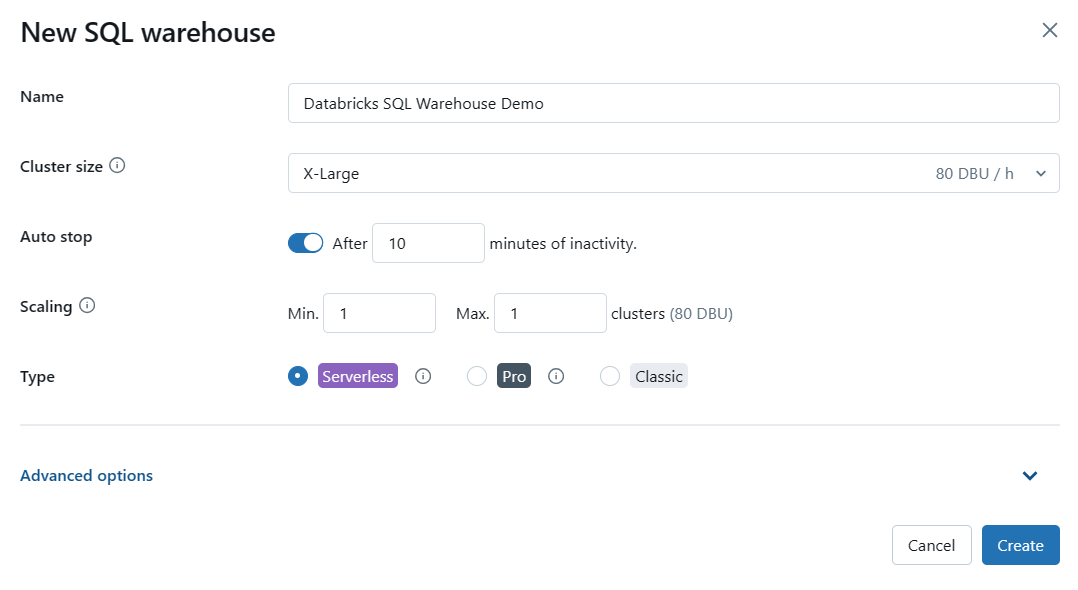
Step 4—Configure Databricks SQL warehouse settings (optional)
This step is optional, but you can configure various settings for your SQL warehouse based on your requirements. Some of the settings you can modify include:
- Cluster size: This represents the size of the driver node and the number of worker nodes. Larger sizes might make your queries run faster, but they also increase costs.
- Auto stop: This determines whether the warehouse will automatically stop if it remains idle for a specified number of minutes, helping you save costs.
- Scaling: This sets the minimum and maximum number of clusters that will be used for queries. More clusters can handle more concurrent users.
- Type: This specifies the type of Databricks SQL warehouse (serverless, pro, or classic) based on your performance needs and availability.
Step 5—Configure advanced options (optional)
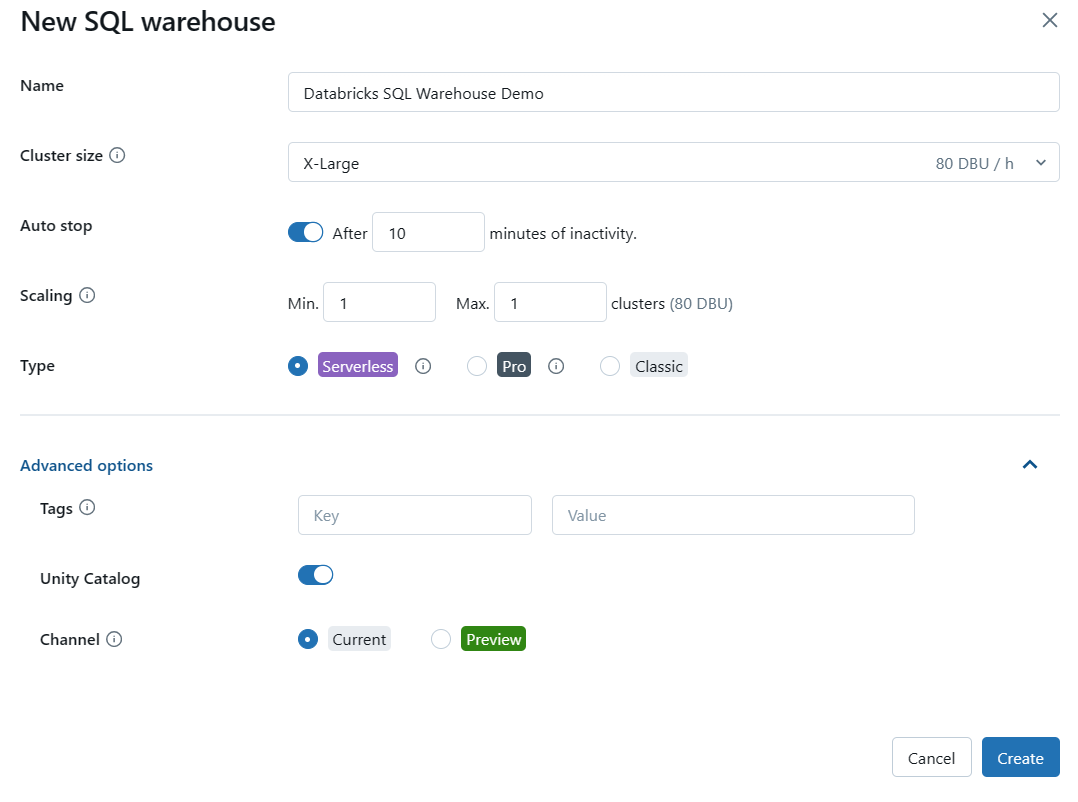
Expand the “Advanced Options” section to configure additional settings for your SQL warehouse, if needed. Some of the advanced options include:
- Tags: Allows you to assign key-value pairs for monitoring and cost-tracking purposes.
- Unity Catalog: Enables or disables the use of Databricks’ Unity Catalog for data governance.
- Channel: Allows you to test new functionality by using the “Preview” channel before it becomes the standard.
Step 6—Create the Databricks SQL warehouse
After configuring the desired settings, click on the “Create” button to create your new Databricks SQL warehouse.
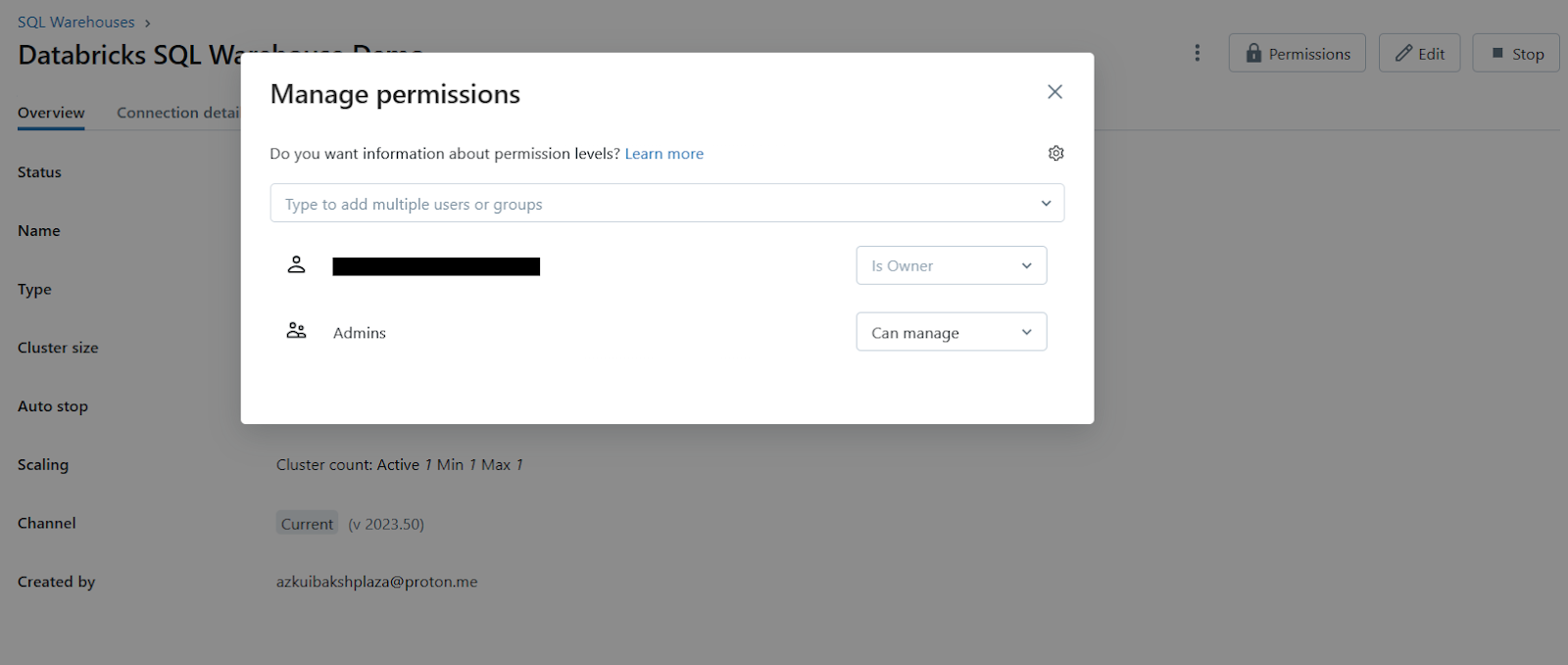
Step 7—Configure access permissions (Optional)
Once the SQL warehouse is created, you can optionally configure access permissions for it. Click on the kebab menu next to the warehouse (or if you see the permission button with a lock icon) and select “Permissions“. Here, you can add or edit permissions for users or groups to access and manage the SQL warehouse.
Step 8—Manage the Databricks SQL warehouse
If your newly created Databricks SQL warehouse is not automatically started, click on the start icon next to it to start the warehouse.

That’s it! You’ve successfully created a Databricks SQL warehouse in Databricks.
Remember, Databricks recommends using serverless Databricks SQL warehouses whenever available, as they provide the best performance and cost-effectiveness for most workloads.
How to use a Databricks Notebook with a Databricks SQL warehouse?
You can also attach a Databricks Notebooks (SQL notebook) to a SQL warehouse, so that you write cells in the notebook but run them on the warehouse’s compute. This combines the flexibility of notebooks with the performance of SQL warehouses.
Prerequisite
You need access to a Pro or Serverless SQL warehouse (only those types can be attached) that is already running. Also ensure the workspace supports SQL compute and that your user has attach permissions.
Step 1—Open a notebook
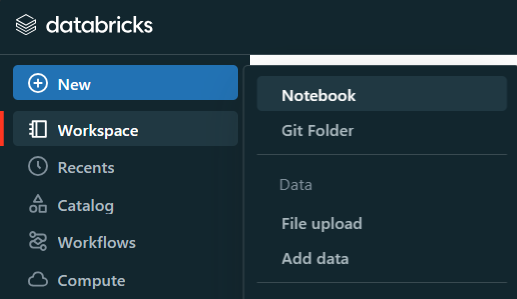
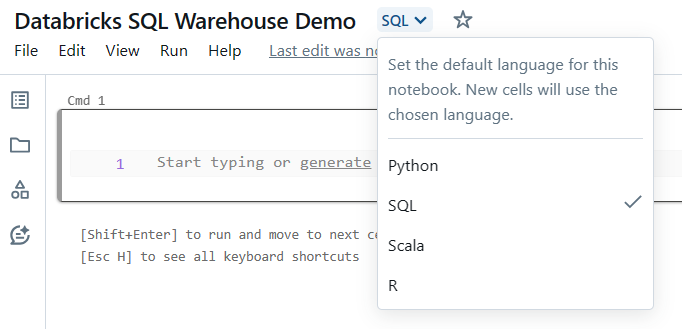
Launch a new notebook or open an existing one in your Databricks workspace. You can create a new notebook by clicking on the “Notebook” icon in the sidebar and then selecting the appropriate language (SQL).
Step 2—Attach the Notebook to a SQL warehouse
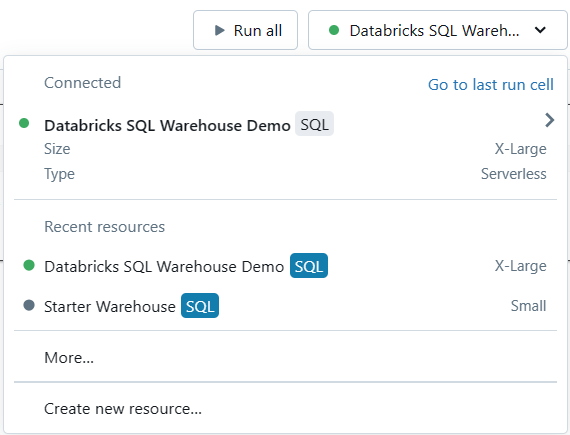
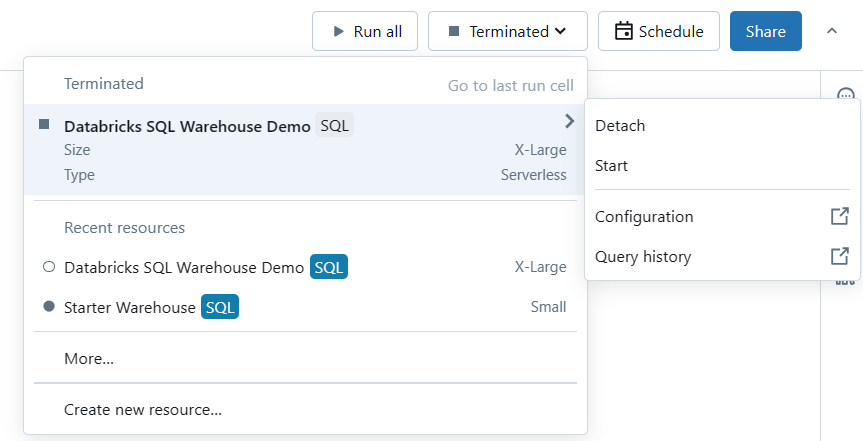
In the notebook toolbar, you’ll find a compute selector (typically a dropdown or a button with the current compute resource displayed). Click on this selector to reveal a list of available compute resources.
Note: SQL warehouses are marked with a special icon (e.g., a SQL symbol) in this list.
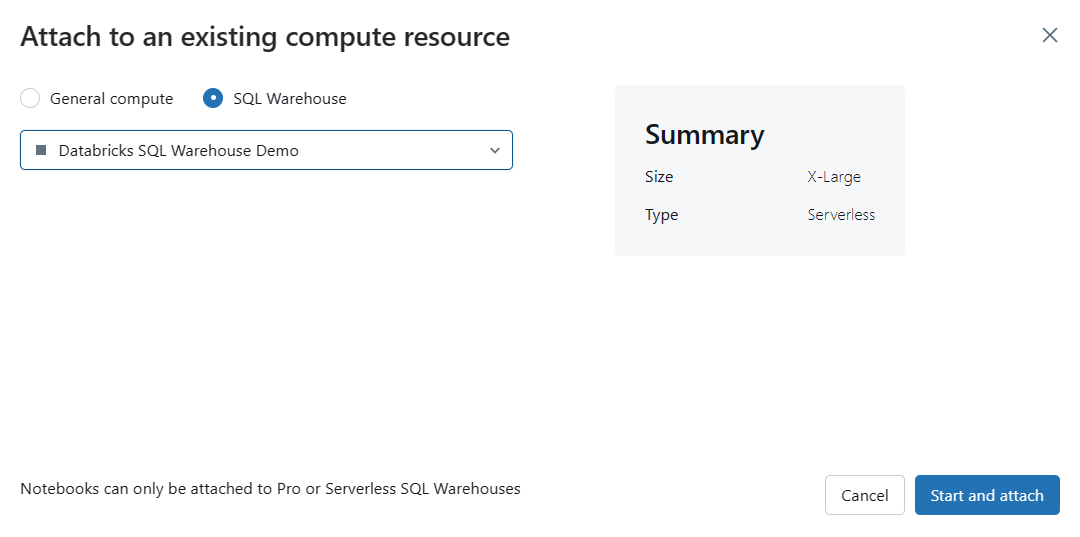
If you don’t see the SQL warehouse you want to use, select “More…” from the dropdown menu. A dialog will appear, showing all the available compute resources for the notebook. In this dialog, select “SQL Warehouse“, choose the specific warehouse you want to attach and click “Start and Attach“.
Step 3—Run SQL and markdown cells
Once your notebook is attached to a SQL warehouse, you can run SQL and Markdown cells within the notebook.
To run a cell, simply place your cursor within the cell and click the “Run Cell” button (typically a triangle play icon) in the notebook toolbar, or use the appropriate keyboard shortcut (e.g., Shift + Enter).
Step 4—View query history and profiles
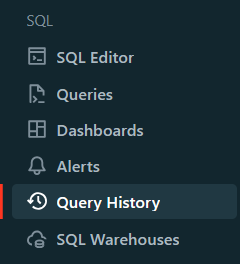
SQL cells executed on a SQL warehouse will appear in the warehouse’s query history. If you want to view the query profile for a specific query you ran, look for the elapsed time displayed at the bottom of the cell output. Clicking on this elapsed time will show you the query profile.
OR
Head over to the Query History navigation located in the Sidebar menu and select “Query History” to view the entire query history and profiles.
Step 5—Use widgets (optional)
If you need to use widgets in a notebook connected to a SQL warehouse, it’s important to understand the differences in syntax compared to using them with a compute cluster. Specifically, you should use the :param syntax to reference widget values instead of the $param syntax.
For example, if you have a widget named demo_age_widget, use the following code:
SELECT * FROM students WHERE age < :demo_age_widgetTo reference objects like tables, views, schemas and columns, use the IDENTIFIER keyword. Let’s say you have a widget named schema_name and table_name, you would use:
SELECT * FROM IDENTIFIER(:schema_name).IDENTIFIER(:table_name)Step 6—Detach or switch warehouses (optional)
If you need to detach the notebook from the current SQL warehouse or switch to a different warehouse, simply follow Step 2 again and select the appropriate action (detach or attach to a different warehouse).
Limitations of Databricks SQL warehouse
Although there are many advantages to using a notebook with a SQL warehouse, there are also some limitations and things to keep in mind:
1. Execution context timeout
When attached to a SQL warehouse, notebook execution contexts have an idle timeout of 8 hours. If the notebook remains idle for more than 8 hours, the execution context will be terminated.
2. Maximum result size
The maximum size for returned query results in a notebook attached to an SQL warehouse is 10,000 rows or 2MB, whichever is smaller. If your query returns a larger result set, you may need to consider alternative approaches, such as exporting the data or using data visualization tools.
3. Language support
When a notebook is attached to a SQL warehouse, you can only run SQL and Markdown cells. Attempting to run cells in other languages, such as Python or R, will result in an error.
4. Query history and profiling
SQL cells executed on a SQL warehouse will appear in the warehouse’s query history, accessible through the Databricks SQL interface. Plus, you can view how long each query took right in the notebook cell output, allowing you to click and view the query profile.
If you follow these steps and keep the limitations in mind, you can harness the combined power of Databricks Notebooks and SQL warehouses to enhance your data management and analysis capabilities.
Best practices for Databricks SQL
To get the most out of Databricks SQL, it’s essential to follow industry best practices. These guidelines can improve performance, cost-efficiency and data governance.
1. Use disk caching and predicate filtering
If a table is repeatedly queried, consider using Delta caching (cache parquet data locally on cluster SSD). Also Databricks SQL can skip irrelevant partitions or files automatically via dynamic pruning. Both reduce the data scanned.
2. Leverage table cloning and stats
Use Delta’s shallow or deep clone features to create isolated copies of data for dev/testing without moving files. Always run ANALYZE TABLE (or let Databricks do it) so the optimizer has table statistics, which improves query plans.
3. Stay on the latest runtime
Always run the most recent Databricks Runtime or SQL engine available. Each release includes performance boosts and optimizations. (Serverless warehouses auto-update; if using Pro/Classic, pick the latest LTS version.)
4. Use Databricks Workflows
For production pipelines, orchestrate your SQL scripts and notebooks with Databricks Workflows. This helps schedule jobs, manage dependencies, and parallelize where possible.
5. Implement governance
Turn on Unity Catalog for all tables. Enforce user/group permissions, row-level filters and audits centrally. Proper governance is easier when done at the warehouse/catalog level instead of ad-hoc.
6. Integrate with tooling
Take advantage of the ecosystem. For ingestion, use managed pipelines (e.g. Fivetran, Kafka, or Delta Live Tables) to feed data into Delta. For transformation, use dbt or Spark jobs in Databricks. For BI, connect your favorite dashboard tool to the SQL warehouse. This keeps a smooth workflow and avoids custom scripts.
7. Monitor and optimize queries
Regularly check the Query History to spot slow queries or hotspots. Use built-in profiling to find skew, large shuffles, or caching opportunities. Tune partitions (ZORDER or liquid clustering) based on query patterns. The Databricks job UI will also show you cluster utilization over time – that can tell you if you need to scale up or add more warehouses for concurrency.
If you implement these best practices, you’ll maximize the efficiency and governance of your Databricks SQL environment.
Save up to 50% on your Databricks spend in a few minutes!
Conclusion
And that’s a wrap! We’ve seen how Databricks SQL makes data management and analytics effortless. No more worrying about managing resources or clusters, just focus on your data queries and let Databricks handle the rest. Making awesome visualizations and dashboards is a piece of cake, too. Thanks to the power of cloud platforms like Azure, AWS and GCP, Databricks SQL has got your back when it comes to making data-driven decisions. Give it a try!
In this article, we have covered:
- What is Databricks SQL?
- Key benefits of Databricks SQL
- Key features and tools provided by Databricks SQL
- Databricks SQL Warehouses and their types
- Step-by-step guide to create Databricks SQL warehouse
- How to use a Databricks Notebook with a Databricks SQL Warehouse
- Best practices for Databricks SQL
… and so much more!
FAQs
What is Databricks SQL?
Databricks SQL is the BI/query layer of the Databricks Lakehouse. It’s a cloud data warehouse service (with serverless compute option) optimized for querying data in Delta Lake. You use it for dashboards, reports and any SQL analytics on the lakehouse.
What makes Databricks SQL stand out?
Key differentiators are its lakehouse architecture (single source of data truth on Delta Lake), serverless compute option, and AI-powered optimizations (Photon engine, predictive I/O, caching, liquid clustering, etc.). It also supports open formats and integrates broadly with data tools. All of this means you get warehouse-like performance and data lake flexibility in one system.
How does Databricks SQL handle large datasets?
Under the hood, it uses an MPP Spark engine. It auto-parallelizes queries across many nodes and uses columnar file formats. Features like adaptive caching and I/O pruning mean it scans only needed data. Combined with Photon and Delta’s indexing, even trillions of rows can be queried efficiently. In short, Databricks SQL scales compute elastically and optimizes file layouts so large-data queries run fast.
What are the key benefits of Databricks SQL?
Benefits include simplified operations (no cluster management), integrated governance (Unity Catalog), broad tool compatibility, unified BI+ML workflows, AI-driven speedups, and open data formats. You get better price/performance (Databricks claims up to 12× improvement) and lower overhead compared to traditional warehouses, plus a single platform for all your analytics.
What are the core features and tools in Databricks SQL?
Major features include the SQL Editor (with modern charting), interactive dashboards, data-driven alerts, and a 30-day query history with performance profiles. Compute is managed by SQL warehouses (Serverless, Pro, Classic) tailored to different workloads. Integrations include dbt, Fivetran, Power BI, Tableau and more.
How do the warehouse types differ?
Serverless: Fully managed auto-scaling (includes Photon, Predictive I/O, IWM, etc.), starts in seconds. Best for dynamic BI/ETL workloads.
Pro: Self-managed clusters, supports Photon and Predictive I/O but slower to start (~4 min). Use if serverless isn’t available or for special networking cases.
Classic: Entry-level (Photon only, no AI features), longer startup. Suitable for basic exploration queries.
How do I use a notebook with an SQL warehouse?
Attach a notebook to a running Pro or Serverless SQL warehouse via the compute selector. Then run SQL and Markdown cells as usual. Queries execute on the SQL warehouse, and results/cache are handled by that cluster. You can view query profiles in the notebook output or from the SQL UI’s history.
What is the Photon engine?
Photon is Databricks’s next-gen C++ vectorized query engine. It runs natively on cloud storage (Delta Lake) and is optimized for modern CPUs. In benchmarks, Photon can deliver up to 12× better price/performance vs. other engines on cloud data. Databricks SQL uses Photon for most queries to get that speed boost.
How does Predictive I/O work?
Predictive I/O is a set of features that uses machine learning to prefetch and prune data. Instead of scanning entire files, it learns which rows or partitions are needed and loads only those. This dramatically reduces disk reads on selective queries. It’s automatic in serverless and Pro warehouses (Photon) and speeds up analytic queries on large tables.
How does Databricks SQL handle governance?
All data access goes through Unity Catalog, a unified governance layer. Unity Catalog centrally enforces access controls (who can read or write which tables or columns) and tracks lineage/audit across the platform. You can tag and classify data, set attribute-based policies, and even share live data securely with partners via Delta Sharing. In practice, this means administrators can manage permissions and compliance in one place instead of per-query or per-tool.
What tools integrate with Databricks SQL?
For data ingestion, connectors like Fivetran or Kafka can feed into Delta Lake. For transformation, dbt (Data Build Tool) has native support to build models on Databricks SQL. For BI and viz, tools like Power BI, Tableau and Looker connect via ODBC/JDBC. Databricks also offers built-in visualization options in the SQL UI (e.g. charts). The end result is that analysts use their preferred tools on top of the Databricks data platform without data exports.
Pramit Marattha
Pramit Marattha is a technical content writer and strategist with 5+ years of experience covering AI, data engineering, data cloud platforms and open source technologies. He turns complex technical concepts into clear, useful content for engineers and developers.







