


Pivoting and unpivoting are essential techniques in Snowflake—they stand as crucial feature in data transformation. These techniques help you to transpose your data, converting rows into columns and vice versa. Such transformations are not just cosmetic; they pave the way for smarter data analysis and reporting.
In this article, we will explore what pivoting and unpivoting operations do, their use cases and how to leverage built-in Snowflake PIVOT and Snowflake UNPIVOT functions to put these concepts into practice.
What is PIVOT and UNPIVOT?
1) What do we mean by Pivoting?
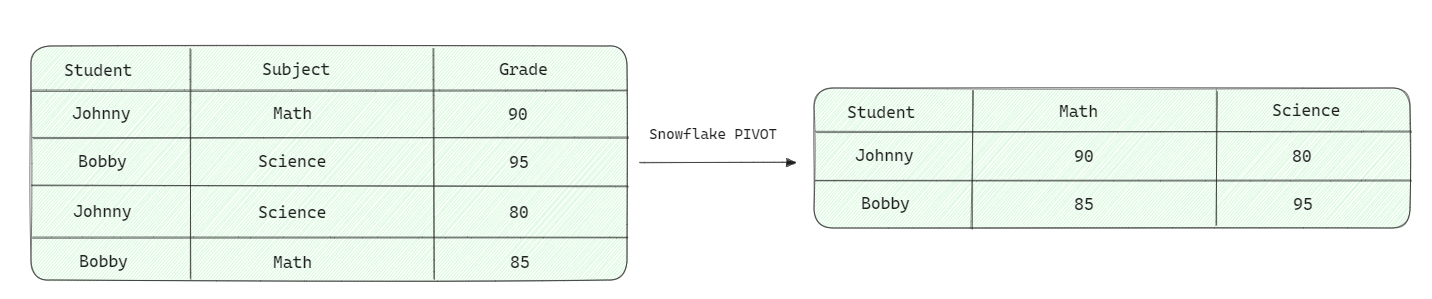
Pivoting is the process of rotating data from row format to column format. Imagine having a table where each row represents a month and you want to turn those months into individual columns. That’s where pivoting comes into play.
Visually, this transformation can be represented as:
2) What do we mean by Unpivoting?
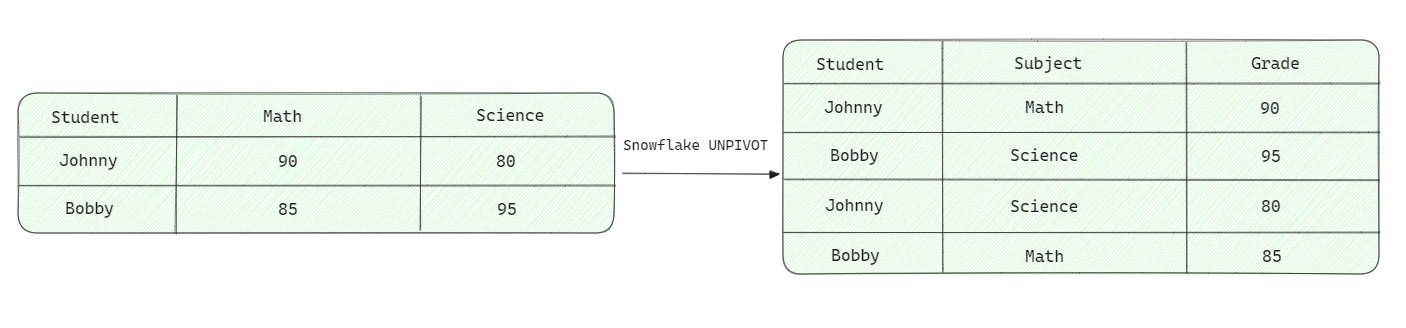
Unpivoting does the exact reverse operation—transforming columns into rows format. If you have a wide table with many columns that you’d rather represent as rows, unpivoting is your go-to operation.
Visually, this transformation can be represented as:
In general,

When to use PIVOT and UNPIVOT?
Snowflake PIVOT is useful for:
- Summarizing detailed row data into a cross-tabular format for reporting
- Creating matrix-style views (e.g., sales by employee by quarter)
- Making data more readable for business intelligence tools that expect wide tables
Snowflake UNPIVOT is useful for:
- Normalizing wide tables with redundant column sets into a long format
- Preparing data for tools or ML pipelines that need a row-per-observation structure
- Reducing column sprawl in tables that grew too wide over time
Note: Snowflake UNPIVOT is NOT exactly the reverse of Snowflake PIVOT as it cannot undo aggregations made by PIVOT.
Now let’s look at how Snowflake PIVOT and Snowflake UNPIVOT commands can be used to accomplish pivoting and unpivoting data.
What does PIVOT do in Snowflake?
Snowflake’s PIVOT is a SQL operation used to transform rows into columns. It’s particularly useful when you want to convert unique row values from one column into multiple columns in the output, aggregating data in the process. This operation is common in data analysis and reporting tasks.
Using PIVOT, the unique values from a specific column that were previously organized into separate rows can be rotated to align related data points into columns instead. This pivoting of the data structure condenses the information, providing a more consolidated analytical view. Here’s a basic syntax for using Snowflake PIVOT command:
PIVOT syntax
Snowflake PIVOT must be used within the FROM clause exclusively. When dealing with a subquery, it should be written within the subquery’s From clause.
The syntax is:
SELECT ...

FROM ...

PIVOT (

<aggregate_function>(<pivot_column>)

FOR <value_column>

IN (<pivot_values>)

)
The key parameters are:
- aggregate_function: Aggregation you want to apply, like AVG, COUNT, MAX, MIN and SUM.
- pivot_column: Column you want to turn into new columns.
- value_column: Values you want to populate in the new columns.
- pivot_values: List of values in the pivot_column that you want to turn into new columns.
Aggregations supported by PIVOT
Snowflake PIVOT command supports several built-in aggregate functions that can be used to combine and transform the data during the pivoting operation. These aggregate functions are:
1) AVG: Calculates the average value of the specified column for each group of rows. It can be used with numeric data types.
Example,
SELECT *

FROM table_name

PIVOT(AVG(pivot_column) FOR value_column IN (pivot_values))
2) COUNT: Counts the number of non-null values in the specified column for each group of rows. It can be used with any data type.
Example,
SELECT *

FROM table_name

PIVOT(COUNT(pivot_column) FOR value_column IN (pivot_values))
3) MAX: Returns the maximum value in the specified column for each group of rows. It can be used with numeric, string, date and timestamp data types.
Example,
SELECT *

FROM table_name

PIVOT(MAX(pivot_column) FOR value_column IN (pivot_values))
4) MIN: Returns the minimum value in the specified column for each group of rows. It can be used with numeric, string, date and timestamp data types.
Example,
SELECT *

FROM table_name

PIVOT(MIN(pivot_column) FOR value_column IN (pivot_values))
5) SUM: Calculates the sum of all values in the specified column for each group of rows. It can be used with numeric data types.
Example,
SELECT *

FROM table_name

PIVOT(SUM(pivot_column) FOR value_column IN (pivot_values))
Note that the aggregate function you choose should be compatible with the data type of the pivot column. For example, you cannot use the AVG function on a string column, or the SUM function on a date column.
Snowflake Pivot examples
For example, consider the following data table containing the school’s student grades for different subjects:
First, let’s create a table called StudentGrades and insert some values into that table.
CREATE TABLE StudentGrades (

StudentID INT,

Subject VARCHAR,

Grade INT

);
INSERT INTO StudentGrades (StudentID, Subject, Grade)
VALUES
(3, ‘Math’, 92),
(3, ‘History’, 89),
(3, ‘Science’, 94),
(3, ‘English’, 88),
(4, ‘Math’, 76),
(4, ‘History’, 84),
(4, ‘Science’, 82),
(4, ‘English’, 91),
(5, ‘Math’, 89),
(5, ‘History’, 87),
(5, ‘Science’, 90),
(5, ‘English’, 93),
(6, ‘Math’, 79),
(6, ‘History’, 85),
(6, ‘Science’, 88),
(6, ‘English’, 86),
(7, ‘Math’, 83),
(7, ‘History’, 88),
(7, ‘Science’, 85),
(7, ‘English’, 87),
(8, ‘Math’, 90),
(8, ‘History’, 86),
(8, ‘Science’, 89),
(8, ‘English’, 92),
(9, ‘Math’, 88),
(9, ‘History’, 87),
(9, ‘Science’, 86),
(9, ‘English’, 90),
(10, ‘Math’, 91),
(10, ‘History’, 85),
(10, ‘Science’, 87),
(10, ‘English’, 88);
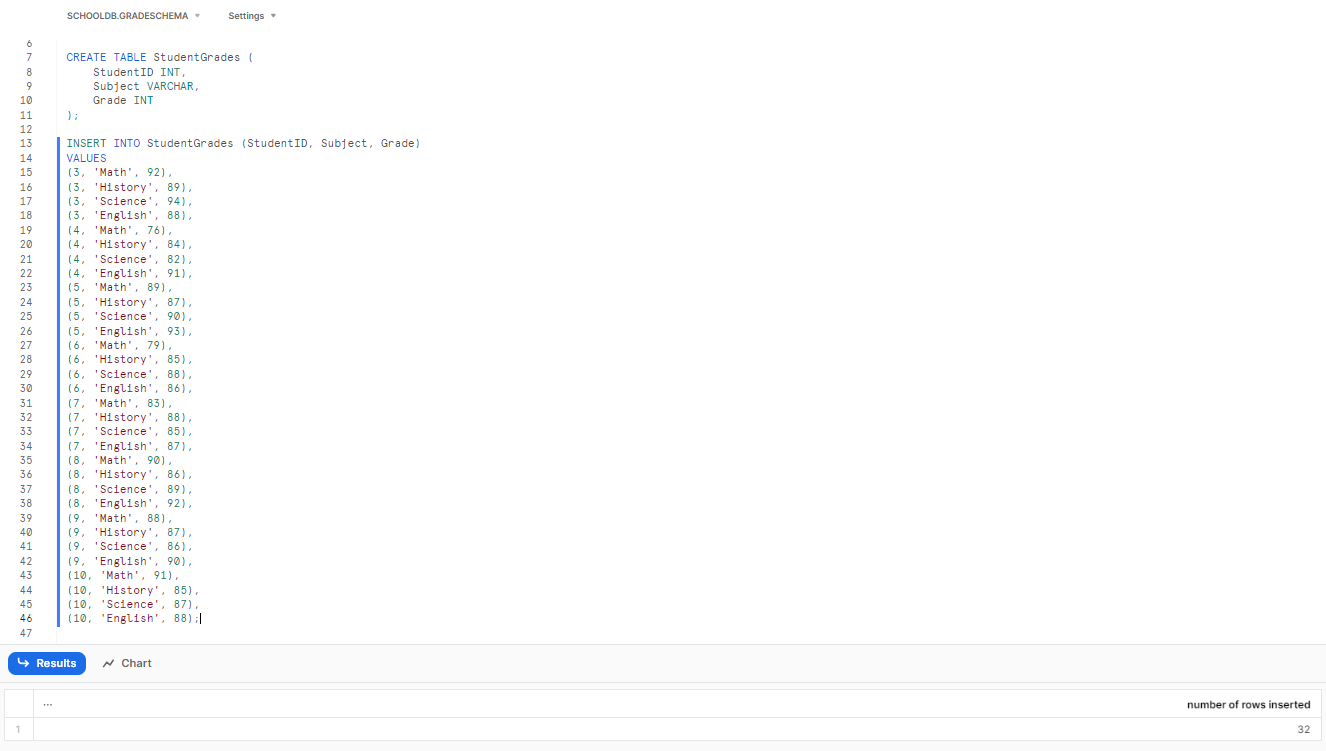
Creating and inserting values into the ‘StudentGrades’ table in Snowflake
Now, let’s pivot the table so that Math and History become separate columns, showing the maximum grade for each student in those subjects.
SELECT * FROM StudentGrades

PIVOT (MAX(Grade) FOR Subject IN ('Math', 'History')) AS p;
This would output:
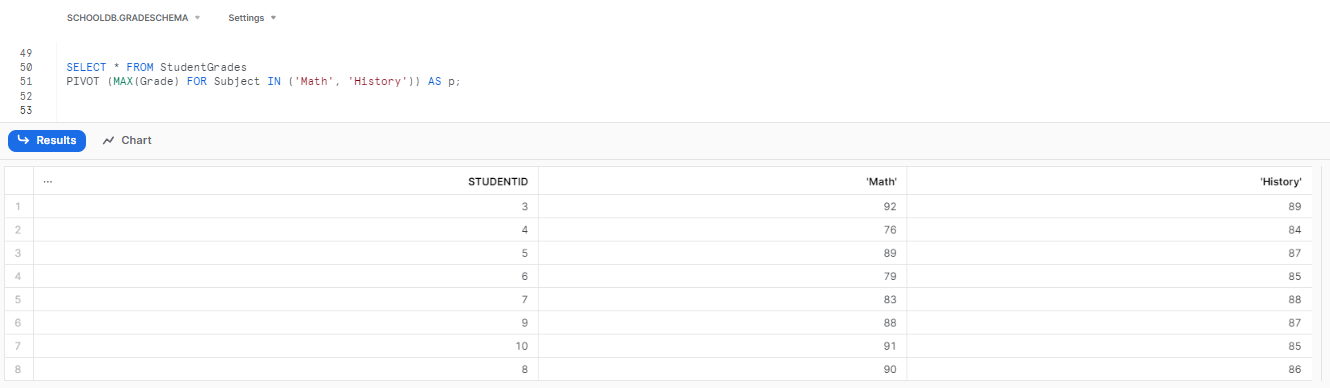
Pivoting table so that each subject becomes a separate column StudentGrades table
Here, Grade is the pivot_column (what gets aggregated), and Subject is the value_column (whose values—’Math’, ‘History’—become the column headers).
The output will have columns STUDENTID, ‘Math’ and ‘History’. Subjects not listed in the IN clause (Science, English) are excluded. Students without a grade in a pivoted subject get NULL.
Aliasing output column names
The output columns generated by the PIVOT operator (Math, History in the example) will naturally appear without quotes if they are valid SQL identifiers. If you wish to rename all the output columns of the PIVOT operation (including any non-pivoted columns passed through and the newly created pivoted columns), you can use an alias list with the AS clause, like this:
SELECT * FROM StudentGrades

PIVOT (MAX(Grade) FOR Subject IN ('Math', 'History')) AS p (student_id, math, history);
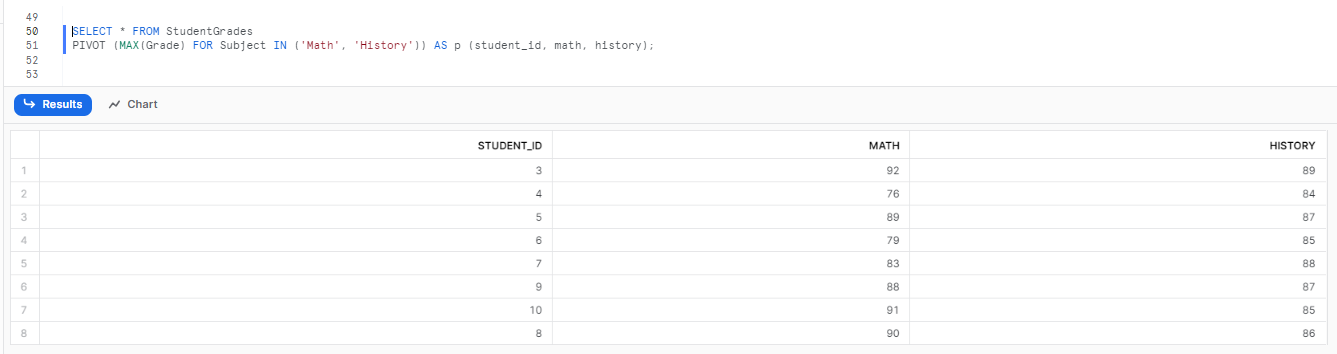
Getting column name without quotes using Snowflake PIVOT
How to Pivot multiple columns in Snowflake?
Snowflake’s PIVOT function is powerful, but it’s designed to pivot on a single aggregate function. But what if you want to pivot on multiple aggregates, like both SUM and AVERAGE, for the same pivot column? There’s no direct way to achieve this within a single PIVOT clause. But, with the clever use of UNION ALL or CASE statements, you can combine results from multiple aggregation patterns.
Let’s say you have a table BookSales that tracks the number of books sold and the total revenue for different genres.
Step-by-step guide to Pivot multiple columns in Snowflake
Step 1—Create ‘BookSales’ Table
CREATE TABLE BookSales (

BookID INT,

Genre VARCHAR,

BooksSold INT,

Revenue FLOAT

);
Step 2—Inserting dummy data to ‘BookSales’ table.
INSERT INTO BookSales (BookID, Genre, BooksSold, Revenue)

VALUES

(1, 'Fiction', 100, 1500.00),

(2, 'Non-Fiction', 80, 1200.00),

(3, 'Fiction', 110, 1650.00),

(4, 'Non-Fiction', 85, 1275.00),

(5, 'Fiction', 105, 1575.00),

(6, 'Non-Fiction', 90, 1350.00),

(7, 'Fiction', 95, 1425.00),

(8, 'Non-Fiction', 88, 1320.00),

(9, 'Fiction', 108, 1620.00),

(10, 'Non-Fiction', 86, 1290.00);
Step 3—PIVOTing Multiple Columns in Snowflake
To pivot on both the SUM and AVERAGE of BooksSold and Revenue for each genre, you can use the following query:
-- Total Revenue

SELECT 'Total Revenue' AS Metric, *

FROM (

SELECT Genre, Revenue

FROM BookSales

) AS SourceTable

PIVOT (

SUM(Revenue)

FOR Genre IN ('Fiction', 'Non-Fiction')

) AS PivotTable
UNION ALL
— Average Revenue
SELECT ‘Average Revenue’ AS Metric, *
FROM (
SELECT Genre, Revenue
FROM BookSales
) AS SourceTable
PIVOT (
AVG(Revenue)
FOR Genre IN (‘Fiction’, ‘Non-Fiction’)
) AS PivotTable;
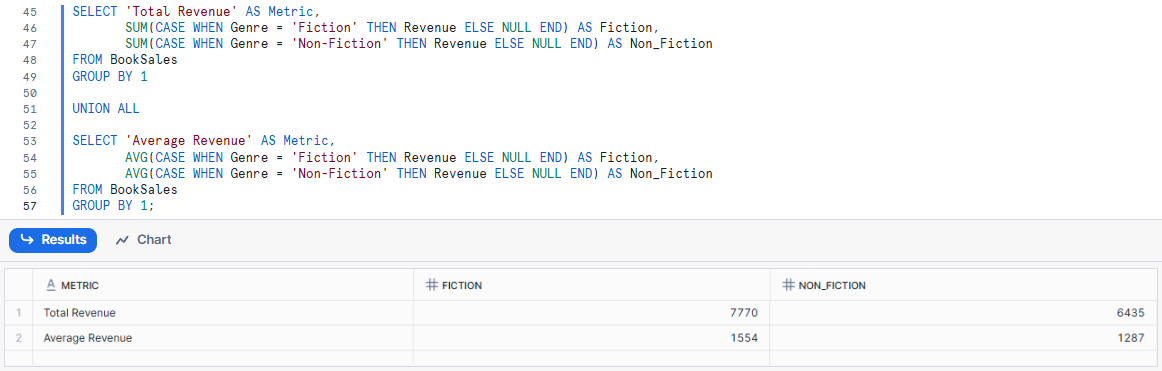
Pivoting on both the SUM and AVERAGE of BooksSold and Revenue for each books genre
Check out this comprehensive video to learn more in-depth about using the Snowflake PIVOT function with a dynamic list of columns.
What does UNPIVOT do in Snowflake?
Snowflake UNPIVOT function transforms columns into rows. It takes two columns plus a list of columns to unpivot and outputs a row for each specified column. UNPIVOT pivots table data from columns back into rows, reversing the effect of a pivot operation.
Note: Snowflake UNPIVOT is not exactly the reverse of PIVOT, as it cannot undo aggregations made by the Snowflake PIVOT function. If a PIVOT operation aggregated multiple rows into a single value, UNPIVOT cannot magically reconstruct the original individual rows.
Here’s a basic syntax on how to use the Snowflake UNPIVOT command:
SELECT ...

FROM ...

UNPIVOT (

<value_column>

FOR <name_column>

IN (<column_list>)

)
The key parameters are:
- value_column: Column that will hold the values from the unpivoted columns
- name_column: Column that will hold the names of the unpivoted columns
- column_list: List of columns you want to unpivot
- INCLUDE NULLS: Keeps rows where the unpivoted value is NULL (default behavior excludes them)
- EXCLUDE NULLS: Explicitly drops rows where the unpivoted value is NULL
How to Use UNPIVOT in Snowflake?
For example, consider the following hypothetical scenario where we track the quantity of fruits in two different stores.
1) Creating the table and inserting dummy values
Let’s use a simple example of a FruitInventory table that tracks the quantity/number of fruits in two stores: “StoreA” and “StoreB“.
CREATE TABLE FruitInventory (

FruitName VARCHAR,

StoreA INT,

StoreB INT

);
Let’s insert data for different fruits.
INSERT INTO FruitInventory (FruitName, StoreA, StoreB)

VALUES

('Apple', 100, 120),

('Banana', 80, 90),

('Cherry', 50, 45),

('Date', 30, 35),

('Fig', 40, 38),

('Grape', 60, 65),

('Honeydew', 20, 18),

('Kiwi', 25, 28),

('Lemon', 70, 75),

('Mango', 55, 50);
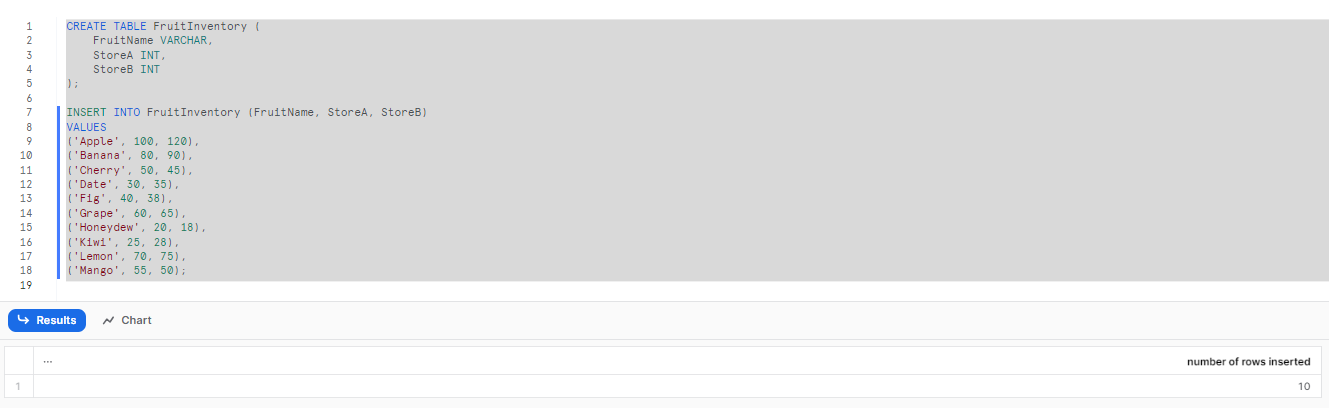
Creating and inserting values into the FruitInventory table in Snowflake
2) Using Snowflake UNPIVOT to unpivot the data
Now, lets UNPIVOT it!
To transform the FruitInventory table to have a row for each store’s fruit quantity, use the following query:
SELECT FruitName,

column_name AS Store,

Quantity

FROM FruitInventory

UNPIVOT (Quantity FOR column_name IN (StoreA, StoreB)) AS u;
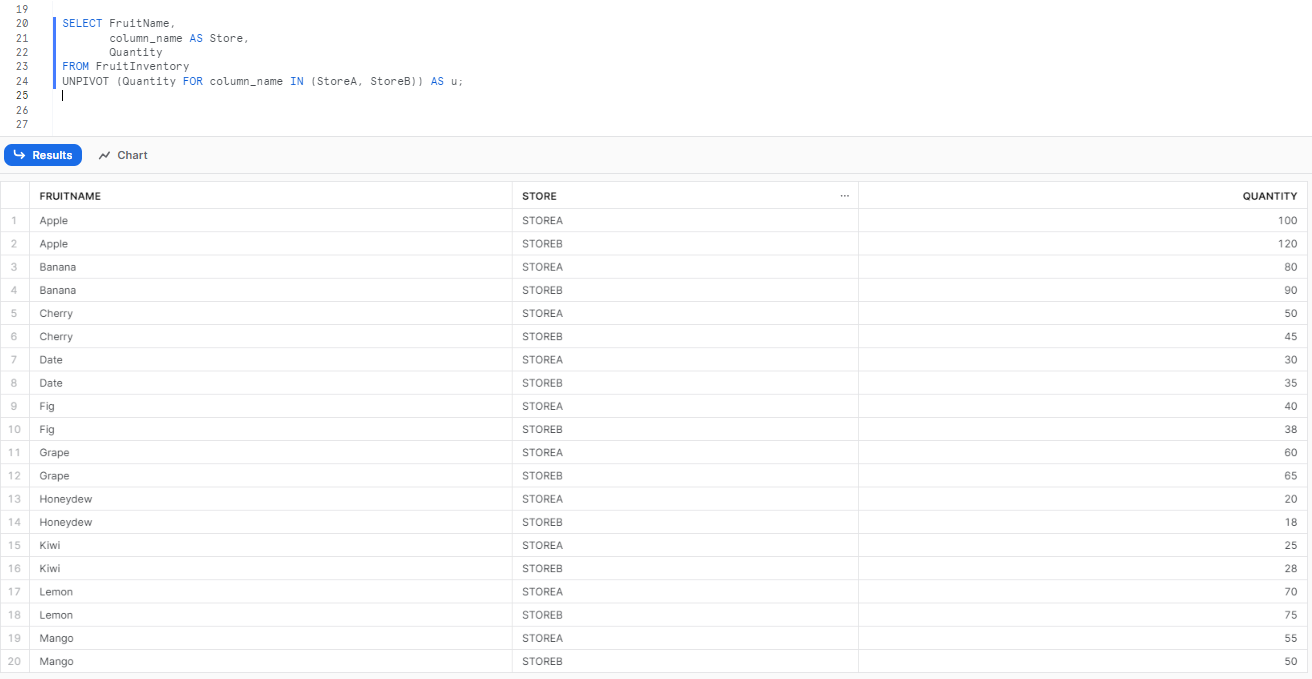
Transforming the FruitInventory table to have a row for each store’s fruit quantity
As you can see, the result will be a table with columns FruitName, Store and Quantity, showing the quantity of each fruit in each store.
Alternatives to PIVOT and UNPIVOT
Snowflake’s PIVOT and UNPIVOT functions are highly effective for their specific transformations, but there are a few alternative SQL constructs that can achieve similar results, sometimes with greater flexibility or better performance, depending on the use case.
Conditional aggregation with CASE Statements (alternative to Snowflake PIVOT):
For pivoting, especially when dealing with multiple aggregate functions, dynamic column lists (where the IN clause isn’t static), or more complex conditional logic, using CASE expressions inside aggregate functions is a powerful and often preferred alternative.
To achieve the same result as the StudentGrades PIVOT example using CASE statements:
SELECT

StudentID,

MAX(CASE WHEN Subject = 'Math' THEN Grade ELSE NULL END) AS Math_Grade,

MAX(CASE WHEN Subject = 'History' THEN Grade ELSE NULL END) AS History_Grade

FROM StudentGrades

GROUP BY StudentID;
Why use this over Snowflake PIVOT?
- You can apply different aggregate functions to different pivoted columns in the same query
- The logic is easier to debug and modify
- Works well when building SQL dynamically in stored procedures or application code
- No static IN list required; each column is defined independently
UNION ALL (alternative to UNPIVOT):
For simple unpivoting where you need to transform a fixed number of columns into rows, a series of SELECT statements combined with UNION ALL can explicitly achieve the same outcome as UNPIVOT.
To achieve the same result as the FruitInventory UNPIVOT example using UNION ALL:
SELECT FruitName, 'StoreA' AS Store, StoreA AS Quantity FROM FruitInventory

UNION ALL

SELECT FruitName, 'StoreB' AS Store, StoreB AS Quantity FROM FruitInventory;
Why use this over Snowflake UNPIVOT?
- Full control over column names and data types in each SELECT
- UNPIVOT requires all columns in the IN list to share a compatible data type. UNION ALL doesn’t have this restriction; you can cast each column independently
- Can be more performant in high-volume scenarios, depending on how the query planner handles each approach
Advanced PIVOT and UNPIVOT techniques in Snowflake
There are several more advanced Snowflake pivot and unpivot techniques that can be applied:
1) Dynamic pivoting using stored procedures (when you need it)
In many cases, the pivot column values might not be known in advance. While Snowflake doesn’t natively support dynamic pivoting, you can still use stored procedures or scripting outside of Snowflake to dynamically create the PIVOT query based on the distinct values in the dataset.
2) Pivoting on multiple aggregates
As we discussed above, while the Snowflake PIVOT function is designed for a single aggregate function, you can use UNION or JOIN operations to combine results from multiple PIVOT operations, each with a different aggregate.
3) Handling NULLs and Defaults
Sometimes, not all pivot column values will have corresponding data. In such cases, you can use the IFNULL or COALESCE functions to handle NULL values and provide default values.
4) Pivoting on String Aggregates
Beyond numerical aggregates like SUM() or AVG(), you can also pivot on string aggregates, such as LISTAGG, to concatenate strings from rows into a single column.
5) Using LISTAGG as a string aggregate in PIVOT
Beyond numeric aggregates, you can pivot on string concatenation using LISTAGG. Though LISTAGG is not directly available as an aggregate inside PIVOT. The workaround is to pre-aggregate with LISTAGG in a subquery, then PIVOT the result.
6) Unpivoting multiple groups of columns
If you have multiple sets of columns that need to go into separate groups of rows, run separate UNPIVOT operations and combine with UNION ALL.
7) Filtering during Unpivot
Sometimes, you might not want to unpivot all columns or all values. You can use WHERE clauses in conjunction with UNPIVOT to filter out specific rows or values during the unpivoting process.
What is the difference between Snowflake PIVOT and UNPIVOT?
| Snowflake PIVOT | Snowflake UNPIVOT |
| Snowflake PIVOT rotates a table by turning unique values from one column into multiple columns, effectively transforming rows into columns. | Snowflake UNPIVOT rotates a table by transforming columns into rows, effectively transforming columns into rows. |
| Converts a narrow table (e.g., empid, month, sales) into a wider table (e.g., empid, jan_sales, feb_sales, mar_sales). | Converts a wide table (e.g., empid, jan_sales, feb_sales, mar_sales) into a narrower table (e.g., empid, month, sales). |
| Syntax: SELECT … FROM … PIVOT (< aggregate_function > (< pivot_column >) FOR < value_column > IN (< pivot_values >)) | Syntax: SELECT … FROM … UNPIVOT (< value_column > FOR < name_column > IN (< column_list >)) |
| Requires an aggregate function (AVG, COUNT, MAX, MIN, SUM) to combine the grouped values from the pivot column. | Does not require an aggregate function, as it simply redistributes data into a new format. |
| Supports the DEFAULT ON NULL clause to specify a default value for NULL values in the pivoted result. | Does not have a built-in mechanism to handle NULL values. |
| Cannot directly undo the aggregations made by PIVOT using UNPIVOT. | Can potentially reverse the effects of PIVOT by unpivoting the pivoted columns, but may result in data duplication or loss of aggregated values. |
| Useful for transforming data from a long format to a wide format, especially for reporting or analytical purposes. | Useful for transforming data from a wide format to a long format, which can be more suitable for certain data processing tasks or for denormalizing data. |
Save up to 30% on your Snowflake spend in a few minutes!
Conclusion
And that’s a wrap! Pivoting and unpivoting are integral techniques for Snowflake data transformation and analysis. Snowflake PIVOT and UNPIVOT provide powerful functionality to pivot and unpivot data with simple SQL syntax.
In this article, we covered:
- Snowflake PIVOT / UNPIVOT syntax and parameters
- Common use cases for Snowflake PIVOT and UNPIVOT
- Pivoting/unpivoting example queries
- Advanced Snowflake Pivot and Unpivot Techniques
- Difference between Snowflake PIVOT and UNPIVOT
Pivoting and unpivoting data can help you reshape your data stored in tables for analysis and business intelligence needs.
FAQs
What is pivoting?
What is unpivoting?
What is PIVOT in SQL?
What does PIVOT do in Snowflake?
What is the opposite of PIVOT in Snowflake?
How do you UNPIVOT data in Snowflake SQL?
Can you rename output column names in Snowflake PIVOT?
Can Snowflake UNPIVOT undo aggregations made by PIVOT?
How do you order results after using Snowflake PIVOT?
Can I use multiple aggregate functions in a Snowflake PIVOT query?
What is dynamic pivoting in Snowflake?
Is there a performance difference between PIVOT and UNPIVOT?
How do I retain extra columns when using UNPIVOT?
How do you UNPIVOT multiple groups of columns in Snowflake?
Can you filter data during UNPIVOT in Snowflake?
Pramit Marattha
Pramit Marattha is a technical content writer and strategist with 5+ years of experience covering AI, data engineering, data cloud platforms and open source technologies. He turns complex technical concepts into clear, useful content for engineers and developers.







