


Data doesn’t come in one flavor anymore. Today’s data ecosystem is a mix of formats, from structured data to unstructured data and semi-structured data. Excel files sit right in the middle, blending elements of both structured and unstructured data and is widely used in business intelligence and data analysis. However, integrating and importing these seemingly straightforward .xlsx excel files into advanced platforms like Databricks often presents a technical challenge, requiring a clear understanding of tools and workflows to bridge the gap effectively.
In this article, we walk you through the step-by-step guide to import, process and read Microsoft Excel files in Databricks, covering two main techniques: using Pandas with PySpark and leveraging the com.crealytics.spark.excel library.
Why bother moving excel files into Databricks?
It’s a fair question. Excel is fine for small-scale reporting and ad hoc work. But once you’re dealing with large datasets, repeated transformations, or integration with other data sources, Excel hits a wall. Databricks, backed by Apache Spark, handles scale that Excel simply can’t. You can automate data cleaning, join Excel data with other sources in your pipeline, and run machine learning models directly on the data; without manually opening a single spreadsheet.
A quick note on DBFS—read this first
DBFS approach is now outdated.
Databricks has deprecated both the DBFS root and DBFS mounts and no longer recommends them. New accounts are provisioned without access to these features. The recommended approach is now Unity Catalog Volumes. It is a governed, access-controlled file store that works across workspaces.
If you’re on a legacy workspace that still uses DBFS, the code patterns in this article will work with /dbfs/FileStore/ paths instead of /Volumes/ paths. But if you’re setting up anything new in 2026, use Unity Catalog Volumes.
Step-by-step guide to import and read excel files in Databricks
Now, let’s dive straight into the main content of this article. We will dive into an in-depth, step-by-step guide on how to import and read Excel files in Databricks. Here, we’ll cover two approaches: one using Pandas and another leveraging the com.crealytics.spark.excel library. So, let’s dive right in.
Prerequisites
But wait, before you start, make sure you have the following:
- A Databricks account and access to a Databricks workspace
- Basic familiarity with Python programming and Apache Spark
- A Unity Catalog-enabled workspace (recommended) or a legacy workspace with DBFS access
- Make sure the necessary libraries are installed. If not, don’t worry; we will cover this in detail later. The required libraries are:
Pandas: A powerful data manipulation and analysis library for PythonOpenPyxl: A library used to read and write Excel 2010 xlsx/xlsm/xltx/xltm filescom.crealytics.spark.excel: A Spark plugin that allows you to read and write Excel files
With these prerequisites in place, you are now ready to import, process and read Excel files in Databricks.
Technique 1—Using Pandas and PySpark to import excel files
Let’s first start with our first technique. This approach is straightforward and Pythonic, which is perfect for small to medium-sized Microsoft Excel files.
Step 1—Log in to Databricks workspace
First, log in to your Databricks account and open your Databricks workspace.
Step 2—Set up Databricks compute
Next, you need to set up Databricks compute clusters. You can create a new one or use an existing one that will run your Databricks Notebook.
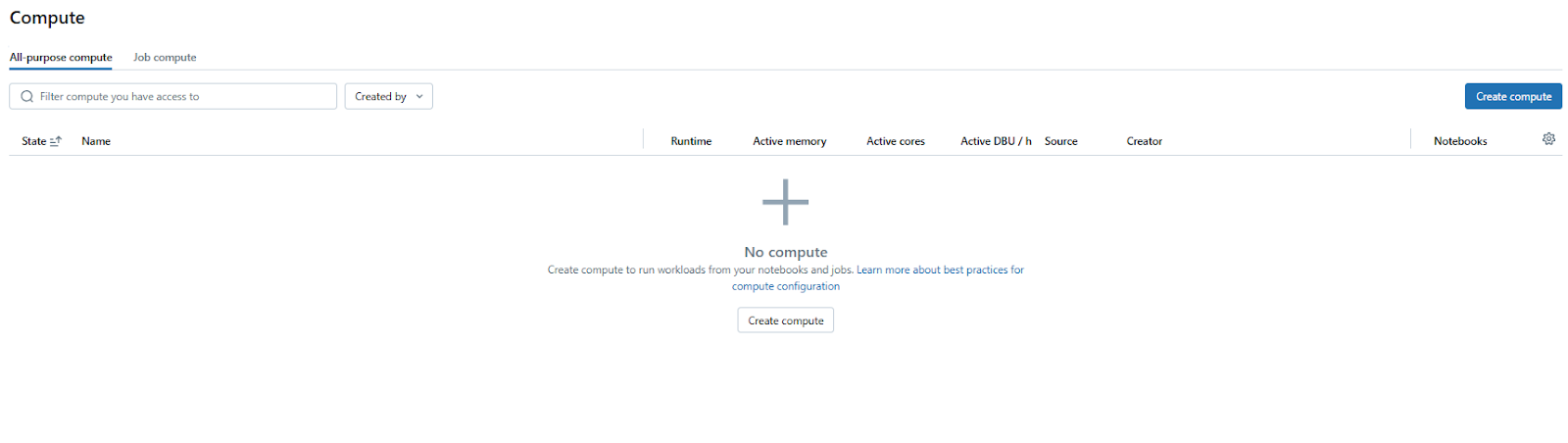
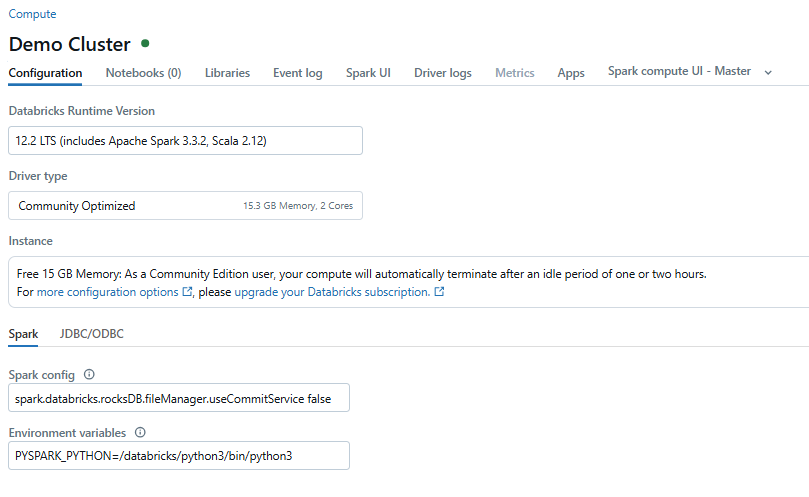
Step 3—Open Databricks notebook
Now it’s time to create a new Databricks Notebook. This is where you will write all your code and install the necessary libraries.
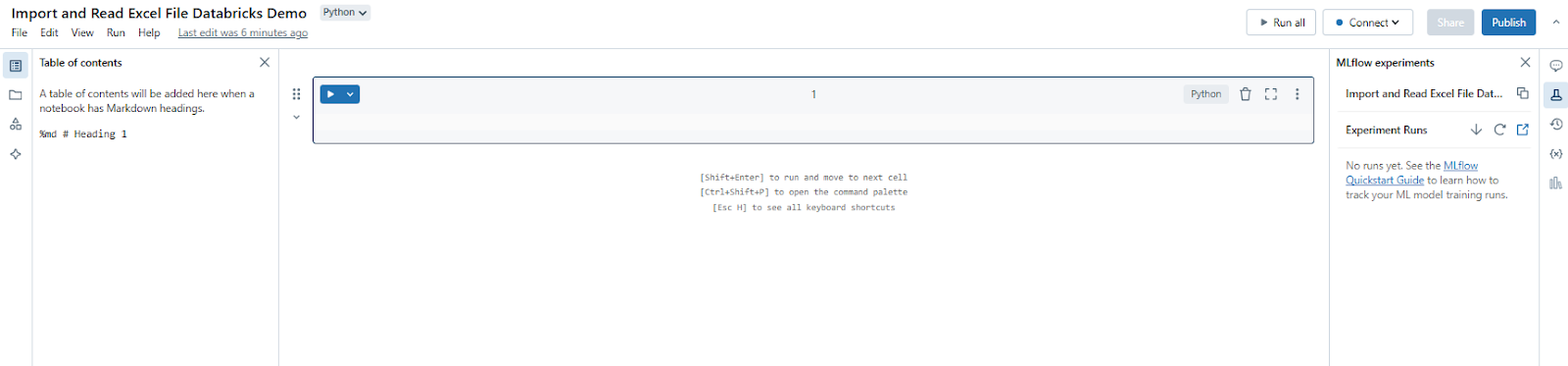
Once you have created your Databricks Notebook, let’s attach the Databricks compute that you created earlier and attach it to that particular Databricks Notebook.
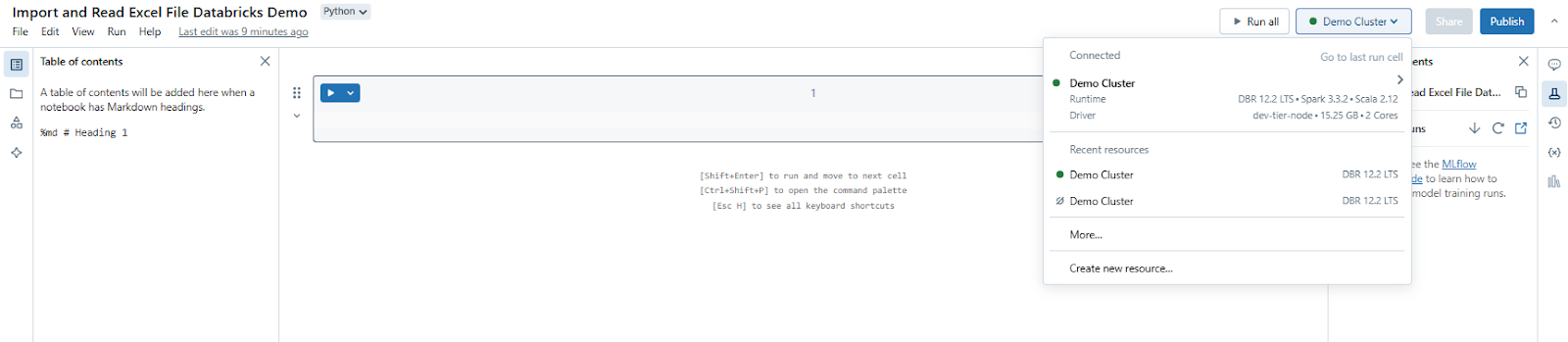
Step 4—Install the required libraries
You need the openpyxl library for reading Excel files and pandas for data manipulation and analysis. Install it using the following command:
%pip install pandas openpyxl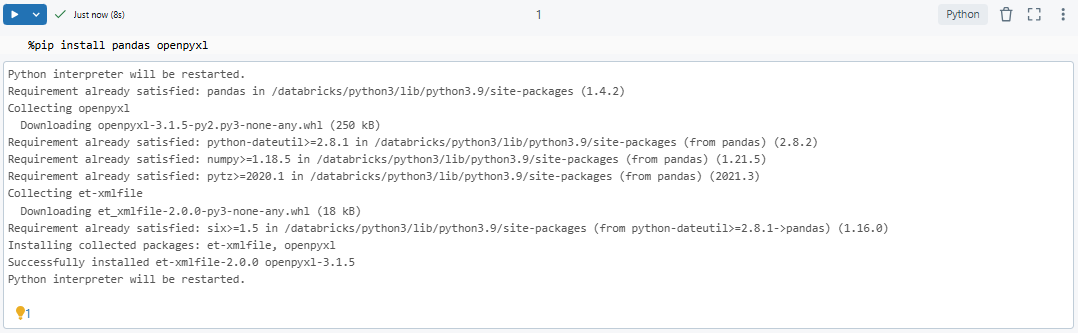
Pandas needs openpyxl installed to read .xlsx files, but you don’t need to import it explicitly in your code. It handles that internally when you pass engine=’openpyxl’.
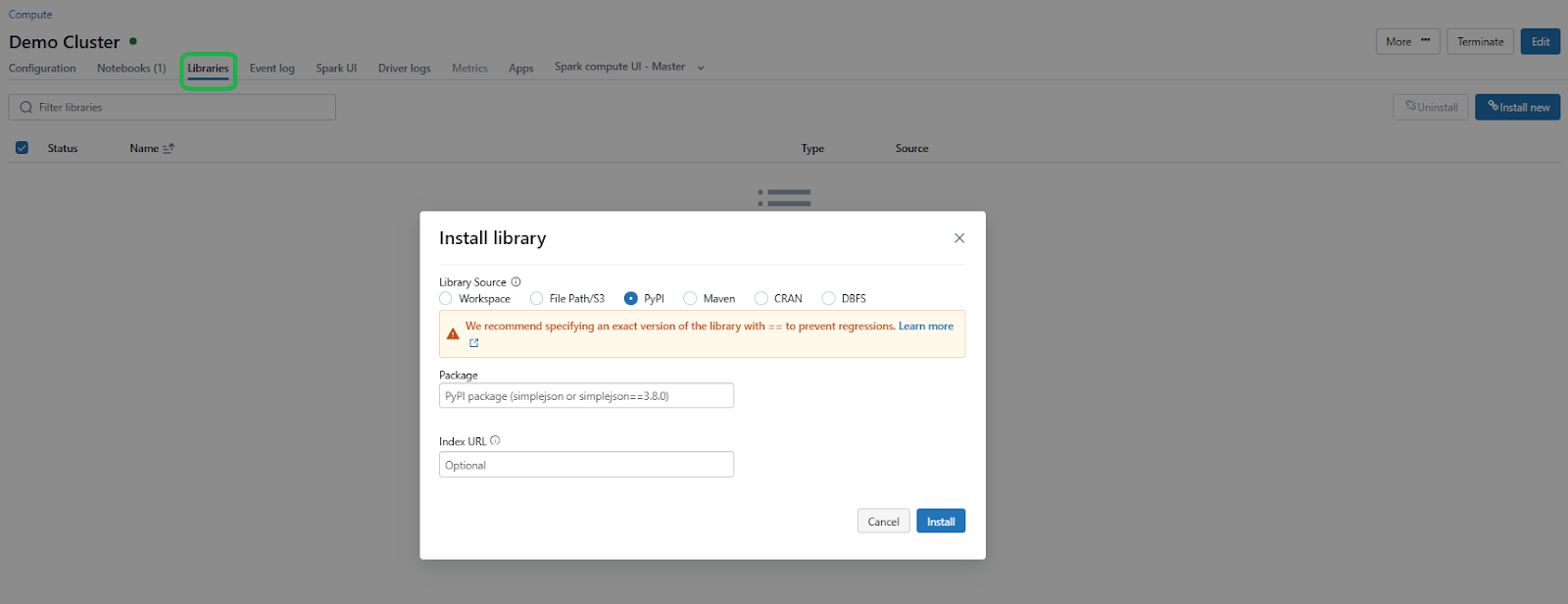
You can also install libraries through the cluster’s Libraries tab: navigate to Compute, select your cluster, go to the Libraries tab and click Install New, then choose PyPI and enter openpyxl.
Step 5—Configure DBFS (old method)
Let’s move on to the next step, where we’ll configure the Databricks File System, also known as DBFS. DBFS allows you to manage files within Databricks.
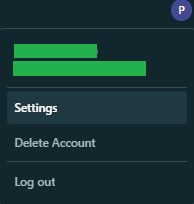
To enable Databricks DBFS, click on the user icon located in the top right corner. Then, select the Settings option, which will redirect you to the Settings page.
From there, head over to the Advanced section and search for “DBFS” in the search bar. You should now see an option to enable DBFS.
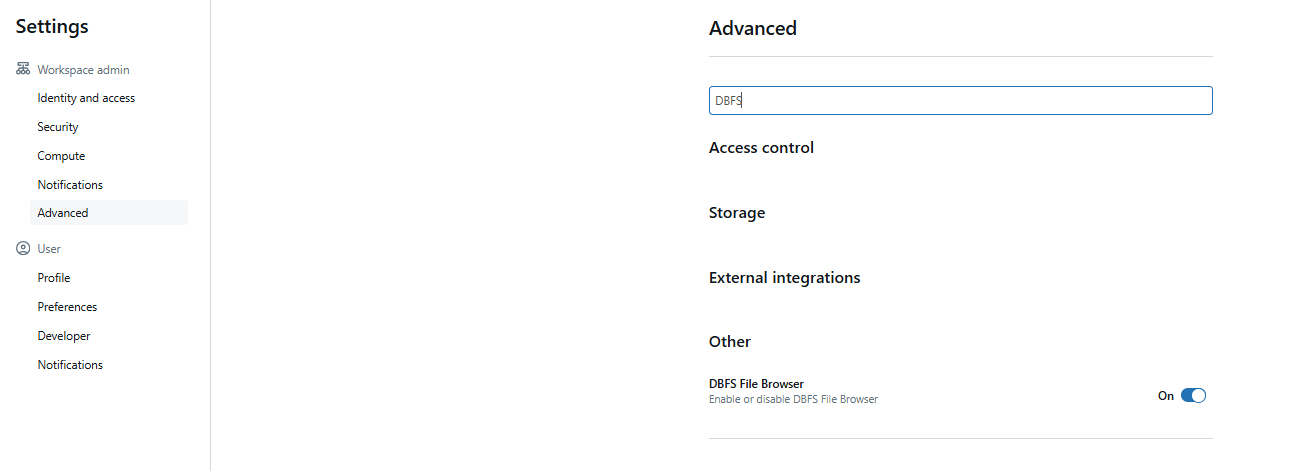
Check the box next to Enable DBFS File Browser and then refresh the page for the change to take effect.
You should see a new tab called “DBFS” in the Catalog section, located next to Database tables.
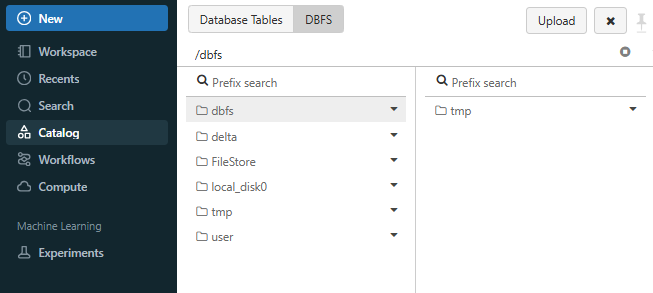
Check out this article, for more indepth info on setting up and configuring Databricks DBFS.
Step 6—Upload your excel file to a Unity Catalog volume (New method)
In your Databricks workspace, click Catalog. Browse to the volume you want to work with. You can upload files of any format to a volume. When uploading through the UI, there’s a 5 GB file size limit; for larger files, use the Databricks SDK for Python.
To upload via the UI:
- In the sidebar, click New, then Add or upload data
- Click Upload files to a volume
- Browse or drag and drop your .xlsx file into the drop zone
Your file will be available at a path like:
/Volumes/catalog_name/schema_name/volume_name/demo_excel.xlsx
If you’re on a legacy workspace using DBFS, the path will look like:
/dbfs/FileStore/demo_excel.xlsx
Now that we have successfully activated DBFS, let’s upload a Microsoft Excel file.
Step 7—Upload Microsoft excel files to Databricks File System (DBFS)
Now that DBFS is configured for file uploads, here’s how to get started:
In the DBFS tab, look for the Upload button—it’s typically located in the top-right corner. Click on it and a popup window will appear, navigate to your desktop (or wherever your file is stored on your local machine) and select the file you want to upload.
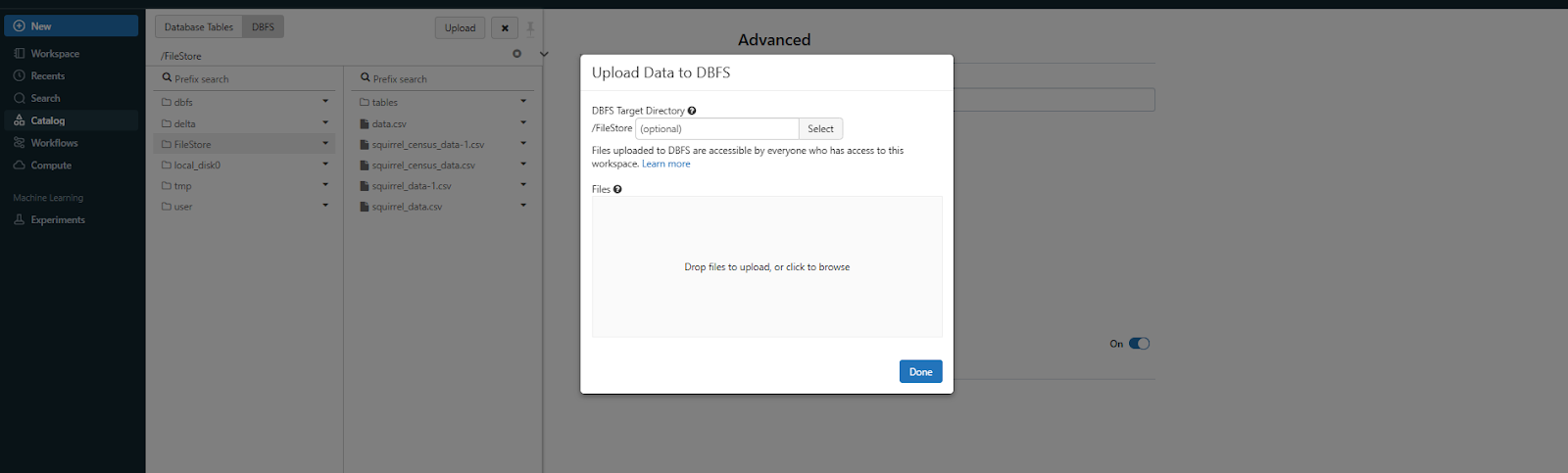
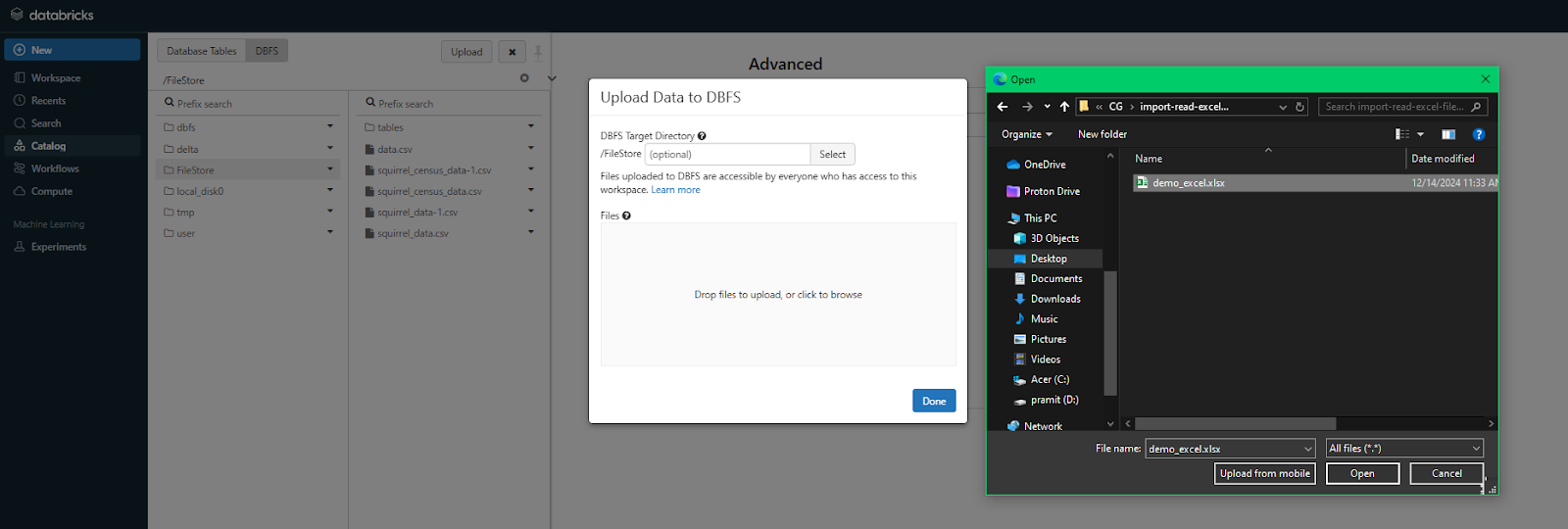
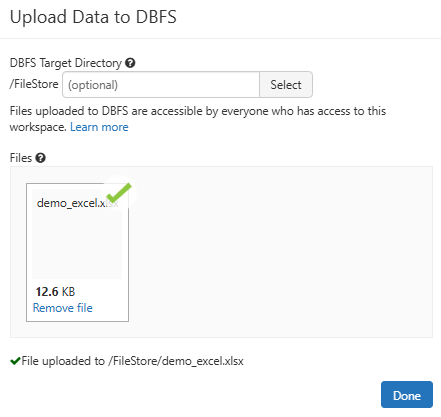
Step 8—Verify the uploaded excel file
Once the Excel file is uploaded, head back to the Databricks Notebook and write the following line of code.
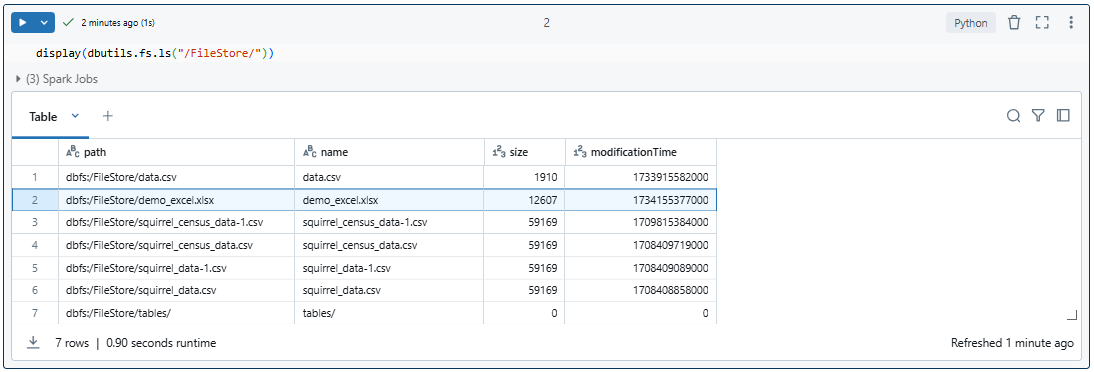
As you can see, it will show the user all the files available in /FileStore of Databricks File System (DBFS).
Step 9—Read Microsoft excel file using Pandas
Now that we know the File Format API location, lets read the file using Pandas. Here’s how to load a Microsoft Excel file into a Pandas DataFrame:
import pandas
import openpyxl

df = pandas.read_excel("/dbfs/FileStore/demo_excel.xlsx", engine='openpyxl')
As you can see, pandas.read_excel() can automatically handle Excel files. Note that explicitly importing openpyxl is generally not needed.
If you are using Unity Catalog volumes
import pandas as pd
import openpyxl df = pd.read_excel(    '/Volumes/catalog_name/schema_name/volume_name/demo_excel.xlsx',    engine='openpyxl')
Note that you don’t need import openpyxl at the top of your script. Pandas picks it up automatically as long as it’s installed.
Step 10—Inspect DataFrame properties
You can check the properties of your DataFrame using:
print("Shape:", df.shape) # Returns number of rows and columns
print("Columns:", df.columns) # Returns column names
print("Data Types:", df.dtypes) # Returns data types of each column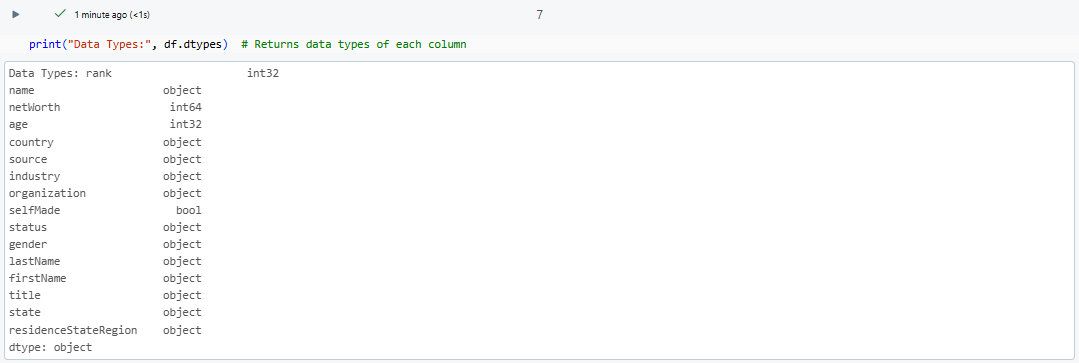
print("First 5 rows:n", df.head()) # Returns first 5 rows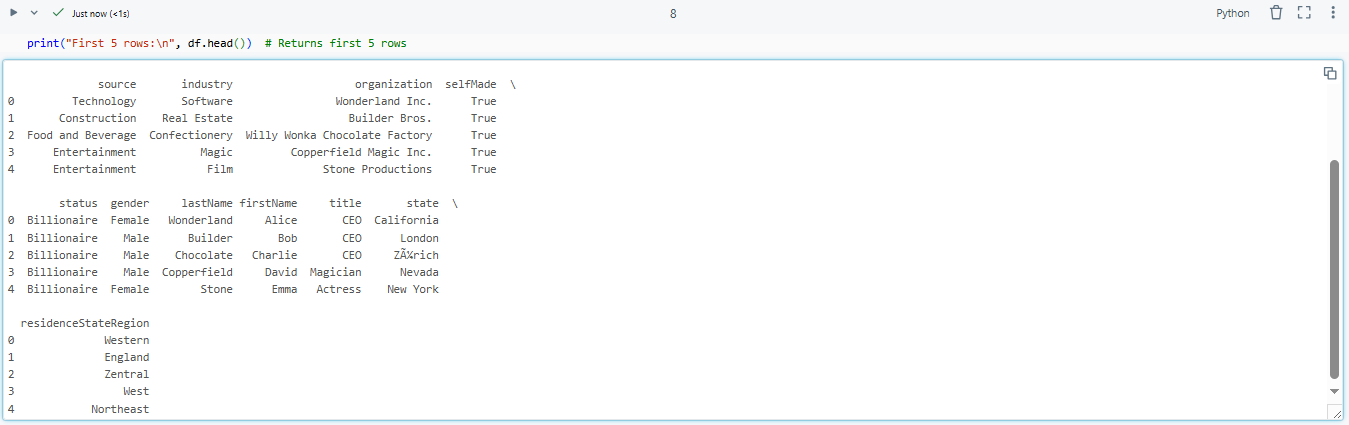
print("Last 5 rows:n", df.tail()) # Returns last 5 rows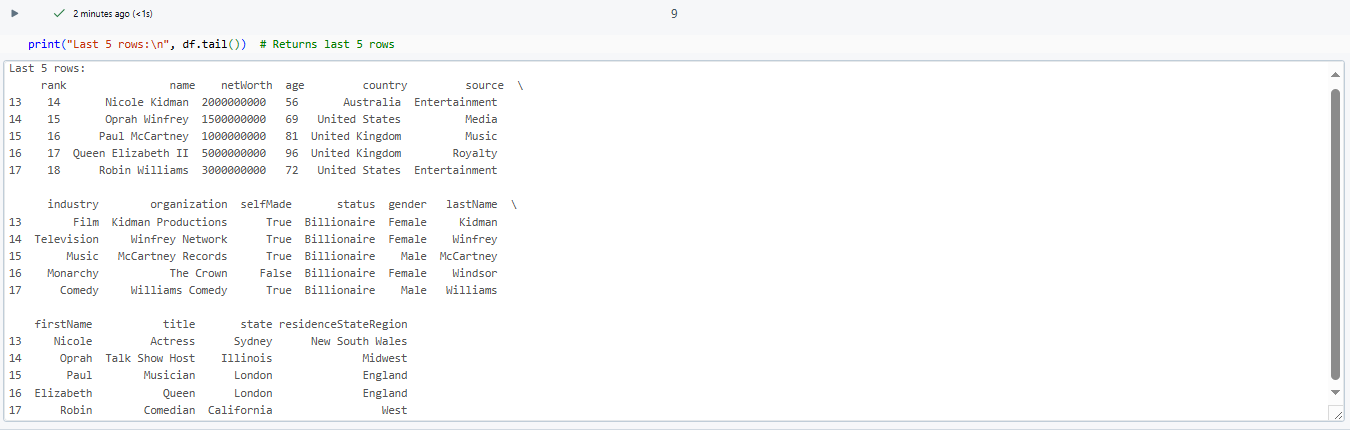
print("Summary statistics:n", df.describe()) # Summary statistics (for numerical columns)
Step 11—Convert the Pandas DataFrame to Spark DataFrame
To leverage Spark’s or Databricks capabilities, convert your Pandas DataFrame into a PySpark DataFrame using spark.createDataFrame() command. Here is what your final code should look like:
import pandas as pd
import openpyxl

df = pd.read_excel("/dbfs/FileStore/demo_excel.xlsx", engine='openpyxl')


# Converting Pandas DataFrame to PySpark DataFrame
spark_df = spark.createDataFrame(df)

spark_df.show()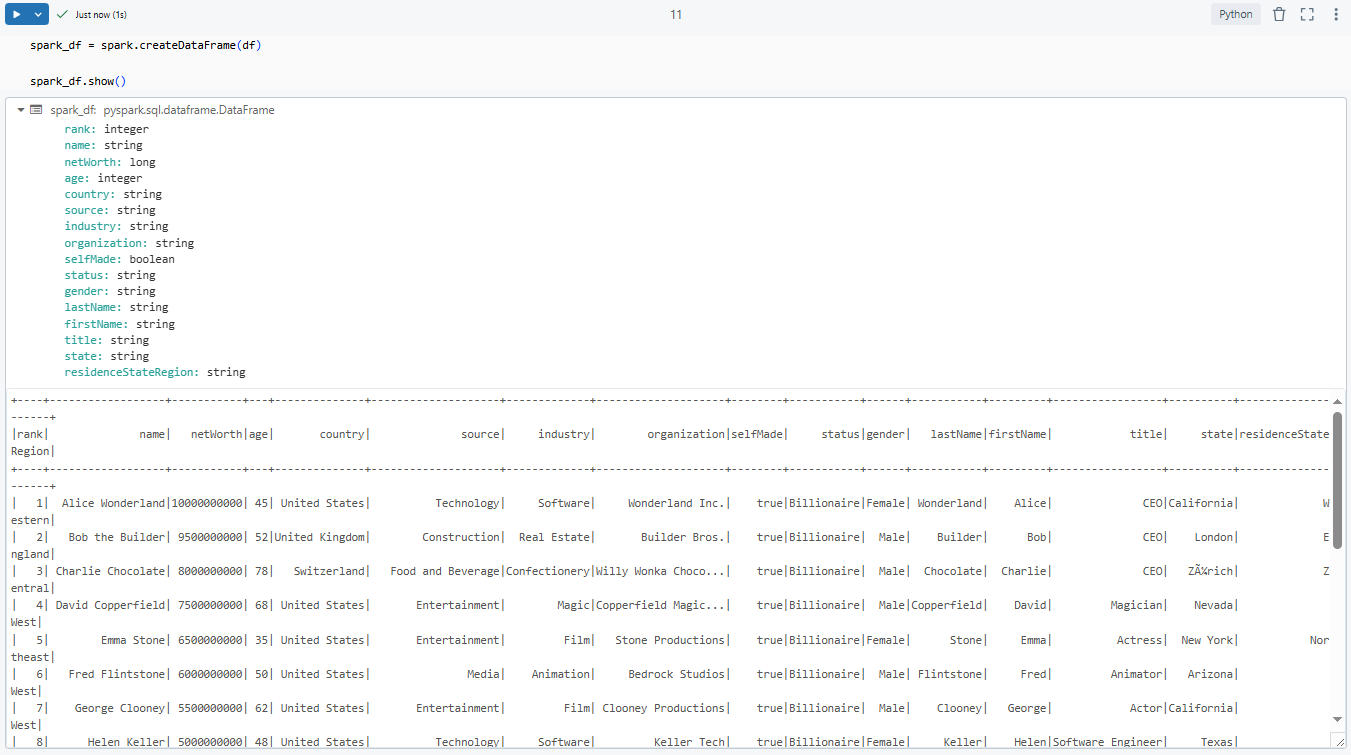
One thing to keep in mind: this approach loads the entire Excel file into the driver node’s memory first. For small to medium files (under ~100 MB), that’s fine. For larger files, you’ll run into memory limits on the driver, which brings us to Technique 2.
Technique 2—Using the spark-excel library
Now that we’ve covered the first technique, let’s move on to the second. This one’s a bit longer to set up, but it’s actually pretty simple to use. We’ll be working with the com.crealytics spark-excel library. This library lets you read Excel files directly into a Spark DataFrame without routing through pandas.
Note: The spark-excel library has known issues with Unity Catalog-enabled clusters running in shared (user isolation) access mode. If you hit SparkClassNotFoundException or DATA_SOURCE_NOT_FOUND errors, try switching to a single-user (dedicated) cluster. The library works reliably in that configuration.
Step 1—Log in to Databricks workspace
As before, the first step is to log in to your Databricks account and navigate to your workspace. Once logged in, make sure you have access to the Databricks workspace where you want to process the Microsoft Excel file.
Step 2—Set up Databricks compute
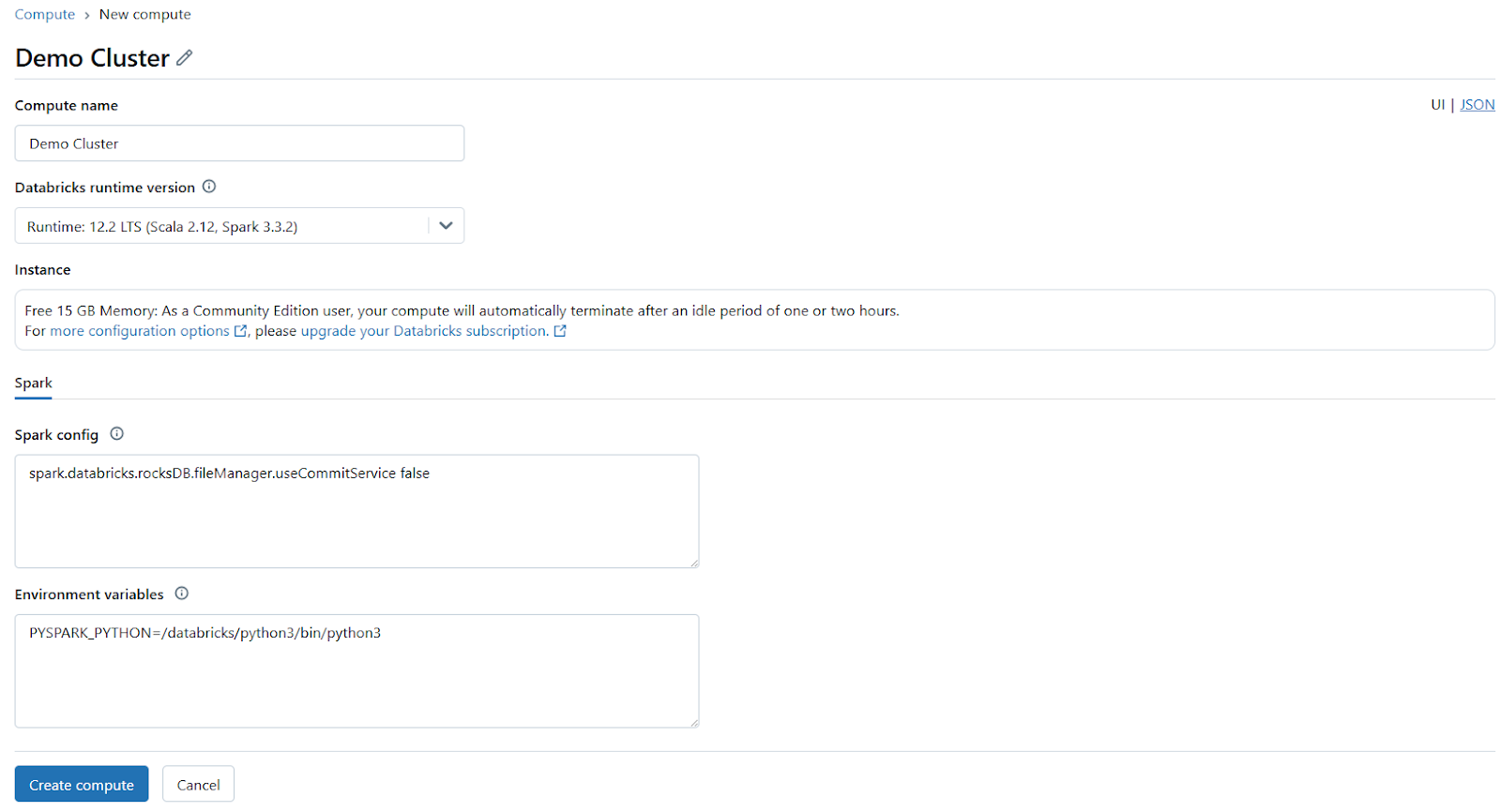
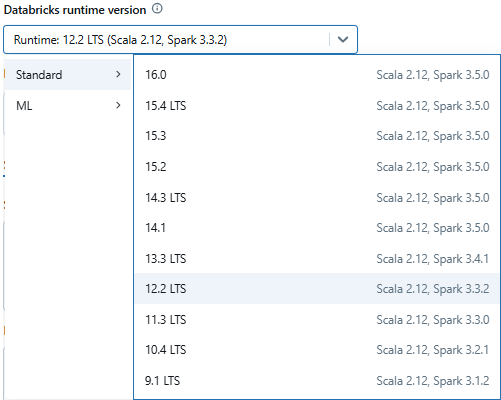
Next, set up a Databricks compute cluster. You can either select an existing Databricks compute or create a new one. Make sure the cluster has sufficient resources to handle your workload and is configured with the necessary runtime version.
Step 3—Navigate to compute and select your running cluster
After setting up the cluster, navigate to the Compute section in your Databricks workspace and select the Databricks compute you plan to use. Check that the cluster is running before proceeding further.

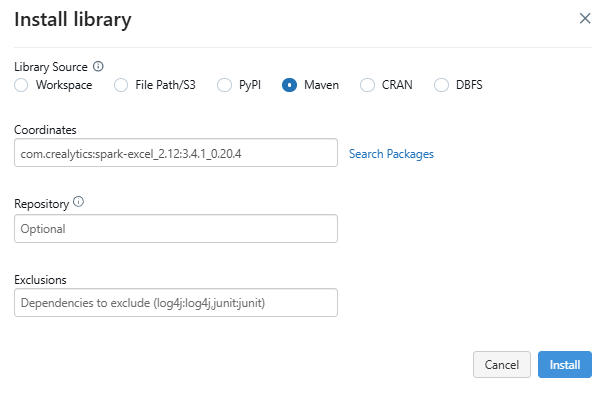
Step 4—Go to libraries and install via Maven
On the cluster details page, click the Libraries tab.
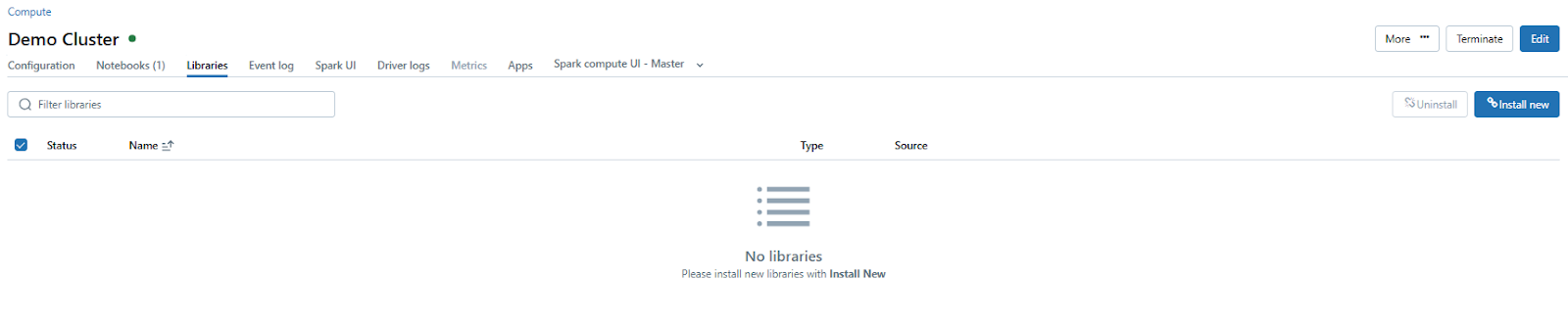
Then, click on Install New and choose Maven as the library source. Maven Library source is a tool for installing external libraries and packages on a Databricks cluster using Maven Coordinates.
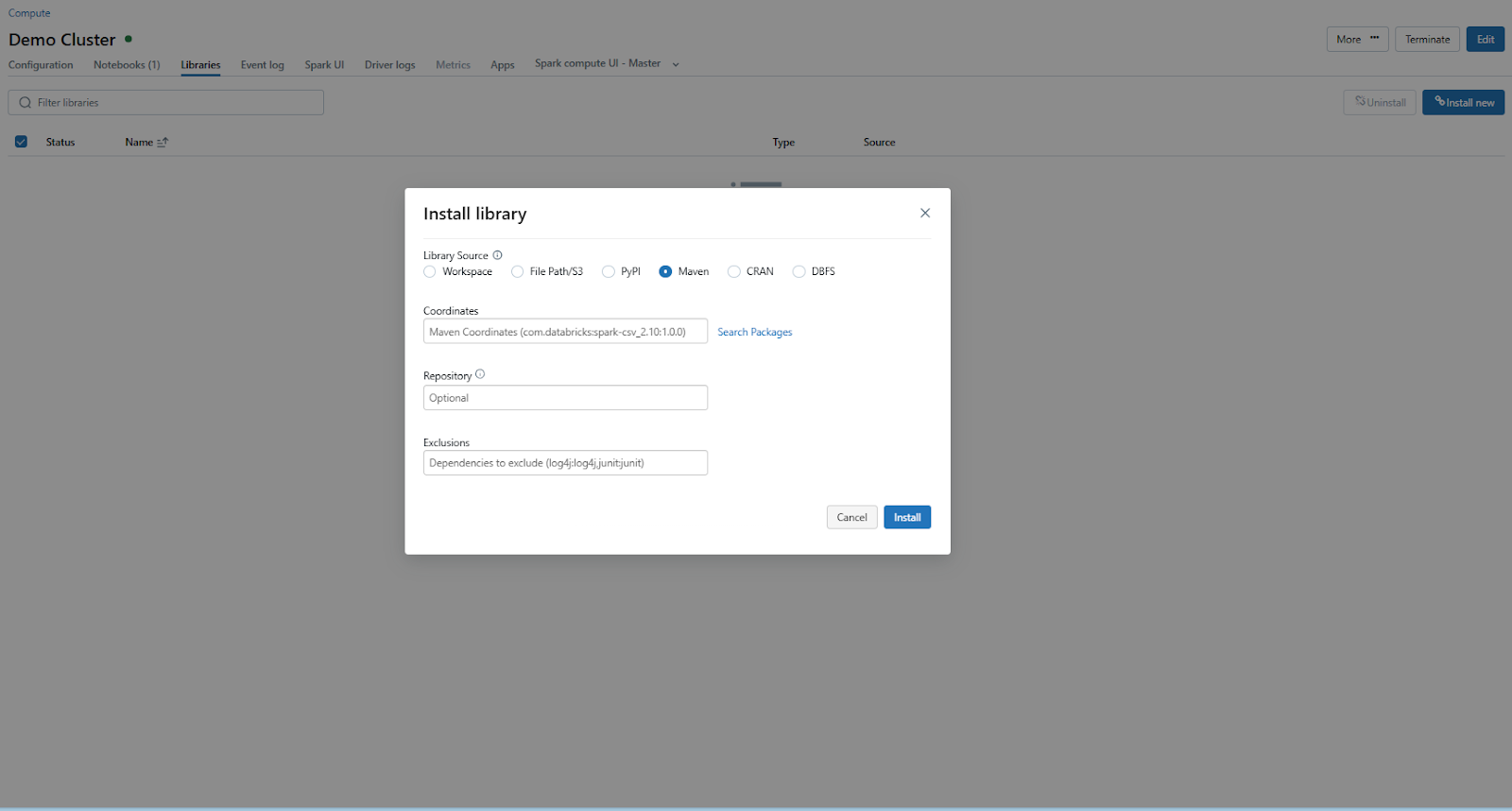
In the Maven tab, click on Search Packages, which will open a package search window.
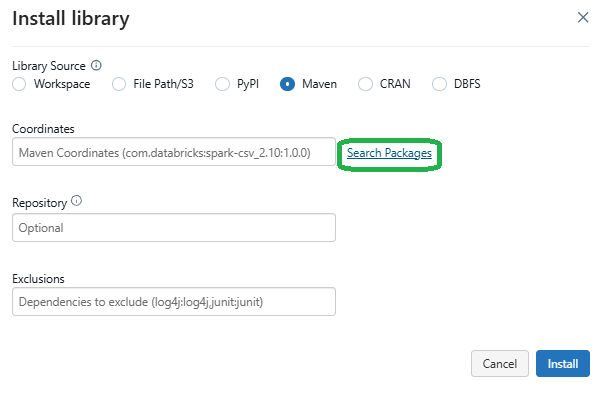
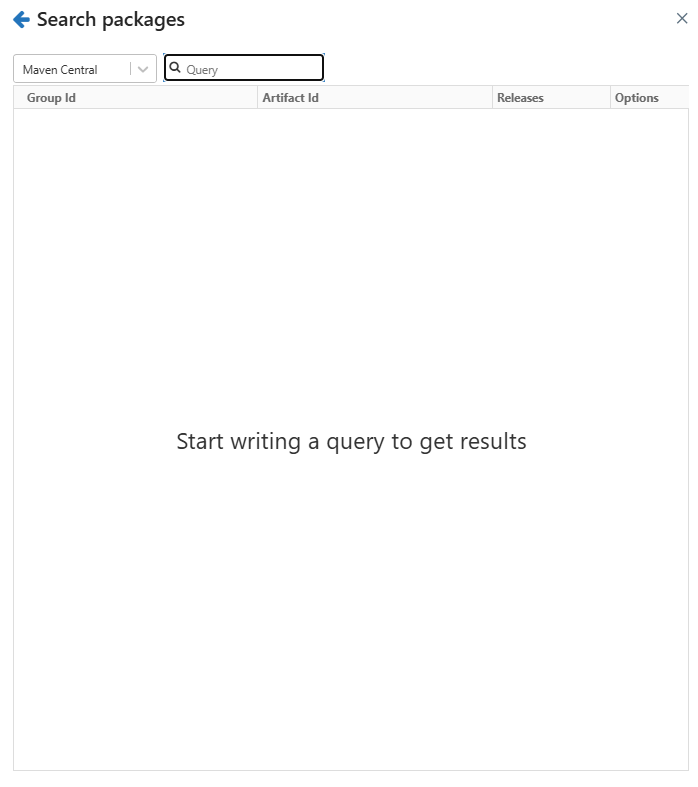
Step 5—Install the correct version of spark-excel
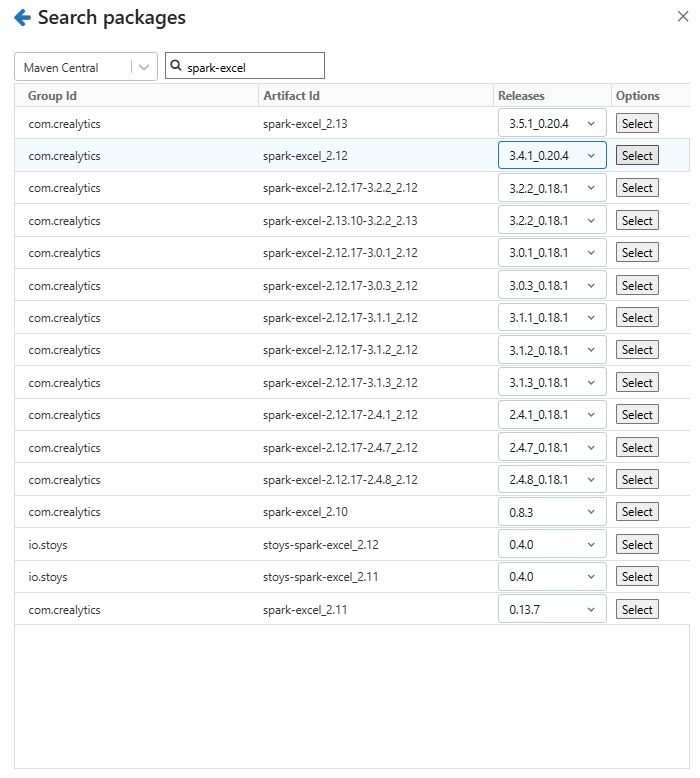
In the package search window, search for spark-excel and select the appropriate version of the library that matches your Databricks runtime and Scala version. For instance, if you are using Databricks Runtime 12.2 LTS (Apache Spark 3.3.2, Scala 2.12), select the compatible Scala 2.12 version of the library. Once you have selected the correct version, install the library. After successful installation, the library will appear in the cluster’s library list.

Step 6—Read the excel file directly into a Spark DataFrame
With the library installed, you can now read the Excel file into a Spark DataFrame. Use the following code snippet to load your Excel file:
spark_df = spark.read.format("com.crealytics.spark.excel")
		.option("header", "true")
		.option("inferSchema", "true")
		 .load("/dbfs/FileStore/demo_excel.xlsx")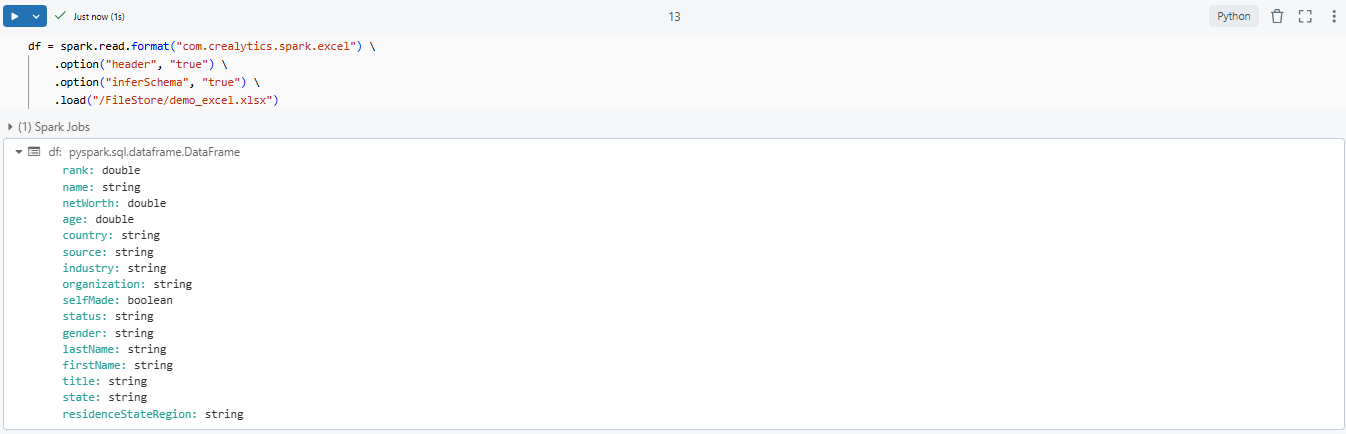
As you can see, here:
format("excel")— Tells Spark to use the spark-excel data source. Note: newer versions of this library use “excel”, not “com.crealytics.spark.excel”. If you’re on an older version, you may need the full format string..option("header", "true")— Treats the first row as column headers.option("inferSchema", "true")— Automatically detects column data types.load("/Volumes/...")— Points to your file in Unity Catalog Volumes (or /dbfs/FileStore/ for legacy DBFS)
Step 7—Validate the data
Finally, use the display() function to visualize the loaded DataFrame and validate that the data has been read correctly. You can perform additional transformations or analysis on the DataFrame as needed.
display(spark_df);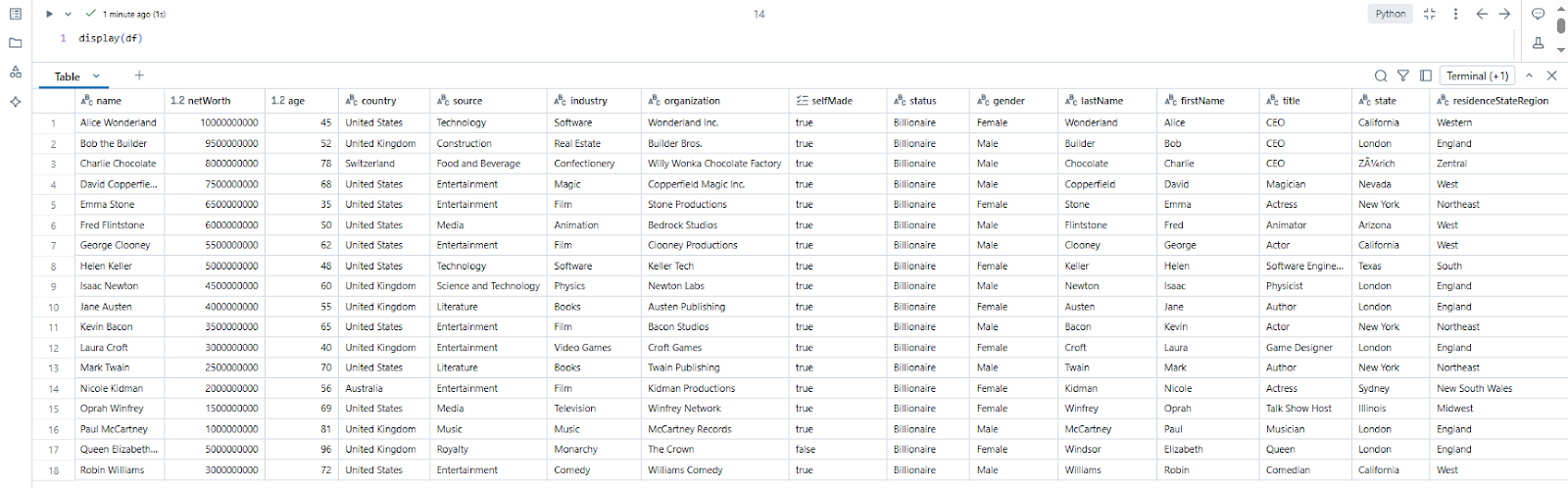
Technique 1 vs Technique 2: Which one should you choose?
| Technique 1 (pandas + PySpark) | Technique 2 (spark-excel) | |
| Best for | Small to medium files (<100 MB) | Large or complex Excel workbooks |
| Setup | Simple—just %pip install | Requires Maven library installation |
| Cluster mode | Any | Single-user recommended |
| Unity Catalog | Works seamlessly | Can be problematic on shared clusters |
| Schema control | Manual (via pandas dtypes) | Schema inference via Spark |
The short version: use pandas for smaller files or when you need Python-native row-level operations. Use spark-excel when your files are large, your workbook is complex, or you want to stay in the Spark API without the pandas conversion step.
Performance benchmarks: Pandas vs Spark-Excel for excel iIngestion
Pandas (pandas.read_excel):
- Runs entirely on the driver node
- Loads the full file into driver memory
- Fast for small files (under ~50 MB); often faster than spark-excel because there’s no Spark job startup overhead
- Hits MemoryError when file size exceeds available driver RAM
- openpyxl (the underlying parser) is single-threaded, so parsing speed is capped regardless of how much CPU you have
Spark-excel (com.crealytics.spark.excel)
- Reads the excel file on one node, then parallelizes the in-memory dataset across the cluster
- Handles files that would overflow driver memory in pandas
- Slightly slower for small files due to Spark job overhead
- Better suited for very large files (hundreds of megabytes or more) where you need distributed processing after ingestion
- More resilient with complex Excel features (merged cells, multiple sheets, custom formats)
Handling multiple excel files
If you need to read multiple Excel files from a directory and combine them into a single DataFrame, here’s a clean way to do it with pandas:
import pandas as pd

import os

path = "/Volumes/catalog_name/schema_name/volume_name/"

all_files = [

    os.path.join (path, f) for f in os. listdir(path) if f.endswith('.xlsx')

]

dataframes = [pd.read_excel(f, engine='openpyxl') for f in all_files]

combined_df = pd.concat(dataframes, ignore_index=True)

spark_df = spark.createDataFrame(combined_df)

display(spark_df)
This works well for a handful of files. For dozens or hundreds of files, consider using Auto Loader with a pre-converted format (like Parquet or Delta) since Auto Loader doesn’t natively support .xlsx.
Handling missing data
After loading your Excel data, you’ll often have nulls to deal with. The approach is the same whether you’re using a pandas or Spark DataFrame:
In Pandas:
df.fillna(0)          # Replace nulls with 0

df.dropna()           # Drop rows with any null values

df.fillna(method='ffill')  # Forward-fill from previous row
In PySpark:
spark_df.fillna(0)

spark_df.dropna()

spark_df.na.fill({"column_name": "default_value"})
Exporting data back to Excel
If you need to write data back to an Excel file, use pandas’ to_excel() method. There’s one important wrinkle for Unity Catalog volumes: direct-append or non-sequential writes—like writing Excel files—are not supported on Unity Catalog volumes. You should write to a local disk path first, then copy the result to a volume.
Here’s the pattern:
from shutil import copyfile

# Write to local disk first

local_path = '/local_disk0/tmp/output.xlsx'

df.to_excel(local_path, index=False, engine='openpyxl')

# Then copy to your volume

copyfile(local_path,'/Volumes/catalog_name/schema_name/volume_name/output.xlsx')
Save up to 50% on your Databricks spend in a few minutes!
Conclusion
And that’s a wrap! Importing and reading Excel files in Databricks is surprisingly easy. This opens up a world of possibilities for data analysis, automation and integration within your data pipelines. You can tackle anything from small datasets to large, complex workloads with Databricks’ robust tools and libraries that make incorporating Excel data into your workflows a breeze.
In this article, we have covered two effective techniques for handling Excel files in Databricks—using Pandas for straightforward tasks and the com.crealytics.spark.excel library for optimized, scalable processing. You’re all set to integrate Excel files into your analytics and machine learning workflows. From setup to data validation, you now have a solid understanding of how to handle Excel files with confidence in Databricks.
FAQs
Can Databricks read excel files directly?
Yes, using either pandas with openpyxl for smaller files, or the com.crealytics spark-excel library for larger ones.
How do I upload an excel file to Databricks?
For Unity Catalog-enabled workspaces (recommended): navigate to Catalog, find your volume, click Add or upload data, and upload your file. Your file will be at /Volumes/catalog/schema/volume/filename.xlsx. For legacy workspaces, enable the DBFS file browser under Settings > Advanced, then upload via the DBFS tab.
What’s the difference between DBFS and Unity Catalog Volumes?
DBFS is the legacy file storage system in Databricks and is now deprecated for new accounts. Unity Catalog Volumes are the modern replacement. They’re governed, access-controlled and work consistently across workspaces. Use Volumes for anything new.
Can I use R to read excel files in Databricks?
Yes. Install the readxl package and use:
library(readxl)
data <- read_excel(“/Volumes/catalog_name/schema_name/volume_name/file.xlsx”)
What library is best for large excel files?
For files you can’t load entirely into driver memory, com.crealytics spark-excel is the better choice. For files under ~100 MB, pandas is simpler and often faster.
Does spark-excel distribute excel parsing across worker nodes?
No, this is a common misconception. Excel files are not splittable, so spark-excel reads the file on a single node. What Spark distributes is the in-memory data after reading, not the parsing itself.
How do I read a specific sheet from an excel workbook?
With pandas:
df = pd.read_excel(‘file.xlsx’, sheet_name=’Sheet2′, engine=’openpyxl’)
With spark-excel:
spark_df = (
spark.read.format(“excel”)
.option(“header”, “true”)
.option(“dataAddress”, “‘Sheet2’!A1”)
.load(“/Volumes/catalog_name/schema_name/volume_name/file.xlsx”)
)
Pramit Marattha
Pramit Marattha is a technical content writer and strategist with 5+ years of experience covering AI, data engineering, data cloud platforms and open source technologies. He turns complex technical concepts into clear, useful content for engineers and developers.







