



Manual document processing has long been a major headache for data teams. It’s costly, slow and kills productivity. You are probably sitting on thousands of PDFs, invoices, documents and image-heavy forms. The trouble is someone still has to dig manually through all that to get the usable data out. But manual extraction just doesn’t scale. Regex-based parsing falls apart the moment a document format changes. And piping files through external tools/APIs means moving sensitive data outside your security perimeter.
If you are a Snowflake user, you might have used Snowflake Document AI to handle this very problem. It’s a GUI-driven feature of Snowflake Document AI that lets you define what data to extract, train models on sample docs and make predictions. But it had its issues. You needed to build and train a model just to get started; it only supported seven languages and required a separate workflow. To top it off, it was pretty limited. But Snowflake Document AI is on its way out. Snowflake is deprecating it and will eventually shut it down.
The good news is that there is a new replacement: the Snowflake AI_EXTRACT function, which is a native SQL function inside Snowflake Cortex AI. This function is just one of many in the Snowflake Cortex AI suite. It can extract structured data from text, documents and images right inside Snowflake. Single function call, no external infrastructure, no data movement and no model training required.
In this article, we’ll cover everything you need to know about what Snowflake AI_EXTRACT does, how it compares to Snowflake Document AI and AI_PARSE_DOCUMENT, how to set it up end to end, how to control and monitor costs, its real limitations and the best practices for using it in production. Let’s dive right in!
What is Snowflake Cortex AI, anyway?
Let’s start with the basics of Snowflake Cortex AI before we dive into Snowflake AI_EXTRACT. Snowflake Cortex AI is a fully managed service within the Snowflake platform. It offers advanced artificial intelligence and machine learning features, all driven by large language models (LLMs). It allows users to analyze unstructured data, answer natural language queries and automate tasks. Data remains within Snowflake, so no data movement is required.
Snowflake Cortex AI prioritizes privacy and security by running models within Snowflake’s secure boundary. Your data never leaves your perimeter and is not used for external training.
Snowflake Cortex AI includes a range of tools and features, such as Snowflake Intelligence, Cortex Agents, Cortex AI functions, Cortex Search, Cortex Analysts and Snowflake Document AI.
Speaking of which, the Snowflake Cortex AI functions (formerly known as Cortex AISQL) are a core feature of the Cortex AI family.
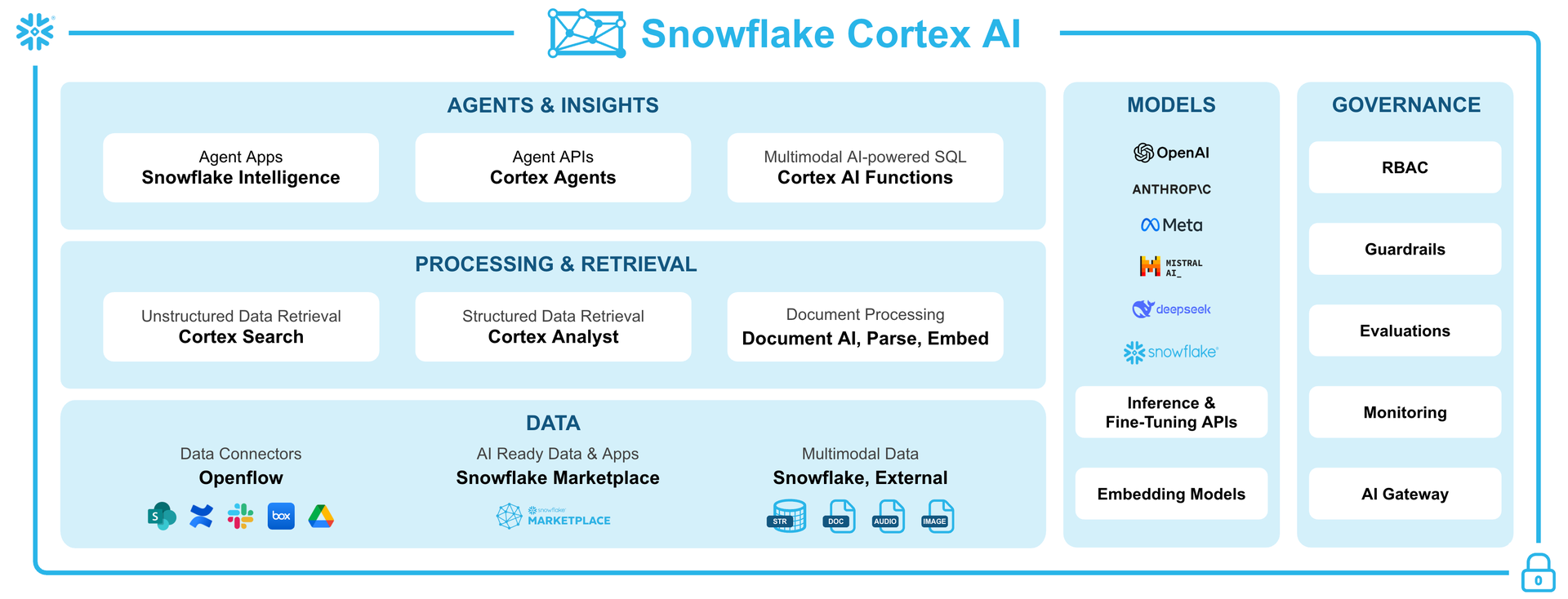
Figure 1: Snowflake Cortex AI (Source: Snowflake)
Snowflake Cortex AI functions work like regular SQL functions. You can use them to perform AI operations directly in your queries without needing custom code or external APIs. To use them, simply invoke the functions like you would standard SQL functions, passing in inputs like text, images or files and they will return structured outputs.
Snowflake Cortex AI functions give you a complete toolkit. It is made up of core AI functions and some handy helpers. Here’s a quick breakdown:
- AI_COMPLETE — Generates text or analyzes images based on a prompt and input
- AI_CLASSIFY — Assigns categories to text or images
- AI_FILTER — Evaluates text or images against a condition, returning true or false
- AI_AGG — Aggregates text across rows and generates insights per a prompt
- AI_EMBED — Creates vector embeddings from text or images
- AI_EXTRACT — Pulls specific information from text, images, or documents
- AI_SENTIMENT — Detects sentiment in text
- AI_SUMMARIZE_AGG — Summarizes aggregated text across rows
- AI_SIMILARITY — Computes similarity scores between embeddings
- AI_TRANSCRIBE — Transcribes audio or video files
- AI_PARSE_DOCUMENT — Extracts text or layout from documents
- AI_REDACT — Removes personally identifiable information from text
- AI_TRANSLATE — Translates text between languages
- SUMMARIZE (SNOWFLAKE.CORTEX) — Legacy function that condenses text; limited to 32,000 input tokens and 4,096 output tokens
And the helper functions:
- TO_FILE — References staged files for use with AI_COMPLETE and other file-aware functions
- AI_COUNT_TOKENS — Estimates token usage to avoid overflows
- TRY_COMPLETE (SNOWFLAKE.CORTEX) — Runs completions with error tolerance
Of these, Snowflake AI_EXTRACT is the tool that extracts specific structured fields from unstructured documents.
What is Snowflake AI_EXTRACT function?
Snowflake AI_EXTRACT is a Cortex AI function that pulls structured info from unstructured sources like text, images, or documents. It does this using Snowflake Arctic-Extract, a vision-language model that is good at reading text and recognizing things like tables, logos, checkboxes and handwritten notes in documents. You do not need to train a custom model, just ask AI_EXTRACT some questions or tell it what you are looking for, and it will give you the answers. It supports both single-value (entity) extraction and list- or table-valued extraction in one shot.
Snowflake AI_EXTRACT is part of Snowflake’s Cortex AI family. It is an upgrade from the older Snowflake EXTRACT_ANSWER function and the Snowflake Document AI model. One substantial difference: Snowflake AI_EXTRACT does not need a pre-built model to work. You can use it for one-off zero-shot extractions (no training) or point it at a fine-tuned model in the Snowflake Model Registry to get better results. Now, if you just need to extract text or do optical character recognition (OCR), Snowflake has AI_PARSE_DOCUMENT for that. But Snowflake AI_EXTRACT is designed for when you want specific fields or tables pulled out using LLM-powered Q&A.
Key features and capabilities of Snowflake AI_EXTRACT function
Snowflake AI_EXTRACT can process documents of various formats in 29 different languages and extract information from both text-heavy paragraphs and content in a graphical format. Here is the full feature breakdown of Snowflake AI_EXTRACT function:
- Multimodal document processing — Snowflake AI_EXTRACT uses a vision-based LLM, not just an OCR text parser. It can process visually structured documents like tables, diagrams, checkboxes, logos and handwritten signatures; not just machine-typed text.
- Vision-language model — Snowflake AI_EXTRACT is powered by Snowflake Arctic-Extract which sees the document layout and image content, so it’s not limited to plain text. It can read handwritten text, marked checkboxes and even printed logos or stamps.
- Entity, list and table extraction in a single call — One function call can return a string value, an array of values and a tabular structure simultaneously. You do not need to chain multiple API calls together.
- 29 supported languages — Snowflake AI_EXTRACT supports Arabic, Bengali, Burmese, Cebuano, Chinese, Czech, Dutch, English, French, German, Hebrew, Hindi, Indonesian, Italian, Japanese, Khmer, Korean, Lao, Malay, Persian, Polish, Portuguese, Russian, Spanish, Tagalog, Thai, Turkish, Urdu and Vietnamese.
- Flexible response formats — Snowflake AI_EXTRACT allows you to define what to extract using a simple key-value object, an array of questions or a full JSON schema with typed properties and column ordering for tables.
- Batch from stages — Snowflake AI_EXTRACT can access the files stored in internal or external stages. A “directory table” on Snowflake Stage lets you batch-process many files at once.
- Zero-shot extraction — No training data required. The model generalizes across document types out of the box. If you previously fine-tuned a Snowflake Document AI model, note that AI_EXTRACT doesn’t support fine-tuning; it’s entirely zero-shot.
- Runs inside Snowflake’s security boundary — Snowflake AI_EXTRACT respects role-based access control (RBAC), data governance policies and all existing Snowflake access controls. No data movement, no external calls to third-party services.
- Highly scalable — Snowflake AI_EXTRACT automatically scales to process many documents in parallel, leveraging Snowflake’s compute.
TL; DR: Snowflake AI_EXTRACT is Snowflake’s modern approach to extracting data from documents. You don’t need to create separate models; just write a prompt and let the LLM parse the page.
Syntax and argument breakdown of Snowflake AI_EXTRACT function
Snowflake AI_EXTRACT takes two parameters: the input (either text or file) and responseFormat. These are the only two arguments, but responseFormat is where things get complicated.
Text input
SELECT AI_EXTRACT(
   text  => '<your_text_string>',
   responseFormat => <format>
);
Use this when you need to extract data from raw strings that are stored in a column.
File input
SELECT AI_EXTRACT(

    file  => TO_FILE('<stage>', '<path>'),

    responseFormat => <format>

);
Use this option for documents that are stored on either internal or external Snowflake Stages.
Note: You cannot use both a text string and a file object in the same call. Choose one.
responseFormat
And the response format can be:
- An array of strings containing the information to be extracted
- An array of arrays containing two strings (label and the information to be extracted)
- A key-value map where the key is a name and the value is a question string
- A JSON schema object (for complex extractions). You define properties with descriptions and types (string, array or table object)
Format 1—Simple key-value object
responseFormat => {'name': 'What is the employee last name?', 'city': 'What city does the employee live in?'}
Format 2—Array of labeled pairs
responseFormat => [['name', 'What is the first name?'], ['city', 'Where does the employee live?']]
Format 3—Array of questions (no labels, labels auto-generated)
responseFormat => ['What is the invoice total?', 'What is the name of the vendor?']
Format 4—JSON schema (supports entity strings, arrays and tables)
responseFormat => {

  'schema': {

    'type': 'object',

    'properties': {

      'vendor_name': {

        'description': 'What is the vendor name on this invoice?',

        'type': 'string'

      },

      'line_items': {

        'description': 'What are the product descriptions on this invoice?',

        'type': 'array'

      },

      'charges_table': {

        'description': 'The detailed list of charges',

        'type': 'object',

        'column_ordering': ['item', 'quantity', 'unit_price', 'total'],

        'properties': {

          'item': { 'type': 'array' },

          'quantity': { 'type': 'array' },

          'unit_price': { 'type': 'array' },

          'total': { 'type': 'array' }

        }

      }

    }

  }

}
Note: You cannot mix JSON schema format with the other formats in the same call. If responseFormat contains the schema key, you must define all questions within the JSON schema. Also, string is currently the only supported scalar type in JSON schemas (numeric and boolean types aren’t supported yet).
Snowflake AI_EXTRACT vs Snowflake Document AI
So, what is the difference between Snowflake Document AI and Snowflake AI_EXTRACT?
Snowflake Document AI was Snowflake’s earlier approach to document extraction. Document AI and the <model_build_name>!PREDICT method are now deprecated. Snowflake recommends using the AI_EXTRACT function instead. If you are still using Snowflake Document AI pipelines, now is the time to migrate immediately.
Table 1: Difference between Snowflake AI_EXTRACT vs Snowflake Document AI
| 🔮 | Snowflake Document AI (deprecated) | Snowflake AI_EXTRACT (current) |
| Workflow | Create a model build in the UI, upload training docs, define fields, optionally fine-tune, then run PREDICT | Single-step SQL function call with AI_EXTRACT, no UI or training required |
| Model | Based on Snowflake Arctic-TILT LLM (with manual fine-tuning) | Uses Snowflake’s new Snowflake Arctic-Extract vision-LLM, no fine-tuning supported |
| Model training required | Yes (model builds + publish step) | No (zero-shot) |
| Fine-tuning support | Supported (Snowflake Arctic-TILT model) | Not available (zero-shot only) |
| Language support | 7 languages (English, Spanish, French, German, Portuguese, Italian, Polish) | 29 languages (Arabic, Bengali, Burmese, Cebuano, Chinese, Czech, Dutch, English, French, German, Hebrew, Hindi, Indonesian, Italian, Japanese, Khmer, Korean, Lao, Malay, Persian, Polish, Portuguese, Russian, Spanish, Tagalog, Thai, Turkish, Urdu, Vietnamese) |
| Document Extraction method | Model build defines extraction schema | responseFormat defines extraction schema at query time |
| Input | Files from Snowflake Stage (supported formats only) | Files or text (many formats including PDF, DOCX, PPTX, HTML, images) |
| Output | 512 tokens per answer (entities), 2048 tokens for table answers | 512 tokens per entity answer, 4096 tokens for a table answer |
| JSON schema response format | No | Yes |
| Confidence scores | Yes | No |
| Max docs per query | 1000 docs per query (for internal or external stage) | Each call handles one document file (up to 125 pages). Use batching via queries over directory tables |
| File size support | (client-side encryption only, small files) | Up to 100 MB per file |
| UI? | Has a Snowflake web UI for model building and testing | No UI; SQL interface only |
| Deployment | Models were account-specific (migrated to Model Registry) | Fully managed by Snowflake |
| Status and migration | Deprecated; UI and !PREDICT API to be decommissioned on February 28, 2026. It is advised to migrate to AI_EXTRACT for improved accuracy, speed and multilingual support | GA since November 2025. Recommended for all new development; supports migration of legacy Snowflake Document AI models via Snowflake Model Registry |
| Pricing | Compute-time billing (charged for GPU/warehouse time used during training and inference) | Token-based billing (input + output tokens)
|
TL; DR: Snowflake Document AI used to be a more hands-on process with fixed models and limitations. Now, Snowflake AI_EXTRACT is a more modern approach that relies on code and uses large language models. It makes things easier by ditching the model building and fine-tuning steps – you can just ask questions as you need them. Plus, Snowflake AI_EXTRACT can handle a lot more languages and bigger outputs than the old solution. Switch to AI_EXTRACT if you are using Snowflake Document AI. Do it before February 28, 2026, because that is when the old service ends.
Snowflake AI_EXTRACT vs Snowflake AI_PARSE_DOCUMENT
Snowflake offers another new function, Snowflake AI_PARSE_DOCUMENT, for document processing. How does it differ from Snowflake AI_EXTRACT?
These two functions are easy to get mixed up with because they both deal with documents, but they are used for different things.
AI_PARSE_DOCUMENT is an OCR/layout extraction tool. It takes a document and turns it into text or Markdown, keeping its original layout and structure intact (headings, paragraphs and tables). What it does not do is analyze the document and answer specific questions about it. Its main goal is to make the document readable.
Snowflake AI_EXTRACT pulls out specific info from a document. You ask it a question and it gives you a simple, structured JSON answer. You will not get the full raw text of the document, just the details you are looking for.
Note: If you are porting an existing Snowflake Document AI pipeline, the rule of thumb is: use AI_EXTRACT when you need structured values and AI_PARSE_DOCUMENT when you just need OCR or text with layout. AI_PARSE_DOCUMENT is like exporting everything to JSON, whereas AI_EXTRACT picks out the specific parts you asked for.
Table 2: Difference between Snowflake AI_EXTRACT vs Snowflake AI_PARSE_DOCUMENT
| 🔮 | Snowflake AI_PARSE_DOCUMENT | Snowflake AI_EXTRACT |
| Main purpose | Extract raw content (OCR) or layout info from a document. Useful for search indexing or RAG pipelines | Extract specific values (entities, lists, tables) by Q&A. Outputs targeted JSON |
| Modes/Options | OCR mode (text only) or LAYOUT mode (includes tables, formatting) | Uses no explicit mode – it automatically handles layout, images, handwriting via the LLM |
| Asks questions? | No, returns all text | Yes, via responseFormat |
| Input | Files on internal/external stages: PDF, DOC/DOCX, PPT/PPTX, JPEG/JPG, PNG, TIFF/TIF, HTML/HTM, TXT/TEXT. Focuses on document and image formats with OCR fallback | Text strings; files including PDF, PNG, PPTX/PPT, EML, DOC/DOCX, JPEG/JPG, HTM/HTML, TEXT/TXT, TIF/TIFF, BMP, GIF, WEBP, MD. Handles raw text or staged files |
| Output format | JSON string containing pages of text (OCR) and/or layout (tables/paragraphs). Returns raw text or Markdown | JSON with only requested answers in fields you defined |
| Syntax/Usage | Invoked as a SQL function (AI_EXTRACT(text => <text>, responseFormat => <schema>) or with file) | Invoked as a SQL function (AI_PARSE_DOCUMENT(<file>, {‘mode’: ‘LAYOUT’})). Requires staged files |
| Table support | Yes, via LAYOUT mode (Markdown tables) | Yes, via JSON schema |
| Image extraction | Can extract embedded images (LAYOUT mode) | Reads visual elements; doesn’t output images |
| Language support
|
9 languages OCR mode (English, French, German, Italian, Norwegian, Polish, Portuguese, Spanish, Swedish)
12 languages in LAYOUT mode (Chinese, English, French, German, Hindi, Italian, Portuguese, Romanian, Russian, Spanish, Turkish, Ukrainian) |
29 languages (Arabic, Bengali, Burmese, Cebuano, Chinese, Czech, Dutch, English, French, German, Hebrew, Hindi, Indonesian, Italian, Japanese, Khmer, Korean, Lao, Malay, Persian, Polish, Portuguese, Russian, Spanish, Tagalog, Thai, Turkish, Urdu, Vietnamese) |
| Confidence scores | No | No |
| Common use case | Get all text/structure from docs for indexing or further parsing | Targeted data/document extraction |
| Limitations | Files must be staged; < 100 MB and ≤ 125 pages; LAYOUT mode requires more processing; image extraction preview in some regions; no direct text string input | Max 100 entity questions or 10 table questions per call; files < 100 MB and ≤ 125 pages; no confidence scores; no client-side encrypted stages; cannot mix text and file inputs |
| When to use it | When you just need text or layout extraction (to feed into another system or RAG). It is more like OCR | When you want structured answers or data fields out of documents directly in Snowflake |
| Pricing | Token-based pricing, like other Snowflake Cortex AI functions. Costs depend on document size and mode (LAYOUT more compute-intensive) | Token-based pricing, charged per input/output tokens processed. Cost-efficient for data/document extractions |
TL; DR: AI_PARSE_DOCUMENT is useful for extracting the full text of a document into a readable format, perfect for RAG pipelines, search indexing, or training a summary model. Snowflake AI_EXTRACT is a better choice when you only need to extract specific fields and have them formatted into table-ready, structured JSON.
You can also try combining these two functions. First, use AI_PARSE_DOCUMENT to clean up the text and convert it to Markdown. Then, pass that text to Snowflake AI_EXTRACT with a text => … call. This two-step approach can sometimes improve accuracy on messy scanned documents.
What can you use Snowflake AI-EXTRACT for?
Snowflake AI_EXTRACT can be used anywhere you have documents or images with data you want to put in tables or fields. You can use Snowflake AI_EXTRACT in the following scenarios:
- Invoice and receipt processing — Pull vendor name, invoice number, line items, totals, due dates and tax amounts from PDF invoices; load directly into a staging table for accounts payable processing
- Contract and legal document analysis — Extract parties, effective dates, termination clauses, renewal terms and more from legal agreements; scale across thousands of contracts without manual review
- Table extraction for financial data ingestion — Pull structured tables from earnings reports, financial statements and data sheets directly into Snowflake tables
- Form processing — Extract filled-in values from application forms, tax forms, insurance claims and survey responses; Snowflake AI_EXTRACT handles checkboxes and handwritten fields through its vision model and is not limited to typed text
- Medical records/clinical notes — Extract patient info, diagnoses, medications and test results from clinical notes and discharge summaries; since Snowflake AI_EXTRACT runs entirely inside Snowflake with role-based access control (RBAC) enforcement, it keeps protected health information (PHI) within your governance perimeter
- Document search and RAG pipelines — Extract metadata fields (title, author, date, category, key topics) and store them alongside the document reference for downstream search and retrieval; even pair with Cortex Search for semantic lookup
- Financial reporting — Extract key performance indicators (KPIs), revenue figures, segment data and footnotes from quarterly reports across hundreds of filings at once using batch processing from a stage
- Email and ticket grouping — Pass the body of support tickets, complaint emails, or onboarding forms as text inputs to extract intent, product names, order numbers and customer details without storing them as files first
- Regulatory and compliance document review — Extract license numbers, compliance attestations, expiry dates and signatory names from regulatory filings at scale
- General data enrichment — Any time you want to add document-derived metadata to your database (like customer letters, support tickets, or user-written comments)
So, whenever you have unstructured documents with data you want to query or analyze in Snowflake, AI_EXTRACT is a big help. You define the fields once, and the LLM does the rest. This saves engineering time and reduces errors, making it better than manual processes.
How to calculate Snowflake AI_EXTRACT costs?
Snowflake AI_EXTRACT incurs two main kinds of costs: warehouse compute credits and Cortex (token-based) credits.
1) Warehouse compute costs
Every query you run still runs on a Snowflake virtual warehouse, so you pay for the warehouse time (just like any query). Because AI_EXTRACT is I/O-bound (the heavy LLM work is done by Snowflake’s managed service), you do not need a large warehouse. In fact, Snowflake explicitly recommends using a MEDIUM warehouse or smaller for AI_EXTRACT. Remember that bigger clusters do not speed up the LLM inference or reduce latency for AI functions. It just burns more credits on warehouse compute without any benefit. Your warehouse cost is therefore usually minimal, but if you queue many documents in parallel on a large cluster, it can add up fast.
2) Cortex AI (Token) billing
This is where the actual cost comes from. Snowflake AI_EXTRACT bills on both input tokens and output tokens using the Snowflake Arctic-Extract model, which runs at ~5 credits per million tokens (standard, non-fine-tuned).
What counts as input tokens
Input token billing has three components:
- Document content. Either page-based token counts for file inputs or actual text length for string inputs (more on this below)
- Your responseFormat payload. The questions, field names, and schema you pass in the argument all count as input tokens
- Snowflake’s managed system prompts. This is added automatically to every call, and you cannot see or control it
How do document pages convert to tokens?
For file-based inputs, Snowflake does not tokenize the actual text on the page. It uses a flat rate based on document format:
Table 3: Snowflake Cortex AI token cost breakdown
| Input format | How pages are counted |
| PDF, DOCX, TIF, TIFF | Each page = 970 input tokens |
| JPEG, JPG, PNG | Each image file = 970 input tokens (treated as a single page) |
| Plain text strings | Actual token count of the text (~4 characters per token) |
Note: The cost of a mostly blank PDF page is the same as a dense one with a lot of text, due to the flat 970 token rate.
Output token limits
Output tokens are billed based on the length of the JSON response AI_EXTRACT returns. The caps depend on what you are extracting:
- Entity and list extractions – 512 output tokens per question (maximum 100 questions per call)
- Table extractions – 4,096 output tokens per question (maximum 10 questions per call)
Table extraction can be expensive. If you are pulling full structured tables from documents, those output tokens can easily dominate the total cost of a call.
The token billing rate itself (5 credits per million tokens for standard Snowflake Arctic-Extract) is consistent across cloud providers. What changes by region is the dollar value of a Snowflake credit.
Check the current rates in Snowflake’s Service Consumption Table.
Sample cost estimate
Let us say we process 1k invoices. Each invoice has 3 pages, and we ask 5 entity questions per invoice.
- Input tokens per invoice ⇒ (3 pages × 970) + responseFormat tokens + system prompt ~3100 input tokens
- Output tokens per invoice ⇒ 5 questions × ~100 tokens average ~ 500 output tokens
- Total per invoice ⇒ ~3600 tokens
- Total for 1k invoices ⇒ ~3.6 million tokens
At 5 credits per million tokens, that is 18 credits. On AWS US East, at the Standard edition rate ($2/credit), it costs $36 for Cortex billing.
Add warehouse compute on top. An XS warehouse runs at 1 credit per hour. A 20-minute batch adds another ~0.33 credits, which is negligible.
These are rough estimates. Always run a sample before processing a large batch.
To monitor spend, use Snowflake’s account usage views.
Snowflake provides the CORTEX_FUNCTIONS_USAGE_HISTORY account usage view to track Cortex token consumption.
You can also use METERING_DAILY_HISTORY to track overall credit consumption at the account level and set budget alerts.
How to configure and use Snowflake AI_EXTRACT to extract data from documents?
Now, we have gotten the basics covered, so let us dive into the practical side of things. Next up, we’ll walk through setting up Snowflake AI_EXTRACT step by step, starting from an absolute scratch.
Prerequisites and setups:
Here is what you should have before you start:
- A Snowflake account on an edition/region that supports Snowflake Cortex AI functions and AI_EXTRACT.
- The ACCOUNTADMIN role, or a role with the ability to grant CORTEX_USER privileges
- A warehouse, database and schema to hold Snowflake Stages, tables and tasks. Use a dedicated warehouse for Cortex workloads to track credits separately.
- Cross-region inference enabled if your region doesn’t natively support AI_EXTRACT (covered in Step 5 below)
- Documents in a supported format (PDF, DOC, DOCX, PNG, JPEG, JPG, TIFF, TIF, HTML, HTM, TXT, TEXT, PPT, EML, BMP, GIF, WEBP, or MD). Files must be < 100 MB and < 125 pages. Snowflake AI_EXTRACT limits: up to 100 entity extraction questions or 10 table extraction questions per call; tables count as 10 entities each.
Step 1—Sign in to Snowsight or SnowSQL
Log in to your Snowflake account via the Snowsight web interface or the Snowflake CLI. All SQL in this guide runs in Snowsight or via SnowSQL.
Step 2—Create a dedicated warehouse, database and schema
Now, with your session open, the first real task is setting up the infrastructure. Keep Snowflake AI_EXTRACT workloads on a dedicated, right-sized warehouse- that way, it is easier to track costs later. (The MEDIUM size is recommended; X-Small or Small also often suffice). The warehouse will charge credits while running your AI queries.
CREATE WAREHOUSE IF NOT EXISTS doc_extract_wh

    WITH WAREHOUSE_SIZE = 'MEDIUM'

    AUTO_SUSPEND = 60

    AUTO_RESUME = TRUE;
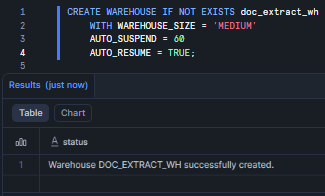
Figure 2: Creating the doc_extract_wh Snowflake virtual warehouse
Now create the database and schema that will hold your stages, tables and tasks.
CREATE DATABASE IF NOT EXISTS doc_processing_db;

CREATE SCHEMA IF NOT EXISTS doc_processing_db.extraction;
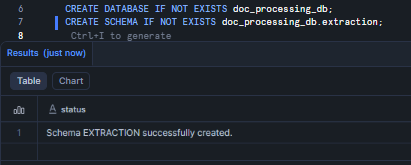
Figure 3: Creating the doc_processing_db database and extraction schema—Snowflake AI_EXTRACT
Step 3—Create a custom role and assign least privileges
Do not run extraction workloads under ACCOUNTADMIN in production. The principle of least privilege applies here just as much as anywhere else—scope the permissions to exactly what the pipeline needs.
USE ROLE ACCOUNTADMIN;

CREATE ROLE IF NOT EXISTS doc_extractor_role;
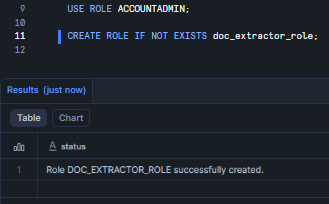
Figure 4: Creating the doc_extractor_role custom role—Snowflake AI_EXTRACT
Now, grant the role access to the warehouse, database and schema objects it’ll need.
GRANT USAGE ON WAREHOUSE doc_extract_wh TO ROLE doc_extractor_role;

GRANT USAGE ON DATABASE doc_processing_db TO ROLE doc_extractor_role;

GRANT USAGE ON SCHEMA doc_processing_db.extraction TO ROLE doc_extractor_role;

GRANT CREATE TABLE ON SCHEMA doc_processing_db.extraction TO ROLE doc_extractor_role;

GRANT CREATE STAGE ON SCHEMA doc_processing_db.extraction TO ROLE doc_extractor_role;

GRANT CREATE STREAM ON SCHEMA doc_processing_db.extraction TO ROLE doc_extractor_role;

GRANT CREATE TASK ON SCHEMA doc_processing_db.extraction TO ROLE doc_extractor_role;
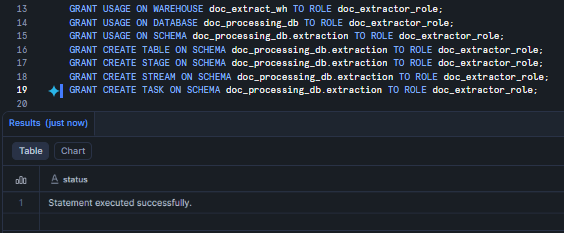
Figure 5: Granting warehouse, database and schema privileges to doc_extractor_role—Snowflake AI_EXTRACT
Step 4—Grant Cortex privileges (control access)
The CORTEX_USER database role in Snowflake includes the necessary privileges to call Snowflake Cortex AI functions. It is automatically granted to the PUBLIC role, which means every user and role gets it by default.
For a production environment, it is a good idea to have more control over who can call Cortex functions. To do this, grant the CORTEX_USER role directly to a custom role you have created.
GRANT DATABASE ROLE SNOWFLAKE.CORTEX_USER TO ROLE doc_extractor_role;

GRANT ROLE doc_extractor_role TO USER <your_username>;
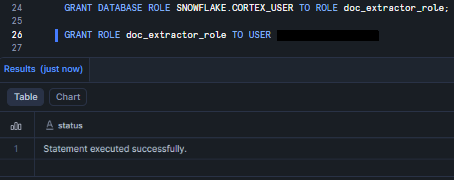
Figure 6: Granting SNOWFLAKE.CORTEX_USER to doc_extractor_role and assigning it to a user—Snowflake AI_EXTRACT
You must run these as ACCOUNTADMIN or a similarly powerful role. Now, any user with doc_extractor_role can call Snowflake Cortex AI functions. Also make sure doc_extractor_role (or the granting role) has USAGE on the target warehouse, database and schema.
Step 5—(Optional) Enable cross-region inference
Snowflake AI_EXTRACT is natively available in select Snowflake regions. If your account is in a region that does not support it natively, you need to enable cross-region inference via the CORTEX_ENABLED_CROSS_REGION account parameter.
USE ROLE ACCOUNTADMIN;
To allow inference in any supported region:
ALTER ACCOUNT SET CORTEX_ENABLED_CROSS_REGION = 'ANY_REGION';
Or restrict processing to a specific cloud or region group:
ALTER ACCOUNT SET CORTEX_ENABLED_CROSS_REGION = 'AWS_US';
Note: Cross-region inference is not supported in U.S. SnowGov regions. User inputs, service-generated prompts and outputs are not stored or cached during cross-region inference. If both the source and destination regions are on AWS, the data stays within the AWS global network and is automatically encrypted at the physical layer.
Step 6—Switch role, set context, create prompt/metadata tables
Switch to your new role and set the working context. From here on, all objects are created under doc_extractor_role.
USE ROLE doc_extractor_role;

USE WAREHOUSE doc_extract_wh;

USE DATABASE doc_processing_db;

USE SCHEMA extraction;
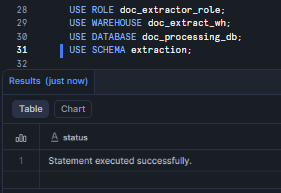
Figure 7: Setting the active role, warehouse, database and schema—Snowflake AI_EXTRACT
Now create a table to track documents queued for processing.
CREATE OR REPLACE TABLE document_queue (

    document_id     VARCHAR(100),

    file_path       VARCHAR(500),

    document_type   VARCHAR(50),

    uploaded_at     TIMESTAMP_NTZ DEFAULT CURRENT_TIMESTAMP(),

    processed_at    TIMESTAMP_NTZ,

    status          VARCHAR(20) DEFAULT 'pending'  -- (pending, processed, error)

);
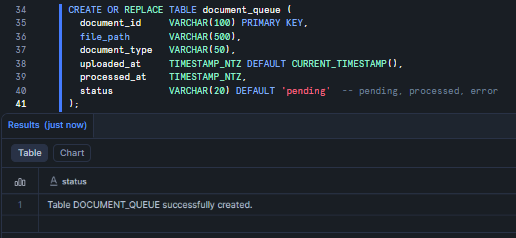
Figure 8: Creating the document_queue tracking table—Snowflake AI_EXTRACT
And a table to store the extraction output.
CREATE OR REPLACE TABLE extraction_results (

    document_id     VARCHAR(100),

    file_path       VARCHAR(500),

    extracted_at    TIMESTAMP_NTZ DEFAULT CURRENT_TIMESTAMP(),

    raw_response    VARIANT,

    error_message   VARCHAR(500)

);
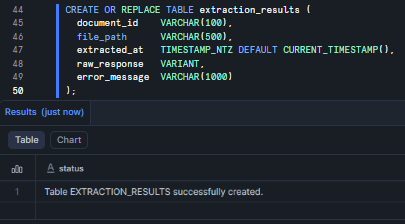
Figure 9: Creating the extraction_results output table—Snowflake AI_EXTRACT
Step 7—Create Snowflake internal stage for document storage
Snowflake Cortex AI functions that process media files require the files to be stored on an internal or external stage. The Snowflake internal stage must use server-side encryption (client-side encrypted stages are not supported by Snowflake AI_EXTRACT). You also need a directory table to query stage contents or run batch processing.
Let’s create Snowflake internal stage with server-side encryption and directory table enabled.
CREATE OR REPLACE STAGE doc_processing_db.extraction.documents_stage

  DIRECTORY = (ENABLE = TRUE)

  ENCRYPTION = (TYPE = 'SNOWFLAKE_SSE')

  COMMENT = 'Snowflake Internal stage for documents for Snowflake AI_EXTRACT';
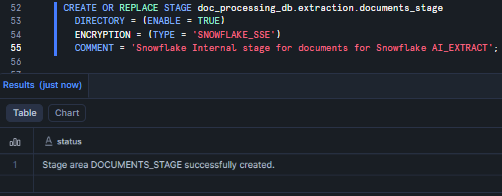
Figure 10: Creating “documents_stage” Snowflake internal stage with SSE encryption and directory table enabled—Snowflake AI_EXTRACT
The DIRECTORY = (ENABLE = TRUE) setting is what lets you run FROM DIRECTORY(@documents_stage) in batch queries later. Do not skip this.
Note: SNOWFLAKE_SSE is server-side encryption managed by Snowflake. Client-side encrypted stages are not supported by Snowflake AI_EXTRACT.
Step 8—Uploading files to the Snowflake Internal Stage
Now, with the Snowflake Stage ready, you can load documents. There are a few ways to do it.
Via Snowsight:
Navigate to Catalog > Database Explorer > doc_processing_db > extraction > Stages > documents_stage >Stage Files, then drag and drop your files directly into the UI.
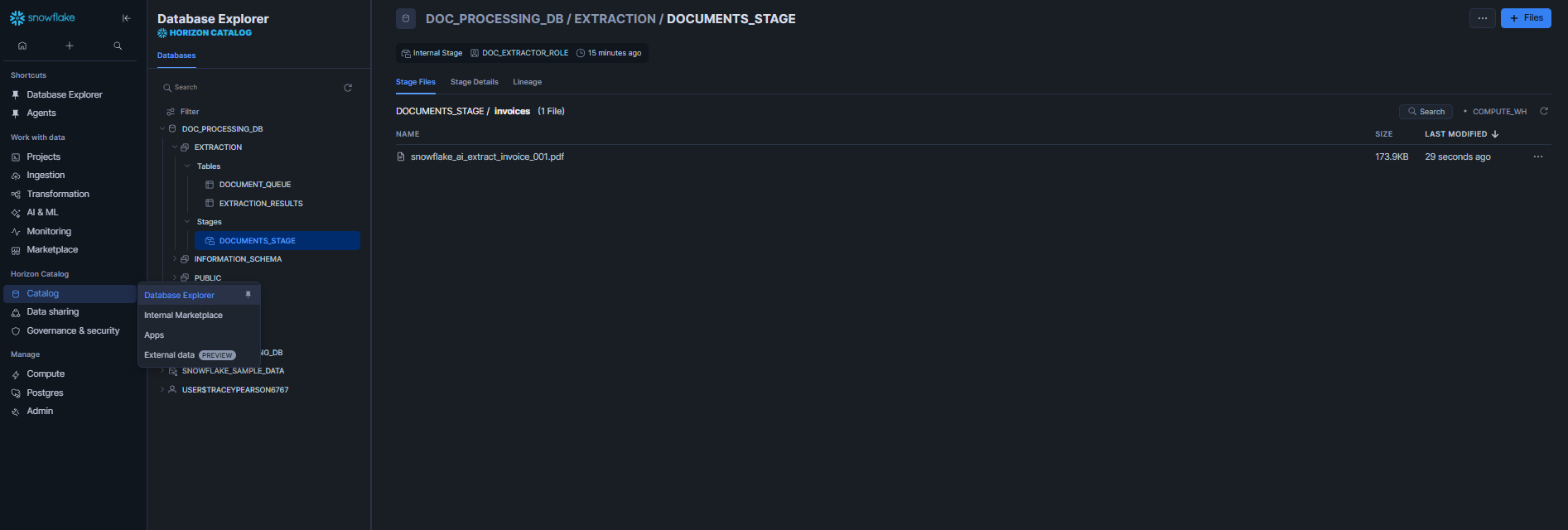
Figure 11: Uploading files via the Snowsight interface—Snowflake AI_EXTRACT
Via SnowSQL CLI:
snowsql -a <account> -u <user>

PUT file:///local/path/to/<your_file>.pdf @doc_processing_db.extraction.documents_stage/invoices/ OVERWRITE = TRUE;
Via SQL (Python connector or Snowpark):
# via snowflake-connector-python

import snowflake.connector

conn = snowflake.connector.connect(

    user='<user>',

    password='<password>',

    account='<account>'

)

cs = conn.cursor()

cs.execute("PUT file:///local/path/*.pdf @doc_processing_db.extraction.documents_stage/invoices/ OVERWRITE=TRUE")
After uploading, refresh the directory table, so Snowflake indexes the new files.
ALTER STAGE doc_processing_db.extraction.documents_stage REFRESH;
Finally, verify the upload:
SELECT RELATIVE_PATH, SIZE, LAST_MODIFIED

FROM DIRECTORY(@doc_processing_db.extraction.documents_stage)

WHERE RELATIVE_PATH LIKE 'invoices/%';
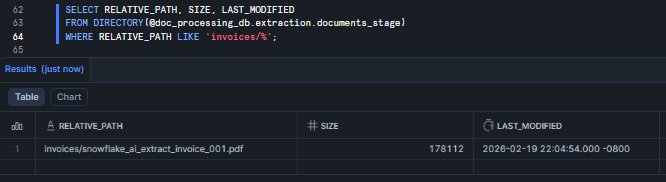
Figure 12: Verifying uploaded files via the DIRECTORY() table function—Snowflake AI_EXTRACT
Or
LIST @doc_processing_db.extraction.documents_stage/invoices/;

Figure 13: Verifying uploaded files via LIST—Snowflake AI_EXTRACT
Note: for external stages you can configure automatic directory refresh via cloud notifications; for Snowflake internal stages ALTER STAGE … REFRESH is the manual refresh command.
Here is a screenshot of what our invoice looks like:
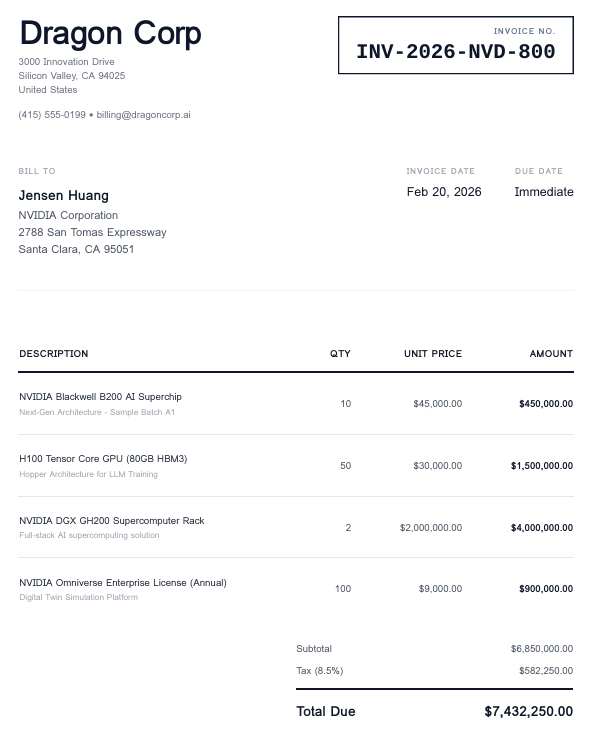
Figure 14: Sample invoice for testing extraction logic—Snowflake AI_EXTRACT
Step 9—Define document extraction schema and sample responseFormat
Here is where the real design work happens. A well-crafted responseFormat is the single biggest factor in extraction quality.
Let us look at some realistic examples.
Simple key-value document extraction
The simplest format is a flat object that maps field names to natural language questions.
SELECT AI_EXTRACT(

  file => TO_FILE('@doc_processing_db.extraction.documents_stage', 'invoices/snowflake_ai_extract_invoice_001.pdf'),

  responseFormat => {

    'vendor_name': 'What is the vendor or supplier name on this invoice?',

    'invoice_number': 'What is the invoice number or ID?',

    'invoice_date': 'What is the invoice date?',

    'due_date': 'What is the payment due date?',

    'total_amount': 'What is the total amount due?'

  }

);
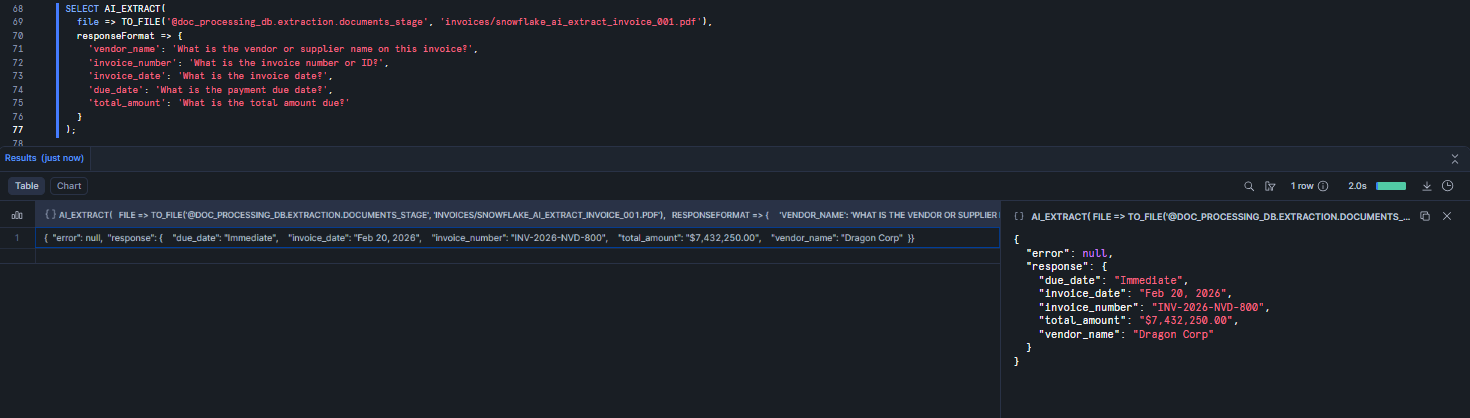
Figure 15: Running a key-value extraction with Snowflake AI_EXTRACT
Array document extraction (list of values)
When you need a list of values rather than a single answer, use the JSON schema format with “type”: “array.”
SELECT AI_EXTRACT(

  file => TO_FILE('@doc_processing_db.extraction.documents_stage', 'invoices/snowflake_ai_extract_invoice_001.pdf'),

  responseFormat => {

    'schema': {

      'type': 'object',

      'properties': {

        'line_item_descriptions': {

          'description': 'What are all the product or service descriptions listed on this invoice?',

          'type': 'array'

        }

      }

    }

  }

);
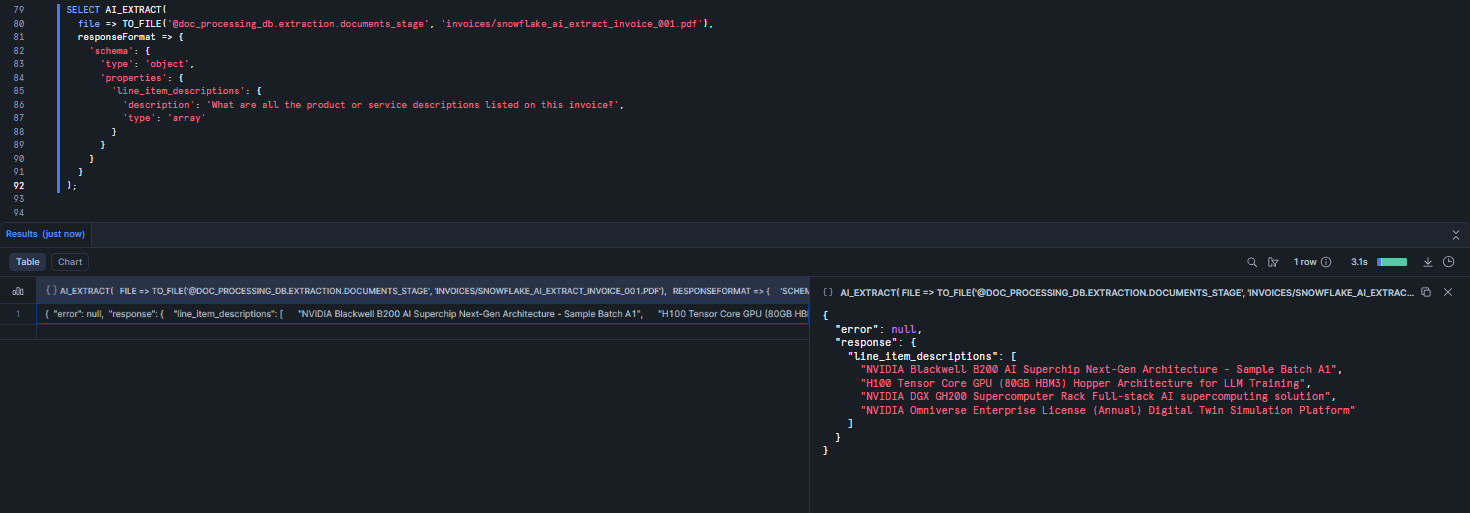
Figure 16: Extracting a list of values using an array schema—Snowflake AI_EXTRACT
Table extraction with column ordering
For extracting tabular data (like a full line-items table) use an “type”: “object” with column_ordering and array-typed columns. You can mix table extraction with scalar fields in the same call.
SELECT AI_EXTRACT(

  file => TO_FILE('@doc_processing_db.extraction.documents_stage', 'invoices/snowflake_ai_extract_invoice_001.pdf'),

  responseFormat => {

    'schema': {

      'type': 'object',

      'properties': {

        'line_items': {

          'description': 'The itemized line items table on this invoice',

          'type': 'object',

          'column_ordering': ['description', 'quantity', 'unit_price', 'line_total'],

          'properties': {

            'description': { 'type': 'array' },

            'quantity': { 'type': 'array' },

            'unit_price': { 'type': 'array' },

            'line_total': { 'type': 'array' }

          }

        },

        'vendor': {

          'description': 'What is the vendor name?',

          'type': 'string'

        },

        'invoice_total': {

          'description': 'What is the total amount due?',

          'type': 'string'

        }

      }

    }

  }

);
The description field is your main lever for improving extraction accuracy. Vague descriptions produce vague results. Be very very specific, especially on documents with multiple subtotals, nested tables, or repeated fields. That extra context helps the model locate the right value.
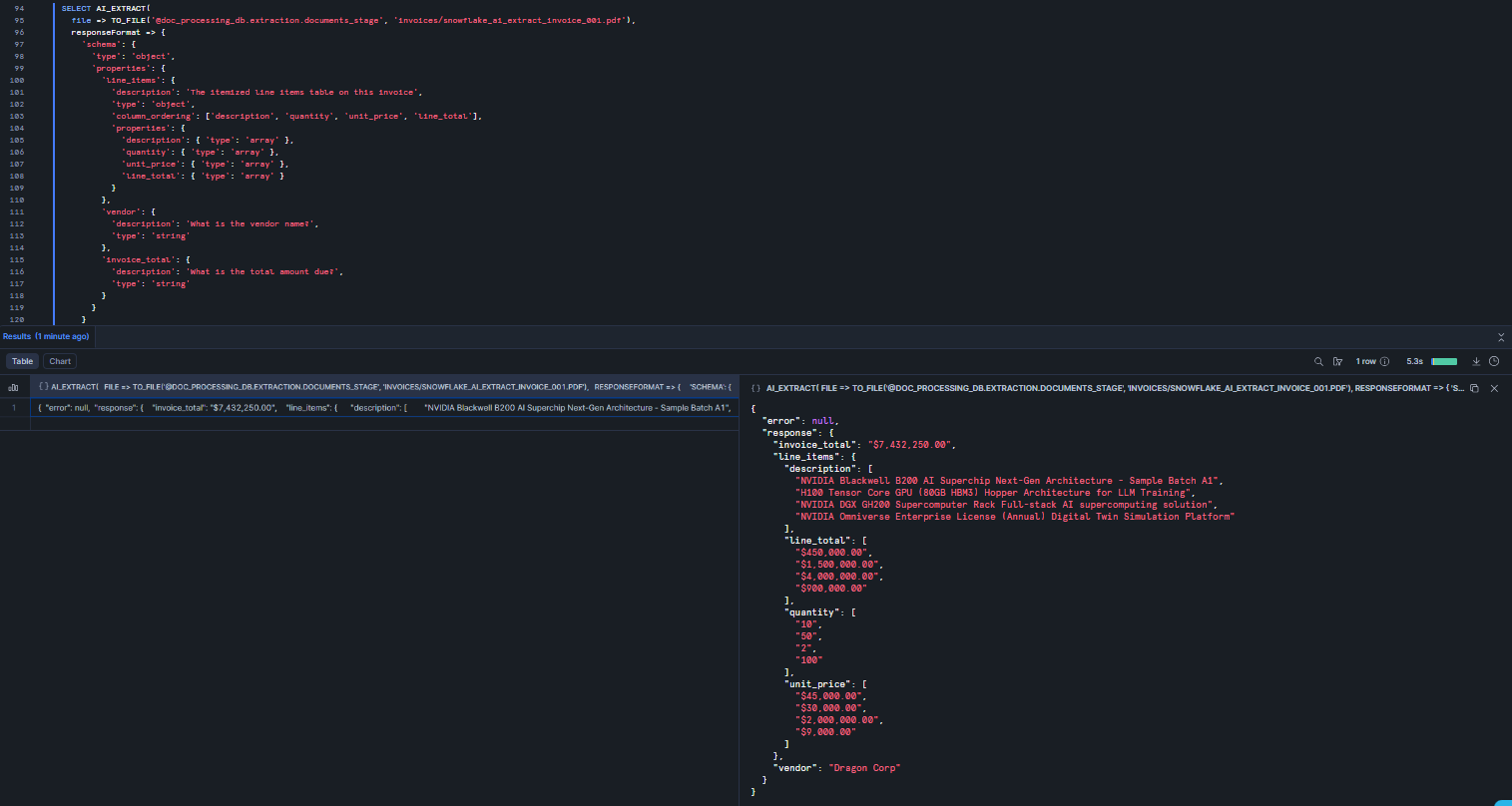
Figure 17: Extracting table data with column ordering defined—Snowflake AI_EXTRACT
Note: In a single Snowflake AI_EXTRACT call, you can ask a maximum of 100 entity extraction questions, or up to 10 table extraction questions (each table question counts as 10 entity questions toward the limit).
Step 10—(Optional) Create Snowflake AI_EXTRACT wrapper function
If you are running the same extraction schema repeatedly, wrapping it in a user-defined function (UDF) reduces repetition and makes schema updates a one-place change.
GRANT CREATE FUNCTION ON SCHEMA doc_processing_db.extraction TO ROLE doc_extractor_role;

CREATE OR REPLACE FUNCTION doc_processing_db.extraction.extract_invoice_fields(

  stage_path VARCHAR,

  file_name  VARCHAR

)

RETURNS VARIANT

LANGUAGE SQL

AS

$$

  CAST(

    AI_EXTRACT(

      file => TO_FILE(stage_path, file_name),

      responseFormat => {

        'vendor_name':    'What is the name of the vendor or supplier?',

        'invoice_number': 'What is the invoice number?',

        'invoice_date':   'What is the invoice date?',

        'due_date':       'What is the payment duenames,?',

        'total_amount':   'What is the total amount due including taxes?',

        'currency':       'What currency is used?',

        'payment_terms':  'What are the payment terms?'

      }

    ) AS VARIANT

  )

$$;
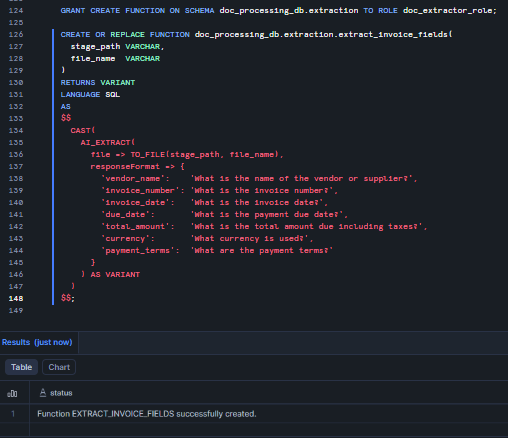
Figure 18: Creating extract_invoice_fields as a reusable SQL UDF wrapping Snowflake AI_EXTRACT
Here’s how to call it:
SELECT doc_processing_db.extraction.extract_invoice_fields(

  '@doc_processing_db.extraction.documents_stage',

  'invoices/snowflake_ai_extract_invoice_001.pdf'

) AS extraction_result;
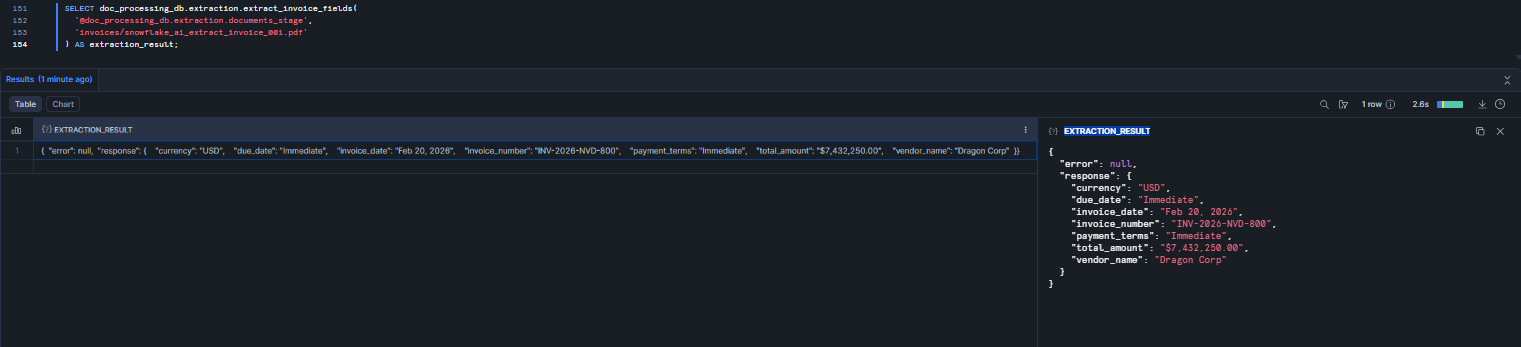
Figure 19: Testing the wrapper function with the sample invoice—Snowflake AI_EXTRACT
Step 11—Test Snowflake AI_EXTRACT on sample documents
Before building automation, test your document extraction logic manually. Run through each of these patterns to confirm everything works in your environment.
Test 1–Extract from a text string
Snowflake AI_EXTRACT works on plain text too, not just files. It’s good for quick prototyping.
SELECT AI_EXTRACT(

  text => 'Invoice #INV-2026-NVD-800 from Dragon Corp dated Feb 20, 2026. Total due: $7,432,250. Payment due by February 21, 2026.',

  responseFormat => {

    'vendor': 'What is the vendor name?',

    'invoice_number': 'What is the invoice number?',

    'total_due': 'What is the total amount due?',

    'due_date': 'What is the due date?'

  }

) AS extraction_result;
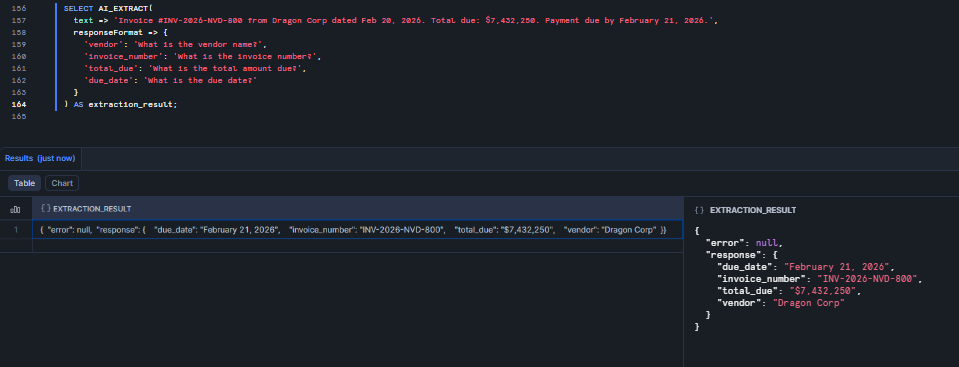
Figure 20: Extracting fields from an inline text string using Snowflake AI_EXTRACT
Test 2–Extract from a single PDF
SELECT AI_EXTRACT(

  file => TO_FILE('@doc_processing_db.extraction.documents_stage', 'invoices/snowflake_ai_extract_invoice_001.pdf'),

  responseFormat => {'vendor': 'Vendor name', 'total': 'Total amount due'}

) AS result;
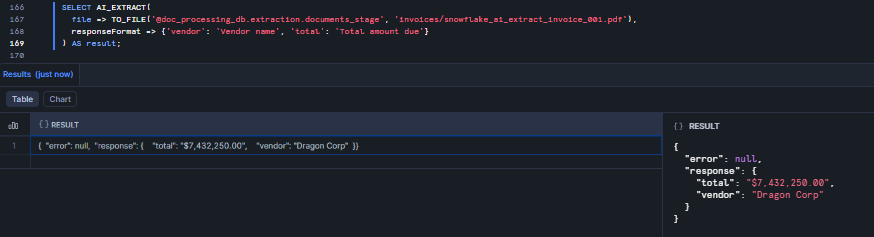
Figure 21: Extracting vendor name and total from a single PDF using Snowflake AI_EXTRACT
Test 3–Extract table data with JSON schema
SELECT

  relative_path,

  AI_EXTRACT(

    file => TO_FILE('@doc_processing_db.extraction.documents_stage', relative_path),

    responseFormat => {

      'schema': {

        'type': 'object',

        'properties': {

          'charges': {

            'description': 'Itemized charges table',

            'type': 'object',

            'column_ordering': ['item', 'amount'],

            'properties': {

              'item': { 'type': 'array' },

              'amount': { 'type': 'array' }

            }

          }

        }

      }

    }

  ) AS extraction_result

FROM DIRECTORY(@doc_processing_db.extraction.documents_stage)

WHERE relative_path LIKE 'invoices/%';
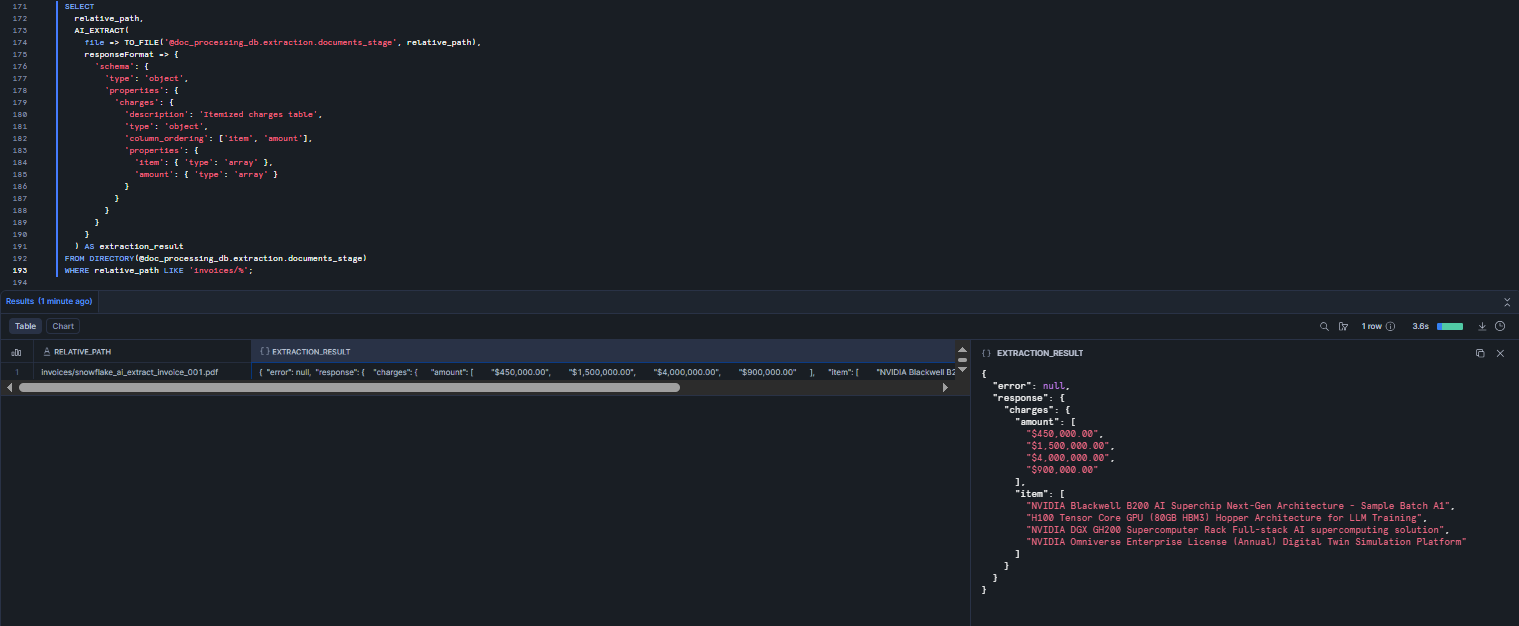
Figure 22: Batch table extraction across all invoice files in the Snowflake Stage using Snowflake AI_EXTRACT
Test 4–Parse the JSON output into columns
The raw output from Snowflake AI_EXTRACT is a VARIANT with response and error keys. Use Snowflake’s semi-structured data operators to flatten it into columns.
WITH extracted AS (

  SELECT

    relative_path,

    AI_EXTRACT(

      file => TO_FILE('@doc_processing_db.extraction.documents_stage', relative_path),

      responseFormat => {

        'vendor': 'Vendor name',

        'invoice_number': 'Invoice number',

        'total': 'Total amount due'

      }

    ) AS result

  FROM DIRECTORY(@doc_processing_db.extraction.documents_stage)

  WHERE relative_path LIKE 'invoices/%'

)

SELECT

  relative_path,

  result:response:vendor::VARCHAR AS vendor,

  result:response:invoice_number::VARCHAR AS invoice_number,

  result:response:total::VARCHAR AS total,

  result:error::VARCHAR AS error

FROM extracted;
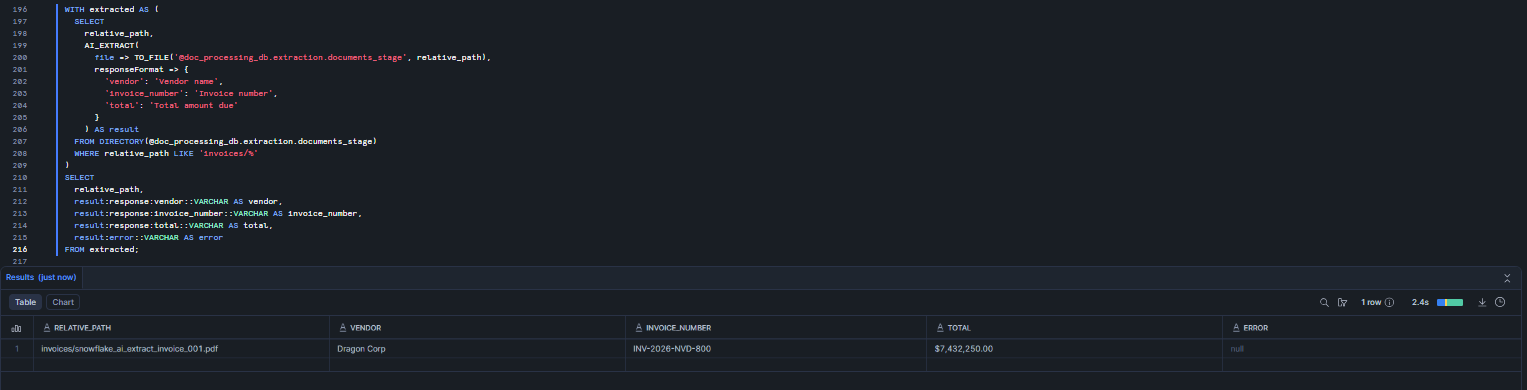
Figure 23: Parsing JSON extraction output into relational columns—Snowflake AI_EXTRACT
Step 12—Set up Snowflake Streams and Snowflake Tasks for automated processing
Once your document extraction logic is in place, automate it. A Stream on the stage directory table detects new files; a Snowflake Task processes them on a schedule.
First, create a Snowflake Stream on the directory table to detect new files.
CREATE OR REPLACE STREAM documents_stream

    ON STAGE doc_processing_db.extraction.documents_stage;
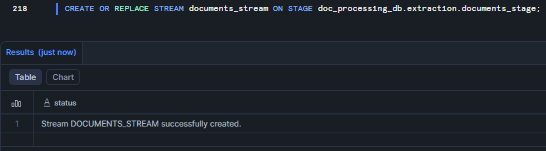
Figure 24: Creating a stream to detect new file uploads—Snowflake AI_EXTRACT
Then, create a Snowflake Task that runs every 5 minutes and processes new documents
CREATE OR REPLACE TASK process_new_documents

  WAREHOUSE = doc_extract_wh

  SCHEDULE  = '5 MINUTE'

  WHEN SYSTEM$STREAM_HAS_DATA('documents_stream')

AS

INSERT INTO extraction_results (document_id, file_path, extracted_at, raw_response, error_message)

SELECT

  MD5(RELATIVE_PATH) AS document_id,

  RELATIVE_PATH AS file_path,

  CURRENT_TIMESTAMP() AS extracted_at,

  AI_EXTRACT(

    file => TO_FILE('@doc_processing_db.extraction.documents_stage', RELATIVE_PATH),

    responseFormat => {

      'vendor_name':    'What is the vendor name?',

      'invoice_number': 'What is the invoice number?',

      'invoice_date':   'What is the invoice date?',

      'total_amount':   'What is the total amount due?'

    }

  ) AS raw_response,

  AI_EXTRACT(

    file => TO_FILE('@doc_processing_db.extraction.documents_stage', RELATIVE_PATH),

    responseFormat => {'error_check': 'Return "NO_ERROR" if extraction successful, otherwise return the error message.'}

  ):response:error::VARCHAR AS error_message

FROM documents_stream

WHERE METADATA$ACTION = 'INSERT';
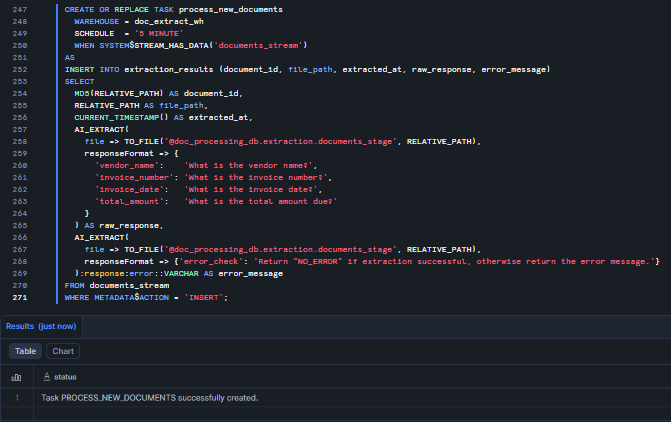
Figure 25: Creating the process_new_documents Snowflake Task to automate Snowflake AI_EXTRACT on new stage files
Finally, start the Snowflake Task. Tasks are created in a suspended state by default.
ALTER TASK process_new_documents RESUME; 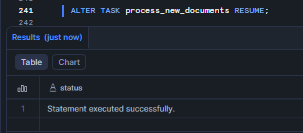
Figure 26: Resuming the task to enable automation—Snowflake AI_EXTRACT
Step 13—Upload new documents for automated processing
Once Snowflake Stream and Snowflake Task are running, any new file you upload will be picked up automatically on the next task run (within 5 minutes by default).
Let’s start by uploading a new invoice via Snowsight (the process is the same as above) or you can do so via SnowSQL
PUT file:///path/to/new_invoice.pdf @doc_processing_db.extraction.documents_stage/invoices/ OVERWRITE=TRUE;
Then refresh the directory table so the Stream can detect the new file.
ALTER STAGE doc_processing_db.extraction.documents_stage REFRESH;
Step 14—Create error handling and validation
Snowflake AI_EXTRACT does not raise SQL exceptions for extraction failures. It returns an error key in the JSON response instead. If you do not build validation into your pipeline, failed extractions will silently pile up in your results table.
To do so, first create a view to surface failed extractions.
GRANT CREATE VIEW ON SCHEMA doc_processing_db.extraction TO ROLE doc_extractor_role;

CREATE OR REPLACE VIEW extraction_errors AS

SELECT

  file_path,

  extracted_at,

  raw_response:error::VARCHAR AS error_message

FROM extraction_results

WHERE raw_response:error IS NOT NULL

  OR error_message IS NOT NULL;
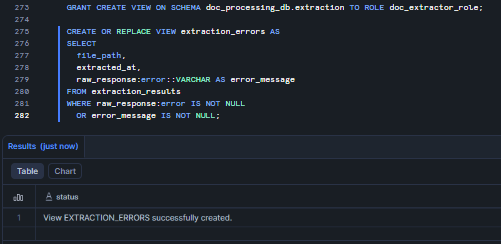
Figure 27: Creating a view to surface failed extractions—Snowflake AI_EXTRACT
Then set up a Snowflake Task that logs errors hourly.
CREATE TABLE IF NOT EXISTS extraction_error_log (

  logged_at TIMESTAMP_NTZ,

  error_count INTEGER,

  sample_files ARRAY

);


CREATE OR REPLACE TASK alert_on_extraction_errors

  WAREHOUSE = doc_extract_wh

  SCHEDULE = '60 MINUTE'

AS

INSERT INTO extraction_error_log (logged_at, error_count, sample_files)

SELECT

  CURRENT_TIMESTAMP(),

  COUNT(*),

  ARRAY_AGG(file_path) WITHIN GROUP (ORDER BY extracted_at DESC)

FROM extraction_errors

WHERE extracted_at >= DATEADD(hour, -1, CURRENT_TIMESTAMP());
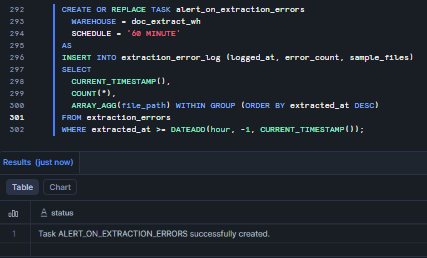
Figure 28: Setting up an hourly Snowflake Task for error logging—Snowflake AI_EXTRACT
For even more powerful error handling inside stored procedures, wrap Snowflake AI_EXTRACT in a TRY/CATCH block using Snowflake Scripting.
GRANT CREATE PROCEDURE ON SCHEMA doc_processing_db.extraction TO ROLE doc_extractor_role;

CREATE OR REPLACE PROCEDURE doc_processing_db.extraction.safe_extract_document(

  stage_path VARCHAR,

  file_path  VARCHAR

)

RETURNS VARIANT

LANGUAGE SQL

AS

$$

DECLARE

  result VARIANT;

  err_msg STRING;

BEGIN

  -- call AI_EXTRACT and capture result

  result := AI_EXTRACT(

    file => TO_FILE(stage_path, file_path),

    responseFormat => {

      'vendor': 'Vendor name',

      'total':  'Total amount due'

    }

  );

  INSERT INTO doc_processing_db.extraction.extraction_results (document_id, file_path, extracted_at, raw_response, error_message)

  VALUES (MD5(file_path), file_path, CURRENT_TIMESTAMP(), result, result:error::VARCHAR);

  RETURN result;

EXCEPTION

  WHEN OTHER THEN

    -- capture SQL error and store a minimal failure row for later investigation

    err_msg := SQLERRM;

    INSERT INTO doc_processing_db.extraction.extraction_error_log (logged_at, error_count, sample_files, sample_errors)

    VALUES (CURRENT_TIMESTAMP(), 1, ARRAY_CONSTRUCT(file_path), ARRAY_CONSTRUCT(err_msg));

    -- return a JSON-like VARIANT with the error so callers get a predictable shape

    RETURN PARSE_JSON('{"error": "' || REPLACE(err_msg, '"', '''') || '", "response": null}');

END;

$$;
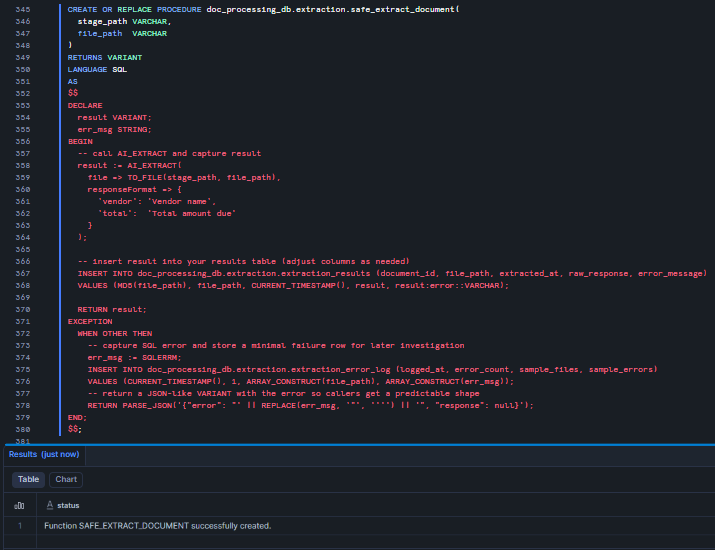
Figure 29: safe_extract_document stored procedure with TRY/CATCH error handling wrapping Snowflake AI_EXTRACT
Step 15—Monitoring and alerting
Finally, with extraction running in production, monitor both Cortex token consumption and warehouse credit spend. Do not rely on a fixed token-per-page magic number. Snowflake reports Cortex usage in account-usage views. Use the account usage views below to measure token and credit consumption.
Query Cortex AI SQL usage => hourly aggregates
SELECT

  USAGE_TIME,

  FUNCTION_NAME,

  MODEL_NAME,

  SUM(TOKEN_CREDITS) AS token_credits,

  SUM(TOKENS)        AS tokens_used

FROM SNOWFLAKE.ACCOUNT_USAGE.CORTEX_AISQL_USAGE_HISTORY

WHERE USAGE_TIME >= DATEADD(day, -30, CURRENT_TIMESTAMP())

GROUP BY 1,2,3

ORDER BY USAGE_TIME DESC, token_credits DESC;
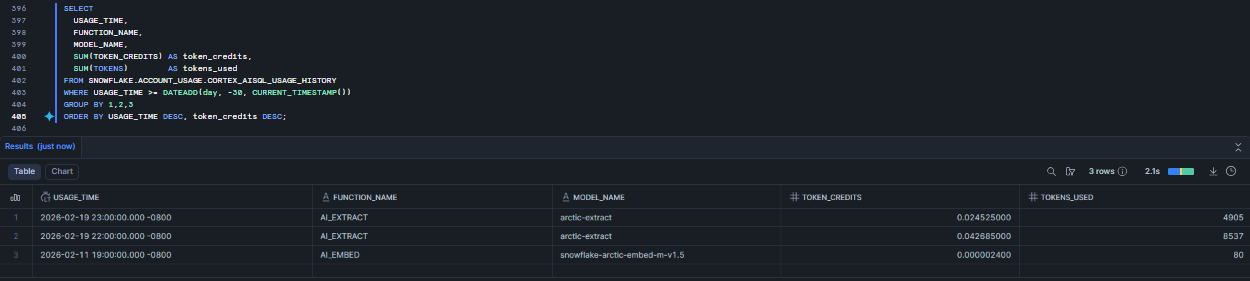
Figure 30: Analyzing token usage history—Snowflake AI_EXTRACT
Use CORTEX_AISQL_USAGE_HISTORY for the most up-to-date AISQL usage view. CORTEX_FUNCTIONS_USAGE_HISTORY is deprecated for some use cases; prefer the AISQL view for SQL-based function calls.
Query daily metering (credits) for warehouses
SELECT

  USAGE_DATE,

  SERVICE_TYPE,

  WAREHOUSE_NAME,

  SUM(CREDITS_USED) AS credits_used

FROM SNOWFLAKE.ACCOUNT_USAGE.METERING_DAILY_HISTORY

WHERE USAGE_DATE >= DATEADD(day, -30, CURRENT_DATE())

GROUP BY 1,2,3

ORDER BY USAGE_DATE DESC;
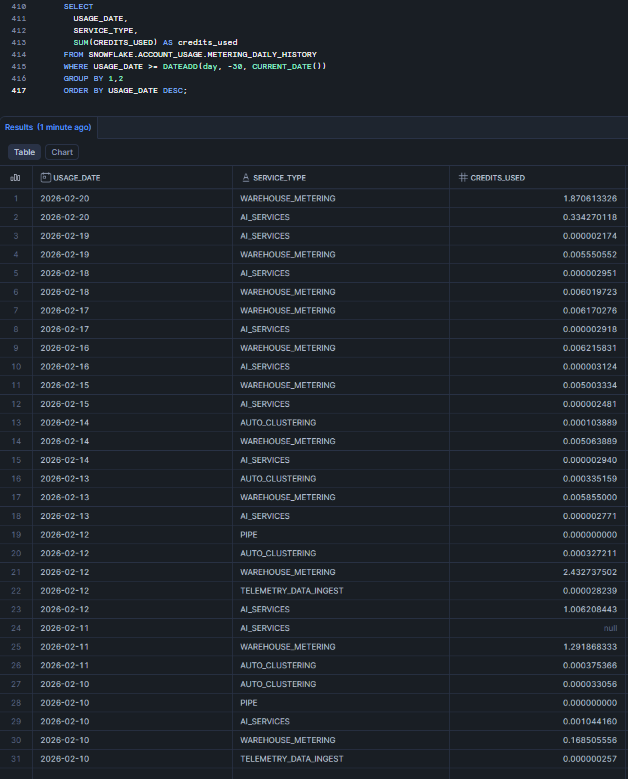
Figure 31: Monitoring warehouse credit consumption—Snowflake AI_EXTRACT
Last step: Set up a Snowflake Alert to notify your team when Cortex spending reaches a threshold within an hour. First, make sure you have a notification setup in place, as you’ll need it to send the alert. Also, verify that the email addresses of the recipients are valid. For more information, check out Notifications in Snowflake. Once that is done, execute the following code:
GRANT CREATE ALERT ON SCHEMA doc_processing_db.extraction TO ROLE doc_extractor_role;

CREATE OR REPLACE ALERT doc_processing_db.extraction.high_cortex_spend_alert

  WAREHOUSE = doc_extract_wh

  SCHEDULE  = '1 HOUR'

IF (

  EXISTS (

    SELECT 1

    FROM SNOWFLAKE.ACCOUNT_USAGE.CORTEX_AISQL_USAGE_HISTORY

    WHERE USAGE_TIME >= DATEADD(hour, -1, CURRENT_TIMESTAMP())

    GROUP BY FUNCTION_NAME

    HAVING SUM(TOKEN_CREDITS) > 100   -- choose threshold

  )

)

THEN

  CALL SYSTEM$SEND_EMAIL(

    'cortex_alerts',

    'pramitx47@gmail.com',

    'High Cortex AI Spend Detected',

    'Cortex AI spend exceeded threshold in the last hour. Check CORTEX_AISQL_USAGE_HISTORY'

  );
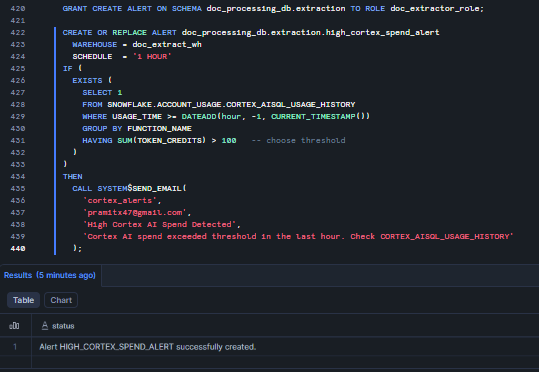
Figure 32: Configuring alerts for high credit spend—Snowflake AI_EXTRACT
Pair CORTEX_FUNCTIONS_USAGE_HISTORY and METERING_DAILY_HISTORY to get a complete view of Snowflake AI_EXTRACT costs. Note that token charges and warehouse charges are billed separately.
And that’s it. You should now have a good understanding of how to configure, set up and use Snowflake AI_EXTRACT.
What are the limitations of Snowflake AI_EXTRACT ?
Snowflake AI_EXTRACT has certain limitations that you should be aware of when you’re planning.
1) Text and file parameters are mutually exclusive
You can’t pass text => and file => in the same call. If your workflow sometimes receives text and file references, route them through separate query paths.
2) Document size limits
Documents longer than 125 pages will fail. The document limit is 125 pages. Also, files cannot be larger than 100 MB. Another thing: client-side encrypted stages are not supported here.
3) Question limits
The maximum output length for entity extraction is 512 tokens per question. For table extraction, the model returns a maximum of 4,096 tokens. Per call, you can ask up to 100 entity extraction questions. Table extraction counts as 10 entity questions regardless of actual column count.
4) Output token truncation
Big tables can cause problems. If a table exceeds 4,096 tokens, the output will get cut off. The JSON will just stop without warning. To fix this, you can break the table into smaller groups by column or process the data a page at a time.
5) No confidence scores
Snowflake Document AI gave you confidence scores to help flag extractions that were not accurate for human review. Snowflake AI_EXTRACT does not do this. You will need to create your own way to check the results, such as looking for missing values, running test queries, or using AI_FILTER to make sure the extracted values are correct.
6) JSON schema type support
The model is quite particular about the JSON schema it accepts. For entity questions, it only supports string types. In the JSON schema, you cannot specify numeric or boolean types – all values will be returned as strings. Make sure to cast them correctly in your subsequent SQL queries.
7) Regional availability
Snowflake AI_EXTRACT is natively available in select regions. For other regions, cross-region inference is required and must be explicitly enabled by an ACCOUNTADMIN. Cross-region inference is not available in U.S. SnowGov regions.
8) Client-side encrypted stages not supported
Server-side encryption (SNOWFLAKE_SSE or cloud provider SSE) works fine. Client-side encrypted stages are not supported.
9) Custom network policies
Custom network policies are not currently supported for Snowflake Cortex AI functions.
10) No fine-tuning
Zero-shot extraction is good enough for most documents. But documents with very specific or unique formats might not work as well with this method. If that is the case, you won’t be able to train the model using your own examples. On a positive note, legacy Snowflake Document AI models that have been fine-tuned can still be used with the Snowflake AI_EXTRACT(model => …, file => …) legacy syntax after you migrate. One thing to note, though, is that you won’t be able to create any new custom models from scratch.
Even with limitations, Snowflake AI_EXTRACT can handle a lot of common documents without issues. The trick is to create prompts and schemas that avoid super long answers and huge tables all at once.
What are the best practices for using Snowflake AI_EXTRACT effectively?
To make the most of Snowflake AI_EXTRACT, here are some best practices to keep in mind:
1) Keep prompts specific and concise
Keep your questions short and sweet. Vague questions usually get vague answers. The clearer you ask, the more exact the info you get.
2) Use the description field to localize
In a document with multiple tables or sections, the description field in JSON schema is how you point the model to the right one. To avoid confusion, provide some context for the model by describing the table’s title, location, or other details. That way, it knows exactly what you are referring to.
3) Use AI_COUNT_TOKENS before large batch jobs
Run a sample before committing. This takes 30 seconds and can save you from an unexpected credit bill. Use AI_COUNT_TOKENS to estimate the cost of a sample before committing a full run.
4) Materialize results—do not reprocess
Every Snowflake AI_EXTRACT call costs tokens. If you have already extracted data from a document, store the result in a table and query the table. Do not call Snowflake AI_EXTRACT on the same document twice. Use the Snowflake Stream and Snowflake Task pattern to process each document exactly once.
5) Split large tables by column group
When a table has a lot of rows, it might get cut off due to the 4,096-token output limit. To avoid this, try extracting just 3-4 columns at a time, rather than the whole table, and then combine the results based on the row index.
6) Break large documents into chunks before extraction
If you are near the 125-page limit, splitting your documents into smaller chunks is often a clever idea. Break them down by chapter, section, or topic and process each one separately. This usually gives you more accurate results than processing a large document all at once.
7) Use MEDIUM or smaller warehouses
Larger warehouses do not speed up AI_EXTRACT performance. That is because Cortex functions run on Snowflake’s serverless infrastructure, not your warehouse’s compute nodes. Your warehouse is mainly used for query orchestration and data movement. A MEDIUM-sized warehouse is plenty big enough.
8) Use column_ordering in table extraction schemas
In your JSON schema, the column_ordering field determines the order of columns in the extracted output. Without this field, the column order can be all over the place when looking at tables across different documents. Always include column_ordering when loading table data into a Snowflake table with predefined column positions.
9) Process documents directly from stages
Do not load file content into VARCHAR columns and pass it as text when you have documents – use the file parameter instead. It is more efficient and handles binary formats like PDFs correctly.
10) Enable directory tables before batch queries
If you forget to enable DIRECTORY = (ENABLE = TRUE) on your Snowflake Stage at creation time, you can alter the stage later. Just be sure to manually refresh the stage before querying the directory table.
11) Use role-based access to scope Cortex function usage
Grant SNOWFLAKE.CORTEX_USER only to the roles that need it for running Snowflake Cortex AI functions. Out of the box, the CORTEX_USER role is available to the PUBLIC role, so all users in your account can use Snowflake Cortex AI functions. But in enterprise environments, chances are you will want to limit access.
12) Combine with AI_PARSE_DOCUMENT for complex layouts
Documents with unusual formatting, such as multiple columns, mixed text and images, or dense tables, can be tricky. But running Snowflake AI_PARSE_DOCUMENT in LAYOUT mode first can improve AI_EXTRACT accuracy because the model gets a cleaner, Markdown-structured version of the document to work from.
And that’s a wrap!
Conclusion
Snowflake AI_EXTRACT is a powerful function that makes analyzing documents in Snowflake much easier. You can extract key information, lists and tables from documents without needing external tools or manual parsing. It is a one-step query that replaces the older Snowflake Document AI workflow and scales with your existing data pipelines. To get started, follow the setup steps above. Be very cautious that there are some limitations, such as page count and token length, and always keep track of your costs. The benefit is that you can now access all the data hidden in your reports, contracts and more, all within Snowflake.
In this article, we have covered:
- What is Snowflake Cortex AI?
- What is the Snowflake AI_EXTRACT function?
- Syntax and argument breakdown of the Snowflake AI_EXTRACT function
- Snowflake AI_EXTRACT vs Snowflake Document AI
- Snowflake AI_EXTRACT vs Snowflake AI_PARSE_DOCUMENT
- What can you use Snowflake AI-EXTRACT for?
- How to calculate Snowflake AI_EXTRACT costs
- Step-by-step guide to configure and use Snowflake AI_EXTRACT to extract data from documents
- Limitations of Snowflake AI_EXTRACT
- Best practices for using Snowflake AI_EXTRACT effectively
… and so much more!
Want to learn more? Reach out for a chat
FAQs
What is Snowflake AI_EXTRACT and how does it work?
Snowflake AI_EXTRACT is a Snowflake Cortex AI function (formerly Cortex AISQL) that extracts structured data from text or documents using large language models. You can easily call it with a text string or a file reference (TO_FILE), plus a responseFormat describing what to extract (questions or JSON schema). The function returns a JSON object with the requested values.
When was Snowflake AI_EXTRACT released and when did it reach GA?
Snowflake AI_EXTRACT launched in preview in August 2025. It became generally available October 2025.
How is Snowflake AI_EXTRACT different from Snowflake Document AI?
Snowflake Document AI was Snowflake’s older document extraction feature (based on Snowflake Arctic-TILT models) that used a Snowsight UI to build models. AI_EXTRACT is the new approach (using Snowflake Arctic-Extract models) that replaces it. Key differences: Snowflake AI_EXTRACT is a one-step SQL function (no UI model build), uses token-based billing instead of compute time, and supports more flexible output (tables, arrays) in one call. Snowflake has announced that the Document AI and PREDICT method will be decommissioned, urging users to migrate to Snowflake AI_EXTRACT.
How does Snowflake AI_EXTRACT differ from Snowflake AI_PARSE_DOCUMENT?
Snowflake AI_PARSE_DOCUMENT is for converting a document to raw text (OCR and layout). It returns the full text of a document (as JSON pages) and is best for indexing or feeding into search/RAG pipelines. AI_EXTRACT, by contrast, answers specific questions or fields: you define which pieces to pull out, and it returns just those in a structured format. In other words, use AI_PARSE_DOCUMENT when you need the entire text/content of a doc; use AI_EXTRACT when you need only certain data points (like invoice total, dates, etc.).
What file types and languages do Snowflake AI_EXTRACT support?
Snowflake AI_EXTRACT can handle a wide range of file types like PDF, PNG, PPTX, PPT, EML, DOC, DOCX, JPEG, JPG, HTM, HTML, TEXT, TXT, TIF, TIFF, BMP, GIF, WEBP, MD. Maximum file size is 100 MB; maximum document length is 125 pages. As for languages, Snowflake AI_EXTRACT supports 27 languages: Arabic, Bengali, Burmese, Cebuano, Chinese, Czech, Dutch, English, French, German, Hebrew, Hindi, Indonesian, Italian, Japanese, Khmer, Korean, Lao, Malay, Persian, Polish, Portuguese, Russian, Spanish, Tagalog, Thai, Turkish, Urdu and Vietnamese.
What Snowflake roles and privileges are required to run Snowflake AI_EXTRACT?
To get started, users need the SNOWFLAKE.CORTEX_USER database role. This role is normally granted to PUBLIC by default, so everyone in an account has it. But in controlled environments, it’s better to grant it to specific roles instead and take it away from PUBLIC.
How do I estimate the cost of a Snowflake AI_EXTRACT job? (tokens, pages, credits)
Input tokens = (number of pages × 970) + responseFormat tokens. Output tokens = sum of extracted field lengths (max 512 per entity field, max 4,096 for table extraction). Use AI_COUNT_TOKENS to measure your responseFormat token count before running. Check the Snowflake Service Consumption Table for current credit rates per token.
What are the token and output limits for Snowflake AI_EXTRACT?
- Maximum 100 entity questions per call
- Maximum 10 table questions per call (each counts as 10 entity questions)
- Maximum 512 output tokens per entity question
- Maximum 4,096 output tokens for table extraction total
Can I use client-side encrypted stages with Snowflake AI_EXTRACT?
No. Client-side encrypted stages are not supported. Use server-side encryption (SNOWFLAKE_SSE or cloud provider managed keys) instead.
Can Snowflake AI_EXTRACT handle handwritten text?
Yes. Snowflake AI_EXTRACT uses a vision-based model that processes the document visually, not just as parsed text. It can read handwritten text, filled checkboxes and signatures, though accuracy on poor handwriting will naturally be lower than on printed text.
How secure is my data when using Snowflake Cortex AI functions?
All Snowflake Cortex AI functions run inside Snowflake’s environment. Your data doesn’t leave the Snowflake security perimeter to third-party services. RBAC, data governance policies and access controls all apply normally. If you use cross-region inference, data is routed to a different Snowflake region for inference but stays within the Snowflake ecosystem.
Can I extract data from scanned documents or images?
Yes. Snowflake AI_EXTRACT’s vision model processes images and scanned PDFs without requiring a separate OCR step. It processes the document visually, so it handles image-based PDFs and standalone image files (PNG, JPEG, TIFF, BMP, WEBP, GIF) natively.
Can I fine-tune the Snowflake AI_EXTRACT model for my specific documents?
No. Snowflake AI_EXTRACT is zero-shot only. You can’t train it on your specific documents. If you have legacy Snowflake Document AI fine-tuned models migrated to the Snowflake Model Registry, you can still call them via the AI_EXTRACT(model => ‘…’, file => …) legacy syntax, but you can’t create new fine-tuned models.
Can I export Snowflake AI_EXTRACT results to external systems?
Yes. Snowflake AI_EXTRACT results are stored in standard Snowflake tables as VARIANT (JSON) columns. From there, you can use Snowflake’s standard data sharing, external table mechanisms, Kafka connectors, or any ETL tool that reads from Snowflake to push data to downstream systems.
Can AI_EXTRACT process documents in multiple languages?
Yes. Snowflake AI_EXTRACT handles 29 languages, including multilingual documents. If a document has multiple languages, the model will attempt to extract all texts it recognizes.
What happens if my document exceeds limits (too many pages or output tokens)?
If the document exceeds limits, the query will error out or truncate the result. To handle it, break the document into parts (like separate PDF for each section) or narrow the extraction (fewer questions at a time).







