


Working on intensive data tasks in Databricks? Then you already know clusters are the backbone of every workload. They’re just a group of compute resources that run your jobs, notebooks and dashboards. What you might not think about as often is the Databricks Cluster ID: a unique identifier Databricks assigns to each cluster the moment it’s created. Think of it as a system fingerprint. No two clusters share one, regardless of how similar their names or configs look.
So why pull that ID programmatically? Because doing it by hand doesn’t scale. When you’re automating cluster management, feeding IDs into CI/CD pipeline, building monitoring dashboards or generating audit trails, you need code that fetches the Cluster ID without requiring a human to open the Databricks UI and copy-paste it. That’s exactly what this guide covers.
In this article, we’ll look at four distinct methods to programmatically access your Databricks Cluster ID within Databricks. We’ll provide practical examples of using built-in utilities in your Databricks Notebook and calling the REST API, so you can work with your Databricks Cluster ID in a way that fits your environment.
What is a Databricks Cluster ID and why access it programmatically?
A Databricks Cluster ID is a unique identifier that Databricks assigns to each cluster instance you create. It’s like a “one-of-a-kind” tag—each cluster gets its own, no matter what it’s called or how it’s configured. That ID is crucial for identifying and managing your clusters in Databricks.
So why do you need to get the Databricks Cluster ID programmatically? Here’s why.
➥ Automation — Scripts that start, stop or resize clusters need the Cluster ID. Without it, you can’t target a specific cluster via the API or CLI
➥ Logging — Tagging log entries with the Cluster ID means you can trace any data operation back to the exact cluster that ran it
➥ Monitoring — Monitoring tools use the Cluster ID to pull metrics or check cluster health for specific compute resources
➥ Auditing — Compliance and governance workflows rely on knowing which cluster handled which data. The Cluster ID makes that traceable
➥ Resource management — Tracking CPU and memory allocation across clusters is much easier when you can reference each one by a stable, unique identifier
➥ CI/CD integration — Pipelines that automate testing or deployment against specific clusters need the ID to target the right compute resource
Now, in the next section, we will dive right into how you can programmatically access Cluster ID in Databricks.
Step-by-step guide to programmatically access Databricks Cluster ID
Let’s go right into the specifics of programmatically obtaining your Databricks Cluster ID. Each technique has a specific use case, so select the one that best suits your requirements and environment. We’ll cover four different techniques:
- Technique 1—Programmatically access Databricks Cluster ID using Databricks Utilities (Databricks dbutils)
- Technique 2—Accessing Apache Spark configuration within a Databricks Notebook
- Technique 3—Programmatically access Databricks Cluster ID using Databricks REST API
- Technique 4—Using Databricks CLI (Command Line Interface)
Let’s dive right into it!
Prerequisites
Before you dive in, make sure you’ve got these things covered:
- A Databricks account with access to a Databricks workspace
- Sufficient workspace permissions to run Databricks Notebooks and manage clusters
- Familiarity with Python (most examples use Python; SQL and shell equivalents follow similar patterns)
- For Techniques 3 and 4: a personal access token (PAT) generated from your user settings, or an OAuth credential if your workspace uses service principals
- For Techniques 1 and 2: a Databricks Notebook attached to a running interactive cluster
Double-check these items so you have everything you need to follow along smoothly.
Technique 1—Programmatically access Databricks Cluster ID using Databricks Utilities (dbutils)
dbutils is Databricks’ built-in utility library, available by default in every Python notebook.
Prerequisite:
- A running interactive cluster in your workspace
- A notebook attached to that cluster
Step 1—Log in to Databricks
Start by logging into your Databricks workspace.
Step 2—Configure Databricks compute
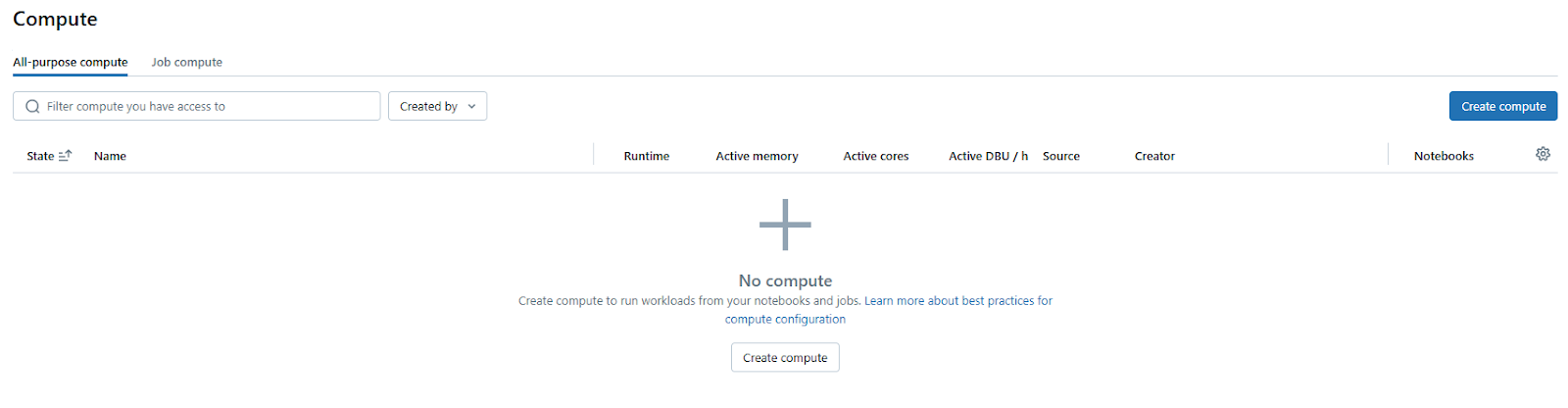
Once you’re in, you need an active Databricks compute cluster. To set this up, go to the “Compute” section on the left sidebar. If you don’t have a cluster or need a new one, click on “Create Compute“.
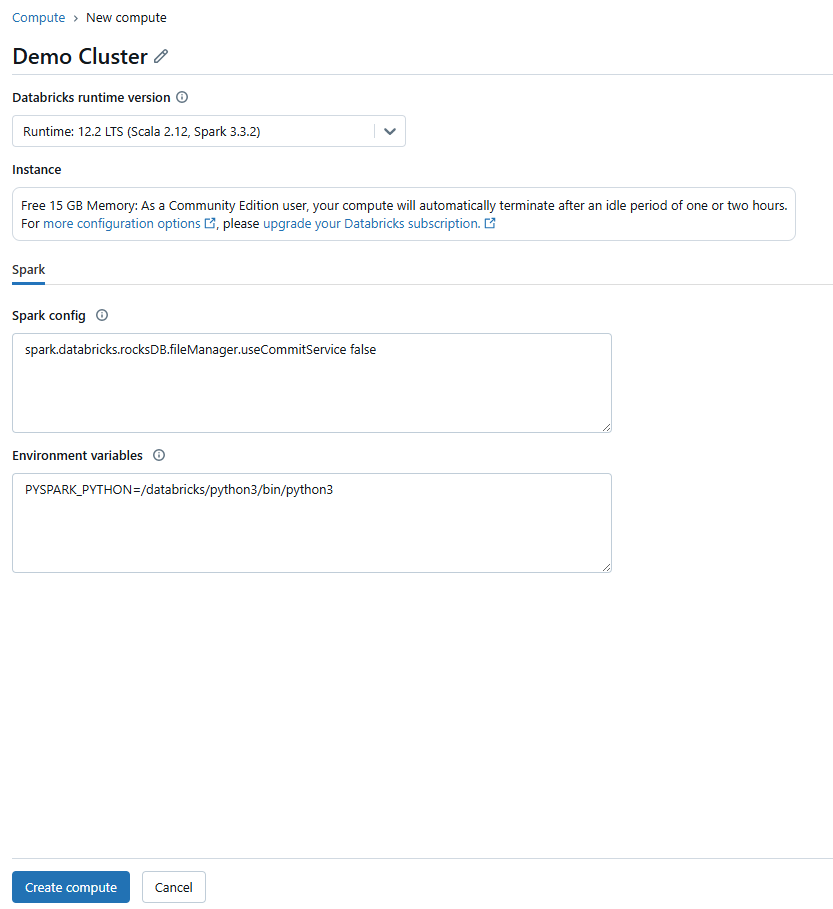
Then, customize the cluster settings according to your needs.
If the cluster isn’t already running, start it.
Step 3—Open Databricks Notebook
Create a new notebook or open an existing one. Confirm it’s attached to your running cluster using the cluster selector at the top of the notebook.
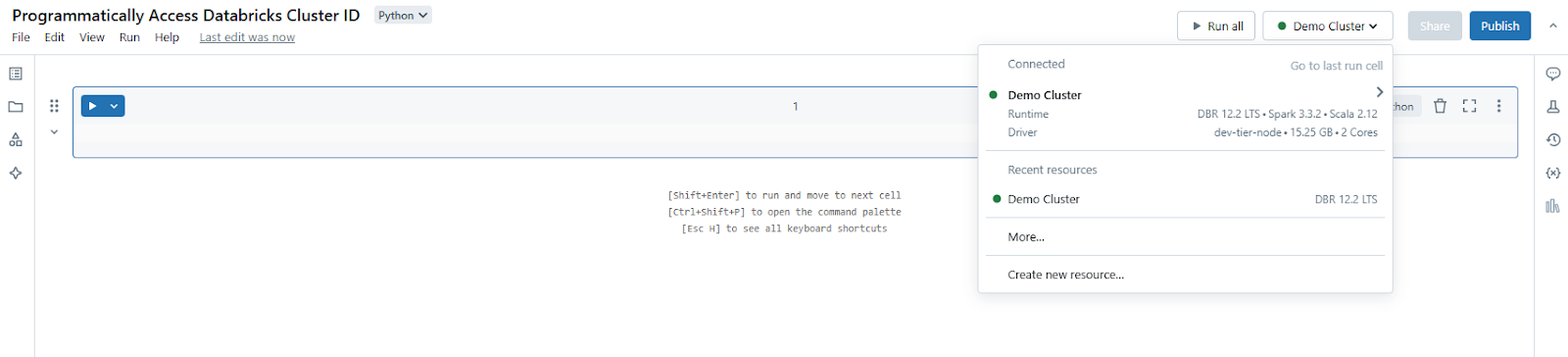
Step 4—Access Databricks Cluster ID via Databricks Utilities (dbutils)
Head over to your Databricks Notebook and use the following Python snippet to retrieve the Cluster ID in Databricks:
# Retrieve the Databricks Notebook context
context = dbutils.entry_point.getDbutils().notebook().getContext()

# Access the tags and get the clusterId tag
cluster_id = context.tags().get("clusterId").get()
print(f"Databricks Cluster ID: {cluster_id}")
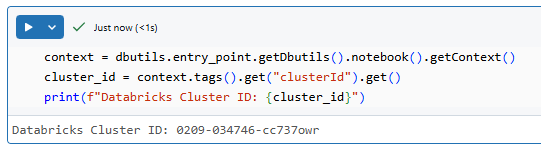
dbutils.entry_point.getDbutils() command returns an entry point that contains the Databricks Notebook context. The context includes a set of tags that hold metadata about your cluster. One of these tags is “clusterId“. Because the Databricks Notebook is attached to the cluster, Databricks dbutils knows exactly which Databricks Cluster ID to fetch.
Step 5—Execute the Databricks Notebook cell
Run the cell to see if your Cluster ID in Databricks is printed in the output.
Optional—Add error handling
If you want your code to be more robust, wrap the retrieval code in a try–except block. This way, if your Databricks Notebook is detached or the tag is missing, your code will catch the error and provide a clear message instead of failing silently.
try:
		context = dbutils.entry_point.getDbutils().notebook().getContext()
		cluster_id = context.tags().get("clusterId").get()
		print(f"Databricks Cluster ID: {cluster_id}")
except Exception as e:
		 print(f"Error retrieving the Databricks Cluster ID: {e}")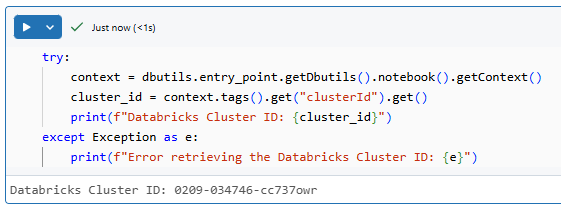
Technique 2—Get Cluster ID from Spark configuration
Now, this technique is for when you are already working with Apache Spark inside a Databricks Notebook. Apache Spark, the powerful engine underneath Databricks, holds configuration details about the environment it is running in and guess what? That includes the Databricks Cluster ID. We can access Apache Spark configuration to get the Cluster ID in Databricks.
Prerequisite:
Same as Technique 1: a running cluster and a notebook attached to it.
Step 1-3—Same setup as Technique 1
These setup steps for this technique are exactly the same as what you did for the Databricks dbutils method. If you’ve already gone through those steps, you can skip it. If not, no worries, let’s recap:
- Step 1—Login to Databricks: Head over to your Databricks workspace in your browser and log in. Need a refresher? Check back in the “Step 1—Login to Databricks” section of the Databricks dbutils technique for a quick reminder.
- Step 2—Configure Databricks Compute: Make sure you have a running interactive Databricks cluster. Either verify an existing one is running, or create a new one. Again, if you need a step-by-step, peek at “Step 2—Configure Databricks Compute” in the Databricks dbutils section.
- Step 3—Open a Databricks Notebook: Launch a Databricks Notebook, either create a new one or open an existing one. And yes, the “Step 3—Open a Notebook” section of the Databricks dbutils guide has the details if you need them.
If you’ve already got your Databricks Notebook open and attached to a running cluster, then you’re all set for the next step—grabbing that Databricks Cluster ID!
Step 4—Access Databricks Cluster ID from Apache Spark configuration
Okay, with your Databricks Notebook ready and connected, here’s the magic line of code you’ll use to pull the Cluster ID in Databricks using the Apache Spark configuration key spark.databricks.clusterUsageTags.clusterId. Add this snippet to your Databricks Notebook:
databricks_cluster_id = spark.conf.get("spark.databricks.clusterUsageTags.clusterId")
print(f"Databricks Cluster ID: {databricks_cluster_id}")
As you can see, the code snippet retrieves the Databricks Cluster ID in a Databricks Notebook. The spark object, available by default, accesses Spark’s configuration settings using .conf. The .get("spark.databricks.clusterUsageTags.clusterId") method fetches the Cluster ID in Databricks, which is then stored in the variable and printed to the output.
Step 5—Execute the Databricks Notebook cell
Run the cell. If everything is set up correctly, you’ll see your Cluster ID in Databricks printed in the output. You should see something like: Databricks Cluster ID: <your-cluster-id>. And there you have it—another way to programmatically get your Databricks Cluster ID inside a Databricks Notebook!

Optional—Add error handling
Now, to enhance your code’s robustness, add error handling by wrapping the retrieval code in a try-except block to manage unexpected scenarios.
try:
		 databricks_cluster_id = spark.conf.get("spark.databricks.clusterUsageTags.clusterId")
		print(f"Databricks Cluster ID: {databricks_cluster_id}")
except Exception as e:
		print("Failed to retrieve Cluster ID in Databricks from Spark configuration:", e)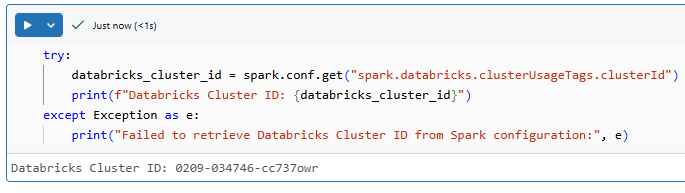
So, that’s technique number two—accessing the Cluster ID in Databricks through Spark configuration. It’s another effective method to have in your toolkit, especially when you’re already deep in Spark code within your Databricks Notebooks.
Now, let’s explore techniques that work outside of Databricks Notebooks.
Technique 3—Programmatically access Databricks Cluster ID using Databricks REST API (External access)
Sometimes you may need to retrieve the Cluster ID in Databricks from an external system or a script running outside of the Databricks Notebook environment. In such cases, the REST API offers a robust method.
Security note: Never hardcode your API token directly in source code. Store it in an environment variable, a secret manager or Databricks Secretcs, and reference it at runtime.
Prerequisite:
-
- A personal access token (PAT) generated from your Databricks user settings
- A REST client: cURL, Hoppscotch, Postman, or write a Python request library
Step 1—Log in to Databricks and generate an API token
First things first, you need to get your API access token from Databricks.
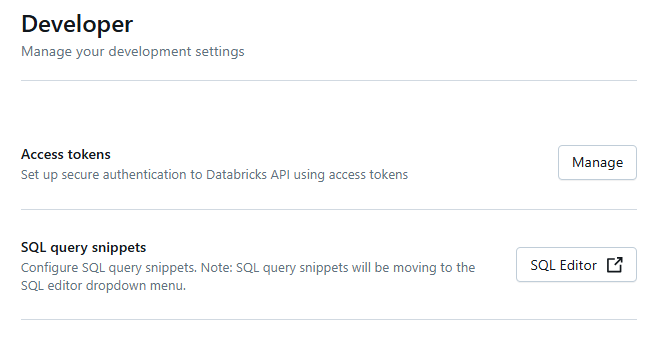
In your Databricks workspace, click on your username (usually in the top-right corner of the screen). From the dropdown menu, select “Settings“.
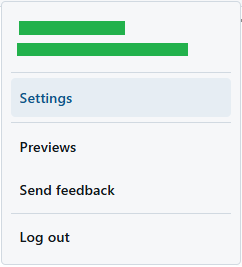
In the Settings sidebar (often on the left), find and click on “Developer“.
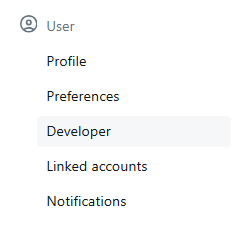
Look for the “Access tokens” section on the Developer Settings page.
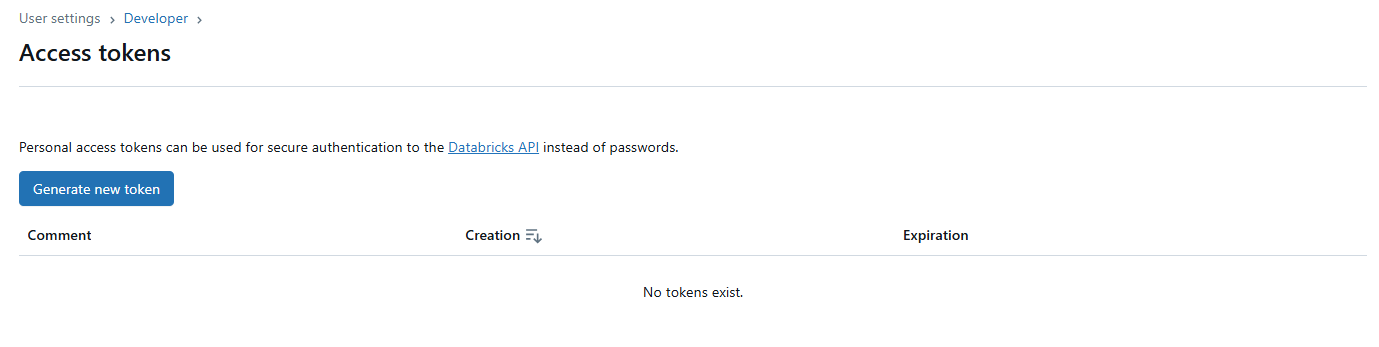
Click the button that says “Generate New Token“. It is labeled something like “Generate New Token“. A dialog will appear. Give your token a descriptive name—something that reminds you what it’s for (e.g., “Databricks Cluster ID“). You can also set an optional expiration for the token.
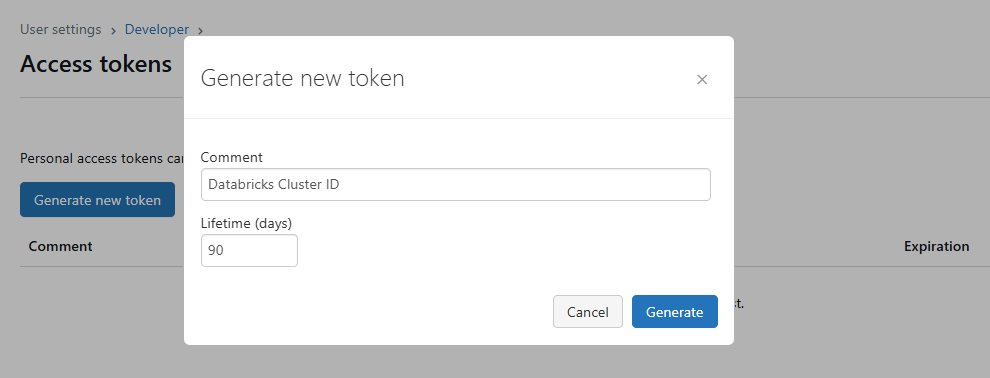
Click the “Generate” button. Databricks will display the generated token only once. Copy this token immediately and store it in a secure place.
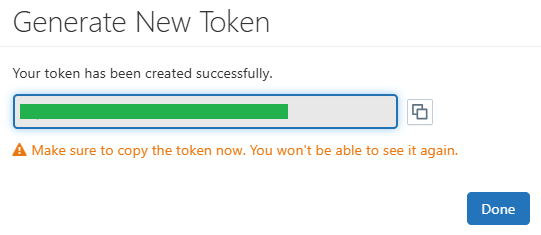
You won’t be able to see the token again after you close the dialog. If you lose it, you’ll have to generate a new one. Treat this token like a password—keep it secret!
Step 2—Configure your REST client
Now that you have your API token, you need to configure your chosen REST client to use it for authentication when talking to the Databricks API. How you do this depends on the client you picked. For quick tests, you can use cURL, Hoppscotch, Postman, or Python request library.
Step 3—List clusters via REST API
a) Using cURL:
Open your terminal or command prompt and run a command like this, making sure to replace <api_token> with your actual API token you generated in Step 1 and <your-databricks-instance> with your Databricks workspace URL ( …..cloud.databricks.com or similar—just the hostname part, without https://)
curl -X GET
	-H "Authorization: Bearer <api_token>"
https://<your-databricks-instance>/api/2.1/clusters/listHere’s how you’d make the same API request using a Python script:
import requests

DATABRICKS_TOKEN = "<YOUR_API_TOKEN>"	 # Replace with your API token
DATABRICKS_WORKSPACE_URL = "https://<YOUR_WORKSPACE_URL>" # Replace with your workspace URL
api_version = "2.1"api_command = "/clusters/list"url = f"{DATABRICKS_WORKSPACE_URL}/api/{api_version}{api_command}"headers = {"Authorization": f"Bearer {DATABRICKS_TOKEN}"}

response = requests.get(url, headers=headers)
response.raise_for_status() # Raise HTTPError for bad responses (4xx or 5xx)
clusters_list = response.json()

print(clusters_list) # Print the raw JSON response to see what it looks likeTo list Databricks clusters using Hoppscotch, start by opening Hoppscotch in your browser. Select GET as the request method and enter the Databricks API endpoint:
https://<databricks-instance>/api/2.1/clusters/listReplace <databricks-instance> with your Databricks workspace URL. Next, navigate to the Authorization tab, set the Authorization Type to Bearer and enter your Databricks Personal Access Token (PAT) in the input field. Once everything is set up, click Send to execute the request. If successful, you will receive a 200 OK status along with a JSON response containing a list of clusters in your Databricks workspace. The response will include cluster details. If you encounter issues, verify that your API endpoint and PAT are correct.

Step 4—Retrieve specific Databricks Cluster ID details
The API response returns a JSON object that includes details of all clusters. Look for the field cluster_id in the JSON. If you have multiple clusters, you might need to search through the list by matching on a cluster name or another attribute to find the one you want.
Step 5—Parse the JSON Response and find your Databricks Cluster ID
The /api/2.1/clusters/list API call returns a JSON response. You need to process this JSON to extract the cluster_id for the specific cluster you’re interested in. Usually, you’ll want to find a cluster based on its name.
If you used curl in Step 3, the output is raw JSON text in your terminal. You can use jq to parse this and extract the cluster_id. We already showed an example of this in the curl section of Step 3, where we used jq to find the cluster_id of a cluster with a specific name:
CLUSTER_NAME_TO_FIND="target-cluster"CLUSTER_ID=$(curl -X GET -H "Authorization: Bearer <YOUR_API_TOKEN>" "https://<YOUR_WORKSPACE_URL>/api/2.0/clusters/list" | jq -r ".clusters[] | select(.cluster_name == "${CLUSTER_NAME_TO_FIND}") | .cluster_id")
echo "Cluster ID for '${CLUSTER_NAME_TO_FIND}': $CLUSTER_ID"
If you use Python requests, the JSON response is already parsed into a Python dictionary (or list of dictionaries) in the clusters_list variable. You can now use a standard Python dictionary and list operations to navigate this data structure and find your Cluster ID in Databricks. We also showed an example of this in the Python code in Step 3:
cluster_name_to_find = "YourTargetClusterName" # Replace with the actual cluster name

target_cluster_id = None
for cluster in clusters_list.get("clusters", []): # Handle case where 'clusters' key might be missing
		 if cluster.get("cluster_name") == cluster_name_to_find:
				target_cluster_id = cluster.get("cluster_id")
				 break # Exit loop once found

if target_cluster_id:
		print(f"Cluster ID for '{cluster_name_to_find}': {target_cluster_id}")
else:
		 print(f"Cluster '{cluster_name_to_find}' not found.")
Optional—Error handling
Making calls to external APIs and parsing responses is always a place where things can go wrong. Network issues, incorrect API tokens, API rate limits, or unexpected response formats can all cause problems. It’s crucial to implement error handling in your scripts or applications that use the Databricks REST API.
In cURL scripts
Check the exit code of the curl command. A non-zero exit code usually indicates an error.
In Python requests
The response.raise_for_status() line in the Python example is crucial. It will raise an HTTPError exception if the API response status code indicates an error (4xx or 5xx). You can wrap your code in try-except blocks to catch these exceptions and handle them carefully.
import requests

# ... (API token and URL setup as before) ...

try:
		response = requests.get(url, headers=headers)
		 response.raise_for_status() # Raise exception for HTTP errors
		clusters_list = response.json()

		 # ... (JSON parsing and Cluster ID extraction from Step 4) ...

except requests.exceptions.RequestException as e: # Catch network errors, timeouts, etc.
		 print(f"API Request Error: {e}")
except ValueError as e: # Catch JSON parsing errors
		print(f"JSON Parsing Error: {e}")
except Exception as e: # Catch any other unexpected errors
		 print(f"An unexpected error occurred: {e}")
And that wraps up Technique 3—using the Databricks REST API. It’s a powerful approach for external access, giving you control from anywhere you can make HTTP requests. Next up, we’ll look at using the Databricks CLI, another command-line option for external interaction.
Technique 4—Programmatically access Databricks Cluster ID using Databricks CLI
This technique lets you retrieve your Cluster ID in Databricks from the command line using the Databricks CLI. Databricks CLI is a versatile tool that puts Databricks control right at your fingertips in your terminal. For automating tasks, system administration and DevOps workflows, the CLI is a fantastic option. And guess what? It’s also great for programmatically fetching Databricks Cluster IDs.
Prerequisite:
- You need to download and install the Databricks CLI on your local machine from where you’ll be running the commands. The installation process varies slightly depending on your operating system:
- Once installed, the Databricks CLI needs to be configured to connect to your Databricks workspace.
Step 1—Install and configure Databricks CLI
The Databricks CLI is a command-line tool that wraps the Databricks REST API. It’s useful for scripting, system administration and DevOps workflows where you want the simplicity of a well-structured CLI rather than raw HTTP calls.
Let’s walk through how to install and configure the Databricks CLI. For this article, we will be installing it on the Windows operating system.
Here’s how to get the Databricks CLI running on Windows. You can use package managers like WinGet or Chocolatey, use Windows Subsystem for Linux (WSL), or download the executable from the source.
Using PowerShell as administrator:
Open Windows PowerShell by searching for it, right-click and select “Run as Administrator”. Check for Package Managers. To do so, run:
winget --versionOr
choco --version to see if WinGet or Chocolatey is available on your system.
Refer to this article to learn how to install these tools:
Installing Databricks CLI using:
a) WinGet:
Open a command prompt and run:
winget search databricksThen, install with:
winget install Databricks.DatabricksCLIb) Chocolatey:
Open a command prompt and run:
choco install databricks-clic) WSL:
If you use WSL, follow this guide.
d) Manual install from source:
Check your Windows version by running in PowerShell:
$env:PROCESSOR_ARCHITECTUREor in CMD:
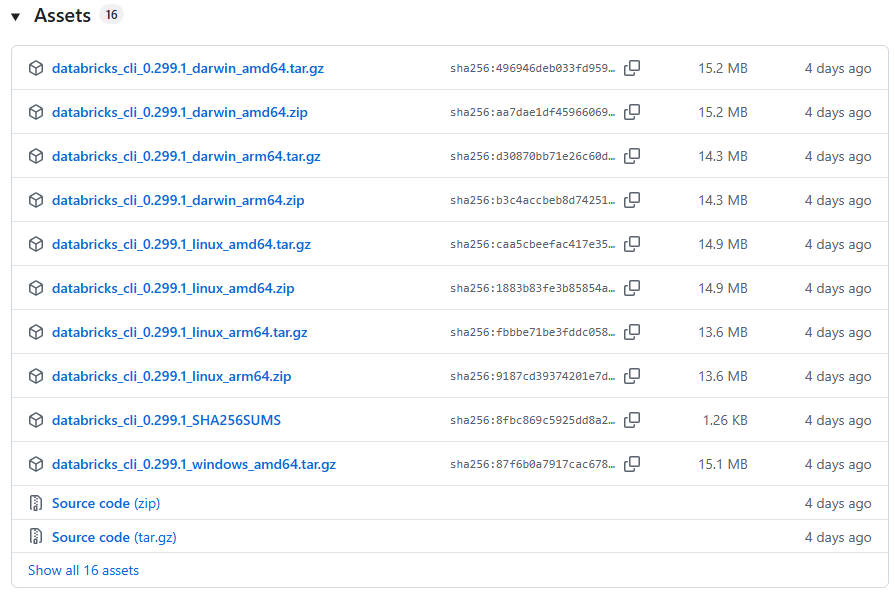
echo %PROCESSOR_ARCHITECTURE%Then download the appropriate zip file from the GitHub releases page, extract it and run the CLI executable.
Verify installation:
After installing, open a new terminal or PowerShell window and run:
databricks --versionThis command prints the CLI version, confirming that the installation worked.
For Mac or Linux, refer to this article:
After installing the CLI, you need to configure authentication so it can connect to your Databricks workspace.
Check out this article on how to configure Databricks CLI.
Step 2—List clusters using the Databricks CLI
With the Databricks CLI installed and configured, list your clusters by running:
databricks clusters listThis command returns a table with details like cluster names, IDs and states. The output might look like this:

Cluster ID								 Cluster Name					 State
1234-567890-abcde					 <cluster_name>				RUNNING
Step 3—Identify your cluster from the list
Review the output and look for your target cluster by its name or state. If you have multiple clusters, you can use standard command-line tools like grep (or Windows equivalents) to filter the results. For example, in PowerShell, you might run:
databricks clusters list | Select-String "<YourCluster>"This command helps you find the line with your cluster details, including the Cluster ID in Databricks.
Step 4—Retrieve specific cluster details (and extract Databricks Cluster ID)
Once you identify your cluster, note the Cluster ID in Databricks from the output. If you need more details about a specific cluster, you can use another CLI command to fetch them. For instance:
databricks clusters get CLUSTER_ID 1234-567890-abcdeYou will see that this command returns a JSON response with all available details for the specified cluster. You can then parse this JSON output to confirm the Cluster ID along with other configuration details.
Common mistake: Do not write databricks clusters get CLUSTER_ID 1234-567890-abcde. The new CLI takes the cluster ID as a positional argument—CLUSTER_ID is just the placeholder name in the docs, not a literal keyword. The legacy CLI used –cluster-id <value>, but that flag no longer exists in v0.205+.
Step 5—Confirm/Validate Databricks CLI output detail
After running the CLI command, always double-check that the Cluster ID in Databricks you obtained is correct. The easiest way to validate it is to compare it to the Cluster ID shown in the Databricks UI for the same cluster. To do so, go to Compute, click your cluster’s name and look at the URL. The ID appears after /clusters/. It should match exactly what the CLI returned.
Save up to 50% on your Databricks spend in a few minutes!
Conclusion
And that’s a wrap! That covers four ways to pull a Databricks Cluster ID programmatically. Here’s a quick way to decide which to use:
Inside a notebook? Go with Technique 2 (Spark config). It’s the most stable and readable. Use Technique 1 (dbutils) only if you have a specific reason to access notebook context metadata.
Outside Databricks, in a script or pipeline? Use Technique 3 (REST API) for fine-grained control and integration flexibility, or Technique 4 (CLI) when you want something quick and scriptable without writing HTTP client code.
FAQs
What is a Databricks cluster?
A Databricks cluster is a set of compute resources (a driver node plus one or more worker nodes) that runs Apache Spark workloads. It handles interactive data analysis, scheduled jobs and automated processing.
How do you find the Cluster ID in Databricks?
You can locate the Databricks Cluster ID in several ways. Manually, it appears in the URL when you select a cluster in the Databricks UI (the string following /clusters/). Programmatically, you can retrieve it using methods such as Databricks Utilities (Databricks dbutils), Spark configuration (via spark.conf.get("spark.databricks.clusterUsageTags.clusterId")), the REST API, or the Databricks CLI.
How do I know my Cluster ID?
It’s the unique string (like 1234-567890-abcde) assigned when the cluster was created. Check the URL in the Databricks UI or run any of the code samples above.
How do you get the Databricks instance ID?
The workspace instance ID is embedded in your workspace URL. In a URL like https://dbc-a1b2c3d4-e5f6.cloud.databricks.com, the instance identifier is the full hostname. In Azure Databricks, the o= parameter in legacy URLs contains the workspace’s numeric ID.
How do I find my Databricks account ID?
In Azure Databricks, it appears in the Azure portal under your Databricks resource’s properties. On AWS and GCP deployments, it’s visible in the account console at accounts.cloud.databricks.com. It’s also returned in certain API responses.
Is the Cluster ID the same as the Cluster Name?
No. The cluster name is a human-readable label you assign. The Cluster ID is a system-generated unique string. Two clusters can share a name; they can never share an ID.
How long does a Cluster ID remain valid?
For the lifetime of the cluster. Once terminated, that ID is no longer active. Databricks retains cluster configuration for 30 days after termination (admins can pin clusters to extend this), but the ID itself is retired when the cluster is deleted.
Can I change a Cluster ID?
No. It’s assigned at creation and can’t be modified. To get a different ID, create a new cluster.
When should I use the REST API to get the Cluster ID?
Use the REST API when you need to access cluster details from outside the Databricks Notebook environment or integrate with external systems. It is ideal for automation pipelines and monitoring tasks that run in your own scripts or third-party systems.
What are the common pitfalls when retrieving the Cluster ID?
Watch out for: using the wrong API version (the Clusters API is 2.0, not 2.1); using legacy CLI syntax (–cluster-id) with the new CLI (v0.205+); and hardcoding tokens in source code instead of using environment variables or a secrets manager. Also test your retrieval code in both interactive notebooks and job-run contexts; behavior can differ.
Pramit Marattha
Pramit Marattha is a technical content writer and strategist with 5+ years of experience covering AI, data engineering, data cloud platforms and open source technologies. He turns complex technical concepts into clear, useful content for engineers and developers.







