


Databricks Notebooks are a central part of the Databricks platform, allowing data teams to write, run and share code for data analysis. They’re a central spot for data teams to work together. But when you’re dealing with super-sensitive data, you might need to limit who can do what. Databricks gives you the flexibility to control what’s restricted and who gets access. Normally, Databricks Notebooks lets users download results, export notebook files and copy data. That’s incredibly useful for analysis and sharing, but it brings up some big questions. How do you keep sensitive data safe? How do you control who can access or download Notebook results and files? It’s really important to manage Databricks Notebook download permissions. Restricting Databricks Notebook downloads serves a few key purposes. Security is a big part of it, but it is also about complying with regulations, keeping your data organized and preventing data from being leaked when it is not supposed to.
In this article, we’ll provide a thorough step-by-step guide to enabling or disabling these features, which helps keep your Databricks workspace and Notebook data secure and safe. So, if you’re looking to secure your data for compliance or to limit who can access it, these steps are straightforward and easy to follow.
Why unrestricted downloads are a problem
Databricks Notebooks lets users download results and files by default, which makes sense considering how collaborative the platform is. But this also creates some major security concerns. Let’s take a closer look at what happens when you first start using the platform.
When Databricks users log in, they can easily export their Databricks Notebook contents or download query results from SQL cells. That’s convenient, but it also leaves a big hole for security risks. For example, someone could accidentally—or intentionally—download sensitive info and share it outside the company.
Unrestricted downloads can put your data at risk, especially if users aren’t aware of what they’re downloading. To stay compliant with regulations like GDPR and HIPAA, you need to have strict controls in place for data access and sharing. It’s a big deal—if you don’t follow these regulations, you might find yourself facing hefty fines or legal trouble.
Security risks of unrestricted downloads
Let’s dive deeper into the risks. Suppose an employee downloads a Databricks Notebook file with results that have personal information in them. If that file ends up in the wrong hands, it could spell disaster. Cybercriminals love easy targets and unrestricted downloads give them just that.
Even within your organization, there’s always the risk of insider threats. A rogue employee with malicious intent could exploit these settings to steal valuable data. Or worse, they might inadvertently leak data by sharing it with unauthorized parties.
To prevent this, you need to tighten control over who can download what. This doesn’t mean shutting/locking everything down completely. Instead, it means setting clear rules and enforcing them consistently. With the right approach, you can balance usability and security effectively.
Step-by-step guide to enabling or disabling notebook file and result downloads
These settings live in the workspace-level Security tab and apply globally to all users in the workspace. You’ll need workspace admin privileges to make changes here.
Prerequisites
Make sure you have the necessary Databricks workspace permission before tweaking any settings. You’ll need Databricks workspace permission and Databricks admin privileges. Without these, you won’t be able to make the changes required. So, log in with your admin credentials and let’s get rolling.
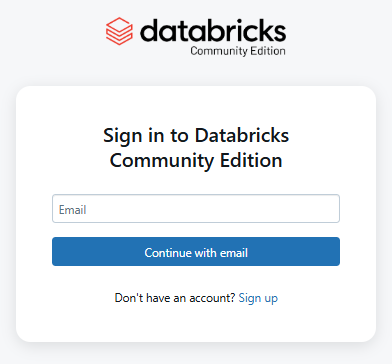
Step 1—Log in to Databricks
First off, sign in to your Databricks account. Use your Databricks admin credentials to make sure you have the right level of permission.
Step 2—Access the settings page
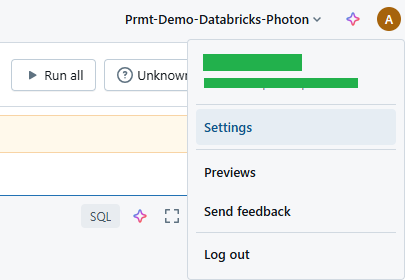
Once you’ve logged in, navigate to the main Databricks workspace menu. From there, go to the Databricks Settings page by clicking your Databricks username/user-profile which is located at the top right corner.
Step 3—Navigate to the Databricks security tab
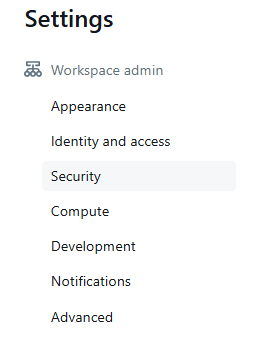
Now, look for the Databricks Security tab and click on it. This section contains options for managing permissions, authentication and other Databricks security-related configurations.
Step 4—Enable or disable notebook results download
In the Databricks Security tab, scroll down to Egress and Ingress and look for Notebook results download. This setting lets Databricks users download the outputs from their notebook cells if it’s turned on.
- Toggle on to allow downloads
- Toggle off to restrict them
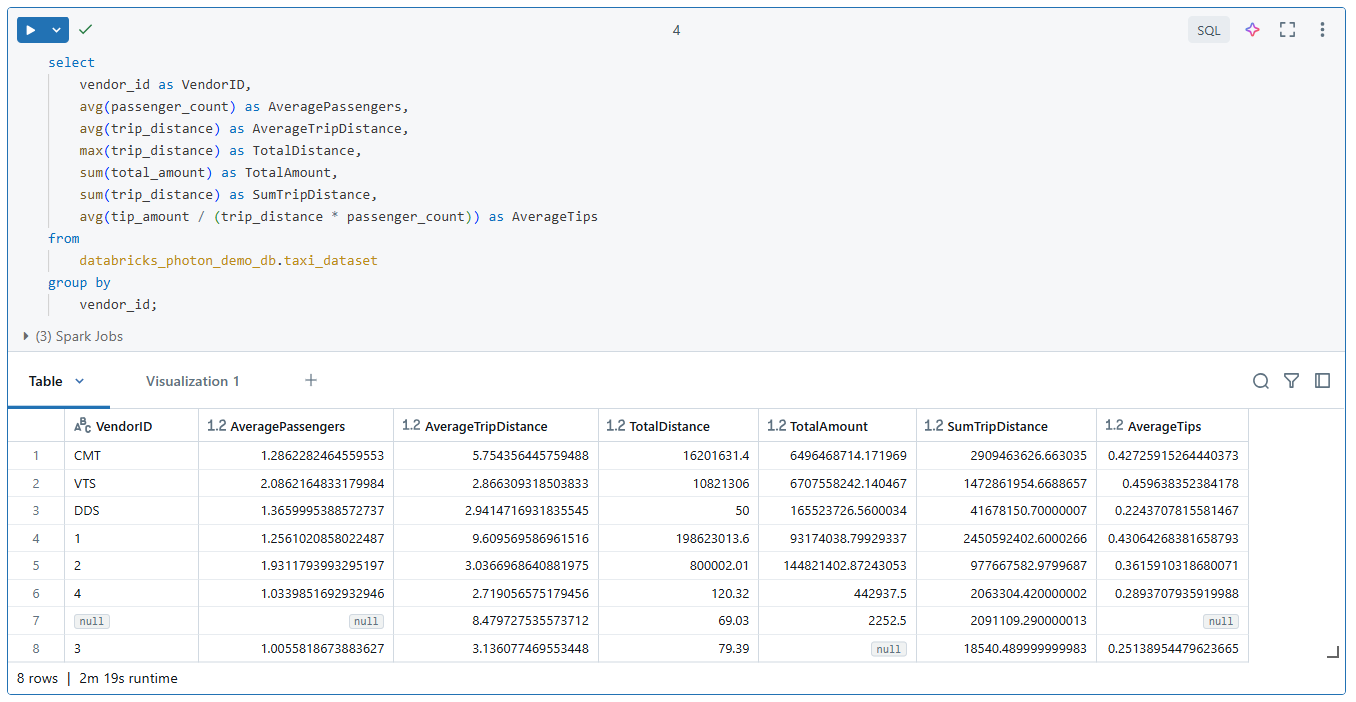
When this is disabled, the download button disappears from cell outputs. Users can still run code and view results within the Notebook. But they cannot save those results locally.
Remember, if your Databricks Notebooks handle confidential data, you might want to restrict this option to keep it from leaving the Databricks workspace.

➥ If disabled:
➥ If enabled:
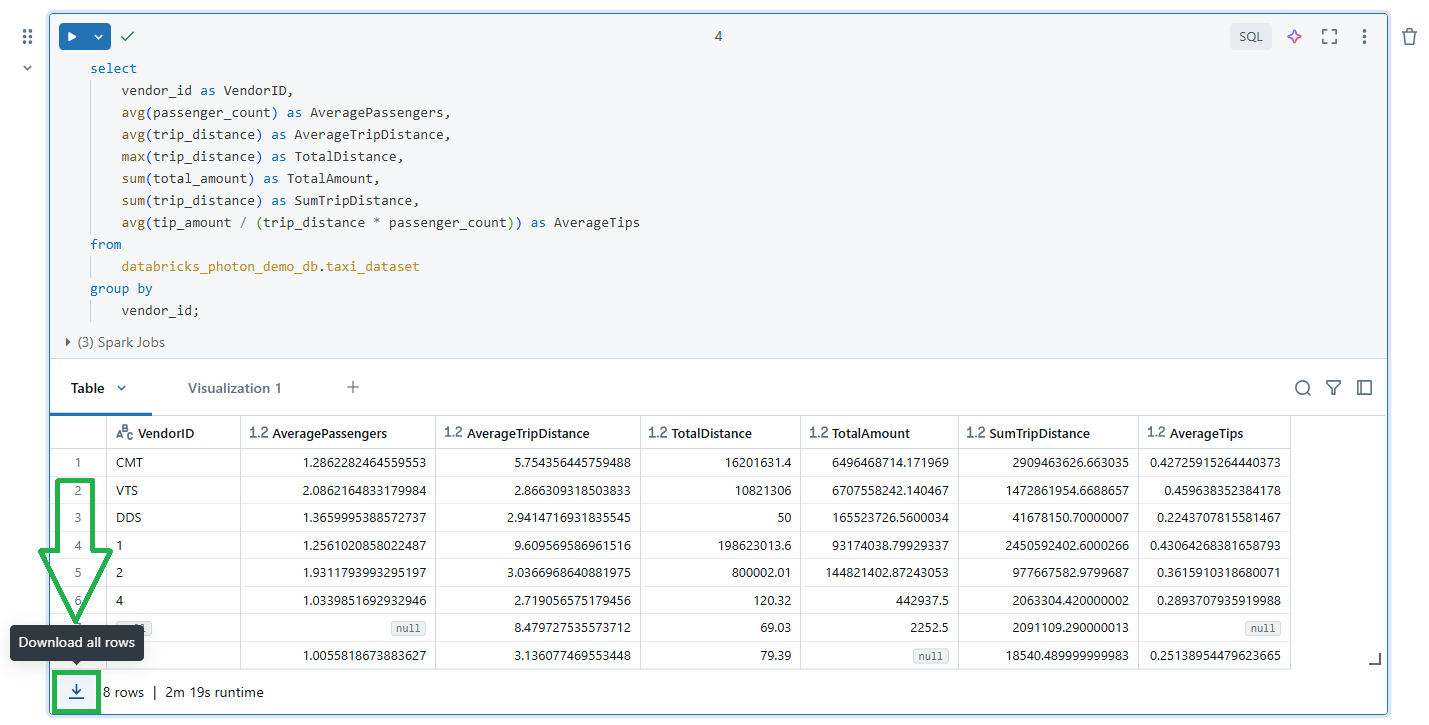
Step 5—Enable or disable SQL results download
Just below, find the SQL results download toggle. This specifically controls whether users can export SQL query results from notebook SQL cells and the Databricks SQL editor.
Toggle it on or off depending on your policy. Disabling SQL result downloads is especially relevant in environments where business analysts have broad Notebook access.

Step 6—Enable or disable Databricks Notebook exporting
Scroll down to the Databricks Notebook and file exporting option. This setting controls whether Databricks users can export entire notebooks as files (e.g., DBC archive, Source file, IPython Notebook, HTML). Toggle the option on to allow notebook exports or off to restrict them. Limiting notebook exports can prevent proprietary code or sensitive workflows from being shared externally.

➥ If disabled:
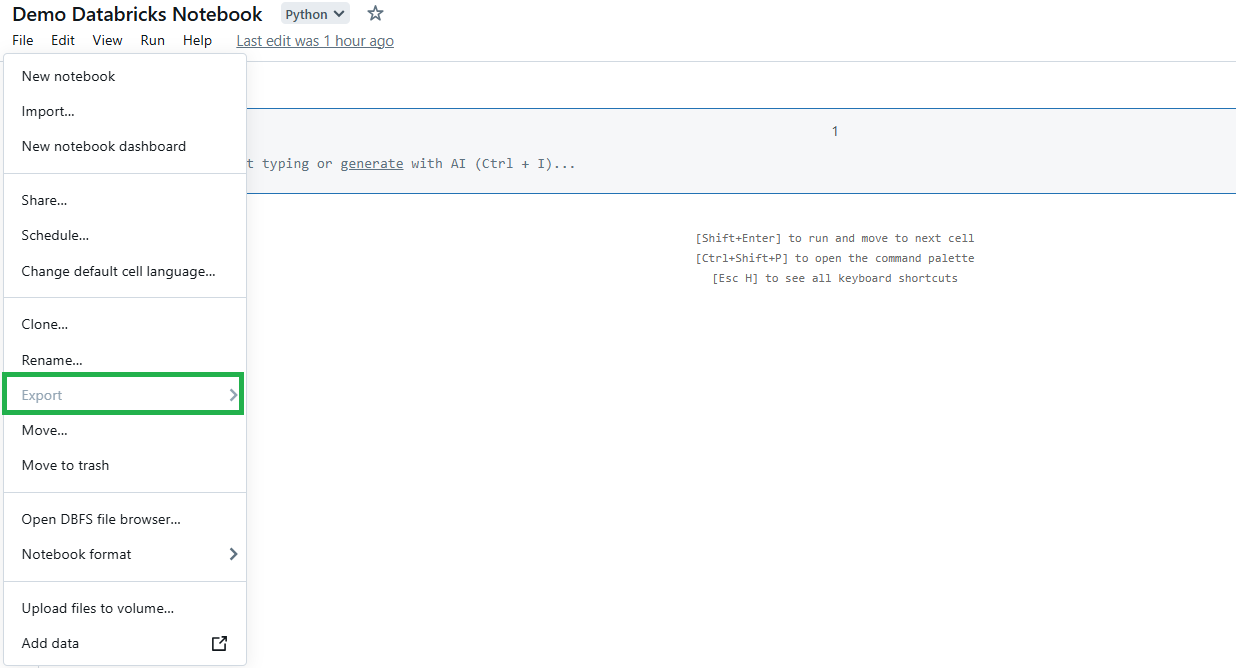
➥ If enabled:
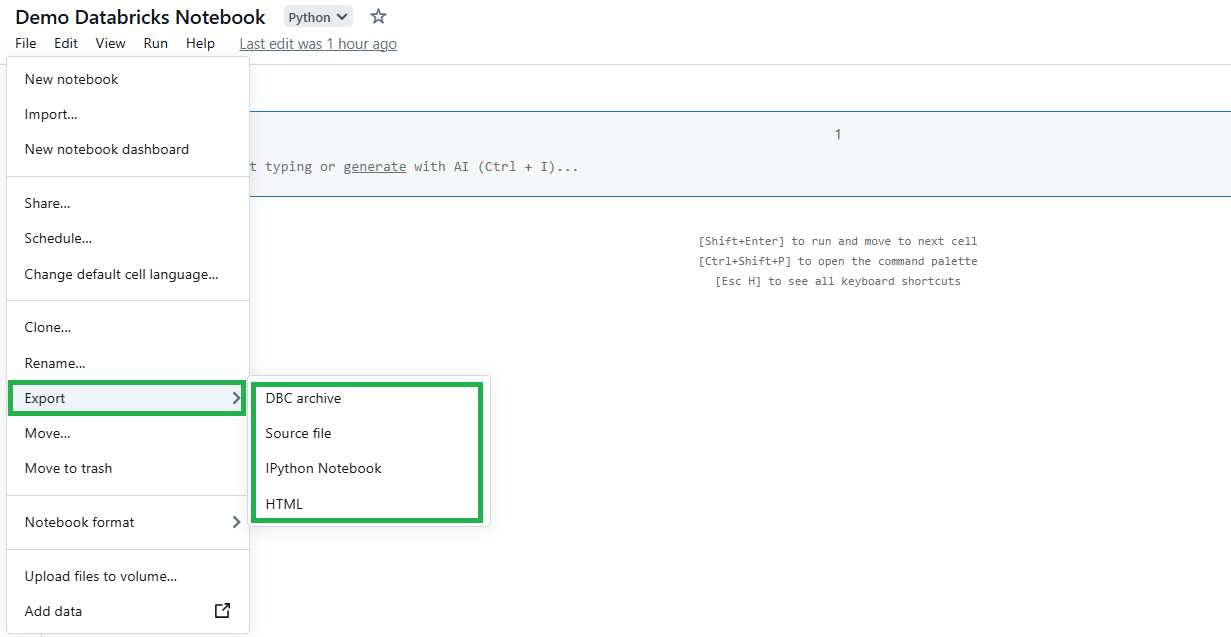
Step 7—Enable or disable results table clipboard features
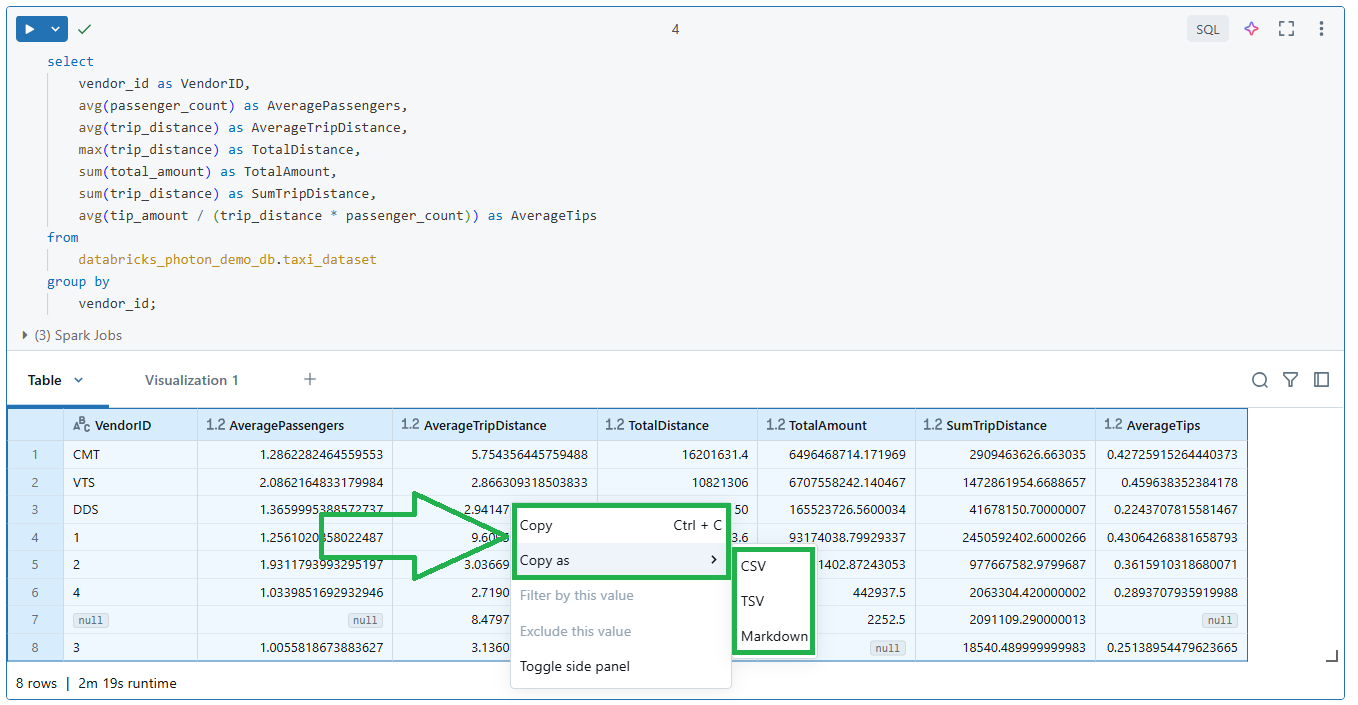
Finally, scroll down at the end of the Databricks settings page there you will see the Results table clipboard features option. This option manages whether users can copy data directly from results tables into their clipboard. Like before, use the toggle to turn this feature on or off. Disabling it can reduce the risk of unauthorized copying and sharing of data outside the Databricks workspace.

➥ If disabled:
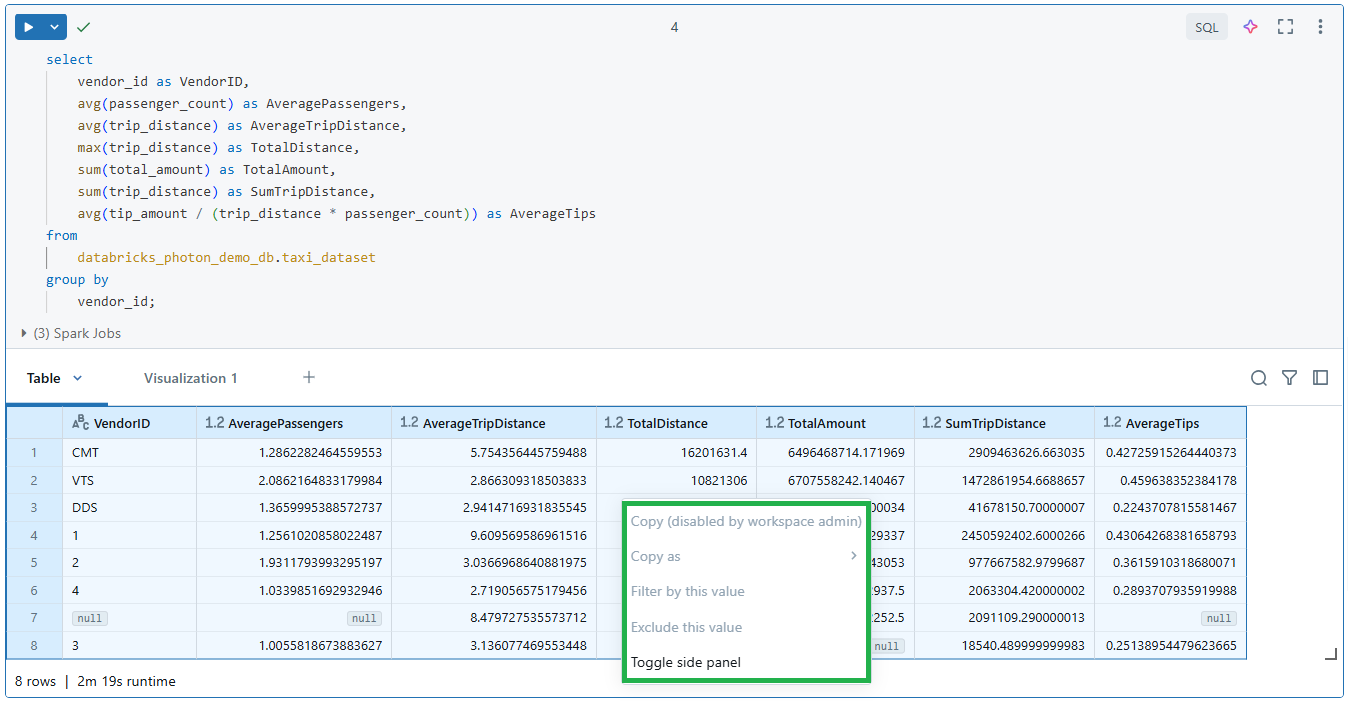
➥ If enabled:
Step 8—Verify your changes
After toggling the settings you want, refresh the browser. The changes take effect immediately; there’s no separate “Save” button to click. To confirm everything works as intended, log in as a non-admin user and test the restricted actions. If those users can no longer download or export where you’ve disabled it, you’re done.
Step-by-step guide to managing download permissions for specific user groups
If you need even more precise control (restricting downloads for some users but not others) you’re working with workspace object access control. This is only available on the Premium plan or above.
The workspace-level Security tab settings apply to everyone. Group-level access control is how you carve out exceptions or apply restrictions selectively.
Prerequisites
You need:
- A Databricks workspace admin account
- A Premium plan workspace (or higher)
- Workspace access control enabled for your workspace
Step 1—Log in to Databricks
Start by logging into Databricks using your Databricks admin credentials. Head straight to the Databricks Admin Console once you’re in. This is where you’ll manage user and group permissions.
Step 2—Access the Databricks settings page
Once logged in, navigate to the main Databricks workspace menu. From there, go to the Databricks Settings page by right-clicking your username/user-profile located at the top right corner.
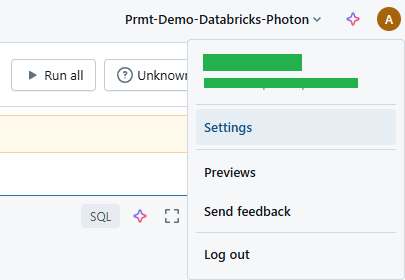
Now, look for the Identity and Access tab and click on it. This step gets you closer to controlling those downloads.
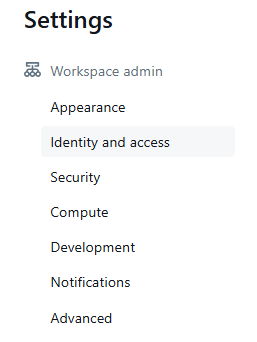
Step 3—Navigate to identity and access
Now, head over to the Management and permissions section. Click on the Manage button of the Groups section to open its settings.
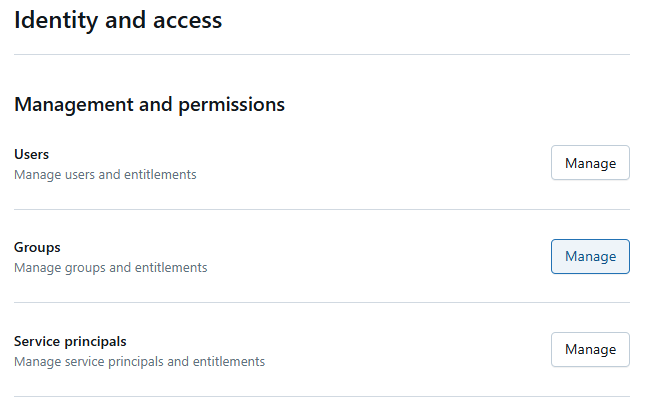
Then, proceed to click on an existing group or create a new one. Once you have clicked on the group name, you can view and edit the current permissions. Look for the Entitlements tab and click on it. This brings up a detailed view of what the group can and cannot do. For example, you can allow unrestricted cluster creation, Databricks SQL access and Databricks workspace permission. All options are laid out clearly here.
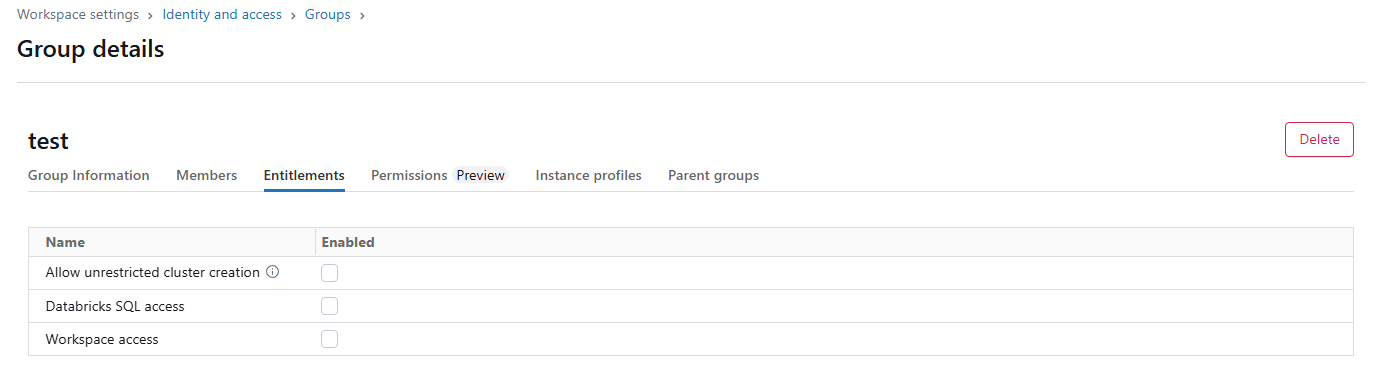
Step 4—Open group settings
In the Management and permissions section, click Manage next to Groups. You’ll see a list of all workspace groups.
Click an existing group name or create a new one. Once inside a group, click the Entitlements tab. This shows what the group is allowed to do broadly; things like unrestricted cluster creation, Databricks SQL access and workspace access.
Entitlements control broad platform access. For notebook-specific permissions, you’ll go a level deeper in the next step.
Step 5—Assign permissions to specific Databrics notebooks
Now, head back to the Databricks workspace section and click on the notebook you want to assign the permission. Right-click on the notebook or click on the hamburger menu located at the right end of the notebook. You’ll see a Share (Permissions) option. Click on that option. This step lets you fine-tune who sees what within specific notebooks.
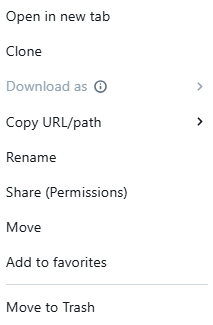
Step 6—Assign permission levels to user groups
Once you’ve clicked on Share (Permissions), a dialog box appears. You’ll see a list of users and groups with current access levels. Add the user group you want to manage by typing its name into the search or selection box. Once the group appears, assign the appropriate permission level:
- Can manage: Full control over the notebook.
- Can view: Read-only access.
- Can edit: Can make changes but not execute.
- Can run: Can execute code but not change content.
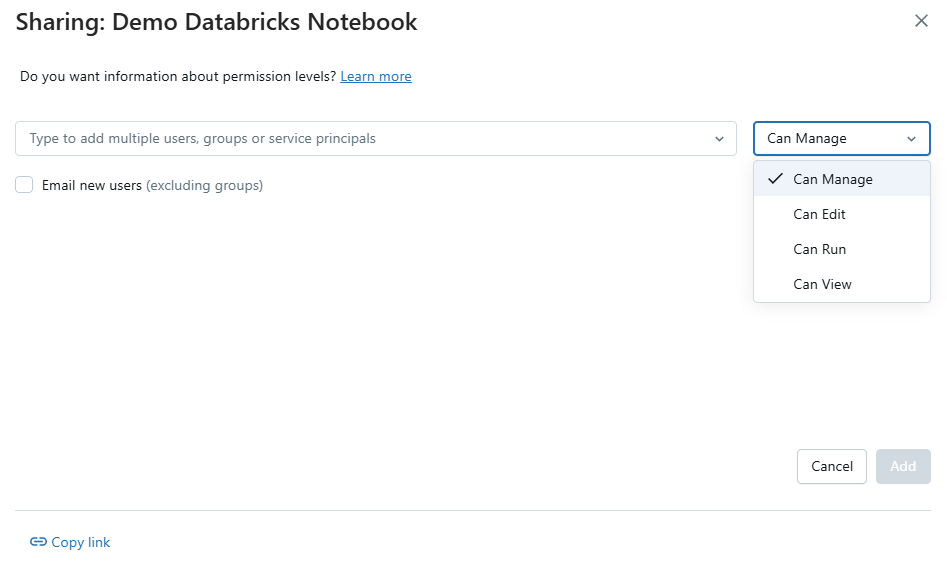
Assign the level that fits each group’s actual workflow. A data consumer who only needs to read outputs probably needs Can Read. A developer actively working on notebook code needs Can Edit.
Step 7—Verify group permissions
After saving, log in as a user from the modified group and test the actions relevant to that permission level. Try downloading results, exporting the notebook and running cells. If the behavior matches what you configured, the settings are working correctly.
A note on granular control
Granular control not only prevents leaks but also improves productivity. When users have a clear idea of what they can and can’t do, they don’t waste as much time figuring out permissions. That means they spend more time on the work that matters. It might seem like extra work upfront, but it’s worth it in the end.
Bonus: how to restrict file uploads in Databricks via the UI
If download restrictions are important, upload restrictions usually deserve attention too. An uncontrolled upload path can introduce unvetted data into a workspace, bypass data quality pipelines or create compliance issues of their own.
Prerequisites
Workspace admin privileges, same as before.
Step 1—Log in to Databricks
Start by logging into Databricks. Use your admin credentials to sign in.
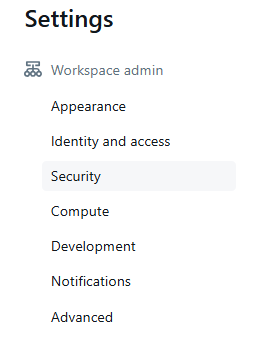
Step 2—Navigate to the Databricks security settings
Navigate to the main Databricks workspace menu. From there, go to the Databricks Settings page by right-clicking your username or user profile, which is located at the top right corner.
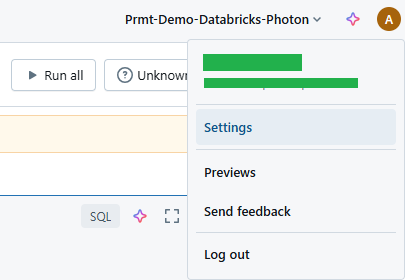
Now, look for the Databricks Security tab and click on it.
Step 3—Disable the upload data UI
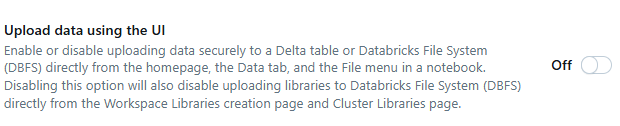
In the Egress and Ingress section, find the Upload data using the UI toggle. Turning this off prevents users from uploading files through the Databricks interface.
Before disabling this, think about which users rely on manual file uploads as part of their workflow. If your team uploads reference data, lookup tables or configuration files regularly, disabling this without a planned alternative will disrupt their work.
Optional—Disable the DBFS file browser
If you want even more additional layer of control, go to the Advanced tab in Settings.
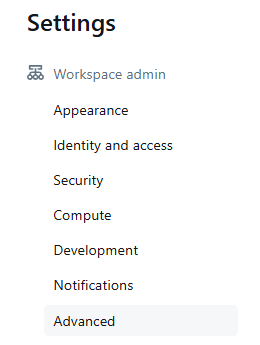
Scroll down to the end of the page and find the DBFS File Browser setting. This controls browsing and uploading files using the visual interface. Toggle this switch off to prevent users from accessing the Databricks DBFS browser. This adds another layer of Databricks security by stopping unauthorized file uploads.

Disabling the Databricks DBFS File Browser might seem extreme, but it can save you from potential headaches. Think about it: fewer ways to upload files mean fewer chances for something to go wrong. But keep in mind that some users might need this feature for their work. Balance security with usability.
Note that DBFS itself is a legacy storage pattern. Databricks recommends Unity Catalog external locations and volumes as the current approach. If your workspace is Unity Catalog-enabled, DBFS may already be less central to your users’ workflows than it once was.
Step 5—Save changes
Don’t forget to refresh the page to verify that everything works as intended. Testing is crucial here too. Make sure users can’t upload files if that’s what you intend. If they still can, double-check your settings.
Save up to 50% on your Databricks spend in a few minutes!
Conclusion
And that’s a wrap! Now that you know how to manage file downloads and results exports in Databricks Notebooks, you can do a better job of managing your data. Controlling access isn’t just about toggling settings—you need to enforce proper permissions, audit data movements and align with compliance requirements. Getting the balance right between letting people get to what they need and keeping it secure is crucial. Too much freedom for your team invites trouble. But if you’re too restrictive, productivity can suffer. The goal is to balance your team’s workflow with security needs.
In this article, we covered:
- Workspace-level notebook result download settings (Security tab)
- Group-level and notebook-specific permission assignment
- File upload restriction settings
… and more!
FAQs
How do I disable notebook result downloads in Databricks?
How do I enable the Databricks DBFS file browser?
How do I manage user permissions in Databricks?
What are the five Databricks notebook permission levels?
- No permissions: No access
- Can Read: View cells, comment and run via %run only
- Can Run: Can Read abilities, plus interactive cluster attachment and command execution
- Can Edit: Can Run abilities, plus cell editing and tagging
- Can Manage: Full control, including permissions management and deletion
Can I restrict downloads for specific notebooks rather than the whole workspace?
How do I audit whether a user attempted to download restricted data?
Can I manage download permissions via the API?
Pramit Marattha
Pramit Marattha is a technical content writer and strategist with 5+ years of experience covering AI, data engineering, data cloud platforms and open source technologies. He turns complex technical concepts into clear, useful content for engineers and developers.







