
Every IT team needs an accurate record of the devices and software its people use. Keeping that record current is the hard part. Devices change hands, software gets patched and vendors shift their support timelines. Over time, the configuration management database (CMDB) drifts away from what’s actually in use. Then a ticket comes in, and the service desk can’t tell which device has the problem or how much support life it has left. The integration helps close that gap.
That gap is wider than most teams admit. In the Flexera 2026 State of ITAM Report, only 36% of organizations said they can see all of their IT assets. A year earlier, it was 43%. That’s around a 7-percentage-point drop in a single year.
Here’s how the integration helps. Flexera One IT Visibility collects inventory from your connected sources and cleans it up. Then it adds product details from Flexera Technopedia, such as the manufacturer and lifecycle dates, to each record it recognizes. From there, the integration syncs that data into Atlassian Assets, part of Atlassian Service Collection. Service teams can use it there while they handle requests and plan device refreshes.
In this guide, we’ll explain how the integration works and what you need before you start. Then we’ll walk through setup step by step, show you how to check the synced data and cover two everyday workflows that put it to work.
Note: Flexera One for Service Collection, the app behind the integration, is in our Early Access Program, so you’ll need to request access.
New partnership between Flexera and Atlassian
Flexera announced a collaboration agreement with Atlassian on October 6, 2026, to bring Flexera’s technology data into Atlassian Service Collection. Atlassian shared the news a day later at Team ’26 Europe.
Service Collection is Atlassian’s cloud-only bundle for service teams. It includes Jira Service Management (JSM), Customer Service Management, Assets and Rovo. Assets matters most for this guide, because it’s where your device and software records live. For this guide, Assets is the piece that matters most, because it’s where your device and software records live.
Each side has a clear job. Flexera One IT Visibility supplies clean inventory data, and Technopedia adds product details and lifecycle dates. Atlassian Service Collection is where teams put that data to work, right next to their requests and asset records.
The newest piece of the integration is a Forge app called Flexera One for Service Collection. It’s in Early Access now, and it’s the focus of this guide.
How does the Flexera One + Atlassian Service Collection integration work?
Your inventory data takes three steps on its way into Atlassian Assets:
- Collect. Flexera One IT Visibility finds and inventories the hardware and software your teams use
- Clean. Flexera normalizes names and attributes, flags duplicates and adds Technopedia product details to the records it recognizes. Technopedia covers more than 5 million products from more than 100,000 vendors
- Sync. The app copies the prepared data into Assets on the sync schedule you set: daily, weekly or monthly, with sync times in 30-minute intervals
In Assets, the app stores that data in a dedicated Flexera schema that mirrors your Flexera inventory structure. An Assets schema groups related object types, along with their attributes and links.
What data does the integration sync to Assets?
As of October 2026, the Flexera schema holds three object types. Here’s what each one stores, based on our Atlassian integration page and datasheet:
| Object Type | What it stores |
| Computer | Device details, such as name, manufacturer, model, serial number, operating system, processors, cores, memory, location, cost center and business unit |
| Application | Software details, such as manufacturer, version, edition, family and category |
| Manufacturer | The companies that make your hardware and software |
Device and software records also carry lifecycle data. Devices get a general availability (GA) date and an obsolete date. Software gets an end-of-life (EOL) date and an obsolete date, plus flags that show if a release is unsupported or discontinued.
What do those dates mean? The Technopedia lifecycle standards define them like this:
- General availability (GA): the date a product release becomes generally available or, for hardware, goes on sale
- End of life (EOL), for software: the last date of full manufacturer support. Partial support can continue after it
- End of support (EOS) or obsolete: the last date of any manufacturer support, for hardware or software
The records also link to each other. Each device and software record points to the company that made it, and each software record shows which devices it’s installed on. That’s how you can open a piece of software and see every device that runs it.
The integration has two limitations you should know up front. It’s a one-way sync from Flexera One into Assets, so edits you make in Assets don’t flow back. And Assets shows your data as of the last scheduled sync, so pick a frequency that matches how current your teams need it to be.
Why does data normalization matter?
Raw inventory data is messy and often contains inconsistent names and duplicate records. For example, one source might identify a vendor as “Microsoft Corp.” while another uses “Microsoft Corporation”. Software version strings and product labels can vary as well.
Those differences make it hard to match records and see what’s really running. Data normalization matches each item it recognizes to a standard product record. Enrichment then adds details such as the manufacturer, category and lifecycle dates.
Standard records make it easier for service teams to search, compare and assess their technology. Once the integration syncs those records to Assets, agents have that context on hand instead of reconciling names and product details across separate tools.
What do you need before installing Flexera One for Service Collection
Check these requirements before you set up the integration:
- The right Atlassian plan. The app needs Service Collection Premium or Enterprise on Atlassian Cloud. Standard plans now include Assets, but they don’t meet this requirement
- Flexera One IT Visibility. It’s the Flexera One product the app syncs from
- Early Access approval. The app isn’t on the Atlassian Marketplace during the Early Access Program. If you already use IT Visibility, request access through Flexera Support. If you’re new to Flexera One, talk to your Flexera sales rep. Either way, you’ll get a private install link
- The right admin access. Atlassian’s Forge documentation says the person who installs a Forge app from an install link must be an admin of that site. In our setup walkthrough, the installer has the app admin role at the site level and in Jira administration
- A Flexera One refresh token. It’s the credential the app uses to call the Flexera One API. We’ll show you how to create one below
- Your Flexera One region. Your sign-in address tells you: app.flexera.com is North America, app.flexera.eu is Europe and app.flexera.au is Asia Pacific
- Room in your Assets allowance. Atlassian counts objects in every schema on your site, except the Software Registry and Business Portfolio schemas that store Services data. Premium includes up to 50,000 objects and Enterprise up to 500,000. Device, software and manufacturer records add up fast, so check your usage in Assets settings under App usage
- A migration plan, if you used our first JSM connection. Our documentation includes a guide for moving to the new app
How to create your refresh token
The refresh token connects the Flexera integration to your Flexera One organization. Here’s how to create one:
- Sign in to Flexera One using the address for your organization’s region
- North America: app.flexera.com
- Europe: app.flexera.eu
- Asia Pacific: app.flexera.au
- Select the Profile details icon in the upper-right corner, then select User Settings
- In the left pane, select API Credentials, then Create API Refresh Token. Pick an expiry of 7, 30, 90 or 365 days. Our setup walkthrough uses 365 days to avoid frequent token rotation
- Select Copy and save the token somewhere secure. Flexera One shows it only once
A few things to know about this token, according to our API documentation:
- It’s tied to the person who creates it and can reach only what their Flexera One roles allow. If their roles change, the token’s access changes right away
- Tokens created on or after March 18, 2026, have a fixed maximum lifetime of 365 days. They expire on schedule, even when the sync uses them every day
- Flexera One emails reminders 30 days, seven days, three days and one day before a token expires
- Lost the token? Revoke it right away and create a new one
Put the renewal on your team’s calendar anyway. Without a valid token, the integration can’t reach Flexera One or run its scheduled syncs.
Got your token? Then you’re ready to install.
How to install and connect Flexera One for Service Collection
You set up the integration inside your Atlassian site. Watch the video or follow the steps below.
Step 1: Open the private install link
Open the private install link from Flexera and select Get app.
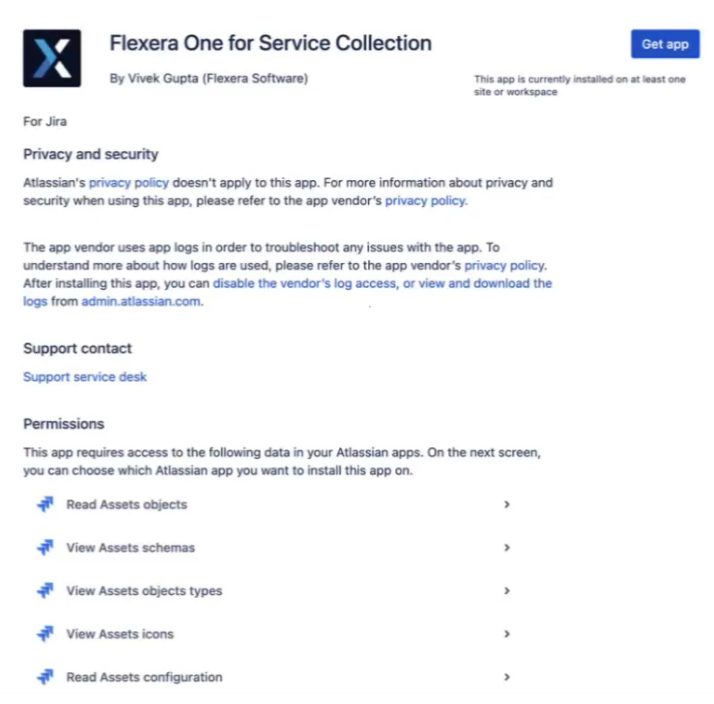
Atlassian Marketplace listing for Flexera One for Service Collection showing app details and required permissions – integration- Flexera integration
Step 2: Choose your Atlassian site
Choose the site and Atlassian app to install on. Review the permissions the app requests, then confirm the installation.
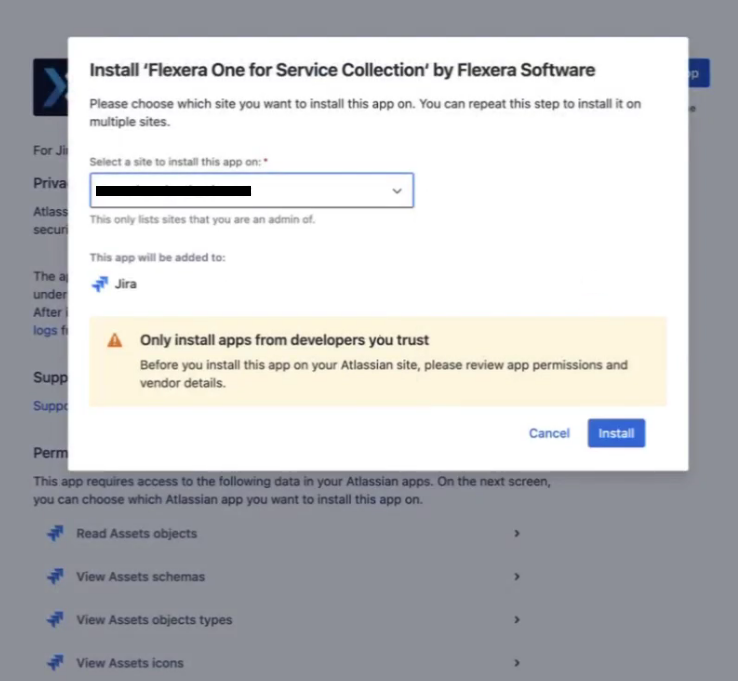
Installation dialog for Flexera One for Service Collection showing site selection and requested permissions – integration- Flexera integration
Step 3: Find the app in Jira admin settings
When the installation finishes, refresh your Atlassian site and open your Jira admin settings. Flexera One for Service Collection appears in the Apps section.
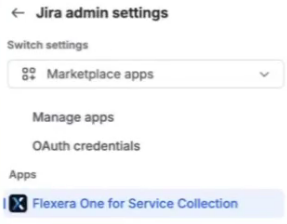
Jira admin settings menu with Flexera One for Service Collection listed under Apps
Step 4: Review the setup documentation
Open the app. Its welcome page outlines the setup and links to our documentation. Before you go further, read the sections on known behaviors and on the data synced to JSM and Assets. They explain which fields to expect and how the Flexera integration behaves during Early Access.
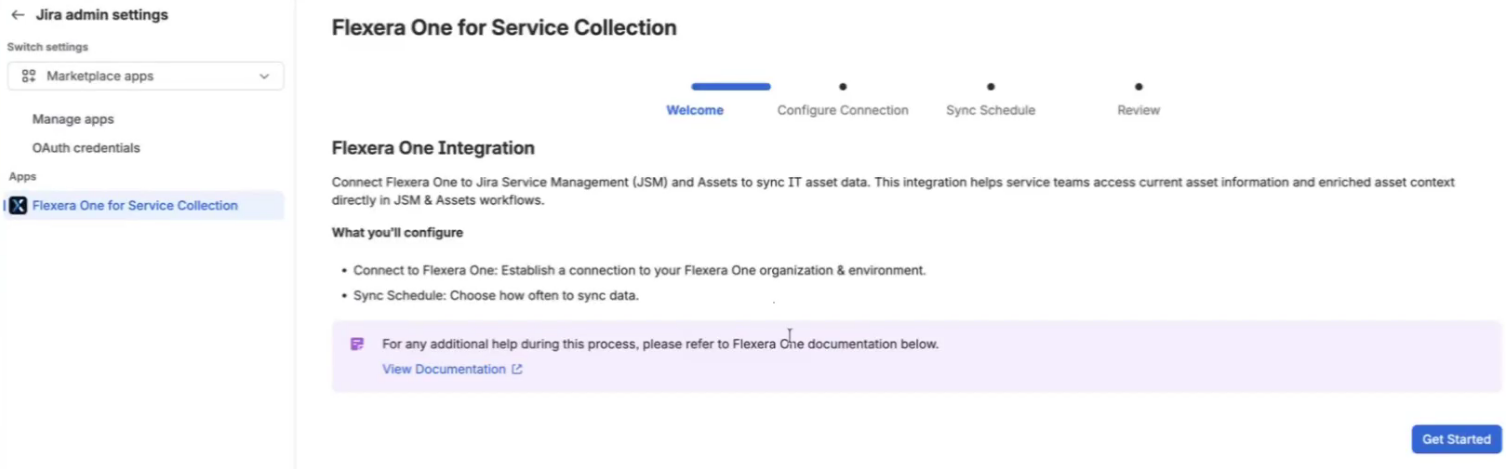
Welcome page for Flexera One for Service Collection with setup information and a documentation link
When you’re ready, select Get Started.
Step 5: Choose your region and organization
On the connection page, select the region that hosts your Flexera One organization and enter your organization ID. Pick the region where your Flexera One organization lives, not where your Atlassian site or your admin happens to be.
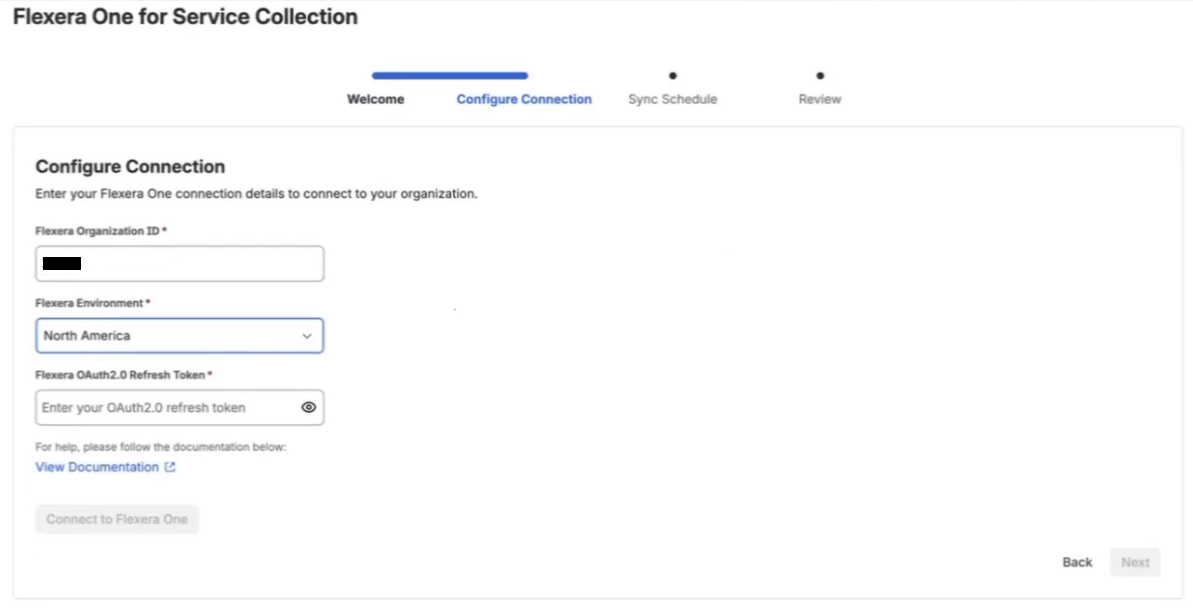
Connection page for the Flexera Atlassian integration showing the organization ID and region fields
Step 6: Add your Flexera One refresh token and validate the connection
Paste the refresh token created earlier and select Next. In the background, the app runs a handshake. It checks that the token can call Flexera One and that your Atlassian account has the Assets permissions it needs.
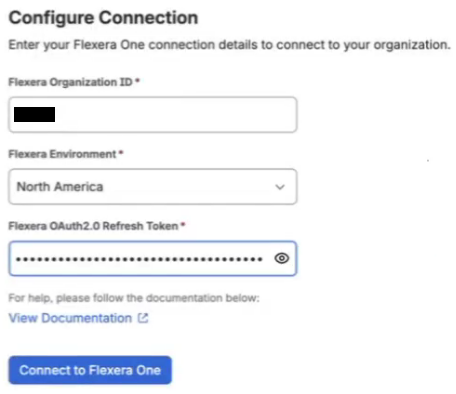
Connection page for Flexera One for Service Collection showing the Flexera One refresh token field
A Connection successful message means you’re set, so select Next to continue. If the check fails, recheck the token, the region and your permissions.
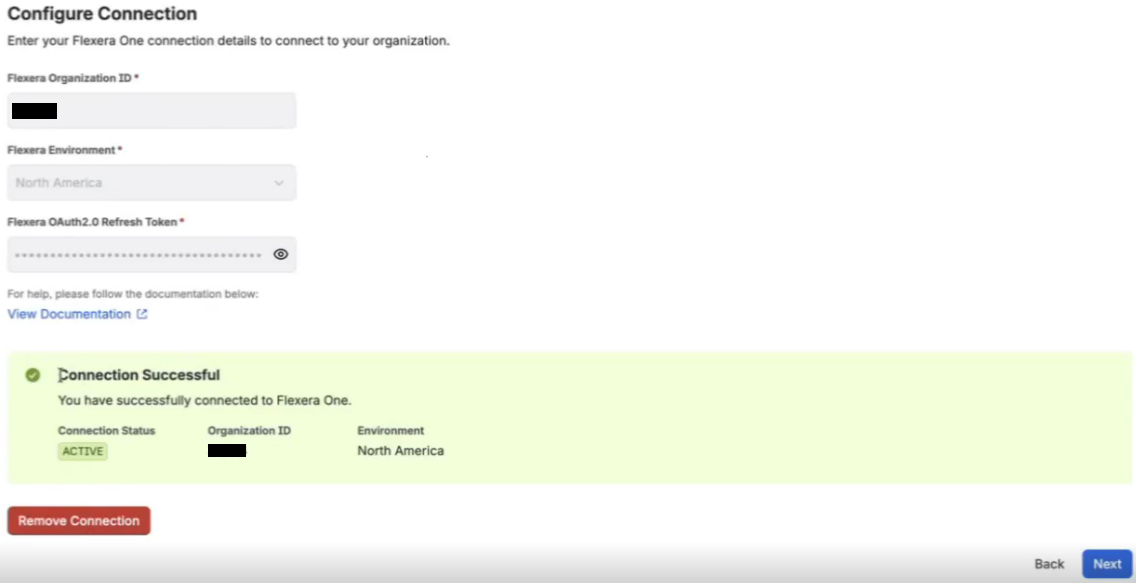
Connection successful message after the Flexera integration validates the connection
Step 7: Configure the sync schedule
Pick a frequency (daily, weekly or monthly) and a time, in 30-minute intervals. Check that the time zone on screen matches yours before you move on. You can skip this screen and add a schedule later, but the Flexera integration won’t run scheduled syncs until you set one.
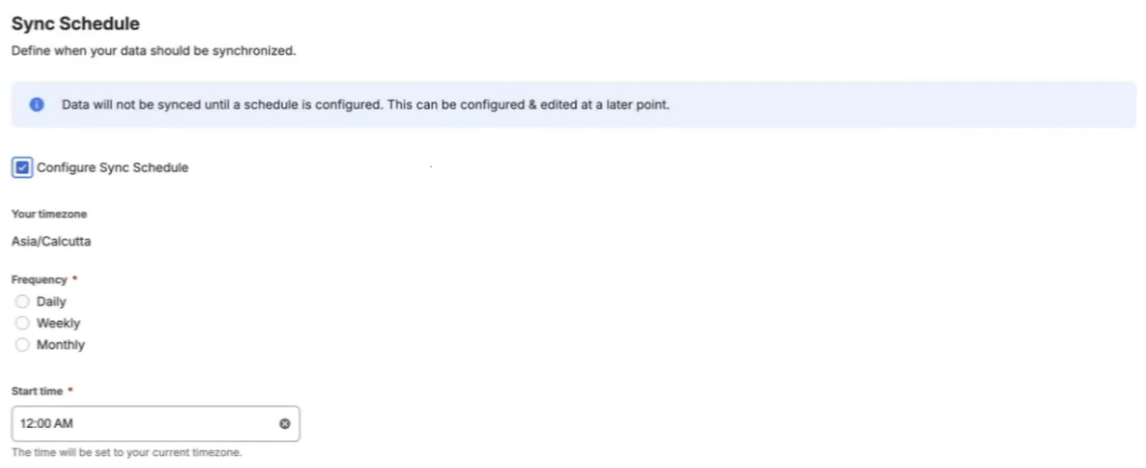
Sync schedule screen in the Flexera One for Service Collection setup
Step 8: Review the configuration and complete setup
Review your region, organization details and sync schedule. If everything looks right, select Complete.
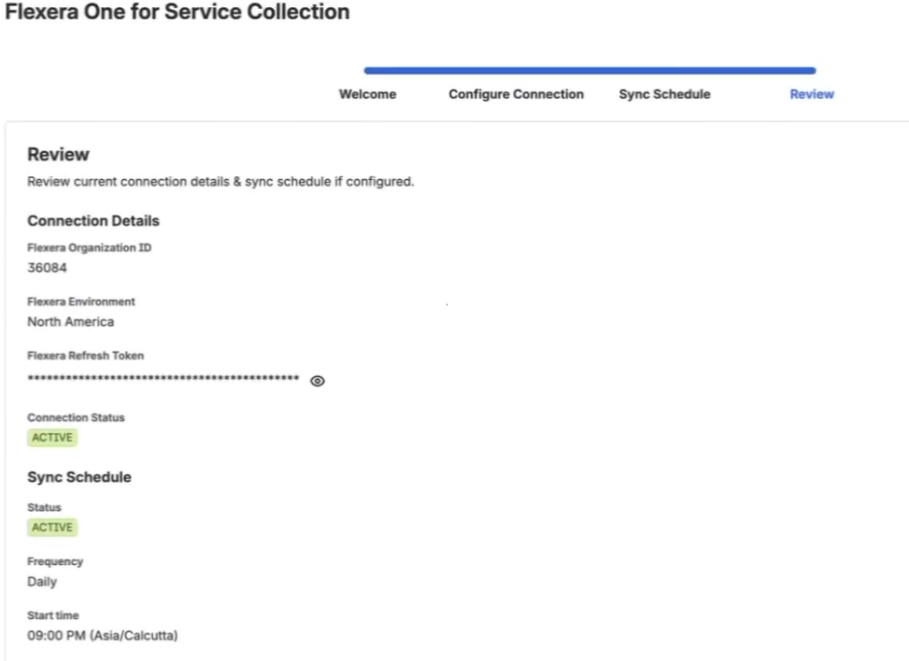
Review screen summarizing the region, organization and sync schedule for the Flexera Atlassian integration
Step 9: Confirm the connection is active
The connection summary should show an Active status, your organization ID, the data the app syncs and your environment. You can return to the app’s settings to edit or delete the sync schedule at any time. Removing the connection is a separate option, so pick the one you mean.
Remember that the region and the time zone aren’t the same thing. The region is where we host your Flexera One organization. The time zone only decides when the Flexera integration syncs. So an admin in Asia Pacific can connect to a North America organization without any trouble.
Now let’s make sure the data landed where you expect.
How to check your Flexera data in Atlassian Assets
An Active status means the Flexera integration is connected. It doesn’t prove the data looks right, so check the results of the first sync.
Step 1: Open the Flexera schema
Open Assets and find the schema the app created for your Flexera data.
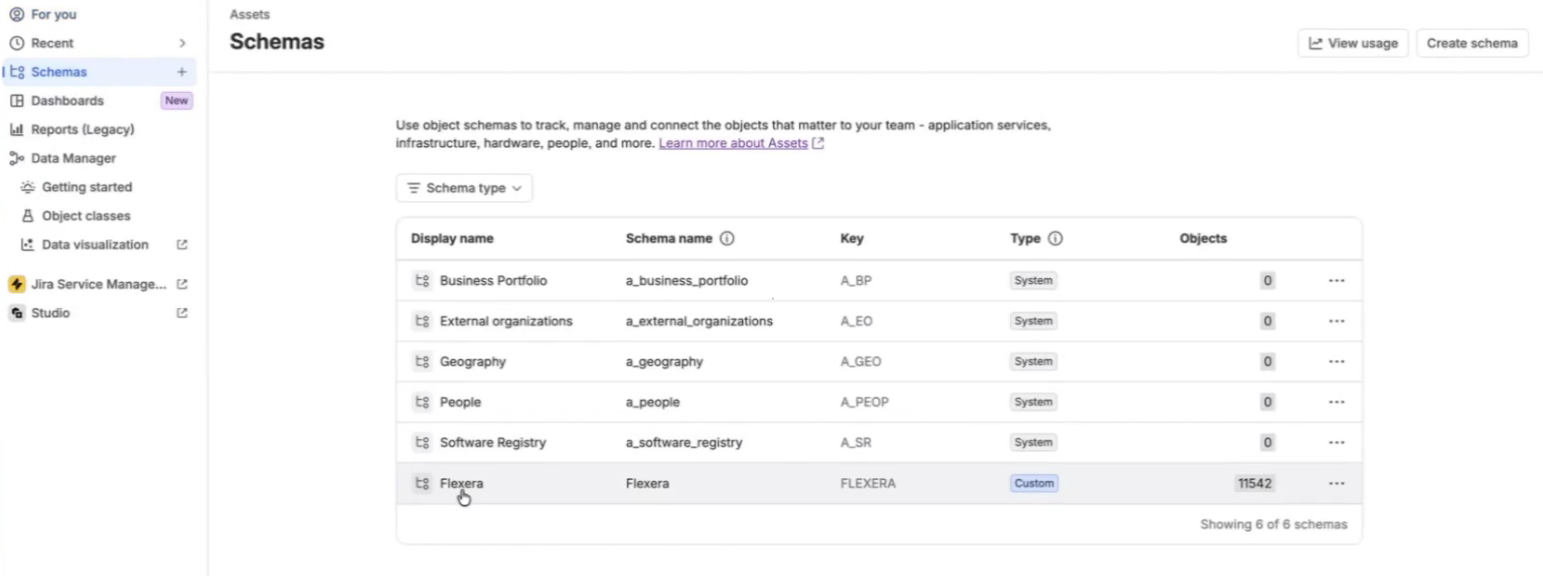
Atlassian Assets showing the dedicated schema created by the integration
Step 2: Check the object types
Check that the schema contains the object types.
Step 3: Spot-check records and references
Open a few records. Check that their fields have values and match what Flexera One shows. Then look at each record’s references. You should see Made by and Installed links.
See a blank lifecycle date? Don’t read it as “supported forever.” Vendors don’t publish every date. When one is missing, Technopedia records why, with reasons such as “Date not published by manufacturer” or “To be determined.” In the Flexera schema, you’ll find those reasons in exception fields next to the dates.
If something looks off, start with the troubleshooting section of our Flexera One for Service Collection documentation.
With the data in place, the next step is to make it useful in service desk workflows.
How to put Flexera data to work in Jira Service Management
Once the data is in Assets, service teams can use it every day. The two workflows below show the integration at work. The first helps agents resolve hardware tickets. The second helps them decide when to replace a device.
Each workflow needs some setup in JSM first. The Flexera integration supplies the data, but request forms, agent views and automation flows need their own configuration. (Many admins still call automation flows “rules”). Your Jira admin owns that part.
Use case 1: Resolve help desk tickets faster with device details
When an employee reports a hardware problem, the agent’s first job is to work out which device is at fault. Linking the request to the device’s record in Assets answers that question. It also puts the details the Flexera integration syncs in front of the agent.
Step 1:Add a device field to the request form
The Jira administrator adds an Assets objects field to the relevant Jira Service Management request type and configures it to show the appropriate Computer objects from the Flexera schema. The admin can filter the field with Assets Query Language (AQL), as described in Atlassian’s Assets objects field documentation.
To show only devices assigned to the employee submitting the request, the Assets data must include a relationship between each device and its assigned user. That relationship gives the AQL filter something to match. The Computer attributes documented for the Flexera integration don’t list an assigned-user field. The admin must check where that relationship comes from and configure it if needed. It may come from an existing Assets setup or another data source.
Don’t assume that the integration automatically maps employees to devices.
Step 2: Select the affected device
When the employee opens the request form in the portal, the field lists the devices assigned to them. They keep the device with the problem, remove the others, describe the issue and submit the request.
For example, an employee whose laptop screen keeps switching off selects the affected laptop and adds a short description of the issue.
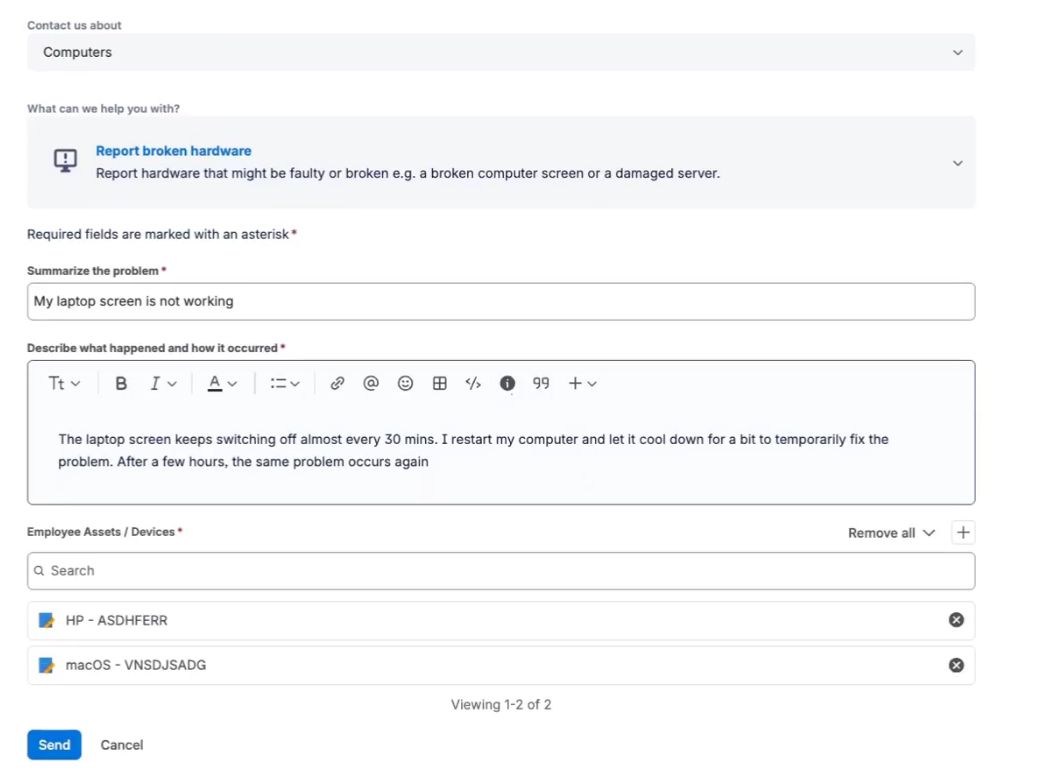
Jira Service Management request form for a hardware issue with an Assets objects field for picking the affected device
Step 3: The agent opens the request
The request shows up in the IT agent’s queue.
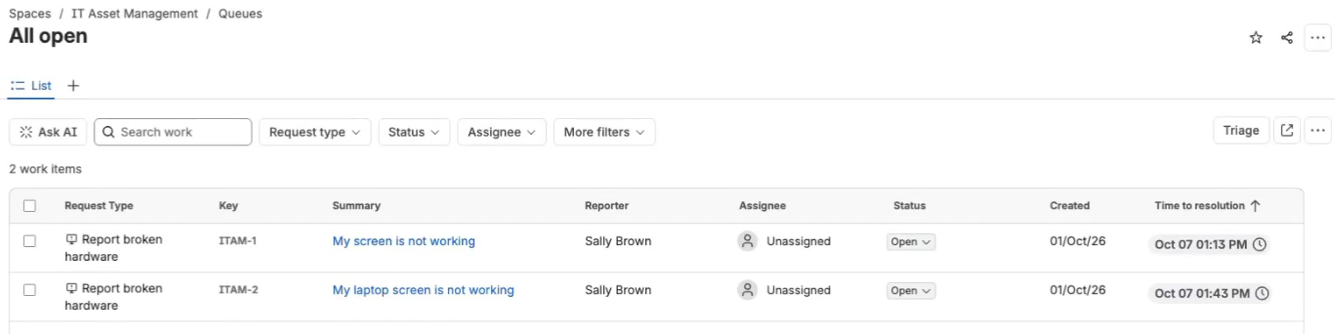
Jira Service Management queue showing open hardware tickets
The IT agent can then open it to see who raised it, that it came through the portal and which device the employee picked. That device also links the request to its record in Assets.
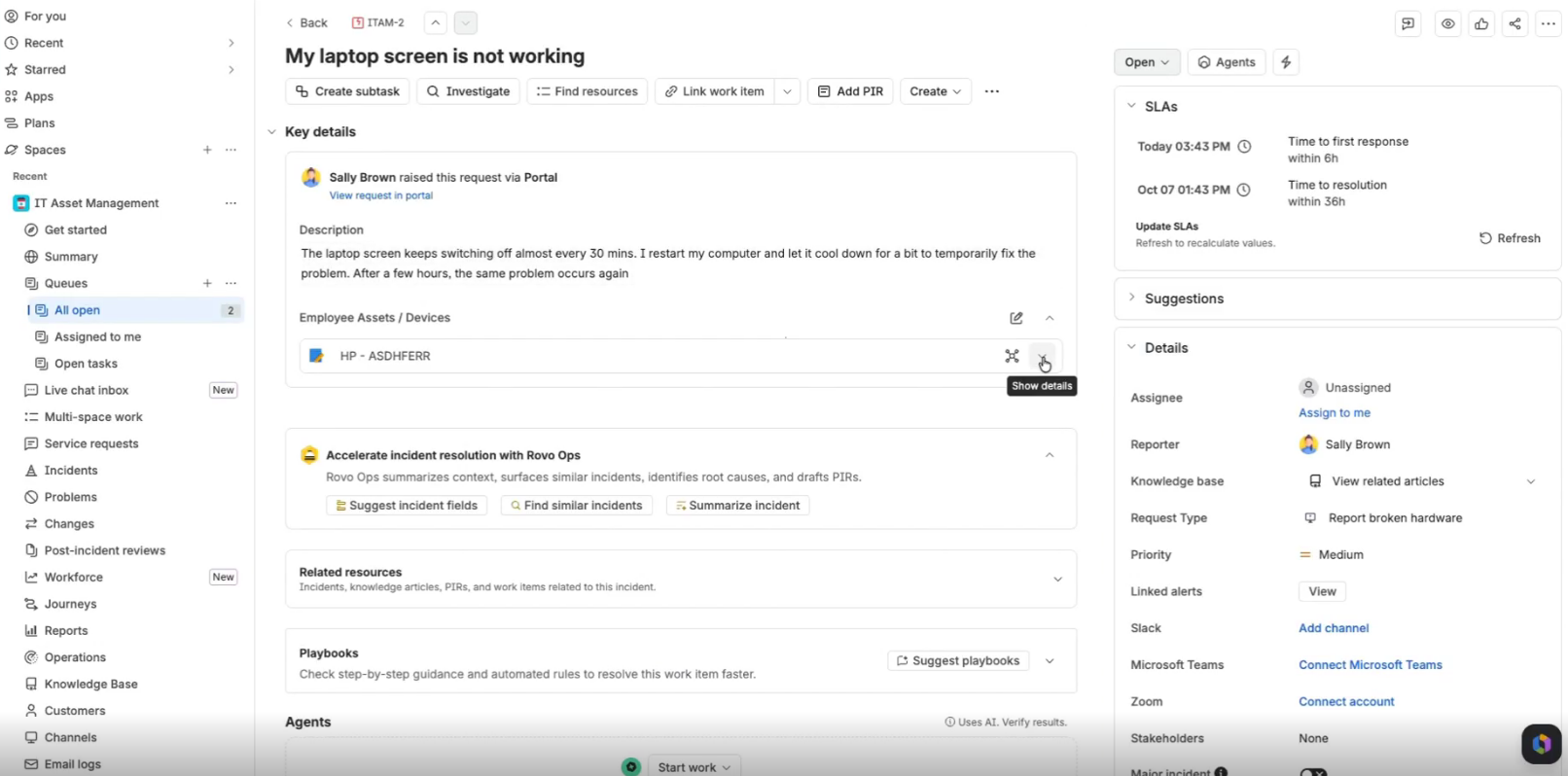
Jira Service Management request showing the requester and the linked device from the Flexera schema
Step 4: Check the asset details
The IT agent can then select Show details to see the attributes the admin chose to display, such as the operating system, the obsolete date and a device status, if your schema tracks one. For anything else, they select the device’s link to open its full record in Assets. What appears here depends on your admin’s configuration, so it won’t look the same for every team.
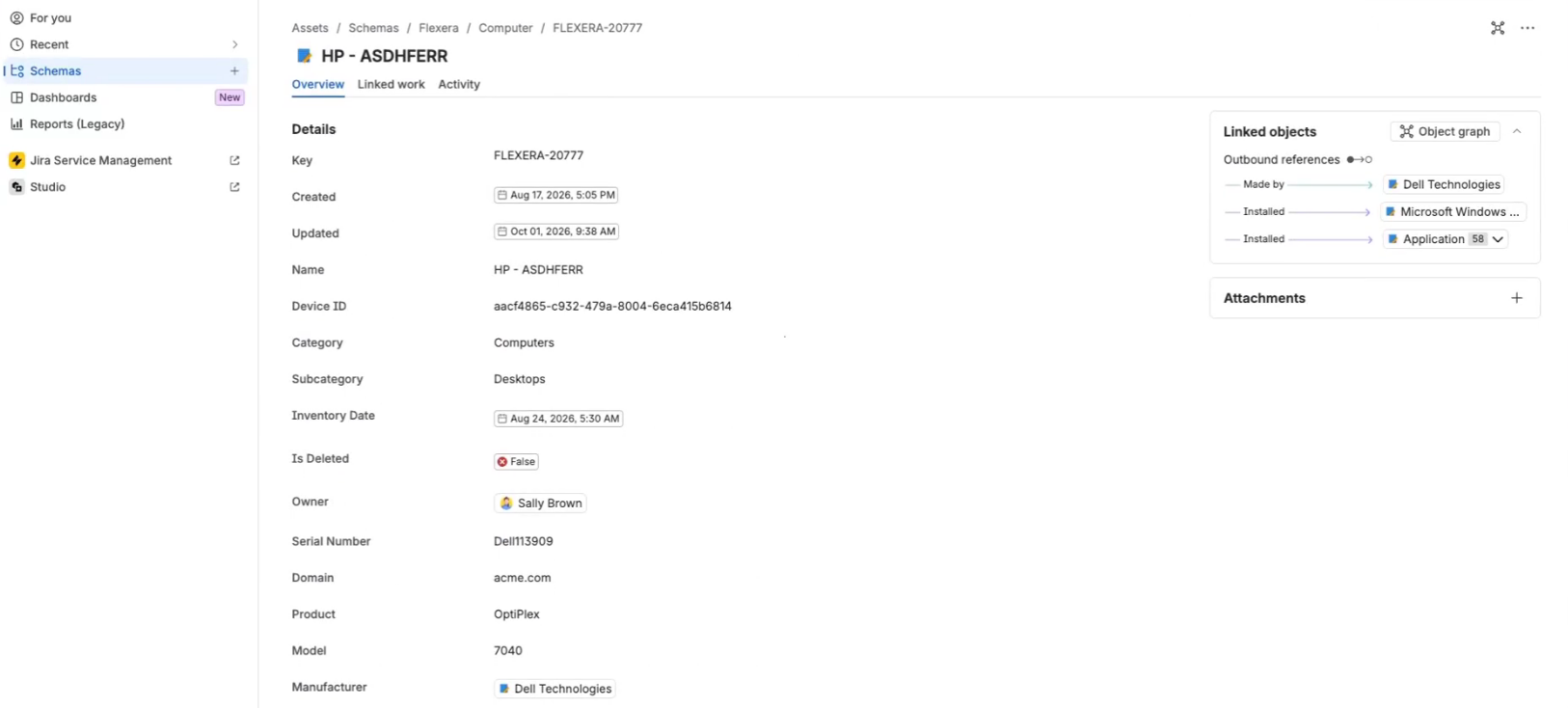
Show details panel on a Jira Service Management request listing the linked device’s attributes
Step 5: Use the information during triage
The IT agent can then read the device details alongside the employee’s description and the team’s usual troubleshooting steps. The operating system points to the right fixes, and the lifecycle dates show if the device still has manufacturer support.
Asset data from the Flexera integration won’t diagnose a hardware fault on its own. It does make sure the agent starts with the right device and the right facts.
Watch the full walkthrough:
Sometimes those details raise a bigger question: is this device still worth fixing?
Use case 2: Turn lifecycle dates into device replacement requests
Lifecycle dates help IT teams plan device replacements instead of reacting to failures. That’s the heart of hardware lifecycle management. A device can stay in use long after its obsolete date passes. The integration syncs those dates into Assets. So when an employee reports a hardware problem, the agent can check them before deciding if a repair makes sense or if it’s time for a hardware replacement.
The request starts the same way as in the first workflow: the employee reports the problem and picks the device.
Step 1: Set up the status and the automation flow
Before agents can use this workflow, the Jira admin sets up two things:
- A Pending Retirement status. The admin adds it to the request type’s workflow so agents can move requests into it
- A Jira automation flow. Its Work item transitioned trigger runs the flow when a request moves to Pending Retirement. A Create sub-tasks action then adds the procurement subtask. That action sets only the subtask’s summary, so the admin selects Add fields to turn it into a Create work item action and copy over the employee’s details, the device and the original description
The Flexera integration supplies the asset data, but it doesn’t create the status or the flow.
Step 2: Check the device’s lifecycle dates
The request starts the same way as in the first workflow: the employee reports the problem and picks the device. The IT agent can then open the request from the queue and select Show details next to the linked device. That shows the lifecycle dates the integration synced, including the obsolete date, as long as the admin chose to display them. To see every attribute, the IT agent can select the device to open its full record in Assets.
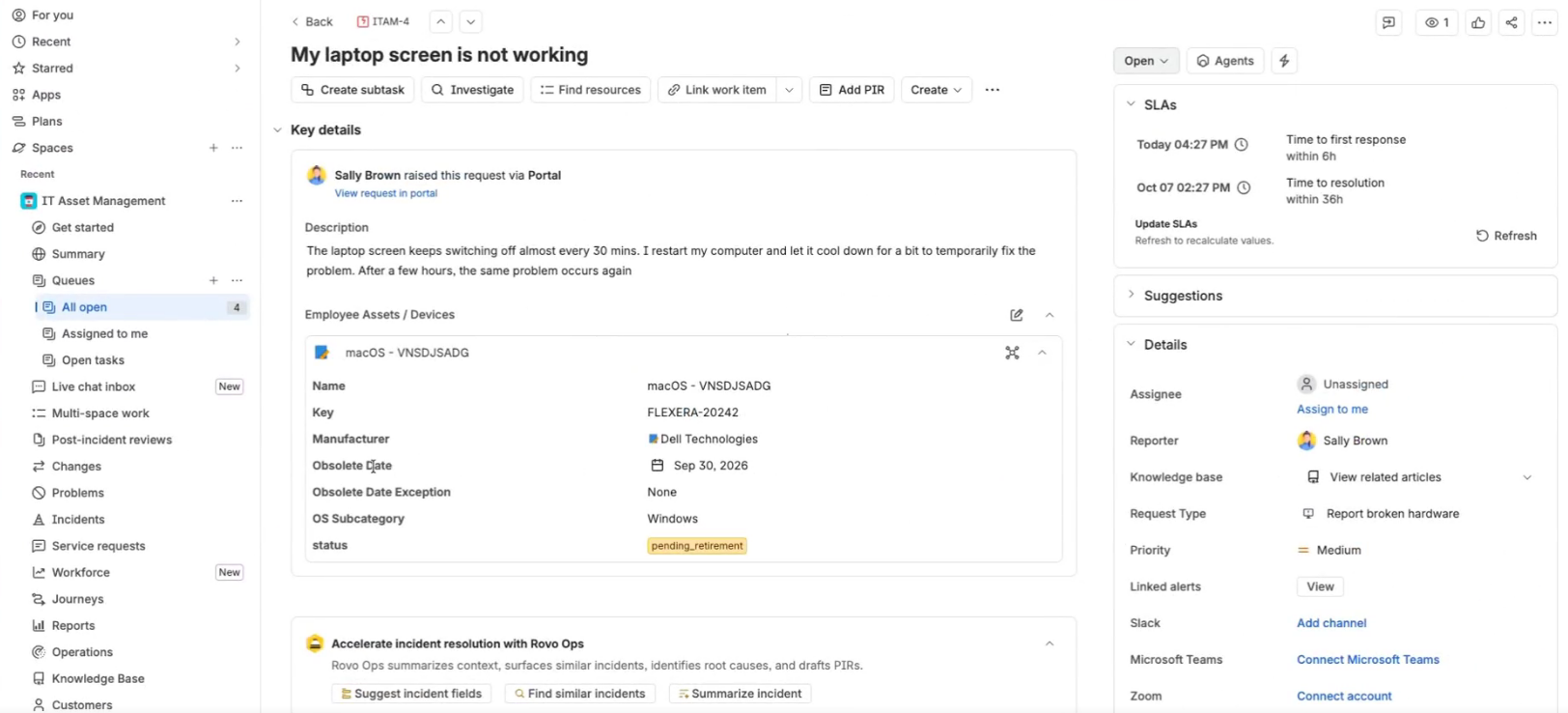
Jira Service Management ticket showing expanded details for a linked hardware asset, including its lifecycle dates
Say the obsolete date is December 31 and today is January 1 of the following year. The date has passed, so the agent reviews the device against the company’s retirement policy.
Under the Technopedia lifecycle standards, an obsolete date marks the end of all manufacturer support. It doesn’t, by itself, mean the device has failed or needs replacing. The team should consider the lifecycle dates alongside the reported problem and its retirement policy.
Step 3: Move the request to Pending Retirement
If the device meets the retirement policy, the IT agent can then open the status menu on the request and select Pending Retirement.
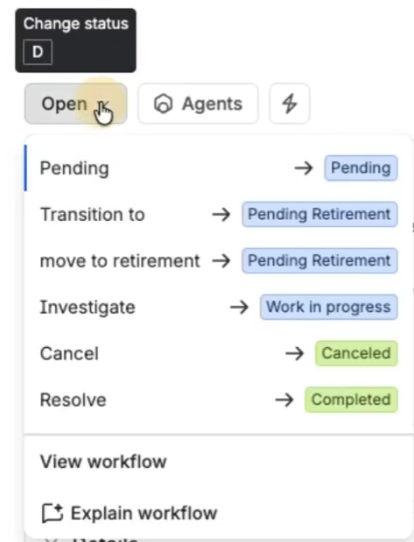
Jira Service Management request status menu showing the Pending Retirement transition
This changes the request’s status, not the device’s status in Assets. Your team can set up automation to update the device’s status too, but the Flexera integration doesn’t change either one for you.
Step 4: Check the procurement subtask
Moving the request to Pending Retirement runs the Jira automation flow from Step 1, which adds a subtask under the request. To see it, the IT agent can refresh the page and check the request’s subtasks.

Jira subtasks panel showing the open Hardware Decommission and Refresh subtask that Jira automation created
The IT agent can then open the subtask and check that the employee’s details, the device and the original description carried over. Those are the fields the admin set the flow to copy in Step 1.
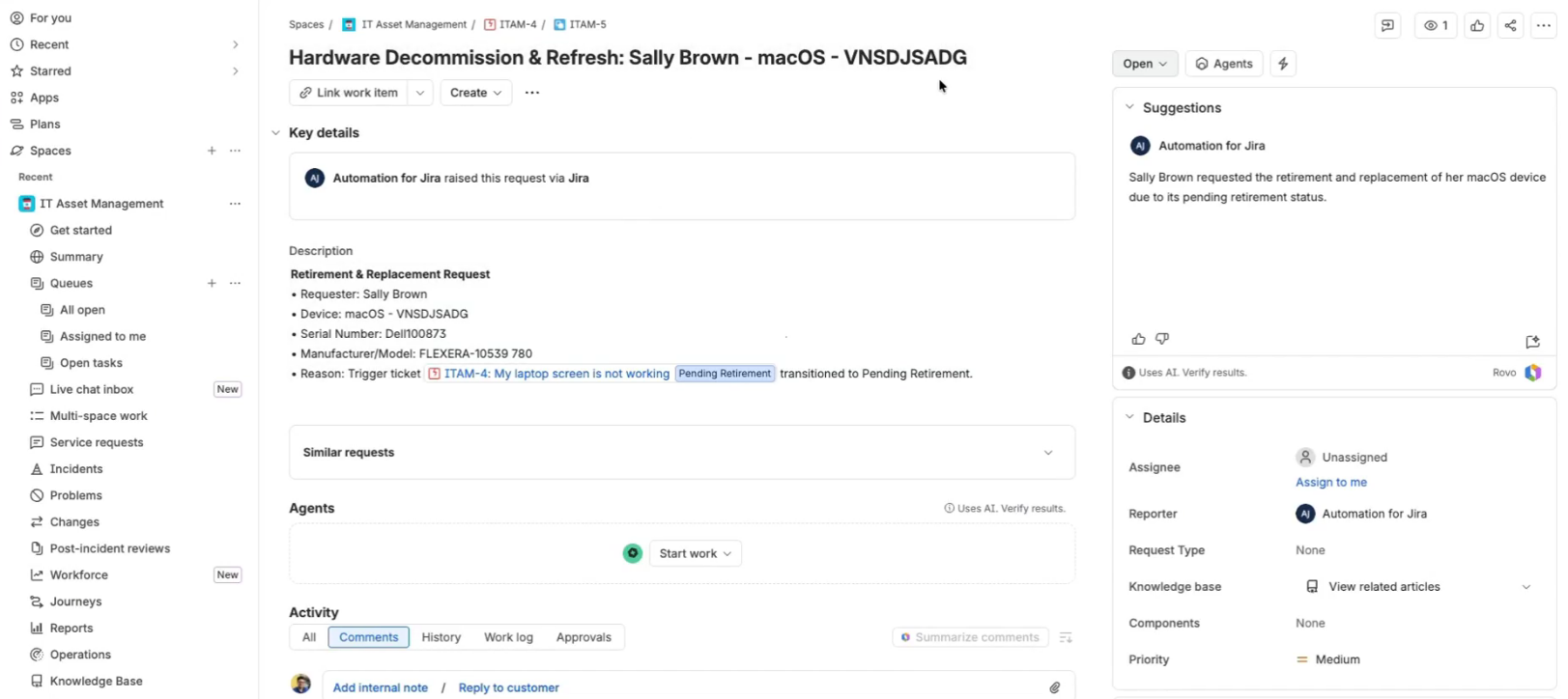
Jira Service Management Hardware Decommission and Refresh subtask showing the carried-over employee, device and request details
Watch the full walkthrough:
How to test the workflows before teams rely on them
Before anyone depends on these workflows, your admin should test the integration and the JSM setup together:
- Confirm the connection shows as Active and the latest scheduled sync has run
- Open a few device records and check their details and lifecycle dates
- Submit a test request and confirm the right devices appear on the form
- Check that each employee sees only their own devices
- Open the test request as an agent and confirm that Show details and the record link work
- If a scheduled flow updates device statuses, confirm it changes only devices past their obsolete date
- Move a test request to Pending Retirement and confirm the flow creates a linked procurement work item with the right details
If something doesn’t work, here’s where to look. For missing or wrong device details, go back to the checks in the “Did it work?” section. If the device doesn’t show up on the request, review the Assets objects field settings and the request type. If the subtask doesn’t appear, open the automation flow’s audit log and check its trigger and conditions.
What to sort out before you go live
Before you roll out the integration, settle these five things:
- Expect change during the Early Access Program. Our documentation notes that features may change before general availability. Recheck it before each rollout milestone
- Agree on who owns what. Your IT asset management (ITAM) team owns the data in Flexera One. Your Jira admins own the fields, forms and flows that use it
- Fix data at the source. It’s a one-way sync, so treat Flexera One as the system of record for the fields the Flexera integration syncs
- Track the token. Note its expiry date, and plan for role changes on the account that created it
- Watch your object count. Check usage against your Assets object allowance as you add devices, not after the bill arrives. If you need more room, Atlassian lets you enable extra usage or buy an object pack in Atlassian Administration
Conclusion
This integration brings normalized device and software data, along with lifecycle information, into Atlassian Assets. That gives service teams more context when investigating hardware tickets and planning replacements.
Setting up the connection is only the first step. Check the synchronized records, configure the Assets fields on request forms and build the Jira automation rules your team plans to use.
When those pieces work together, agents spend less time chasing device details and more time fixing problems.
Want more background first? Read our post on why clean asset data matters in JSM or visit our Atlassian integration page.
Is the integration a one-way or two-way sync?
It’s a one-way sync from Flexera One into Assets. The app runs on a sync schedule you set (daily, weekly or monthly), with sync times in 30-minute intervals. Edits you make in Assets don’t flow back to Flexera One. So fix data at the source and treat Flexera One as the system of record for the fields the integration syncs.
What do you need to use Flexera One for Service Collection?
You need Flexera One IT Visibility, an eligible Atlassian Cloud site with Assets, the required administrator permissions, a Flexera One refresh token, your organization ID and region, and enough space in your Assets object allowance. Check the current Flexera documentation for app-specific plan requirements and installation instructions.
Is Flexera One for Service Collection on the Atlassian Marketplace?
Not during the Early Access Program. If you already use Flexera One IT Visibility, request access to the Flexera Atlassian integration through Flexera Support. If you’re new to Flexera One, talk to your Flexera sales rep. Approved customers get a private install link. Our documentation notes that features may change before general availability, so recheck it before each rollout milestone.
How long does a Flexera One refresh token last?
Refresh tokens created on or after March 18, 2026, have a fixed maximum lifetime of 365 days. You can pick an expiry of 7, 30, 90 or 365 days, and Flexera One emails reminders 30 days, seven days, three days and one day before a token expires. Flexera One shows the token only once. It can reach only what its creator’s roles allow, so revoke it right away if it’s lost. Without a valid token, the Flexera integration can’t sync.
What’s the difference between an obsolete date and an end-of-life date?
Under the Technopedia lifecycle standards, the end-of-life (EOL) date is the last date of full manufacturer support for a software release, and partial support can continue after it. The obsolete date, also called end of support (EOS), is the last date of any manufacturer support for hardware or software. In the Flexera schema, devices carry a general availability date and an obsolete date, while software also carries an EOL date.
Do Flexera records count toward the Assets object allowance?
Yes. Atlassian counts objects in every schema on a site, except the Software Registry and Business Portfolio schemas that store Services data. Service Collection Premium includes up to 50,000 objects and Enterprise up to 500,000. The Computer, Application and Manufacturer records the integration syncs count toward that allowance, so check usage in Assets settings under App usage.
How can service teams use Flexera data in Jira Service Management?
Service teams can use the data to investigate hardware requests and support device replacement decisions. An Assets object field can link a support request to the affected device, letting agents check its attributes and lifecycle information. A separately configured Jira automation rule can create a procurement subtask when a request moves to a specified status.
Does the integration automatically configure asset selection and procurement automation?
No. The integration synchronizes technology data into Assets. Administrators must configure the request form and its Assets field, make sure the data supports any assigned-user filters and create the automation rules for retirement or procurement workflows.
How do I get access to the integration?
The integration is open to Early Access customers now. Do you run Service Collection Premium or Enterprise and Flexera One IT Visibility? Then you’re a good fit. If you already use IT Visibility, ask Flexera Support for access. New to Flexera One? Start with your Flexera sales rep, or request early access.
Pramit Marattha
Pramit Marattha is a technical content writer and strategist with 5+ years of experience covering AI, data engineering, data cloud platforms and open source technologies. He turns complex technical concepts into clear, useful content for engineers and developers.