


Manually searching for data in Snowflake often feels like hunting for a needle in a haystack, which is incredibly frustrating and time-consuming. Snowflake recognizes this difficulty and has created Universal Search to completely change the way you search for your data. Built on top of the powerful Snowflake Cortex, Universal Search lets you find database objects, Snowflake Marketplace listings, Snowflake documentation pages and Snowflake Community Knowledge Base articles from a single search bar inside Snowsight. If you’ve never used it, or if you set it up a while ago and haven’t kept up with what’s changed, this guide covers everything you need to know.
In this article, we’ll walk through how Universal Search works, what it can search, a step-by-step guide to using it and the limitations you should actually know about.
What is Snowflake Universal Search?
Snowflake Universal Search is a comprehensive search solution designed to enhance data discoverability and accessibility within the Snowflake ecosystem. Its primary purpose is to help users with the ability to quickly and efficiently locate Snowflake artifacts like Dashboards, Worksheets, Databases, Schemas, Tables, Views, User-defined functions (UDFs), Stored procedures, data products from the Snowflake Marketplace, Snowflake documentation and relevant Snowflake Community Knowledge Base articles.
Snowflake Universal Search’s major goal is to simplify data discovery by allowing users to conduct natural language searches. This means that you may search for anything by typing it in normal, natural English. This feature allows users to easily find information, even if their search terms are misspelled or incomplete.
Here is a TL;DR version of Snowflake Universal Search’s core capabilities:
- Object search: Locate tables, views, schemas, databases, worksheets, notebooks, ML models and more
- Marketplace search: Find data products in the Snowflake Marketplace or your Internal Marketplace
- Documentation search: Surface relevant pages from docs.snowflake.com
- Community knowledge search: Pull in relevant articles from the Snowflake Community Knowledge Base
Universal Search is currently available as an open preview to all Snowflake accounts, with the exception of Virtual Private Snowflake (VPS) and government cloud environments.
Technical breakdown: how Snowflake Universal Search actually works
Now, in this section, we will explain the technical integration, functionalities and user interface features that make Snowflake Universal Search an effective tool for data discovery.
Integration with Snowflake Cortex
Snowflake Universal Search runs on top of Snowflake Cortex. Cortex provides the infrastructure to run LLMs and natural language processing (NLP) models without shipping your data to external services. Snowflake also drew on technology from Neeva, a search engine company that Snowflake acquired in May 2023, to build the underlying search engine.
The key technical mechanism here is embedding-based ranking. When you type a query, a bi-encoder model converts both your search terms and the indexed object metadata into numerical vectors. The system then computes semantic similarity between these vectors to rank results. That’s why a search for “zip codes” can return a table named postal_code. The model understands semantic proximity, not just keyword overlap.
This is trained across a range of query types, from short single-word queries to longer, conversational natural language inputs. The result is a search engine that degrades gracefully. Even a partial or misspelled query tends to return something useful.
What Snowflake Universal Search actually indexes
Snowflake Universal Search searches metadata only. It does not scan the actual contents of your database objects. The metadata it indexes includes:
- Names: Object names and column names
- Comments: Comments attached to objects and columns
- Tags: Tags associated with objects and columns
So if you’re hoping to find a row containing a specific customer ID, Universal Search won’t help. It will help you find the table that’s likely to contain that data, based on how the object and its columns are described.
How access control works in search results
Results you see in Snowflake Universal Search are governed by your currently active role and any secondary roles. If your active role doesn’t have access to a database object, it won’t show up in your results by default.
There’s a newer capability worth knowing about here: OBJECT_VISIBILITY. Administrators can set this property on accounts, databases or schemas to make objects discoverable in Snowflake Universal Search even to users who don’t have explicit access. This is a preview feature and follows Snowflake’s inheritance model, meaning settings at the account level cascade down to databases and schemas unless explicitly overridden.
If an object is set to be discoverable but not accessible, it appears in Snowflake Universal Search results only (not in the database object explorer or SHOW commands). Users can then select Request Access to see contact information for the object owner, streamlining the access request process. This is particularly useful for large organizations where teams don’t always know what data assets exist.
OBJECT_VISIBILITY can be set to a YAML specification (to specify which accounts or organization user groups can see the object) or to PRIVILEGED, which is the default behavior, meaning only roles with explicit privileges on the object can see it.
What objects Snowflake Universal Search can find
This list has grown substantially since Universal Search first launched. As of 2026, Universal Search returns results for:
- Tables and views (including standard, Apache Iceberg™, dynamic and hybrid)
- Workspace files
- Worksheets and dashboards
- Notebooks
- Streamlit applications
- ML models
- Streams, tasks, pipes and stages
- Installed applications
- Application packages
- Databases and schemas
- User-defined functions (UDFs) and stored procedures
- Feature views
- Data products in the Snowflake Marketplace
- Data products in your Internal Marketplace
- Documentation pages from docs.snowflake.com and other-docs.snowflake.com
- Knowledge Base articles from community.snowflake.com
Support for ML models reached GA in March 2025 and support for Snowflake pipes, tasks and streams went GA in May 2025.
Step-by-step guide to using Snowflake Universal Search
Let’s dive into a detailed walkthrough on how to effectively use Snowflake Universal Search, from signing in to Snowsight to accessing and interpreting search results.
Step 1—Sign In to Snowsight
Sign in to your Snowflake account at Snowsight, the web interface for Snowflake. You don’t need to configure anything to start using Universal Search. It’s available from the home page once you’re logged in.
Step 2—Accessing the search bar
Snowflake Universal Search lives on the Snowsight home page. You’ll see a search input field there. If you’re navigating elsewhere in Snowsight, select Search from the navigation menu to get to the search pane, then enter your query there.
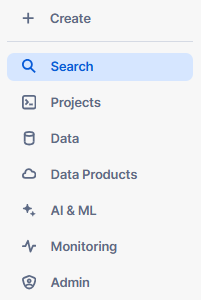
This will open the Snowflake Universal Search interface, where you can enter your own search queries.
Step 3—Enter your search terms
Now, type your query into the search field. You can use keyword-style searches or full conversational queries. Press Return or Enter to run the search.

A few tips that actually help:
- Use natural language to describe what you’re looking for, not just object names
- Try different phrasings if the first query doesn’t return what you need
- Include relevant metadata clues in your query, like column descriptions or object tags, if you know them
- Don’t worry about exact spellings. Universal Search handles fuzzy matching
Step 4—Review the categorized results
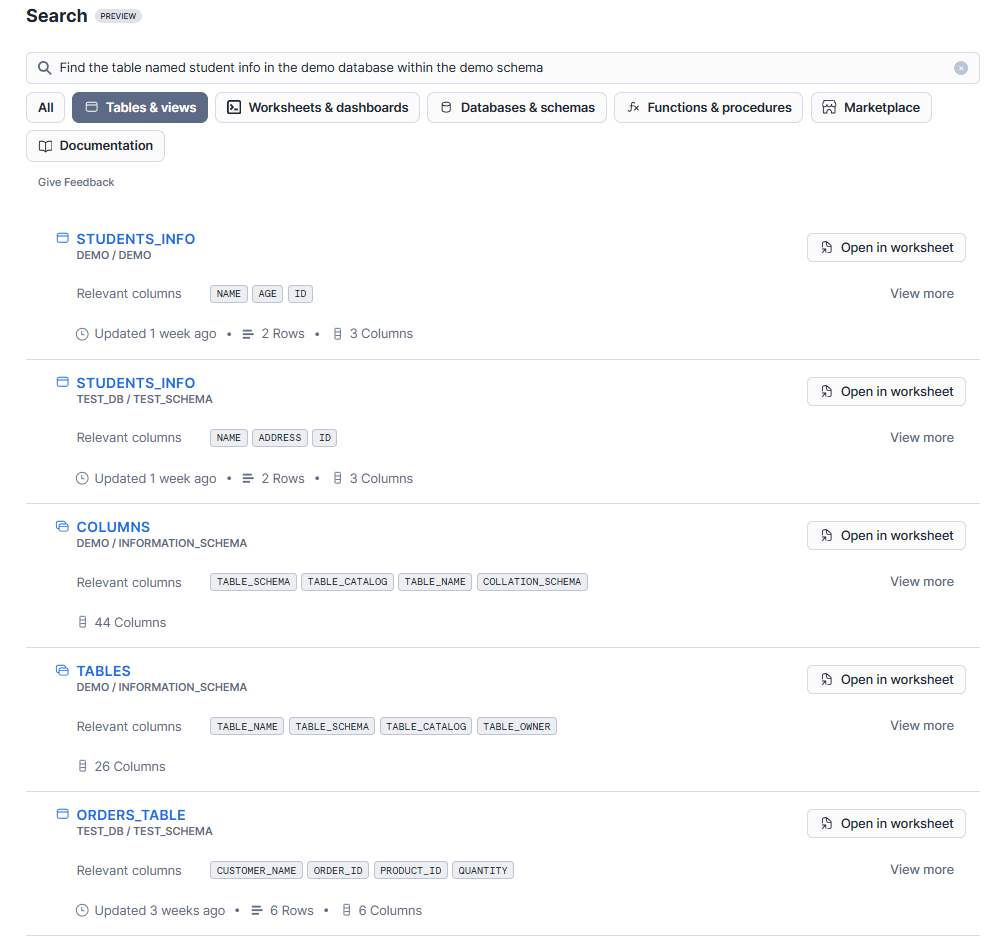
After entering your search terms, Snowflake Universal Search will process the query and present the results in a categorized format. The search results will be organized into different categories, such as database objects, data products, documentation topics and community knowledge base articles.

Each category will display a list of relevant results, providing you with a quick overview of the available data assets and resources related to your search query. You can easily navigate between categories and explore the various types of results.
Step 5—View details of a search result
To get more insights into a specific search result, click on each individual category to view additional details. Snowflake Universal Search displays all the necessary metadata information to navigate through the details of the search results.
For example:
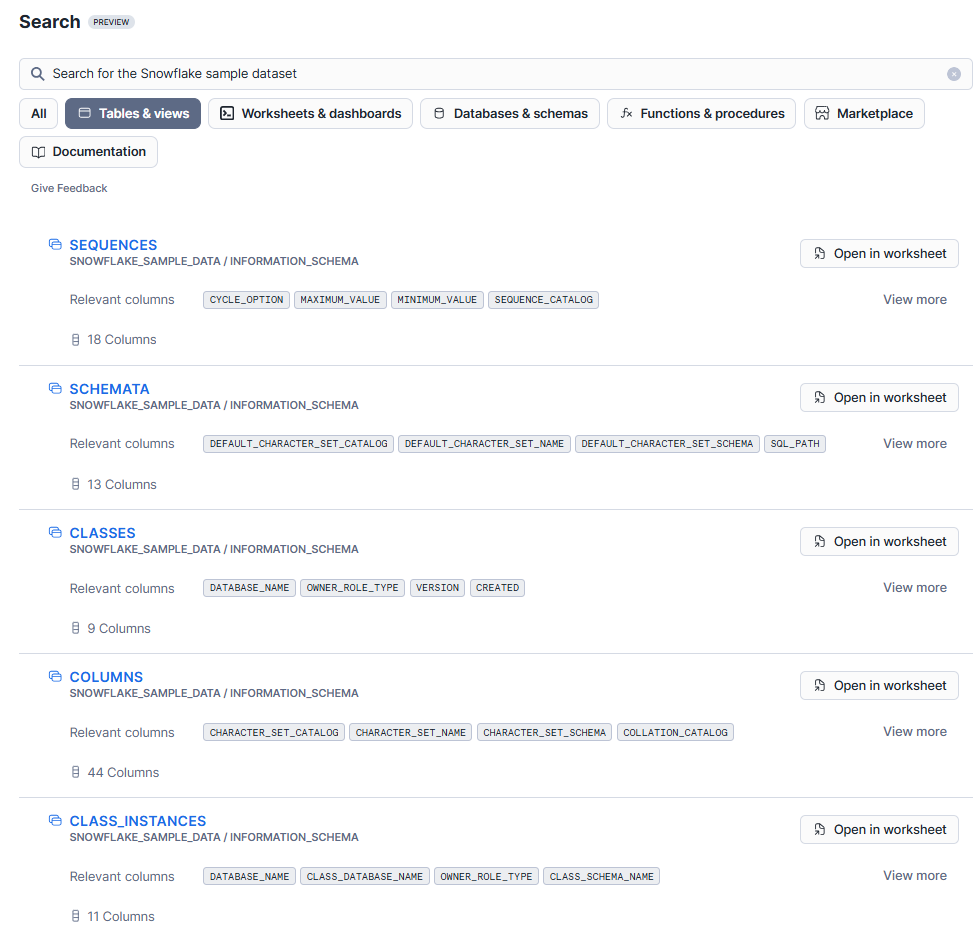
1) To view only tables or views, select the “Tables & Views” category.
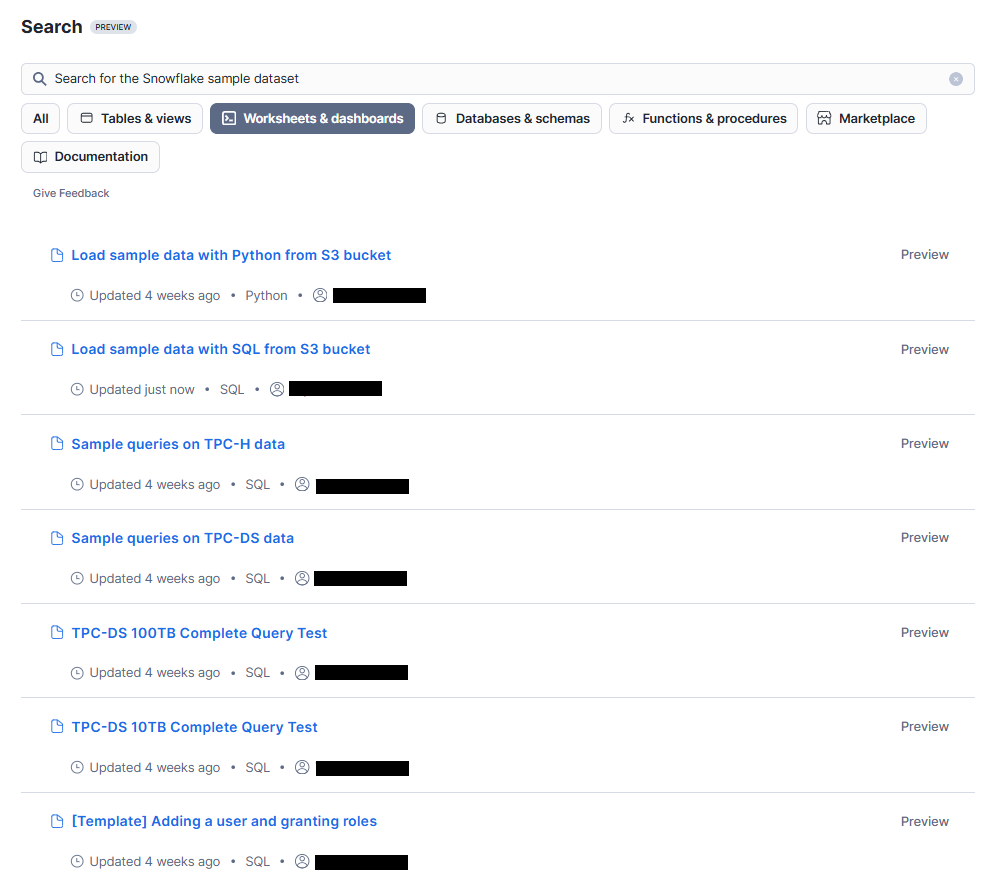
2) To view or open a worksheet or dashboard, select the “Worksheets & Dashboards” category.
3) To view a database or schema, select the “Databases & Schemas” category.
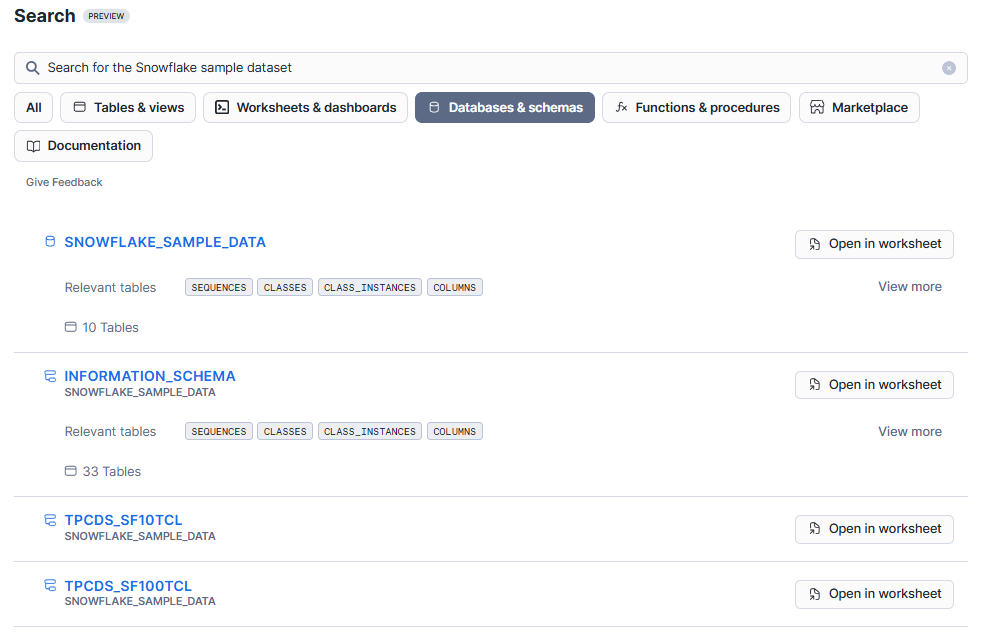
4) For user-defined functions or procedures, select the “Functions & Procedures” category.
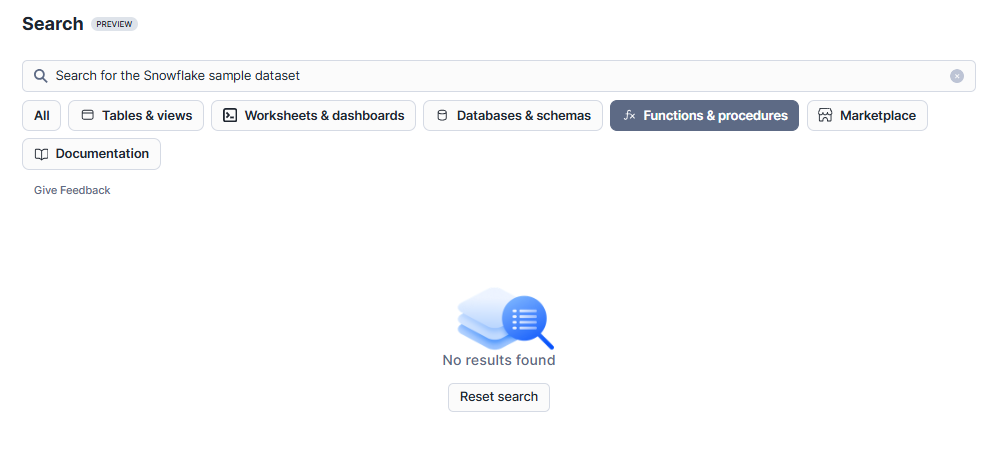
As you can see, there are no results in the “Functions & Procedures” category, which means the search input you provided didn’t match any entries. To resolve this, you can reset the search and try again.
5) To view all the data products available in Snowflake Marketplace, select the “Marketplace” category.
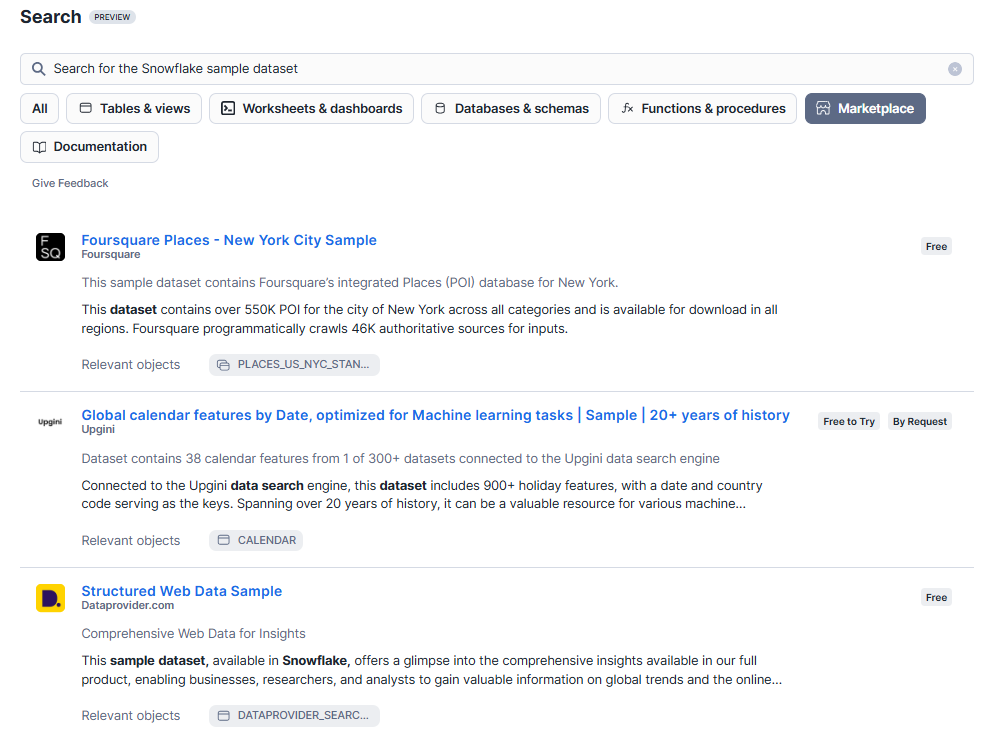
We will dive into more depth in Step 6.
6) For all documentation, select the “Documentation” category.
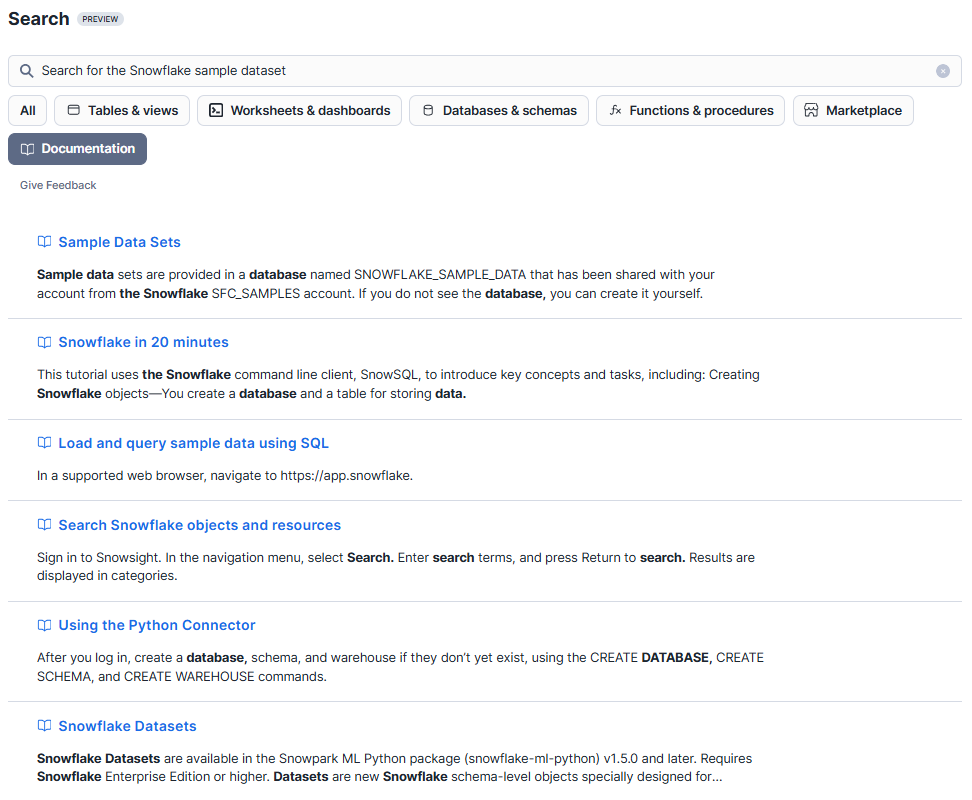
7) Also, there is an “All” category if you want to view all the Snowflake artifacts at once.
Note: If a category isn’t displayed, it means there are no results for that category or your active role does not have access to those results
Step 6—Access Marketplace listings
If your results include Marketplace listings, you can click through to view the full listing details, including description, pricing and terms of use. To get or purchase a listing, you must have agreed to the Snowflake Provider and Consumer Terms.
Limitations of Snowflake Universal Search
Snowflake Universal Search is a powerful and capable feature, but before you use it, you should understand its limitations.
1) Results are role-gated
Results are limited to what your currently active role and any secondary roles can see. If you’re not seeing an object you expect, check whether your active role has the right privileges. Admins can expand discoverability using the OBJECT_VISIBILITY property, but only if it’s been configured for your environment.
2) Indexing delays for new or recreated objects
Newly created objects can take up to a few hours to show up in search results. Objects that are dropped and recreated, such as by automated tasks or pipelines, can temporarily disappear from results for the same duration while the new version is indexed. Plan around this if your workflows regularly recreate objects.
3) Supports only English
Snowflake Universal Search is optimized for English-language queries. Non-English search terms are likely to return degraded results or none at all.
4) Not available in VPS or government cloud
Accounts hosted in Virtual Private Snowflake (VPS) or government cloud environments don’t have access to Snowflake Universal Search. These environments have specific security and compliance requirements that currently prevent the feature from being enabled.
5) Metadata only, no content search
We said this above, but it is worth repeating. Snowflake Universal Search can’t scan the actual data inside your tables. If you need to search for specific values within your data, you’ll need to use SQL or a dedicated data exploration tool.
6) OBJECT_VISIBILITY limitations
The OBJECT_VISIBILITY property can’t be set below the schema level. That means visibility is either on or off for an entire schema. You can’t make individual tables discoverable while hiding others within the same schema. Also, changes to object visibility can take a few hours to reflect in search results.
Further reading
- Search Snowflake objects and resources
- Make database objects discoverable in Universal Search
- Snowflake Cortex AI functions
- Snowflake Provider and Consumer Terms of Service
- Universal Search release notes
Save up to 30% on your Snowflake spend in a few minutes!
Conclusion
And that’s a wrap! Snowflake Universal Search has come a long way since its initial preview. What started as a search tool limited to a handful of object types and specific regions is now available to all Snowflake accounts and covers a broad range of object types, including ML models, notebooks, streams, tasks, pipes, Streamlit applications and more. The addition of OBJECT_VISIBILITY also makes it a more practical tool for large teams where not everyone knows what data assets exist. Note that it’s still in preview, so don’t build critical production workflows around it. But for day-to-day data discovery, it’s really useful and getting more capable with each release.
In this article, we covered:
- What Snowflake Universal Search is and how it works technically
- The full list of searchable object types as of 2026
- A step-by-step guide to using Universal Search in Snowsight
- The OBJECT_VISIBILITY feature for expanding discoverability
- Current limitations you need to account for
…and so much more!
FAQs
What is Snowflake Universal Search?
Snowflake Universal Search is a search feature built into Snowsight that lets users find database objects, Marketplace data products, documentation pages and Community Knowledge Base articles using natural language queries.
Is Snowflake Universal Search available to all Snowflake customers?
Snowflake Universal Search is currently an open preview available to all accounts except those hosted in Virtual Private Snowflake (VPS) or government cloud regions.
How does Snowflake Universal Search handle misspellings and partial terms?
It uses NLP and embedding-based ranking to match queries semantically against object metadata. You don’t need exact spelling or complete terms to get useful results.
What types of objects can Snowflake Universal Search find?
Tables and views (including Iceberg, dynamic and hybrid), workspace files, worksheets, dashboards, notebooks, Streamlit applications, ML models, streams, tasks, pipes, stages, installed applications, application packages, databases, schemas, UDFs, stored procedures, feature views, Marketplace data products and documentation and community articles.
Does Snowflake Universal Search search within the data contents of objects?
No. It only searches object metadata: names, comments and tags. It doesn’t scan actual table data.
Can I search in languages other than English?
Snowflake Universal Search is optimized for English. Non-English queries may return incomplete or no results at all.
How long does it take for new objects to appear in search results?
New objects can take up to a few hours to be indexed and appear in search results.
What is OBJECT_VISIBILITY in Snowflake Universal Search?
OBJECT_VISIBILITY is a property administrators can set on accounts, databases or schemas to make objects discoverable in Universal Search even to users who don’t have explicit access. It’s a preview feature. When an object is set to be discoverable but not accessible, users can request access through the search interface.
How does access control work in Universal Search results?
Results are filtered based on your currently active role and any secondary roles. Objects your active role can’t access won’t appear in results by default, unless an administrator has expanded visibility using OBJECT_VISIBILITY.
Can I use Universal Search to find objects across multiple Snowflake accounts?
By default, no. Snowflake Universal Search is scoped to the account you’re signed into. However, with the OBJECT_VISIBILITY property configured, administrators can make objects in one account discoverable to users in other accounts within the same Snowflake organization.
What metadata does Universal Search index?
It indexes object names, column names, comments on objects and columns, and tags associated with objects and columns.
Can I access Snowflake Marketplace listings through Snowflake Universal Search?
Yes. Snowflake Marketplace results show up in search, and you can click through to the full listing. To get or purchase a listing, you must have agreed to the Snowflake Provider and Consumer Terms.
Are search results in Snowflake Universal Search is ranked by relevance?
Yes. Universal Search uses bi-encoder embeddings to rank results semantically relative to your query, so the most relevant results appear first.
Can I search Snowflake documentation through Universal Search?
Yes. Snowflake Universal Search returns relevant pages from docs.snowflake.com and other Snowflake documentation sites.
Is Snowflake Universal Search available in VPS or government cloud regions?
No. Universal Search is not available for accounts in Virtual Private Snowflake or government cloud environments.
Why isn’t a category showing up in my search results?
Either there are no results for that category, or your currently active role doesn’t have access to any matching objects in that category.
What object types were added to Snowflake Universal Search in 2025?
ML models reached GA in March 2025, and pipes, tasks and streams reached GA in May 2025. Notebooks, Streamlits, workspace files, feature views, installed applications, application packages and Internal Marketplace data products were also added to the supported object list.
Can the OBJECT_VISIBILITY property be set on individual tables?
No. OBJECT_VISIBILITY can only be set at the account, database or schema level. You can’t apply it to individual tables or columns.
Pramit Marattha
Pramit Marattha is a technical content writer and strategist with 5+ years of experience covering AI, data engineering, data cloud platforms and open source technologies. He turns complex technical concepts into clear, useful content for engineers and developers.







