


It is peak business hours and your Snowflake account is getting bombarded with heavy traffic. Queries are flying in left and right from BI dashboards, ETL pipelines, Snowpark workloads, scheduled jobs and a dozen other sources. Figuring out who is running what, or what is causing the spike can be extremely challenging. Even basic questions like “which team submitted that?” or “what pipeline blew up this warehouse?” are difficult to answer at scale. That’s where Snowflake query tags come in.
Query tags are simple Snowflake session parameters that attach labels to your queries. They are useful for attributing costs, auditing, performance tuning, debugging, workload observability and more. You can think of them like a delivery/shipping label on a parcel package; it shows you where the query came from, what it is for and who is behind it.
In this article, we’ll cover how Snowflake query tags work, how they differ from Snowflake object tags, how to set them at the account, user or session level and then walk through 13 best practices for using query tags effectively.
What are Snowflake query tags?
A Snowflake query tag is simply a label (string or JSON blob) you define and attach to one or more SQL queries. After setting it up, every query that runs in that session carries that label in the Snowflake query history. Snowflake query tags are not part of your data or schema. They are just metadata.
Technically, QUERY_TAG is a Snowflake session parameter, one of the built-in parameters you can configure at the account, user or session scope. Like other session parameters, it follows a strict override hierarchy: the most specific scope wins.
Here’s how the hierarchy works:
- Account level is the global default; it applies if nothing else is set
- User level takes priority over the account default, but only for that specific user
- Session level overrides both account and user defaults, and it is only in effect for that session
One thing people often miss: session level query tags are unique to the current session and replace user level query tags. So if a user has a default tag set and you run ALTER SESSION SET QUERY_TAG = ‘…’, the session tag takes over completely for the duration of that session.
Snowflake limits query tags to 2000 characters and allows any characters inside the tag. You can use plain string or JSON. But it is recommended to format the tags as JSON because it lets you pack multiple fields into a single tag. Whatever format you choose, the tag gets stored with the query metadata and shows up in the QUERY_HISTORY view and the Snowsight UI.
Why use Snowflake query tags?
Snowflake query tags are useful in a variety of scenarios. They are especially helpful in these areas:
1) Cost attribution and chargeback
Snowflake query tags let you group queries by business unit, team or data pipeline and pull that data directly from the QUERY_HISTORY view to allocate Snowflake credits accurately. Instead of splitting Snowflake warehouse costs evenly or arguing over who ran what, you get a precise, auditable breakdown of compute spend per department. Pair it with QUERY_ATTRIBUTION_HISTORY, and get a detailed picture of exactly who drove each dollar of spend.
2) Performance monitoring
Snowflake query tags allow you to categorize workload types (such as ETL, BI, ML) and analyze execution time, queue time and bytes scanned across those tags. This monitoring feature helps you identify slow or resource-intensive processes, giving you the insights you need to improve Snowflake performance over time.
3) Security auditing and compliance
Snowflake query tags give you a structured, queryable record of what ran, who triggered it and for what purpose. That is directly useful for SOC 2, HIPAA and GDPR compliance requirements. Consistent tagging shows you’ve got a solid Snowflake governance framework in place and it helps with overall data governance across your organization.
4) Debugging and incident response
Snowflake query tags let you filter QUERY_HISTORY by a specific job, application or pipeline tag and pull only the queries you really care about. No more scanning thousands of untagged rows to find the one that blew up your service-level agreement (SLA).
5) Workload observability
Snowflake query tags let you separate AI/ML jobs, ETL pipelines and ad-hoc analyst queries into groups to measure each group’s cost and performance footprint. You can feed tagged metrics into dashboards or FinOps pipelines for alerting or cost optimization.
6) dbt and pipeline integration
Snowflake query tags integrate natively with the dbt tool and most orchestration tools. dbt sets query_tag at model materialization (ALTER SESSION) when configured, so every transformation run carries model, environment and run metadata without manual tagging. Most orchestration frameworks and BI tools support the same pattern at connection initialization.
7) JSON tags and programmatic updates
Snowflake query tags support JSON format. You can store compact JSON in Snowflake QUERY_TAG and update it atomically to add context without replacing the whole string.
8) Multi level tag governance
Snowflake query tags can be set at the account, user or session level. Session tags take precedence over user and account defaults, which lets short-lived sessions override long-running defaults for transient jobs. Always treat account and user defaults as fallbacks, not as your primary attribution strategy.
Setting a tag only updates metadata. There’s no extra charge for tagging and no impact on query execution performance.
Technical specs and limits of Snowflake query tags
Here are a few important limits and behaviors of Snowflake query tags to keep in mind:
- Tag length and characters — Tags can be up to 2000 characters and may contain any characters (letters, numbers, punctuation). If you exceed the limit, Snowflake will raise an error. Stick to a few hundred characters for readability.
- Recommended format — Always use JSON where possible. A structured JSON tag can be parsed and queried easily, whereas free text/string is harder to break down. JSON makes it simple to filter or group by sub-fields in SQL later. Keep the JSON flat and concise to avoid hitting the length limit.
- Storage impact — The tag value is stored as part of the query metadata in QUERY_HISTORY. There is no extra storage cost.
- Retention — Snowflake account usage query history view (SNOWFLAKE.ACCOUNT_USAGE.QUERY_HISTORY) retains data for up to 365 days (about 12 months). INFORMATION_SCHEMA.QUERY_HISTORY() table function returns data for only the past 7 days (and is capped at 10,000 rows per call). If you need multi-year retention (for audits), schedule a daily pull of QUERY_HISTORY into your own table or data lake.
- No performance impact — Setting tags is one of the easiest Snowflake performance best practices to adopt because it is metadata only and does not slow query execution or consume additional Snowflake credits.
- Security — Snowflake query tags are stored and shown in plain text. Anyone who can see the Snowflake query history will see the tag values. DO NOT put secrets or sensitive data in a tag (no passwords, tokens, personally identifiable information (PII)). Treat Snowflake query tags like any log field; they are for audit and context, not security.
- Visibility in Snowsight UI — Snowsight’s Query History page includes a Query Tag filter. In Snowsight, you can directly filter for queries matching a given tag value. This makes it easy to click and see all queries for, say, a specific job or team, without writing SQL.
TL; DR: Query tag in Snowflake is simply a string or a JSON label you attach to queries running in a session. It is stored with query metadata and appears in Snowflake query history, giving you a reliable way to trace, categorize and analyze queries by cost, performance or ownership; without touching any database objects.
Snowflake query tags vs Snowflake object tags
Don’t confuse Snowflake query tags with Snowflake object tags. Object tagging in Snowflake operates at the schema level: an object tag is a first-class schema object that can be assigned to tables, views, schemas, columns, warehouses and other Snowflake resources. Snowflake object tags are managed through a formal tag governance framework. Snowflake object tags support lineage propagation (a tag on a schema can propagate down to child tables). Object tagging in Snowflake integrates natively with Snowflake’s data classification and dynamic data masking policies, forming the backbone of Snowflake data governance. These tags answer: what is this thing, how sensitive is it and how should it be governed?
Snowflake query tags are different; they exist only at runtime. They are session parameters applied to queries when they execute and recorded in query history. They answer: who ran this query and why? Query tags don’t attach to any table or schema definition; they vanish (except in history) after the query runs.
TL; DR:
- Snowflake query tags = labels on queries (session level, in QUERY_HISTORY) for monitoring and attribution
- Snowflake object tags = labels on tables, warehouses and other Snowflake objects for data classification and governance
Table 1: Snowflake query tags vs Snowflake object tags
| Query tags | Object tags | |
| What they label | Queries (runtime activity) | Tables, warehouses, schemas, columns (persistent objects) |
| Where they live | QUERY_HISTORY.QUERY_TAG column | Schema-level key-value pairs on objects |
| Mainly used for | Cost attribution, performance monitoring, debugging | Data classification, governance, access control |
| Retention | Up to 365 days in ACCOUNT_USAGE | Persistent until removed |
Neither replaces the other. They work best together, which we will cover in best practice 11.
How to use query tags in Snowflake?
You can apply Snowflake query tags at three levels of scope in Snowflake: account, user and session. They have a clear order of precedence: account level tags apply to every query by default, user level tags override the account default for that specific user, and session level tags (set with ALTER SESSION) override anything at the user or account level for the duration of that session. In practice, you will often use a combination.
Account level query tag in Snowflake
Account-level tags apply to all queries across the entire account. Set them with the ACCOUNTADMIN role:
USE ROLE ACCOUNTADMIN;
ALTER ACCOUNT SET QUERY_TAG = 'global_default';
Quick check of recent queries and their effective tags using the Snowflake query history table function:
SELECT query_text, query_tag, user_name, start_time

FROM TABLE(

  INFORMATION_SCHEMA.QUERY_HISTORY(

    DATEADD('minute', -10, CURRENT_TIMESTAMP()),

    CURRENT_TIMESTAMP()

  )

)

ORDER BY start_time DESC

LIMIT 5;
Account level query tags apply to all queries across the entire account, for all users and all sessions. They are most useful as a global fallback. You wouldn’t use account level tags as your primary attribution strategy since they provide no workload-level differentiation, but they are a useful safety net. If a developer runs an ad hoc query without setting any tag, the account level tag at least tells you it came from your production account rather than returning a null.
User level query tag in Snowflake
User level tags apply to every session opened by that specific user:
ALTER USER <user_name> SET QUERY_TAG = '{"team":"analytics"}';
To quickly check the tags for that user run this (use the ACCOUNT_USAGE view so you can filter by user):
SELECT query_text, query_tag, user_name, start_time

FROM SNOWFLAKE.ACCOUNT_USAGE.QUERY_HISTORY

WHERE user_name = '<USER_NAME>'

  AND start_time >= DATEADD('hour', -1, CURRENT_TIMESTAMP())

ORDER BY start_time DESC

LIMIT 10;
User level tags apply to all sessions opened by that specific user, across all Snowflake warehouses. They persist until explicitly changed. They do not reset when the session ends. Every session that user opens will carry that Snowflake query tag unless overridden. This works well for tagging all activities of a service account or a specific team member.
Session level query tag in Snowflake
Session level tags have the highest priority. Issue this at the start of a script, job or connection:
ALTER SESSION SET QUERY_TAG = '{"app":"data_ingest","task":"load_customers"}';
Run a quick query so the session tag appears in history:
SELECT 1;
Quick check (shows recent queries from the last 10 minutes; use the INFORMATION_SCHEMA function for immediate results):
SELECT query_text, query_tag, user_name, start_time

FROM TABLE(

  INFORMATION_SCHEMA.QUERY_HISTORY(

    DATEADD('minute', -10, CURRENT_TIMESTAMP()),

    CURRENT_TIMESTAMP()

  )

)

ORDER BY start_time DESC

LIMIT 10;
Session level tags have the highest priority in the cascade. They override both user- and account level tags for the entire duration of that session. You would typically issue this at the start of a script, job or connection to mark everything that follows. If later in the same session you switch context (say from daily to monthly jobs), you can reset the tag mid-session with another ALTER SESSION.
Snowflake applies these in order of precedence: Session > User > Account. If all three levels have tags set, the session tag is what gets recorded in the Snowflake QUERY_HISTORY.
dbt, Airflow and the Snowflake Python connector all support setting session parameters at connection initialization. That means you can bake query tags into your connection setup rather than scattering ALTER SESSION calls throughout your code.
13 best practices for using Snowflake query tags
Here are our 13 best tips to get the most from Snowflake query tags:
1. Design a consistent naming convention before you tag anything
A tag is only as useful as its structure. Inconsistency is the top reason Snowflake query tags fail to deliver value at scale. Before you start tagging any queries, define a standard JSON schema for your tags and make sure it is used consistently across the organization. A flat JSON object with a fixed, agreed-upon set of keys is the right structure:
{

  "app": "",

  "env": "",

  "user": "",

  "task": "",

  "version": ""

}
A naming convention also applies to tag values. If your environment names vary (prod vs dev), stick to one style. If using email or usernames, decide if you include domains or not. Make sure to establish a clear, consistent approach that your whole team follows.
Always use keywords or abbreviations that everyone understands, which makes it far easier to search and report on tags. If the conventions are unclear, tags end up inconsistent or useless.
A few naming conventions that work well in practice:
- Use lowercase snake_case for key names ⇒ run_id not RunID or run-id
- Use short, meaningful values ⇒ “prod” not “production_environment”
- Avoid spaces and special characters inside key names
- Include an app key that identifies the originating system (dbt, airflow, tableau, Snowpark, python connector)
Document the convention and build validation into your pipeline tooling. Start with five keys, prove value and then extend. Adding too many overly specific tags early becomes a maintenance burden.
2. Keep tags short; use external metadata for verbose context
Remember that Snowflake query tags have a 2000-character length limit and that long tags can be completely impractical to parse. Even though JSON is flexible, do not cram a ton of text into a tag. Short keys and values are the best way to go. Use abbreviations if needed (“env”:”prod”) instead of (“environment”:”production_environment”).
If you need richer context (like a full description of the process), store that elsewhere (in a separate config table or pipeline metadata) and keep the tag short and concise.
Stick to essential metadata. Use compact keys. Avoid deeply nested JSON objects. A flat JSON structure parses faster and is much easier to work with in SQL. A good rule: one line of JSON per tag, or at most a few key-value pairs.
3. Use JSON formatted query tags (but keep them concise)
Plain strings can work for simple cases, but JSON gives you structure. Formatting your tag as a JSON object (rather than a plain string) provides better structure and flexibility. A JSON tag can pack multiple fields so you can filter or group by any sub-field later.
ALTER SESSION SET QUERY_TAG='{"team":"analytics","model":"customer_segmentation","run_id":"12345678"}';
You can then parse out “team” or “model” in SQL using PARSE_JSON to slice Snowflake query history however you need.
That said, keep JSON simple; it is best to keep it one or two levels deep. Deep nesting wastes characters and complicates SQL parsing. Always remember the 2000-character ceiling; fill in only the key fields you need.
4. Tag at the right level of granularity (account, user or session)
Tag at the correct level of granularity. Use account level Snowflake query tags for something truly global. Use user level Snowflake query tags for something tied to a person or service account. And use session level Snowflake query tags for specific jobs or tasks.
- Account level for static, global context that never changes like account name, cloud provider and region. Set it once during account configuration and do not touch it again
- User level for service accounts and automation users where every session they open should carry the same baseline context. Set this when you create the user and update it if team ownership changes
- Session level for the highest specificity. Always set a session tag at the start of a work unit (report refresh, ETL run, …) to capture exactly what is happening. For instance, in a BI tool’s login script or an ETL job, do ALTER SESSION SET QUERY_TAG = … with the exact context
Remember, Snowflake enforces the precedence: a tag set at the session level beats a user or account tag; a user level tag beats the account tag.
Tip: When you set Snowflake query tags at multiple levels, make sure they complement rather than repeat each other. If your account tag captures the region and your user tag captures the team, then your session tag only needs to capture the task. No need to re-state the region or team in every session tag.
5. Query QUERY_HISTORY regularly for auditing and performance analysis
Make it a habit to query the QUERY_HISTORY views. For recently completed queries (past few minutes or hours), the INFORMATION_SCHEMA.QUERY_HISTORY() table function returns results immediately but covers only 7 days. Its RESULT_LIMIT parameter maxes out at 10k rows per call.
For any report where you need complete, unbounded results (such as daily cost attribution or chargeback), use SNOWFLAKE.ACCOUNT_USAGE.QUERY_HISTORY. This view has no row-count cap, retains 365 days of history and carries ingestion latency of roughly 45 minutes to a few hours.
For example, a reliable daily chargeback report looks like this:
SELECT PARSE_JSON(query_tag):team::string AS team,

       COUNT(*) AS query_count,

       AVG(execution_time)/1000 AS avg_secs,

       SUM(bytes_scanned)/POWER(1024,3) AS gb_scanned

  FROM TABLE(information_schema.query_history(

    DATEADD('hour',-24,CURRENT_TIMESTAMP), CURRENT_TIMESTAMP))

 WHERE query_tag IS NOT NULL

   AND TRY_PARSE_JSON(query_tag) IS NOT NULL

 GROUP BY 1

 ORDER BY avg_secs DESC;
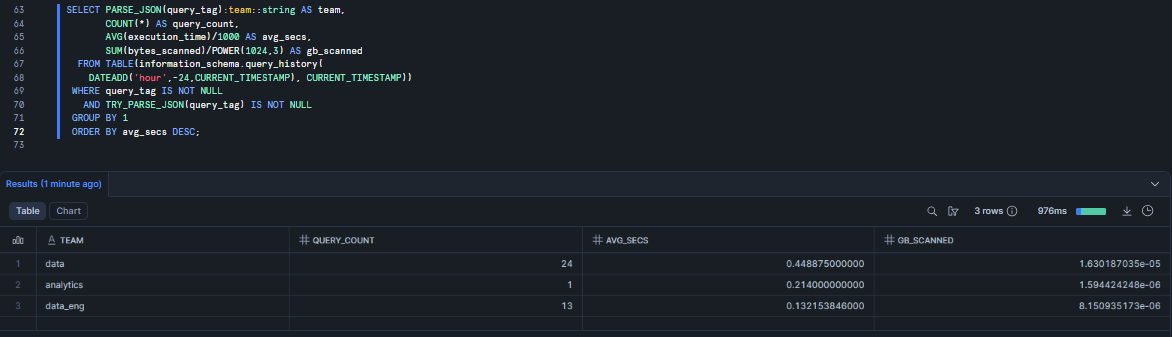
Figure 1: Analyzing daily Snowflake resource utilization by extracting team identities from structured JSON query tags—Snowflake query tags
A few notes on this query: execution_time is stored in milliseconds, so dividing by 1000 converts it to seconds. bytes_scanned is in bytes; dividing by POWER(….) converts it to gibibytes (GiB). The query uses ACCOUNT_USAGE rather than INFORMATION_SCHEMA to avoid the 10k-row cap that would silently truncate results on a busy account.
For per-query credit tracking, use SNOWFLAKE.ACCOUNT_USAGE.QUERY_ATTRIBUTION_HISTORY. This view shows the compute credits attributed to each individual query. The CREDITS_ATTRIBUTED_COMPUTE column covers warehouse execution cost only—it excludes cloud services costs, data transfer, storage and serverless feature charges. Query acceleration credits appear separately in the CREDITS_USED_QUERY_ACCELERATION column. Note that this view has latency of up to 8 hours and excludes queries shorter than about 100 milliseconds.
6. Use Snowflake query tags to support security audits and compliance
Snowflake query tags are a useful audit lever. Tag queries by the department or role. Then compliance teams can filter logs by tag to see exactly which team accessed what. Tagging queries by business unit (or other categories) makes audit trails clearer. If a restricted query ran, you would immediately know which unit ran it.
Similarly, if you have a policy that certain queries (or data operations) must be reviewed, you can automatically tag them and trigger alerts.
Note that Snowflake query tags themselves are not security controls. They cannot prevent access. But they do help in forensic analysis. You can combine Snowflake object tags (to enforce row access or masking policies on tables) with query tags (to log who ran each step of a pipeline) for layered governance.
Be incredibly careful of what you insert in Snowflake query tags. Do not add personal, sensitive or confidential information. Tags are stored as plain text, so treat them accordingly. Stick to business-level details like team IDs, project names and environment names.
7. Tag high-risk, long-running queries explicitly
Long-running queries are almost always your most expensive ones. They consume Snowflake credits for extended periods, hold Snowflake warehouse slots that other queries need and are disproportionately likely to cause a pipeline to miss its SLA. Identify any queries that are resource-intensive or potentially risky and tag them explicitly.
For batch-heavy or historically expensive pipelines, consider including expected duration and escalation context in the tag:
{

  "pipeline": "full_historical_reprocess",

  "team": "data_engineering_team",

  "expected_duration_minutes": 45,

  "escalation_slack": "#data-engineering-team",

  "risk_level": "high",

  "run_id": "------"

}
💡 Note that this does not make the query run faster. But it gives your engineer enough information to make a quick decision when they see a query that has been running for a long time.
Treat Snowflake query tags as flags for high-impact workloads. That way, dashboards or alerts can specifically monitor “long_running” or “high_cpu” tags. (Snowflake’s own UI lets you filter on status “long-running,” but tagging lets you add your own business context beyond just execution time).
8. Tag AI/ML and special workloads for isolated cost tracking
Snowflake has introduced native AI/ML services, such as Cortex AI and large-scale Snowpark jobs. These can carry distinct costs and behave differently from standard SQL workloads. Tag them so you can isolate their cost and usage.
For instance, if you are running a model-training pipeline or a Cortex LLM Functions query, give it a tag like {“workload”:”cortex_search”} or {“workload”:”model_training”}. This way, you will see exactly which queries are using those AI features.
Filtering QUERY_HISTORY for AI-related tags lets you sum up their compute impact separately and attribute those costs to the right team or budget owner.
If you use Snowpark Python or the Snowflake Python connector, you can set the tag at session start:
conn = snowflake.connector.connect(
session_parameters={'QUERY_TAG': '{"workload":"model_training","model":"churn_v3"}'}
)
Every query issued by that connection automatically carries the tag. Any non-standard workload should carry a tag so it doesn’t get mixed in with routine SQL in cost reports.
9. Monitor and audit tag usage itself
Setting tags is step one. Making sure they are being used correctly is step two.
Build a process to audit tag usage itself. Periodically query Snowflake QUERY_HISTORY for Snowflake QUERY_TAG values and look for anomalies:
- Empty tags (QUERY_TAG = ”) when you expected one
- Tags that do not conform to your JSON schema
- Unexpected tag values (typos, legacy names, orphaned project codes)
A simple Snowflake task that scans the last 24 hours of queries and flags tag issues (missing keys, non-JSON values) keeps teams accountable. Also, watch out for tags that no longer make sense (maybe a project ended, but tags are still there). Periodically review the distinct values in your QUERY_HISTORY and retire any tags that are obsolete. Clean tag sets make reporting more reliable.
10. Integrate Snowflake query tags with observability tools
Don’t limit query tags to Snowflake alone. Feed them into your broader monitoring and reporting stack. Many BI and observability tools can read Snowflake’s query history or logs. Send a daily summary of credits by tag to a dashboard. Use tools like Looker, Grafana or Tableau to visualize costs and volumes by tag. Include tags in your ETL logs: if you capture Snowflake query IDs, also log the associated tags. Set alerts based on tag conditions
(like too many failures in the last hour for a given job tag).
11. Combine Snowflake query tags with Snowflake object tags
Snowflake query tags and Snowflake object tags are different, but they work well together. An especially useful strategy is to tag your data assets (tables, views, warehouses) by department, project or sensitivity using object tagging in Snowflake, and tag your queries by the job or user. In analysis, you can then join or compare them.
As an example, say you tag a Snowflake warehouse by cost center (an object tag) and tag queries by team. Then, if warehouse W is tagged “finance” and a query is tagged “analytics team,” you can still attribute costs correctly by looking at the combination. Or tag each table by data sensitivity (object tag) and queries by process; you can join QUERY_HISTORY view with SNOWFLAKE.ACCOUNT_USAGE.TAG_REFERENCES on the object name to see which sensitive tables each tagged process is hitting.
Snowflake even suggests “using object tags to associate resources and users with projects, and query tags to associate individual queries when an app serves multiple teams“.
Tagging like this really pays off, giving you even richer Snowflake data governance.
So, do not treat tags in isolation. If you have an enterprise data catalog or governance tool, feed it both tag types. This way, a BI is not just tagged with “sales_dashboard” (query tag) but also touches tables tagged “sales” (object tags), giving you two angles of insight.
12. Unset session tags after execution
This might seem like a small thing, but it is not.
Session tags persist for the lifetime of the session. If you leave a tag hanging, subsequent queries will continue carrying it, which can mislabel them in your cost and audit reports.
The safe practice: if your session runs more than one distinct task, override or unset the tag between tasks.
-- run monthly summary queries… (Snowflake QUERY_TAG = 'monthly_summary';)

ALTER SESSION SET QUERY_TAG = 'monthly_summary';

-- unset the tag completely; subsequent queries fall back to the user/account default.

ALTER SESSION UNSET QUERY_TAG;

-- OR

-- set to an empty string to suppress the fallback default…( Snowflake QUERY_TAG = '';)

ALTER SESSION SET QUERY_TAG = '';

-- run daily summary queries with a new tag…. (Snowflake QUERY_TAG = 'daily_summary';)

ALTER SESSION SET QUERY_TAG = 'daily_summary';
Always make it a habit to reset the tag before the session ends. If you use connection pooling or shared sessions, this is extra important. Forgetting to unset could mislabel later work. As a rule, end each workflow by clearing the tag (or setting it to a generic fallback).
13. Build dashboards and reporting pipelines on top of tag data
Finally, put your tagged data to work by building visibility dashboards. The whole point of Snowflake query tag is to report on them. So build dashboards, reports or even Snowflake worksheets that summarize key metrics by tag. Strong Snowflake cost monitoring starts with dashboards like these:
- Cost by tag (a chart of Snowflake credits used per team tag each month)
- Query volume (daily query counts by app or job tag to spot usage spikes)
- Query performance (average execution time per task tag to find slow pipelines)
You can also integrate tag data into reporting pipelines. For example, run a nightly load of tagged query history into a BI-friendly table. Or push it to a data lake for cross-platform analytics. Do not let the tag data sit stale. Share it.
Putting it all together, when you use good tagging practices, Snowflake goes from being a mystery to a transparent system. Your queries change from unknowns to an organized, searchable record. Once everything is tagged and reported, you can easily find the query that is using the most resources or see who is running each query.
TL; DR: A Snowflake query tag is a short string or JSON label you set at the session level. It is stored with each query in the history (in QUERY_HISTORY.QUERY_TAG). Use it to identify the source, purpose and owner of queries without altering any tables. Follow the best practices above to keep tags consistent and useful.
Conclusion
And that’s a wrap! Snowflake query tag is simply a label (string or JSON) that you define and attach to one or more SQL queries. It is a lightweight tool for adding context to your data operations, designed to solve common challenges like figuring out who ran a query, why it was run and who should be billed for it. Effective Snowflake query tagging ties together cost attribution, Snowflake performance monitoring and Snowflake data governance into a single, lightweight mechanism. Follow the best practices outlined above, and you can keep your Snowflake query tags organized, manageable and genuinely useful. Setting tags is easy; making them count takes a bit of thought. Hence, with good tagging, you can turn a haystack of queries into a structured, filterable log.
In this article, we covered:
- What Snowflake query tags are
- Why you’d use them
- How they differ from Snowflake object tags
- How to set them at the account, user and session level
- 13 best practices for making query tags genuinely useful
… and so much more!
Flexera are not affiliated or endorsed by Snowflake, Inc.
FAQs
Where do Snowflake query tags show up?
Snowflake logs the tag in its query history. In Snowsight’s Query History page you can see and filter by the Query Tag column. Programmatically, the tag appears in the Snowflake QUERY_TAG column of the Snowflake query history table (both in the Information Schema and Account Usage). Any user or tool with access to these views can search on that column.
What is the max length for a query tag in Snowflake?
Snowflake limits tags to 2000 characters. If you exceed this, you will get an error when setting the tag. To be safe, keep tags well under the limit (hundreds of characters is usually plenty). Exceptionally long tags are hard to read and filter anyway.
Can I set Snowflake query tags at account or user level?
Yes. An ACCOUNTADMIN can run ALTER ACCOUNT SET QUERY_TAG = ‘<tag>’; to give a default for the whole account. To set a default for a specific user, use ALTER USER username SET QUERY_TAG = ‘<tag>’;. These defaults apply to new sessions, but a session can override them.
Are Snowflake query tags secure?
Snowflake query tags are stored in plain text alongside query metadata. Anyone who can view Snowflake query history can read them. So do not put secrets or personally identifiable information (PII) in tags. Keep tags at the business level (user IDs, job names, project codes…), not passwords or tokens. If someone can see a query in Snowsight, they will see its tag too.
How do you unset a query tag in Snowflake?
Use ALTER SESSION UNSET QUERY_TAG;. This removes the session level tag, so subsequent queries either have no tag or fall back to the user/account default. If you want to suppress that fallback and leave the tag explicitly empty, use ALTER SESSION SET QUERY_TAG = ”; instead.
Does Snowflake QUERY_TAG include idle time costs?
No. QUERY_TAG only labels executed queries. Snowflake bills idle warehouse time separately, not to any single query. In other words, a tag covers the Snowflake credit costs for the tagged queries; any idle or background charges must be allocated at the Snowflake warehouse level (for example, splitting idle costs evenly across tags if you want).
Can Snowflake query tags be queried across organizations?
No. Snowflake query tags are scoped to a Snowflake account. If you have multiple accounts in an organization, each account’s ACCOUNT_USAGE.QUERY_HISTORY holds only its own tags. Snowflake’s Organization Usage views do not aggregate query tags across accounts. You will need to pull tag data from each account separately if you want a combined view.
Can I set a default query tag for all queries in my account?
Yes. Use ALTER ACCOUNT SET QUERY_TAG = ‘<tag>’ as ACCOUNTADMIN. All new sessions will inherit that tag by default. (Users or sessions can still override it). This is useful to mark every query in case someone forgets to tag explicitly.
What is the difference between Snowflake query tags and Snowflake object tags?
Snowflake query tags label activities (queries), while object tags label resources. Query tags are applied at runtime (session level) and show up in Snowflake query history. Object tags are defined in a schema and attached to objects. Use object tags for Snowflake data governance (sensitivity, cost center) and query tags for monitoring and attribution of queries.
How long is Snowflake query tag data retained in Snowflake?
Up to one year. ACCOUNT_USAGE.QUERY_HISTORY keeps 365 days (about 12 months) of data. The INFORMATION_SCHEMA.QUERY_HISTORY() function shows only the last 7 days. If you need older records (for multi-year auditing), you should regularly export the history to your own storage before it rolls off.
Plain string or JSON?
JSON is usually better for anything structured. Use a JSON tag if you have multiple fields to record, since you can then filter or parse by key. A simple one-off label can be just a string. The key is consistency: If you start with JSON, stick with JSON. Many teams standardize JSON tags for flexibility.
How does QUERY_ATTRIBUTION_HISTORY work with query tags?
Snowflake QUERY_ATTRIBUTION_HISTORY view is used to determine the exact compute cost (in Snowflake credits) of an individual query run on a Snowflake warehouse. By applying consistent query tags to your workloads, you can easily join your query tags with this view to get highly granular, accurate cost-per-query tracking for specific teams, pipelines, or dashboards.
What happens if a query tag in Snowflake exceeds 2000 characters?
Snowflake will reject it with a parameter-too-long error. You should see an error message. In practice, just shorten the tag. If you truly need more context, store the extra details elsewhere (metadata tables, documentation) instead of in the tag.
Can Snowflake query tags be used with Snowpark or Snowflake Python connector?
Yes. When you connect with the Python connector, pass session_parameters={‘QUERY_TAG’:'<tag>’} in the connect() call. In Snowpark Python, pass the same dictionary via Session.builder.configs({“session_parameters”: {“QUERY_TAG”: “<tag>”}}), or set it after session creation with session.query_tag = ‘<tag>’. Snowpark also provides a session.update_query_tag(tag_dict) method that merges a dictionary into the existing JSON query tag without replacing it entirely. All queries on that connection will carry the tag.
Does Snowflake attach query tags to every query automatically?
No. Snowflake query tags do not propagate automatically. A tag set at the user or account level applies by default, but otherwise you must explicitly set ALTER SESSION SET QUERY_TAG or configure your connection to include one. If you see blank tags in your history, it means no tag was set on those queries.
Pramit Marattha
Pramit Marattha is a technical content writer and strategist with 5+ years of experience covering AI, data engineering, data cloud platforms and open source technologies. He turns complex technical concepts into clear, useful content for engineers and developers.







