


If you’ve been working with Snowflake, you know tables are the backbone of everything. We’ve previously covered articles on how to create Snowflake tables, drop entire tables and add columns to existing tables. Today, we’ll focus on a more precise operation: dropping columns using the Snowflake DROP COLUMN command.
In this article, we will cover everything you need to know about how to drop columns in Snowflake using the Snowflake DROP COLUMN command, covering syntax, recovery capabilities, impacts, and best practices for it.
What are Snowflake tables?
Snowflake tables are schema-level objects that store data in rows and columns. They support both structured and semi-structured data, and you interact with them using standard SQL. Snowflake offers three main table types: permanent, transient and temporary. Each comes with different data durability and session scope characteristics.
To create a table, you can use the CREATE TABLE statement or the Snowflake Web UI (Snowsight).
CREATE TABLE <table_name> (
	 <col_name> <col_type> [options],
	 -- Additional column definitions
	 [constraints]
);
You can see that creating a Snowflake table is simple and straightforward, but table structures often need to evolve due to changing data requirements. Frequent schema updates are necessary and Snowflake provides the ALTER TABLE statement to modify table schemas. Using this statement, you can modify properties, columns, or constraints.
In a previous piece, we covered how to add columns in Snowflake using the ADD COLUMN statement. Here, we’ll dive into how to drop a column in Snowflake without disrupting existing table relationships.
How to drop a column in Snowflake?
The basic syntax for dropping a column in Snowflake is as follows:
ALTER TABLE <table_name> DROP COLUMN <column_name>;This command will remove the specified column from the table structure, along with all the data it contains.
The full syntax for dropping a column in Snowflake is:
ALTER TABLE <table_name> DROP COLUMN <column_name> [ CASCADE | RESTRICT ];Let’s break down each component:
ALTER TABLE <table_name> Specifies the table you want to modify. Replace <table_name> with your actual table name.
DROP COLUMN <column_name> Tells Snowflake to remove the specified column from the table schema.
[ CASCADE | RESTRICT ] These optional parameters control how Snowflake handles existing constraints tied to the column. Here’s where most articles get it wrong; so pay attention:
- CASCADE (default behavior): When you drop a column, Snowflake automatically drops any associated constraints (primary keys, unique keys, foreign key) that include that column. If a primary or unique key being dropped is referenced by foreign keys elsewhere, those foreign keys are dropped too. This is the default behavior Snowflake uses if you don’t specify either option.
- RESTRICT: Explicitly prevents the drop if the column is part of any constraint with active foreign key references. Snowflake returns an error, letting you handle the dependency manually first.
How to drop multiple columns in Snowflake?
As your data model evolves, you might find yourself needing to remove several columns at once. Snowflake makes this task easy.
The syntax for dropping multiple columns is a simple extension of the single-column drop:
ALTER TABLE <table_name> DROP COLUMN <column1>, <column2>, <column3>, ...;Let’s break down each component:
ALTER TABLE <table_name>: Just like before, this specifies which table you’re modifying.
DROP COLUMN <column1>, <column2>, <column3>, …: This is where the magic happens. You list out all the columns you want to drop, separated by commas. There’s no hard limit on how many columns you can drop in a single statement.
You can also apply the CASCADE or RESTRICT options here and they will affect all the columns being dropped:
ALTER TABLE <table_name> DROP COLUMN <column1>, <column2>, <column3> CASCADE;For completeness, here’s the full syntax for dropping multiple columns:
ALTER TABLE <table_name>
DROP COLUMN <column1> [ CASCADE | RESTRICT ],
					 <column2> [ CASCADE | RESTRICT ],
					 <column3> [ CASCADE | RESTRICT ],
					 ...;
Technically, you can apply CASCADE or RESTRICT individually to each column. However, this is rarely used in practice because it can make the statement hard to read and potentially lead to confusion.
Conditional column deletion with Snowflake DROP COLUMN IF EXISTS
The Snowflake DROP COLUMN IF EXISTS command is useful to avoid errors when the column may not exist. It makes sure the command is executed only if the specified column is present:
ALTER TABLE <table_name> DROP COLUMN IF EXISTS <column_name>;You can also use this with multiple columns:
ALTER TABLE <table_name> DROP COLUMN IF EXISTS <column1>, <column2>, <column3>;Each column is checked independently. Existing columns get dropped; missing ones are silently skipped. This is especially useful in deployment scripts or migrations where the schema state isn’t guaranteed.
Step-by-step guide: using Snowflake DROP COLUMN command
Now that we’ve covered the various forms of Snowflake DROP COLUMN command, let’s walk through a step-by-step guide on how to use it effectively. We’ll create a table, populate it with some dummy data and then go through the process of dropping columns to demonstrate the command’s behavior and impact.
Step 1—Create a table
First, let’s create a simple table name students_info:
CREATE TABLE students_info (id INT, name STRING, address STRING, age INT);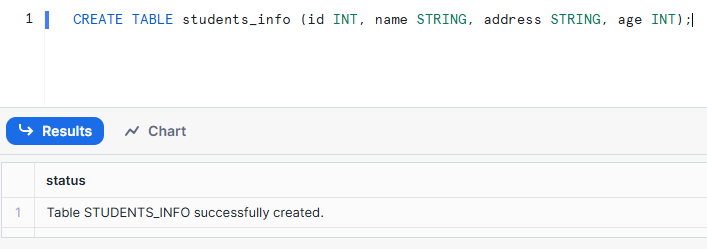
Step 2—Insert data into the table
Now that we have our table structure, let’s populate it with some sample data:
INSERT INTO students_info (id, name, address, age)
VALUES (1, 'Elon Musk', 'San Pablo Rd Brooklyn, NY', 60),
				(2, 'Jeff Bezos', 'University Court Griffin, GA', 60);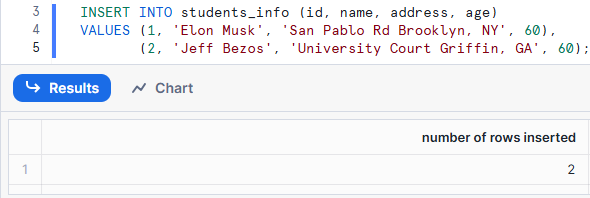
Step 3—Describe the table
Before making changes, it’s good practice to review the table structure:
DESCRIBE TABLE students_info;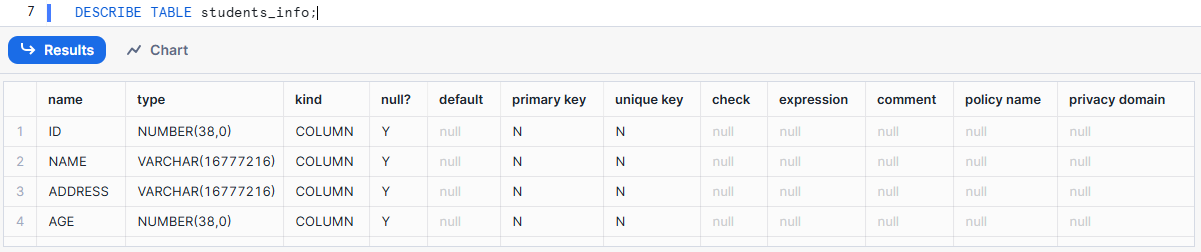
Step 4—Verify the table and data
Let’s check the data we’ve inserted:
SELECT * FROM students_info;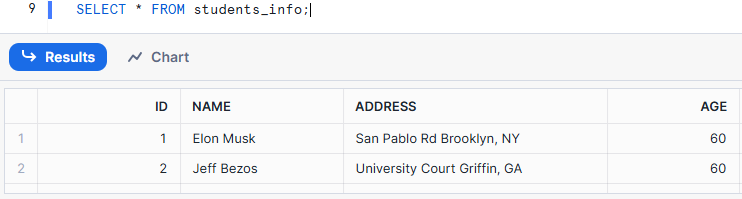
Step 5—Drop a single column
Now, let’s start by dropping a single column.
ALTER TABLE students_info DROP COLUMN age;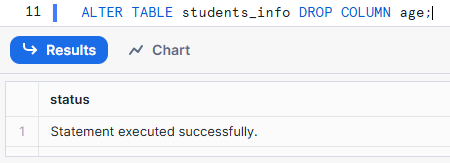
Step 6—Drop multiple columns
Next, let’s drop multiple columns.
ALTER TABLE students_info DROP COLUMN name, address;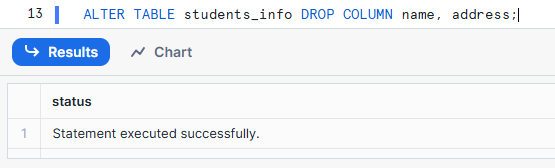
Step 7—Confirm the changes
It’s always a good idea to confirm that our changes took effect:
DESCRIBE TABLE students_info;
Step 8—Verify remaining data
While we know the columns are gone, let’s double-check that our core data is intact:
SELECT * FROM students_info;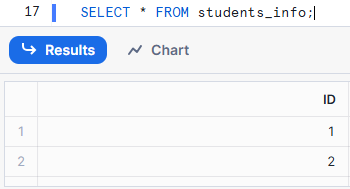
As you can see, in this walkthrough, we successfully dropped individual and multiple columns from our students_info table programmatically via SQL commands.
Step-by-step guide to drop column in Snowflake via Snowsight
While SQL commands offer precision and scriptability, only some people are comfortable writing queries. Snowflake provides Snowsight, a UI web interface that allows you to manage your DB, Schema and Objects visually.
Let’s walk through the process of dropping a column using Snowsight.
Step 1—Log in to Snowflake
First, navigate to the Snowflake website (or your organization’s Snowflake URL) and log in with your credentials.
Step 2—Select the “Data” option from the left menu
Once you’re in the Snowsight dashboard, look for the main menu on the left side. Click on the “Data” option. This is your gateway to visually exploring and managing your Snowflake data assets.
Step 3—Go to “Databases”
Within the “Data” section, you’ll see several sub-options. Click on “Databases.” This will display a list of all the databases you have access to in your Snowflake account.
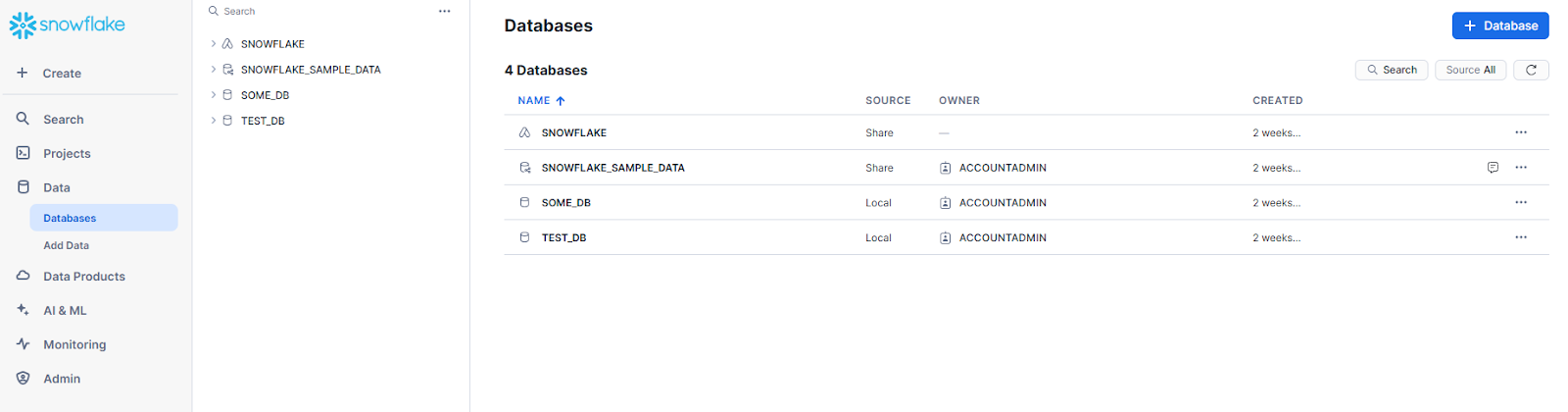
Step 4—Select your database and schema
Find and click on the specific database that contains the table you want to modify. After selecting the database, pick the schema where your target table resides.
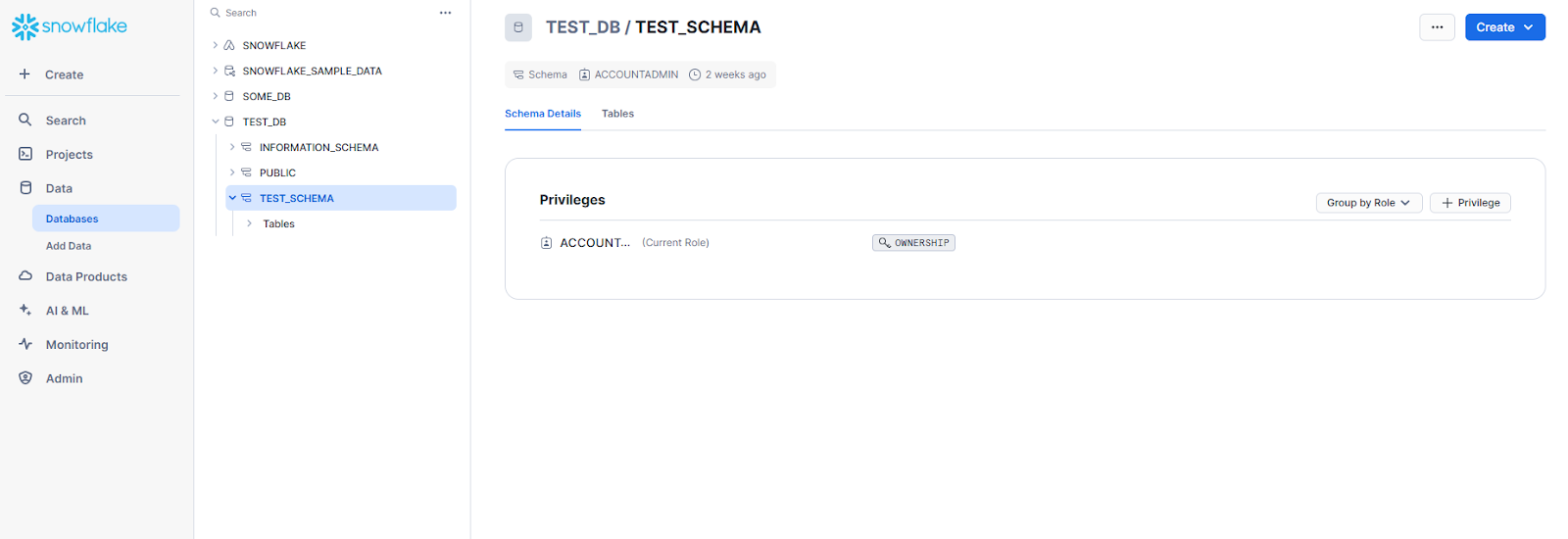
Step 5—Open “Tables”
Once you’re in the right schema, you’ll see various object types like Tables, Views and Functions. Click on “Tables” to see a list of all tables in this schema.
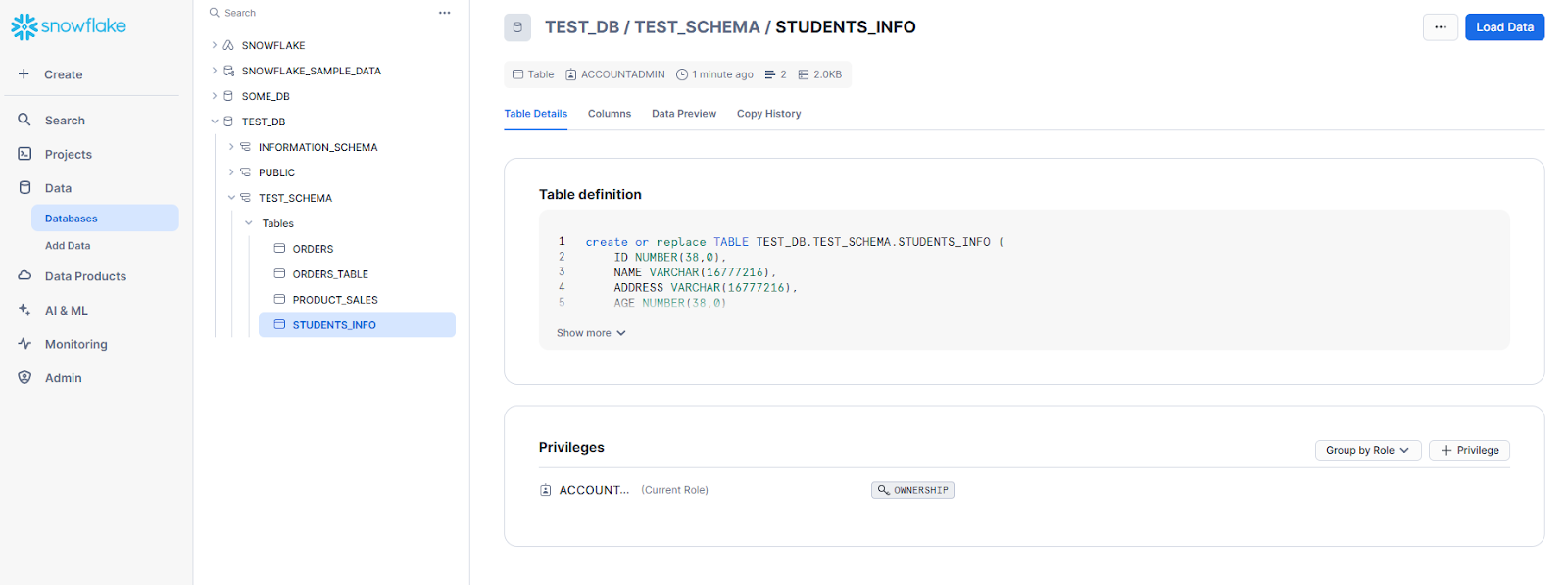
Step 6—Select the target table and column
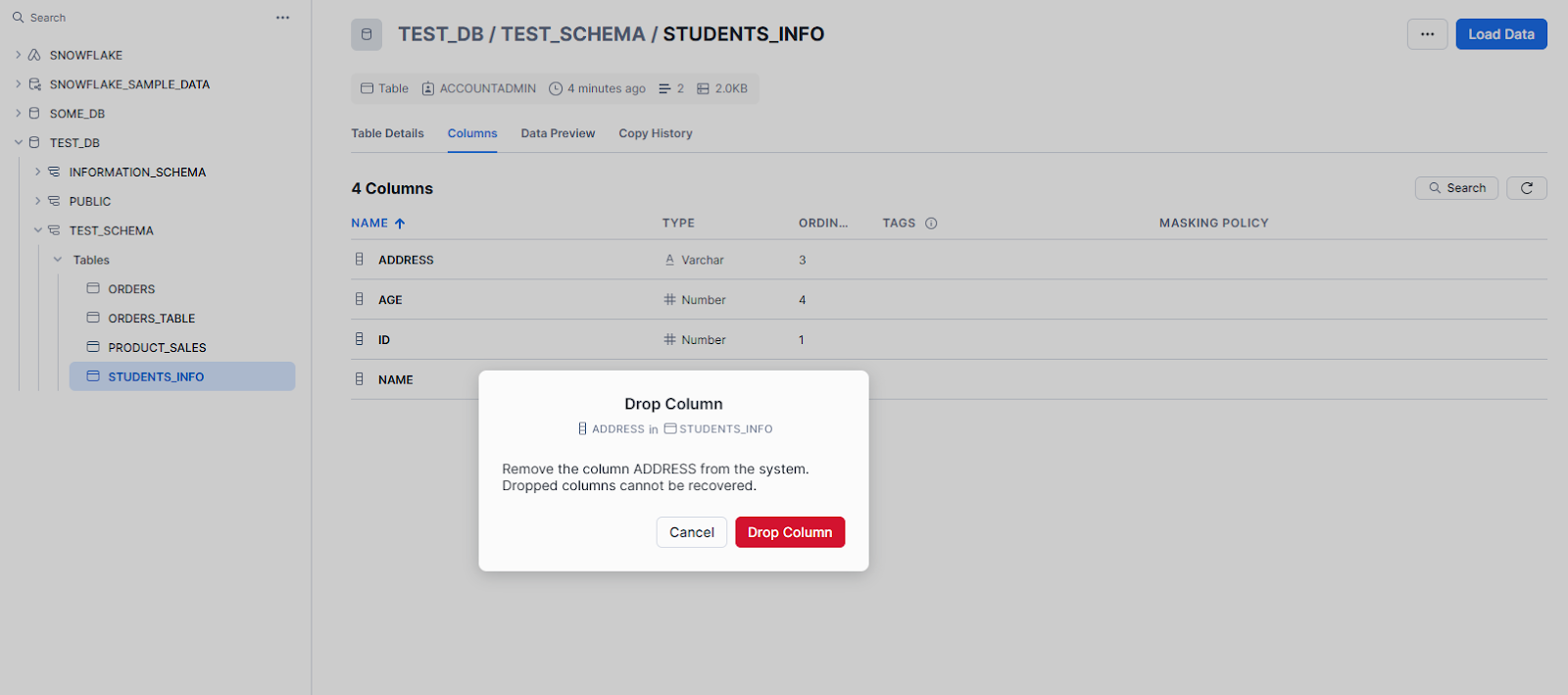
Find your table (in our example, STUDENTS_INFO) and click it. You’ll see a column list with data types and other properties. Locate the column you want to remove. Let’s say we want to remove the ADDRESS column.
Step 7—Use the column options menu
Next to the ADDRESS column, you’ll see three dotted icons, Drop column option will appear. Click on it.
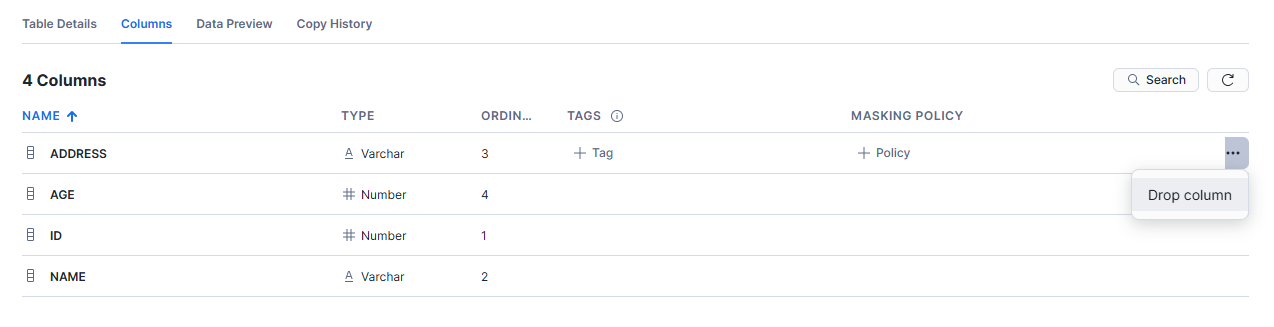
A confirmation dialog will appear, warning you that this action is irreversible and will delete all data in the column. This is Snowsight’s way of making sure you really want to proceed.
Step 8—Confirm the action
Read the warning carefully. If you’re certain you want to drop the ADDRESS column, click “Drop Column“. Snowsight will then send the DROP COLUMN command to Snowflake on your behalf.
Step 9—Refresh the table view
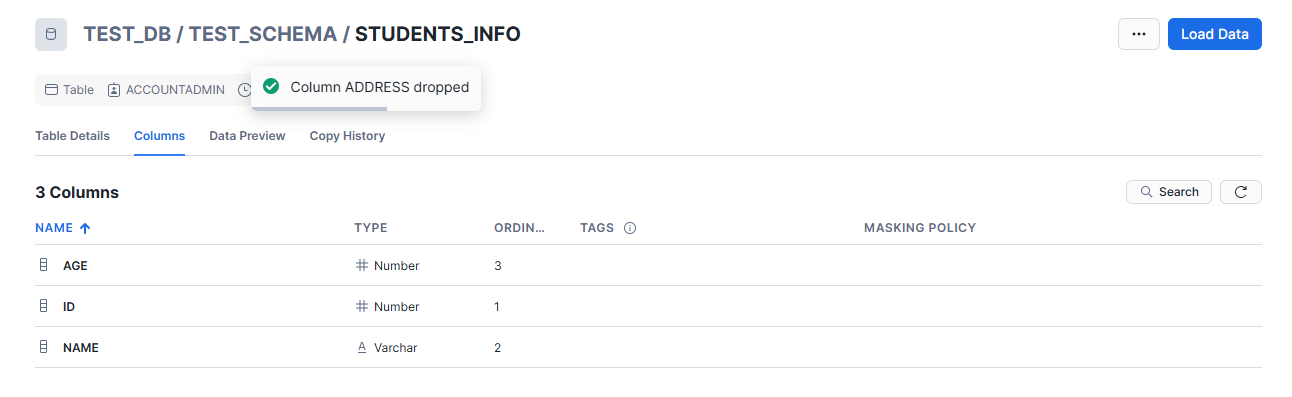
After a brief moment, the page might refresh automatically. If not, look for a refresh button or simply reload the page. When you view the ORDERS table again, you’ll notice that the ADDRESS column is gone. You can repeat steps 6-9 if you have multiple columns to drop.
Can you undo a DROP COLUMN in Snowflake?
Not directly. There’s no UNDROP COLUMN command. Once a column is dropped from the schema, it’s gone from the table structure.
That said, Snowflake’s Time Travel feature gives you a recovery path by letting you access the table as it looked before the drop occurred.
Recovering a dropped column in Snowflake
Option 1—Time Travel and data retention
Snowflake’s Time Travel retains historical versions of your table for a configurable period. The limits, based on Snowflake edition, are:
- Standard Edition: 1 day (default for all editions)
- Enterprise Edition: Up to 90 days for permanent objects
- Business Critical Edition: Up to 90 days for permanent objects
Snowflake Time Travel is automatically enabled with a standard 1-day retention period. If you want to customize and extend your retention period, you need to set the data retention policy for that table first. Use the query below to set the actual retention period for a table using the DATA_RETENTION_TIME_IN_DAYS parameter:
ALTER TABLE your_table_name SET DATA_RETENTION_TIME_IN_DAYS = desired_number_of_days;ALTER TABLE students_info SET DATA_RETENTION_TIME_IN_DAYS = 60;Option 2—Restoring a dropped column
To restore a dropped column, you can create a clone of the entire table from a point in time before the column was dropped. Note that this method does not directly restore the column to the original table but creates a new table with the desired state. Use the following query:
CREATE TABLE students_info_table_restore CLONE students_info AT (TIMESTAMP => 'YYYY-MM-DD HH24:MI:SS');Make sure to replace ‘YYYY-MM-DD HH24:MI:SS’ with the actual timestamp corresponding to the point in time before the column was dropped.
How to check if a column was dropped?
In the aftermath of a column-dropping incident, you might find yourself in detective mode. Was the column really dropped? When did it happen? Who did it? Snowflake provides several tools to help you unravel these mysteries.
Option 1—Query history
Snowflake’s QUERY_HISTORY function logs DDL operations. To find DROP COLUMN statements against your table:
SELECT *

FROM TABLE(INFORMATION_SCHEMA.QUERY_HISTORY())

WHERE QUERY_TEXT ILIKE '%DROP COLUMN%'

  AND QUERY_TEXT ILIKE '%students_info%'

ORDER BY START_TIME DESC;
Note that INFORMATION_SCHEMA.QUERY_HISTORY() only retains data for the past 7 days. For older events, query SNOWFLAKE.ACCOUNT_USAGE.QUERY_HISTORY, which retains up to 365 days:
SELECT *

FROM SNOWFLAKE.ACCOUNT_USAGE.QUERY_HISTORY

WHERE QUERY_TEXT ILIKE '%DROP COLUMN%'

  AND QUERY_TEXT ILIKE '%students_info%'

ORDER BY START_TIME DESC;
Option 2—Information schema
To verify whether a specific column currently exists:
SELECT *
FROM INFORMATION_SCHEMA.COLUMNS
WHERE TABLE_CATALOG = 'YOUR_DB'
  AND TABLE_SCHEMA  = 'YOUR_SCHEMA'
  AND TABLE_NAME    = 'STUDENTS_INFO'
  AND COLUMN_NAME   = 'ADDRESS';
No rows returned means the column doesn’t exist. To see all remaining columns:
SELECT *
FROM INFORMATION_SCHEMA.COLUMNS
WHERE TABLE_CATALOG = 'YOUR_DB'
  AND TABLE_SCHEMA  = 'YOUR_SCHEMA'
  AND TABLE_NAME    = 'STUDENTS_INFO';
Permissions required to drop columns
To drop columns in Snowflake, a user or the role they assume must have the necessary privileges. If you try to drop a column without the right permissions, you’ll get an error.
To drop columns from a table, you need the ALTER TABLE privilege on that table. This privilege lets you change the table’s schema by adding, removing, or changing columns.
There are two common ways a user can obtain this privilege:
1. Ownership
If a user is the owner of the table, they inherently possess the ALTER TABLE privilege and can modify its schema.
2. Role-based access control (RBAC)
A Snowflake administrator can assign a role to a user that includes the ALTER TABLE privilege. This privilege can be granted at various levels:
- On the Table:
GRANT ALTER ON TABLE <table_name> TO ROLE <role_name>;- On the Schema:
GRANT ALTER ON SCHEMA <database_name>.<schema_name> TO ROLE <role_name>;(This grants ALTER TABLE on all current and future tables within that schema).
Snowflake DROP COLUMN: Best practices
Dropping a column in Snowflake is a powerful operation that, while easy to execute, carries significant implications. Throughout this article, we’ve explored the mechanics of DROP COLUMN, from basic syntax to advanced recovery techniques. Now, let’s synthesize this knowledge into a set of best practices that will help you wield this tool responsibly and effectively.
1. Verify the column is no longer needed
Check query history, data lineage tools and downstream pipeline definitions before you drop anything. A column that looks unused might still be referenced in a scheduled query or a BI dashboard. Audit first, drop second.
2. Clone the table first
Create a zero-copy clone of the table before dropping a column. This provides a backup that can be used to restore data if necessary. Zero-copy cloning is an efficient way to safeguard data without consuming additional storage.
CREATE TABLE students_info_clone CLONE students_info;3. Double-check column names
A mistyped column name causes either an error (if IF EXISTS isn’t set) or silently does nothing (if IF EXISTS is set). Neither outcome is what you want. Always verify the exact column name with DESCRIBE TABLE before running the drop.
4. Run schema changes during off-peak hours
ALTER TABLE operations in Snowflake are non-blocking and metadata-only, so they’re generally fast. That said, scheduling them during low-traffic windows is still a reasonable practice, especially in high-concurrency environments.
5. Set Time Travel retention before you need it
Don’t configure retention after an incident. Set it proactively for critical tables:
ALTER TABLE students_info SET DATA_RETENTION_TIME_IN_DAYS = 30;
Requires Enterprise Edition for values above 1 day.
6. Back up data to a stage before dropping
For sensitive data, export the column to a stage as a paper trail before dropping:
COPY INTO @my_stage FROM (SELECT address FROM students_info);
7. Handle constraints explicitly before using RESTRICT
If you need RESTRICT behavior (preventing the drop when foreign key references exist), check and handle those constraints first:
ALTER TABLE sample_table DROP CONSTRAINT constraint_name;
Then proceed with the column drop.
8. Monitor with Snowflake’s resource monitors
Keep an eye on query load during DDL operations in large environments. While DROP COLUMN is metadata-only, heavy concurrent workloads can still experience resource pressure.
9. Test in a cloned environment
Before dropping columns from a production table, validate the operation on a clone:
CREATE TABLE test_students_clone CLONE students_info;

ALTER TABLE test_students_clone DROP COLUMN age;
Verify downstream queries still work against the cloned table before touching production.
10. Use tags and comments to mark deprecated columns
Before a column reaches the drop stage, tag it as deprecated so other teams know it’s on the way out:
Add a tag (the tag must already exist in the schema):
ALTER TABLE students_info MODIFY COLUMN age SET TAG deprecated = 'true';
Add a comment for context:
ALTER TABLE students_info MODIFY COLUMN age COMMENT 'Deprecated: scheduled for removal in Q3 2026';
If you follow these best practices, you can ensure that the process of dropping columns in Snowflake is done safely and efficiently, minimizing the risk of data loss and system performance issues.
Save up to 30% on your Snowflake spend in a few minutes!
Conclusion
And that’s a wrap! Managing columns effectively is crucial for maintaining an efficient and optimized Snowflake environment. Dropping a column in Snowflake is straightforward with the DROP COLUMN command. This command allows you to remove any obsolete or unwanted columns from your tables, keeping your Snowflake tables organized and relevant.
In this article, we have covered:
- >What Snowflake tables are
- How to drop a single column
- How to drop multiple columns in one statement
- Conditional deletion with IF EXISTS
- Step-by-step walkthroughs for both SQL and Snowsight
- How to recover a dropped column using Time Travel
- How to audit who dropped a column
- Permissions required for column drops
- Best practices for safe, predictable schema changes
…and so much more!
FAQs
What is the basic syntax for dropping a column in Snowflake?
The basic syntax is: ALTER TABLE <table_name> DROP COLUMN <column_name>;
Can I drop multiple columns in a single Snowflake command?
Yes. Use: ALTER TABLE <table_name> DROP COLUMN <column1>, <column2>, <column3>;
What happens if I try to drop a column that doesn’t exist?
Snowflake returns an error. Use IF EXISTS to prevent this: ALTER TABLE <table_name> DROP COLUMN IF EXISTS <column_name>;
What’s the difference between CASCADE and RESTRICT in DROP COLUMN?
CASCADE (the default) automatically drops any constraints (primary keys, unique keys, foreign keys) associated with the column. If a primary or unique key is referenced by foreign keys in other tables, those are dropped too. RESTRICT prevents the drop if any such foreign key references exist, returning an error instead.
Is RESTRICT or CASCADE the default behavior?
CASCADE is the default. This is a common source of confusion. If you don’t specify either option, Snowflake will drop the column and any associated constraints automatically.
Can I apply CASCADE or RESTRICT individually per column when dropping multiple at once?
No. In a multi-column DROP COLUMN statement, CASCADE or RESTRICT applies to all listed columns as a single unit. If you need different behavior per column, run separate ALTER TABLE statements.
Can I undo a DROP COLUMN operation?
Not directly. There’s no UNDROP COLUMN command. You can use Snowflake’s Time Travel feature to clone the table from a point before the drop, then extract the data you need from the clone.
How long does Time Travel retain historical data?
Standard Edition: 1 day by default. Enterprise and Business Critical editions: up to 90 days for permanent objects. Transient and temporary tables max out at 1 day regardless of edition.
Can I drop a column that’s part of a primary key?
Not without first removing the primary key constraint. With CASCADE (the default), Snowflake drops the primary key constraint automatically when you drop the column. With RESTRICT, it blocks the operation if there are foreign key references to that primary key.
Does dropping a column reduce my Snowflake storage bill immediately?
No. DROP COLUMN is a metadata-only operation. The physical storage is reclaimed the next time the affected micro-partitions are rewritten, which happens during DML operations or reclustering. You won’t see an immediate drop in storage costs.
Can I drop a column from an external table?
Yes, with a distinction. External table columns can be added or removed using the ALTER EXTERNAL TABLE command (not ALTER TABLE). However, the built-in default columns (VALUE and METADATA$FILENAME) cannot be dropped. User-defined virtual columns are fair game.
Can I schedule column drops for regular cleanup?
Yes. Snowflake Tasks let you schedule DDL operations including column drops. Make sure the deprecation process is well-documented and approved before automating any schema removal.
How do I find out who dropped a column?
Query SNOWFLAKE.ACCOUNT_USAGE.QUERY_HISTORY and filter by QUERY_TEXT for DROP COLUMN statements against your table. The USER_NAME column shows who executed the statement. This view retains data for up to 365 days and requires appropriate account-level privileges to access.
What privilege does a role need to drop a column?
The role must have the ALTER privilege on the table. Table owners have this by default. Admins can grant it explicitly using GRANT ALTER ON TABLE <table_name> TO ROLE <role_name>;
Does DROP COLUMN affect Snowflake streams or dynamic tables that reference the column?
Yes. Dropping a column that a stream, dynamic table or view references will break those objects. Always audit downstream dependencies before dropping. Snowflake won’t warn you automatically unless you use RESTRICT and the column has active constraint references.
Pramit Marattha
Pramit Marattha is a technical content writer and strategist with 5+ years of experience covering AI, data engineering, data cloud platforms and open source technologies. He turns complex technical concepts into clear, useful content for engineers and developers.







