


You are working in Databricks and need to perform tasks outside of the usual Spark or Python workflows. Maybe you need to install a certain command-line tool, third party libraries, tweak some system settings, or just run a task that’s faster in Bash. That’s where executing Bash scripts in Databricks becomes useful. But first, what is Bash? Bash (Bourne Again Shell) is a command processor that normally runs in a text window and lets users to interact with the core operating system by entering commands or scripts.
So, why run Bash scripts in Databricks at all? There are several valid reasons:
- Automate your setup. Setting up your Databricks environment can be repetitive. Bash scripts can automate this process by installing specific system packages or configuring settings every time a cluster starts, eliminating the need for manual setup each session
- Install what you need. Sometimes, the Python or R libraries you need aren’t available through standard package managers like pip or CRAN. Bash allows you to use system-level package managers to install virtually anything you need
- Get low-level access. Bash commands reach the cluster’s file system and system processes in ways Spark and Python environments typically abstract away
- Leverage command-line tools. There’s a rich ecosystem of CLI tools for format conversion, data validation and external API calls that are often easier to use via Bash than rewriting Spark
- Connect to external services. Bash simplifies using command-line tools to communicate with external services or APIs directly from your Databricks cluster
In this article, we’ll cover how to run Bash scripts in Databricks four ways: directly in notebooks using the %sh magic command, from stored scripts in Unity Catalog volumes or cloud storage, through the Databricks Web Terminal and via cluster initialization scripts.
Step-by-step guide to run bash in Databricks
Let’s explore the specifics of running Bash in Databricks. Each method serves a particular use case, so select the one that best suits your needs. We’ll cover four different techniques:
- Technique 1—Run Bash scripts inline in a Databricks notebook
- Technique 2—Run a stored Bash file in Databricks
- Technique 3—Run Bash scripts via the Databricks Web Terminal
- Technique 4—Run Bash scripts via Cluster Init scripts
Let’s dive right into it!
Prerequisites:
Before diving into the techniques, make sure you have these basics down:
- Access to a Databricks workspace and an all-purpose or job cluster.
- Basic Bash scripting knowledge
- Permissions to execute shell commands, access Databricks Web Terminal, manage Init Scripts.
- Databricks Web Terminal must be enabled in workspace settings (for Technique 3)
Technique 1—Run Bash scripts inline in a Databricks notebook
One of the simplest ways to run Bash commands in Databricks is to write them directly in a notebook cell using the Databricks %sh magic command. This way, you can run shell scripts without leaving the notebook.
Here is how it works:
Whenever you type in %sh at the beginning of a Databricks Notebook cell, Databricks interprets the cell’s contents as a shell script. The commands run on the driver node, which means that they only affect the environment on that node.
Step 1—Log in to Databricks
First things first, log in to your Databricks workspace.
Step 2—Configure Databricks compute
Once you’re in, you need an active Databricks compute cluster. To set this up, go to the “Compute” section on the left sidebar. If you don’t have a Databricks compute cluster or need a new one, click on “Create Compute“.
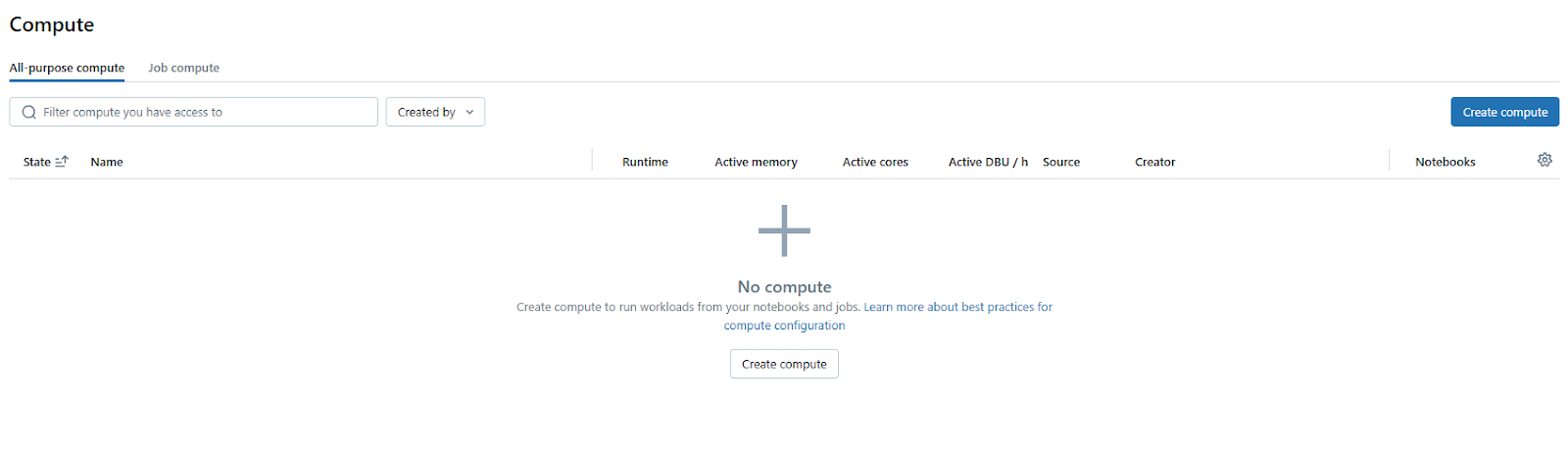
Then, customize the Databricks compute cluster settings according to your needs.
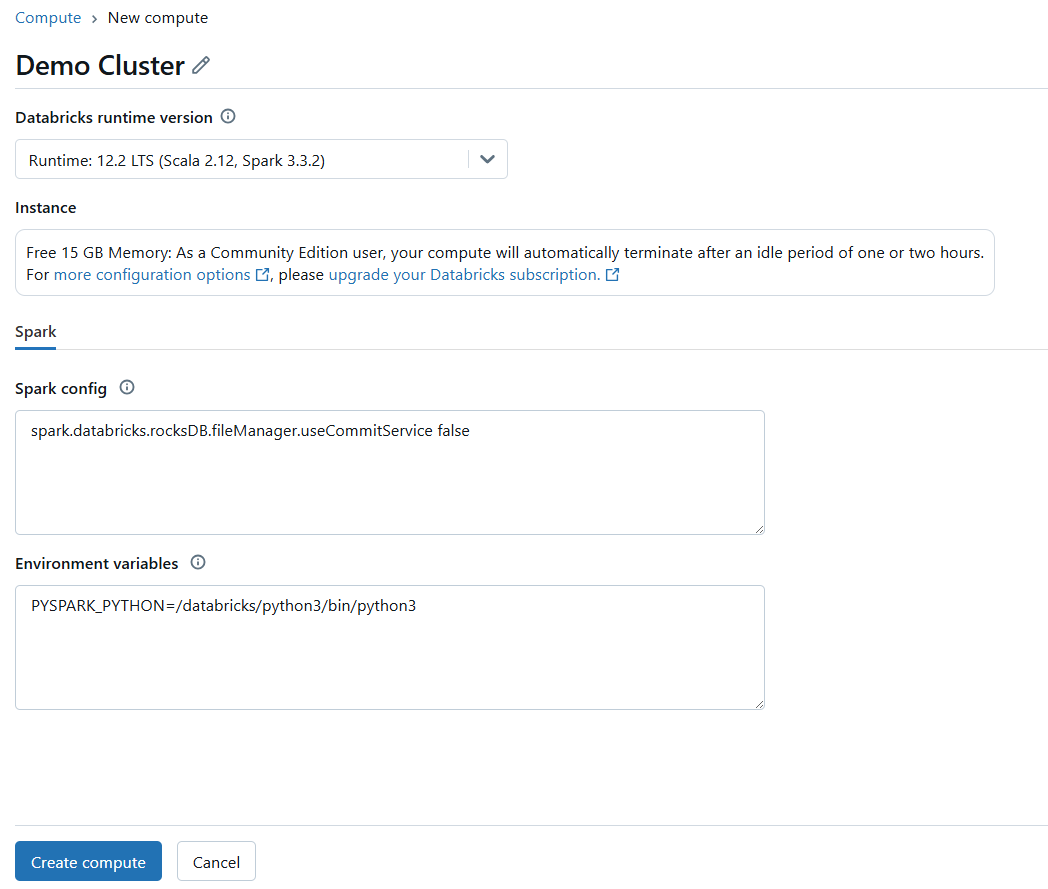
If the Databricks compute cluster isn’t already running, start it.
Step 3—Open Databricks notebook
Launch a new or existing Databricks Notebook and make sure it’s attached to your active Databricks compute cluster.
Step 4—Execute the Bash script using Databricks %sh magic command
Databricks magic commands are special commands that provide extra functionality within notebook cells. They’re like shortcuts to do things beyond the standard notebook language. Magic commands are always prefixed with a percentage sign %.
The magic command we’re interested in here is Databricks %sh.
What Databricks %sh does?
Databricks Shell %sh magic command lets you execute shell commands directly within a notebook cell. “sh” stands for “shell” and in the context of Databricks compute clusters, it typically refers to Bash (or a Bash-compatible shell) running on the driver node of your Databricks compute cluster.
Always remember that Databricks %sh commands are executed on the driver node of your Databricks compute cluster. The driver node is the main node that coordinates the Spark jobs across the Databricks compute cluster. This is where the notebook runtime environment resides. So, when you run Databricks %sh ls, for instance, you’re listing files on the driver node’s file system, not necessarily the distributed file system accessible to all executors.
Let’s see it in action. Open a cell in your Databricks Notebook and try these examples:
%sh
pwd
Run this cell (Shift+Enter or Cmd/Ctrl+Enter).
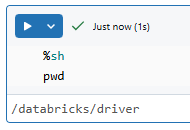
You’ll see the current working directory on the driver node.
Try another:
%sh
whoami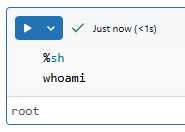
This will show you the user account under which the shell commands are being executed. Again, this is the user on the driver node.
A slightly more complex command:
%sh mkdir test_dirAs you can see, this command creates a directory called test_dirand then lists the contents of the current directory. You should see test_dirin the output.
%sh
ls -l
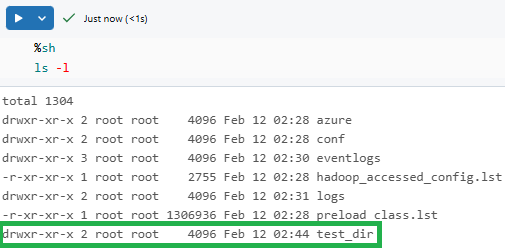
To run multiple commands in one cell:
%sh
#!/bin/bash
echo "Hello from Bash in Databricks!"date
hostname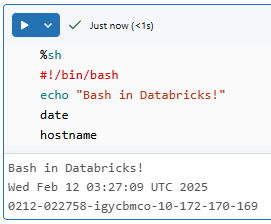
All three commands run sequentially, and you will see their output stacked in the cell.
A quick note on error handling: You can add -e to %sh to make the cell fail if any command returns a non-zero exit code. This is handy for catching silent failures:
%sh -e

cp /some/source /some/destination

echo "Copy succeeded"
If the cp command fails, the cell throws an error immediately rather than continuing to the next command.
What %sh cannot do (limitations)
%sh is useful but has real limits worth knowing:
- Driver node only. It doesn’t touch Spark workers or the distributed computing environment. Need to run something across all nodes? Use an init script (Technique 4)
- Not built for interactive scripts. %sh works best for scripts that run start to finish without waiting on user input. For a fully interactive shell, the Web Terminal (Technique 3) is a better fit
- Security awareness. In shared environments or with sensitive data, be deliberate about what commands you run. Arbitrary shell access carries real risk
Despite these limits, %sh covers most everyday Bash tasks in Databricks notebooks.
Technique 2—Run stored Bash scripts from Databricks DBFS (or mounted storage)
For more complex or reusable scripts, it’s usually better to store them in separate files and run them from Databricks. You’ve got a couple of options for storing these scripts—you can use Databricks File System (DBFS, put them in cloud storage that’s mounted to your Databricks workspace or use Unity Catalog volumes.
Let’s break down how to do this.
Steps 1-3—Setup Your Databricks environment
These steps are the same as in Technique 1. You need to:
Basically, get your Databricks Notebook environment ready, just like you would for running inline Databricks %sh commands. Once you’ve got that setup, the process diverges as we start dealing with external script files.
Step 4—Uploading the Bash script file to Databricks DBFS (or mounted storage)
To use a stored Bash script, first upload the file to Databricks DBFS. You can do this through the Databricks UI. Navigate to the Catalog section located on the left side, select DBFS and then click Databricks FileStore.
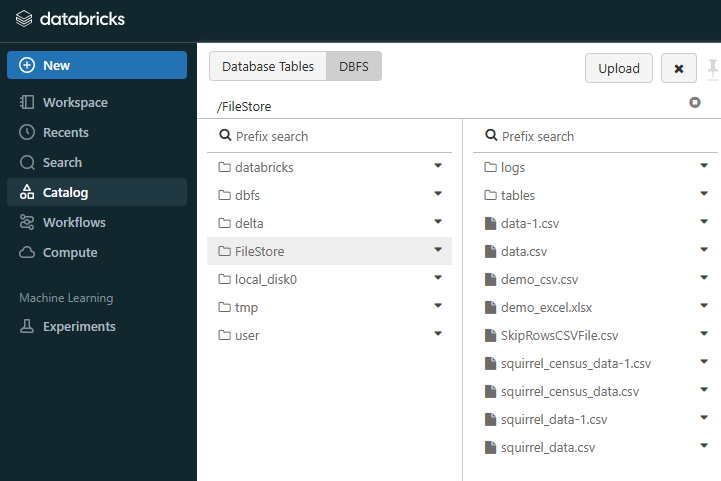
Once you are in the FileStore directory, click the “Upload” button. A file upload window will pop up. You can either drag your .sh script file from your computer directly into this window or click “Browse” to find and select the file using your computer’s file explorer.
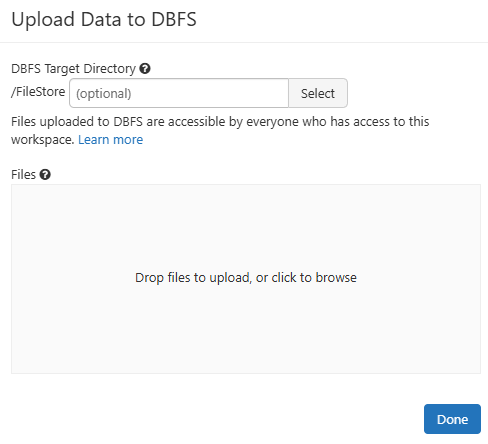
After you’ve selected your file, hit the “Upload” button in the dialog. After a moment, your script file should appear in the Databricks DBFS directory you chose. You’ve now successfully uploaded your Bash script to Databricks DBFS using the UI.
For the purpose of this demonstration, this is what we have added to our Bash script file. Make sure to add your own script.

For a more detailed visual step-by-step guide, see this article on how to upload a file to DBFS through the UI.
Step 5—Configure file permissions
After you’ve uploaded your Bash script file to Databricks DBFS (or a mount point), there’s a step you might need to consider: setting file permissions. Specifically, making the script executable. But first, make sure to copy the path of the Bash script that you have uploaded to Databricks DBFS.
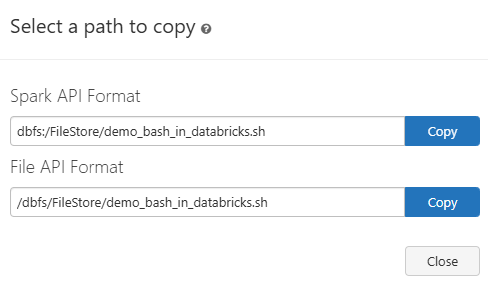
Then, open a new Databricks Notebook cell and run the following command with Databricks %sh:
%sh
chmod +x /dbfs/FileStore/demo_bash_in_databricks.sh
As you can see, the chmod +x <filepath> command is used to grant execute permissions. chmod is short for “change mode” and +x means “add execute permission“.
Do you always need chmod +x?
Interestingly, no, not always. If you explicitly tell Bash to run your script using the bash command, you might not strictly need the execute permission set on the script file itself. For example:
%sh
bash /dbfs/FileStore/demo_bash_in_databricks.sh
In this case, you’re directly calling the bash program and telling it to interpret and execute the script file you’re providing as an argument. bash itself is the executable and it just needs to be able to read your script file. So, in this scenario, execute permissions on the script file becomes less critical.
If you are unable to directly execute a file located in DBFS, here is an alternative way to do it. First, copy the script from Databricks DBFS to the local filesystem of the driver node. You need to bring the script from Databricks DBFS to a location where the driver node can execute it. A common place for temporary files is the /tmp directory. Here is how to do so:
dbutils.fs.cp("dbfs:/FileStore/demo_bash_in_databricks.sh", "file:" + "/tmp/demo_bash_in_databricks.sh", True)
After copying, you’ll need to make sure and check that the script has execute permissions:
%sh
chmod +x "/tmp/demo_bash_in_databricks.sh"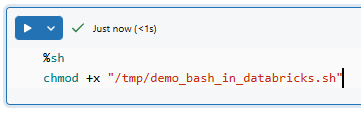
Now, let’s move on to the final step on how you can execute this Bash script.
Step 6—Execute the script within Databricks Notebook
With your script uploaded (and maybe execute permissions set), you’re finally ready to run it from a Databricks Notebook. You’ll use the trusty Databricks %sh magic command again, but this time, you’ll point it to the path of your stored script file.
Assuming your script is at /dbfs/FileStore/demo_bash_in_databricks.sh or /tmp/demo_bash_in_databricks.sh and you’ve (optionally) done chmod +x, you can execute it simply by:
%sh
sh "/tmp/demo_bash_in_databricks.sh"
Or by using Databricks bash command:
%sh
bash "/tmp/demo_bash_in_databricks.sh"
If you prefer to use the ./ style for indicating “run this executable in the current directory”, you can first use cd within your Databricks %sh cell to change the working directory:
%sh
cd /tmp/
sh ./demo_bash_in_databricks.sh
A Few Things to Note:
➥ When you’re referencing files in Databricks DBFS, you should add /dbfs/ at the start of your path.
➥ Running scripts with elevated permissions can be a double-edged sword. Be very very careful of what your script does and who can run it.
➥ If your script fails, check the Databricks Notebook output for any error messages. It will give you a clue on what went wrong or if there’s a typo in your script path.
That’s it. This approach lets you manage your Bash scripts in Databricks in a controlled way, using the same cluster connection as inline commands. Having trouble? Check that the file path is correct and the file permissions are set properly.
Technique 3—Run Bash scripts via Databricks Web Terminal
Now, this technique gives you hands-on access to a Bash shell on a Databricks cluster node. Forget about embedding commands in notebooks—the Databricks Web Terminal is like your regular terminal window, but it’s connected directly to your Databricks environment. It’s the perfect tool for you when you need to interact with the shell in real-time.
Steps 1-3—Setup your Databricks environment
Even though you will not be executing scripts from a Databricks Notebook with this technique, it is still useful to consider starting in a notebook for context. The steps are the same as in Technique 1. You have to:
These steps are more about making sure you’re in the Databricks environment and ready to work with a cluster. The real action for the Web Terminal happens outside the Databricks Notebook interface itself.
Step 4—Enabling Databricks Web Terminal in workspace settings
Here’s the first important thing to know: the Databricks Web Terminal isn’t automatically enabled for every Databricks workspace. A Workspace admin needs to enable it. If you’re not a Workspace Admin, you’ll need to ask someone with those admin rights to turn it on for your workspace.
For those who are Workspace Admins, here’s how to enable the Databricks Web Terminal:
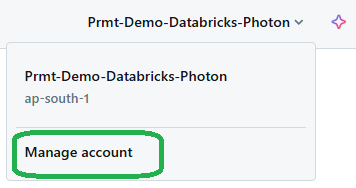
First, navigate to the top-right of your Databricks workspace. Click on your username. From the dropdown menu, choose “Manage Account“. This is where workspace-level settings are managed.
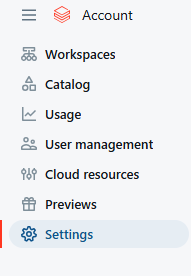
Once in the workspace-level page, click on the “Settings” tab. It’s usually located on the left side of the page.
Click the “Feature Enablement” tab. Keep looking until you find a section labeled “Web Terminal“.
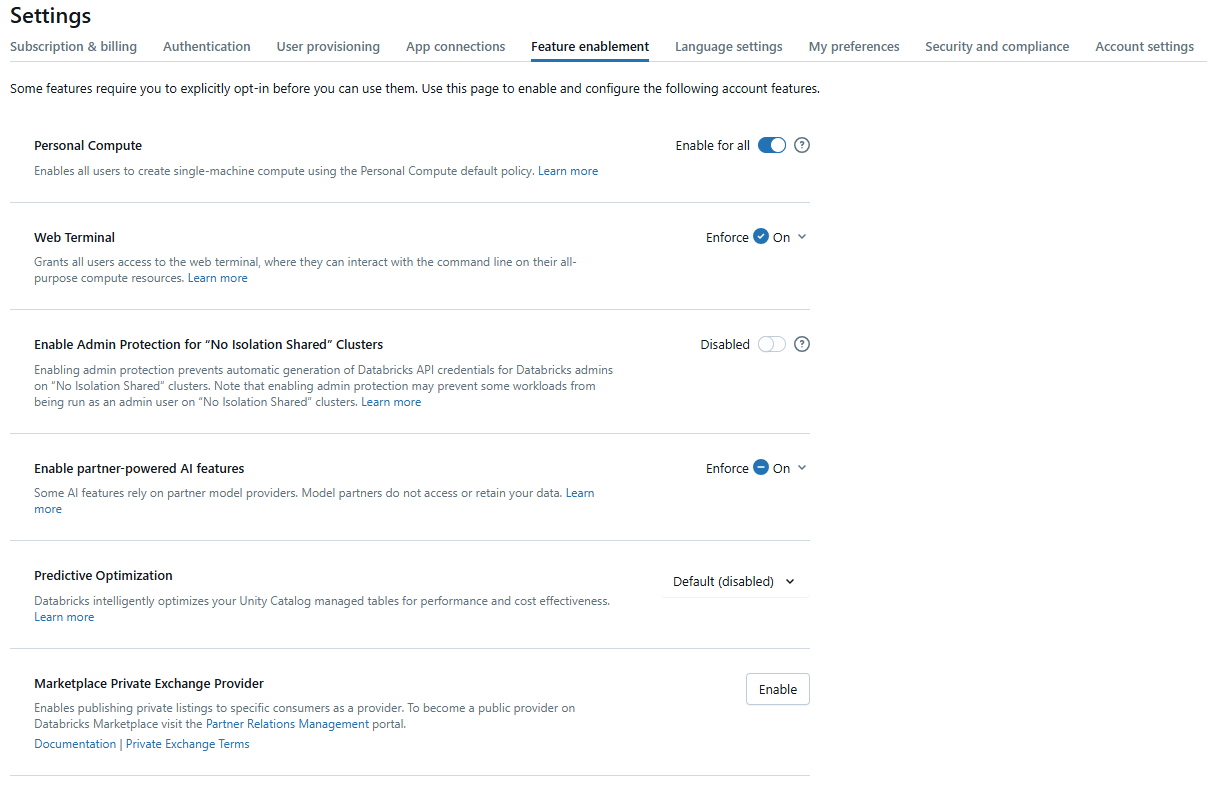
You should see a toggle switch next to the “Web Terminal” setting. Use the toggle switch to set the desired state (On or Off). Check the “Enforce” checkbox:
- If enforced: Workspace admins cannot change the Web Terminal setting within their workspaces. The account-level setting will be applied to all workspaces.
- If NOT enforced: Workspace admins can choose to enable or disable the Web Terminal for their individual workspaces.
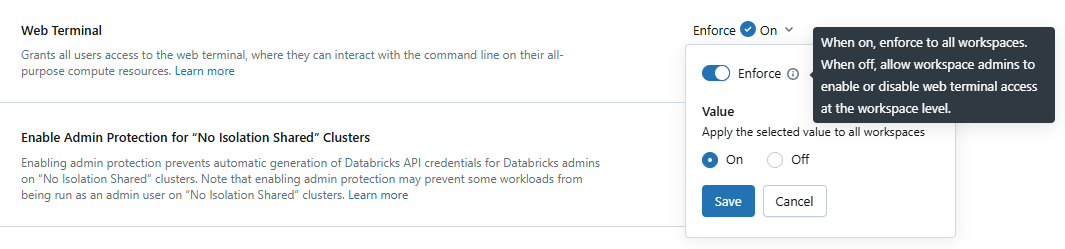
Note: After changing the setting in the Account Console, allow a few minutes for it to propagate before trying to launch a terminal.
Step 5—Launch the Web Terminal
With the Web Terminal now enabled for your workspace and with a Databricks compute cluster running, you can launch the Web Terminal specifically for that cluster. You have two options here:
Open it directly from your Databricks Notebook by clicking the terminal icon (often found in the bottom right side panel). Or press
Ctrl + `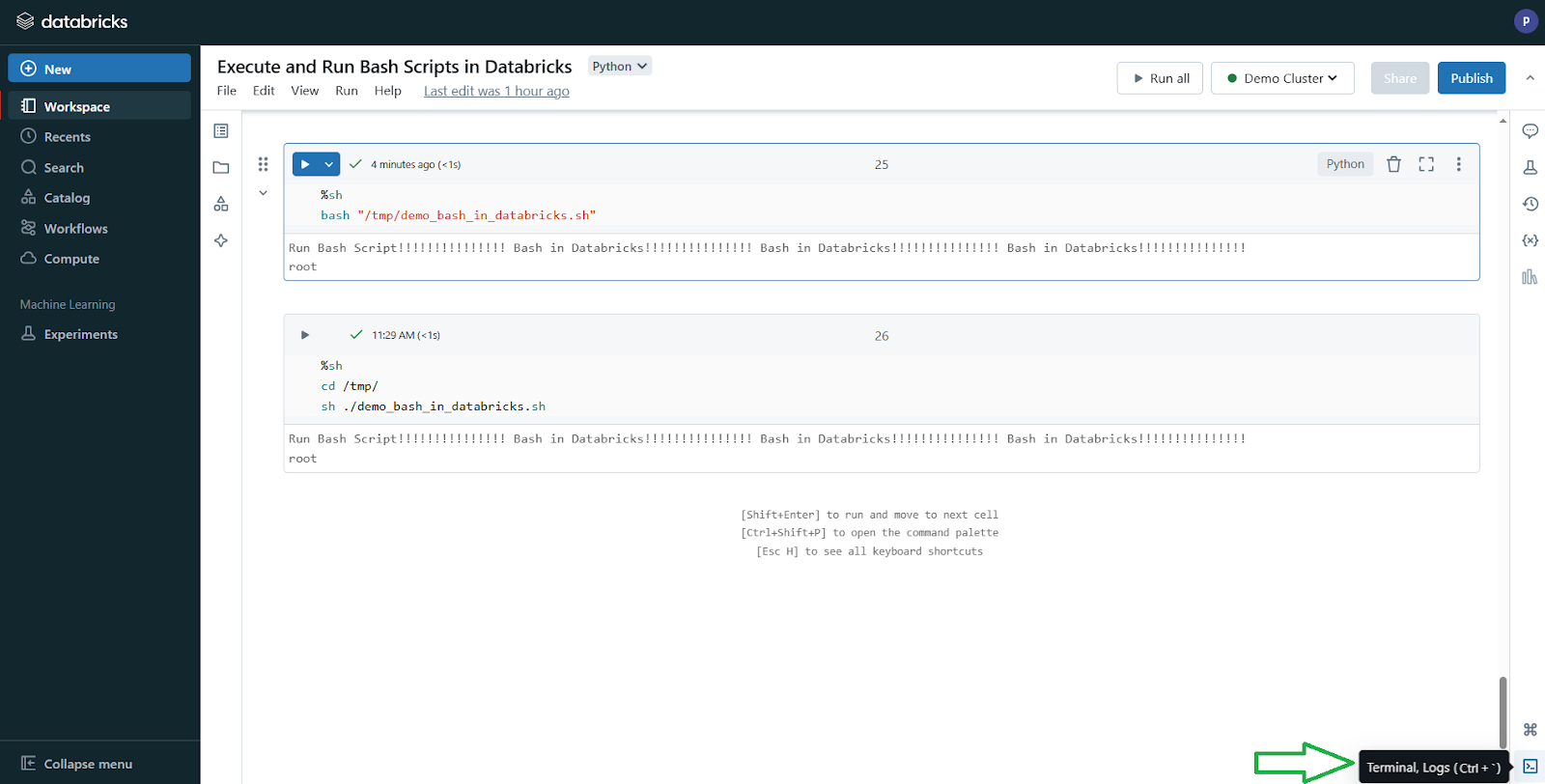
Alternatively, you can go to the Databricks Compute Cluster UI, select your cluster and click on the “Web Terminal” link in the Apps tab.
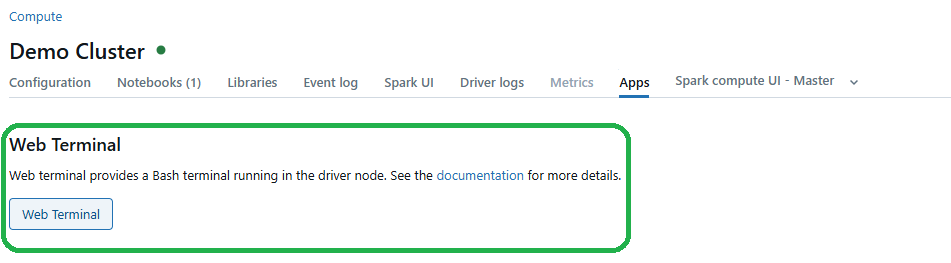
Either way, a new tab opens with a Bash prompt on the driver node.
Step 6—Navigating the file system and executing Bash commands/scripts
Once you have the terminal open, you can move around the file system as you would in any Linux shell. Use commands like cd and ls to check directories and list files.
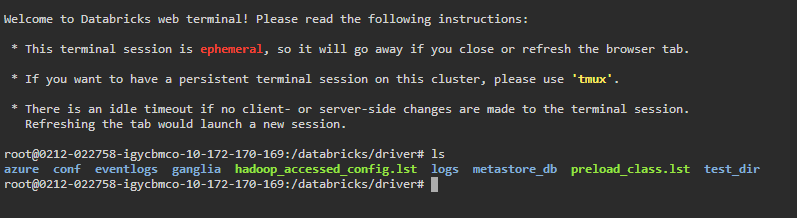
If you’ve uploaded Bash scripts to DBFS or cloud storage (as discussed in Technique 2), you can access and run them from the Web Terminal, provided they are within the file system that the terminal can see.
Let’s say you uploaded demo_bash_in_databricks.sh to /dbfs/FileStore/ or /tmp/ earlier. Here’s how you might run it in the Databricks Web Terminal:
1. Change directory
You don’t always have to, but if you want to be in the same directory as your script, use:
cd /dbfs/FileStore/ Or
cd /tmp/
2. Run the Bash script
If you made the script executable using chmod +x (as covered in Technique 2), you can run it directly using:
sh ./demo_bash_in_databricks.sh If you didn’t cd first, use the full path:
sh /dbfs/FileStore/demo_bash_in_databricks.shor
sh /tmp/demo_bash_in_databricks.sh
If you skipped the chmod +x step, you could use:
bash /tmp/demo_bash_in_databricks.sh
Some factors to consider:
➥ Since you’re running commands with direct access to the node, understand the implications. It’s similar to giving someone the remote control for your TV; be sure they only change the channel, not your settings.
➥ Databricks Web Terminals are designed for interactive use, as opposed to running scripts from a Databricks notebook. You can modify files, test commands, or debug on the fly.
Databricks Web Terminal is excellent for interactive exploration, quick system checks and any task where you need a direct, command-line interface to your cluster environment. It’s especially useful when you’re troubleshooting, setting up configurations manually, or using command-line tools directly on the cluster node.
Technique 4—Run Bash scripts via cluster init scripts
Init scripts (initialization scripts) are shell scripts that run on every cluster node during startup, before the Spark driver or executor JVM starts. This makes them the right tool for environment setup that needs to be in place before any user code runs; think installing native libraries or setting environment variables.
Important caveats before you use global init scripts:
Databricks supports two types of init scripts: cluster-scoped and global.
Databricks recommends cluster-scoped init scripts for most situations. Global init scripts can cause unexpected issues—like library conflicts—because they apply to every cluster in the workspace. Use them only when you genuinely need workspace-wide configuration.
Also: global init scripts only run on clusters configured with dedicated (single-user) or legacy no-isolation shared access mode. They don’t run on SQL warehouses, model serving clusters or serverless compute. If your workspace uses a mix of compute types, global init scripts won’t touch all of them.
And one more thing: init scripts on DBFS are end-of-life. You can no longer store or reference init scripts from DBFS paths. Store them in Unity Catalog volumes, workspace files or cloud object storage instead.
Step 1—Log in to Databricks
First things first, sign in to your Databricks workspace with your credentials.
Step 2—Configure Databricks compute
Just like before, now, head to your Databricks cluster settings and check that your cluster is running or is ready to start. Your commands in the init script will run on every node when the cluster restarts.
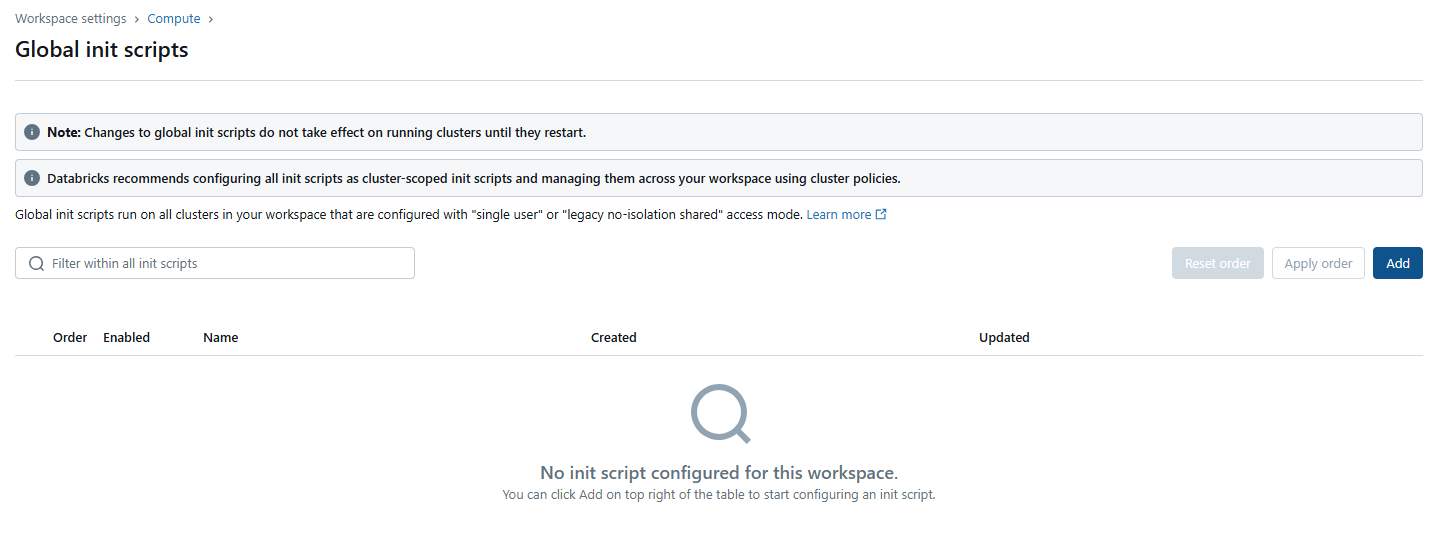
Step 3—Open the Global Init Script editor in the UI
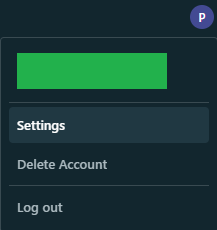
In the upper-right corner, click your user profile. A dropdown appears; select the settings option.
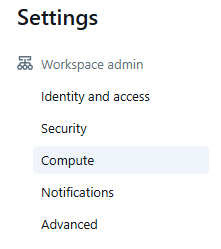
Next, go to the Databricks Compute settings tab on the sidebar and click on the Manage button for Global Init Scripts.
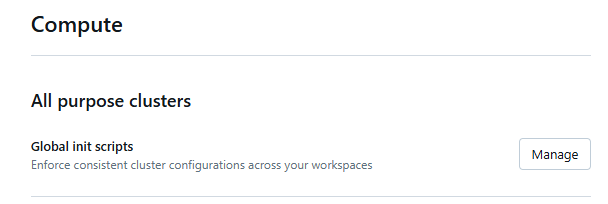
Here, click the Add button and provide a name for your new script.
Step 4—Write your Bash script
In the editor, type your Bash commands. This script runs on every Databricks compute cluster node at startup. For example, you can write a simple command:
echo "Global Init Script ran successfully"This simple script helps you confirm that the init process works on every node.
A more realistic example (installing a system package):
#!/bin/bash

apt-get update -y

apt-get install -y curl jq
Keep in mind:
- Scripts must be non-interactive. No prompts, no user input. Anything requiring a response will hang and eventually time out
- Use DB_IS_DRIVER to run node-specific logic. Databricks sets environment variables you can use in init scripts. If you only want something to run on the driver node:
#!/bin/bash

if [[ $DB_IS_DRIVER = "TRUE" ]]; then

    echo "Running on the driver node"

    # Driver-only setup here

else

    echo "Running on a worker node"

    # Worker-specific setup here

fi
- Script limit: Global init scripts cap out at 64 KB
- Ordering: If you have multiple global init scripts, you can set their execution order. Position 0 runs first
Step 5—Toggle the script to enabled
Switch the Global Init Script setting to ON. This tells Databricks to run your script on every cluster startup.

Step 6—Restart your Databricks compute cluster
Restart your cluster. Global Init Scripts execute only during cluster startup, so a restart is required for the script to run.
Step 7—Monitor init script execution
After the restart, check the cluster event logs. Look for your expected output (or any error messages). Init script logs are written to /<cluster-log-path>/<cluster-id>/init_scripts if cluster log delivery is configured.
If the expected output isn’t there, review the logs for errors. Common culprits: missing dependencies, syntax errors, or the script trying to do something that requires network access that isn’t available at init time.
When to use cluster-scoped init scripts instead:
For most teams, cluster-scoped init scripts are the better choice. You configure them per-cluster (or via cluster policies across multiple clusters), which gives you more control and avoids the risk of a workspace-wide script breaking something unexpected. The setup process is similar—you just attach the script to a specific cluster’s configuration rather than the global settings.
Which technique should you use?
| Technique | Best for |
| %sh inline | Quick one-off commands, simple file operations, debugging on the driver node |
| Stored scripts from volumes | Reusable scripts you want separate from your notebook code |
| Web Terminal | Interactive sessions, real-time debugging, using CLI tools directly |
| Init scripts | Environment setup that must run on all nodes before Spark starts |
Save up to 50% on your Databricks spend in a few minutes!
Conclusion
And that’s a wrap! Running Bash in Databricks gives you command-line access in a platform that’s mostly Python and SQL. Test commands inline with %sh, store reusable scripts in Unity Catalog volumes, use the Web Terminal for interactive work, or set up cluster-wide environments with init scripts.
One thing worth remembering as you build out your workflows: DBFS is on its way out. If your team is still using it to store scripts or init scripts, now’s a good time to migrate to Unity Catalog volumes—especially since init scripts on DBFS are already end-of-life and won’t load at all.
FAQs
What are Bash commands?
Bash commands are text instructions you enter in a Unix shell to perform tasks like file operations, process management or system configuration.
Can we run shell scripts in Databricks?
Yes. You can run shell scripts in Databricks using %sh inline in a notebook, from stored files in Unity Catalog volumes, via the Web Terminal or as cluster init scripts.
What is a Databricks magic command?
Magic commands in Databricks notebooks are special commands prefixed with % that extend notebook capabilities beyond the default language. They give you shortcuts for executing shell commands (%sh), running SQL (%sql), installing packages (%pip) or switching the notebook language context.
What is the Web Terminal in Databricks?
The Databricks Web Terminal provides a full Linux command-line interface on the driver node of your cluster. It’s an interactive shell; unlike %sh, which runs non-interactively from a cell.
How do I run terminal commands in a Databricks notebook?
Start a cell with %sh, followed by your Bash commands. They execute on the driver node and output appears directly in the cell. Add -e to fail the cell on non-zero exit codes: %sh -e.
How do I troubleshoot errors with %sh?
Check the cell output for error messages. Use echo statements to trace script progress. Use ls to verify file paths. For persistent issues, check the cluster logs.
Can I run interactive Bash scripts in Databricks notebooks?
Not well. Notebooks aren’t designed for interactive Bash input. Use the Web Terminal instead.
Why is my init script not running?
Check the cluster access mode—global init scripts only run on dedicated or no-isolation shared access mode clusters. Also confirm the script is enabled and the cluster has been restarted since you added or edited the script. If you stored the script on DBFS, that’s the problem: init scripts on DBFS are end-of-life.
How do I manage environment variables in init scripts?
Use the export command within your script: export MY_VAR=”value”. You can also reference Databricks-provided variables like DB_CLUSTER_ID, DB_IS_DRIVER and DB_CLUSTER_NAME to write conditional logic in your scripts.
Are there security concerns with the Web Terminal?
Yes. The Web Terminal gives you direct shell access to the driver node. Restrict it to users who genuinely need it, run commands only from trusted sources and avoid hard-coding secrets or credentials in scripts you run from it.
Where should I store Bash scripts for maintainability?
Store them in Unity Catalog volumes. This gives you access control through Unity Catalog governance, keeps scripts accessible across notebooks and supports external version control practices.
How do I create and enable a global init script?
- Go to Settings and click the Compute tab
- Click Manage next to Global init scripts
- Click + Add
- Name the script and enter its content (limit: 64 KB)
- If multiple global init scripts exist, set the run order
- Toggle Enabled to ON
- Click Add to save
- Restart any clusters that should run the script
What’s the difference between global and cluster-scoped init scripts?
Global init scripts run on every qualifying cluster in the workspace at startup. Cluster-scoped init scripts run only on the specific clusters you configure them for. Databricks recommends cluster-scoped scripts for most use cases—they’re easier to manage, less likely to cause unintended side effects and can be managed at scale via cluster policies.
Pramit Marattha
Pramit Marattha is a technical content writer and strategist with 5+ years of experience covering AI, data engineering, data cloud platforms and open source technologies. He turns complex technical concepts into clear, useful content for engineers and developers.