


When you work with data in Databricks, you often start with a pandas DataFrame. That works well for quick exploration, small samples or a CSV you just loaded for a test. But at some point, you usually need to turn that local data into something Databricks can query, share and manage more reliably.
In this article, we will guide you through the process to convert a Pandas DataFrames to table in Databricks. Here we’ll cover the essential steps, technical details and best practices for a smooth transition from Pandas to PySpark DataFrames and, ultimately, to a Databricks table.
Let’s dive right in!
What is a DataFrame?
A DataFrame is a two-dimensional, size-mutable, potentially heterogeneous tabular data structure with labeled axes (rows and columns).
- Rows are labeled with an index, which can be numerical or custom labels.
- Columns are named and can hold different types of data, like integers, floats, or strings.
DataFrame is similar to a spreadsheet or SQL table and is designed for efficient data manipulation and analysis.
In Databricks, you can work with both Pandas DataFrames and PySpark DataFrames. They look similar on the surface but behave very differently under the hood.
But before diving into the step-by-step guide to convert Pandas DataFrame to table in Databricks, let’s quickly dive into the difference between a Pandas DataFrame and a PySpark DataFrame.
To create a table from a Pandas DataFrame in Databricks, you first need to convert it into a PySpark DataFrame because Databricks leverages Apache Spark for data processing.
What is the difference between Pandas DataFrame and PySpark DataFrame?
Here are the quick differences between Pandas and PySpark DataFrames.
| Pandas DataFrame | PySpark DataFrame |
| Pandas DataFrame is designed for single-node operation, making it suitable for smaller datasets. | PySpark DataFrame is built for distributed computing, allowing it to handle large-scale datasets across multiple nodes. |
| Pandas DataFrame processes data in-memory, which can lead to faster performance for small datasets. | PySpark DataFrame processes data in a distributed manner, which can optimize performance for large datasets but may introduce overhead. |
| Pandas DataFrame is limited by the memory capacity of a single machine. | PySpark DataFrame can manage massive datasets that exceed the memory limits of a single machine by leveraging cluster resources. |
| Pandas DataFrame has a simpler API and is generally easier to use, making it accessible for quick data analysis tasks. | PySpark DataFrame has a more complex API, reflecting its distributed nature and requiring additional configuration and understanding. |
| Pandas DataFrame does not support parallel processing natively; operations are executed sequentially. | PySpark DataFrame supports parallel processing, utilizing multiple cores and nodes in a cluster to execute tasks concurrently. |
| Pandas DataFrame lacks built-in fault tolerance; users must implement their own mechanisms for data integrity. | PySpark DataFrame includes built-in fault tolerance through resilient distributed datasets (RDDs), ensuring data reliability during processing. |
| Pandas DataFrame is typically faster for small to medium-sized datasets due to its in-memory operations. | PySpark DataFrame is optimized for distributed processing, making it more efficient for handling very large datasets. |
| Pandas DataFrame is compatible with NumPy and provides rich functionalities for data manipulation and analysis. | PySpark DataFrame offers SQL-like operations and is designed to integrate with big data tools and frameworks. |
| Pandas DataFrame is best suited for exploratory data analysis and prototyping on smaller datasets. | PySpark DataFrame is ideal for production-level big data processing tasks and batch processing workflows in cloud environments. |
What is a Databricks Table?
Table in Databricks is a structured dataset organized into rows and columns, stored in cloud object storage as a directory of files. Its metadata, including schema and properties, is maintained in the metastore within a specific catalog and database (or schema).
Databricks uses Delta Lake by default as its storage layer, so tables created on the platform are Delta Lake tables unless specified otherwise. These tables offer features like ACID transactions, scalable metadata handling, time travel (data versioning) and support for both streaming and batch data processing out of the box.
Databricks offers two main types of tables: managed and unmanaged (external).
1. Managed Databricks tables
Managed tables are fully governed and optimized by Unity Catalog. Databricks manages both the metadata and the underlying data files, storing them in the schema or catalog’s designated Unity Catalog-managed cloud storage location. These tables benefit from automatic clustering, file size compaction, intelligent statistics collection and automatic vacuuming. Databricks recommends managed tables for most new workloads because they offer better query performance, lower storage costs and tighter governance.
2. Unmanaged (External) Databricks Tables
External tables store their data in a cloud storage location that you manage outside of Databricks like Amazon S3, Azure Data Lake Storage Gen2, Google Cloud Storage and so on. Unity Catalog governs access to the data, but the data lifecycle (backups, cleanup, layout) is yours to handle. When you drop an external table, only the metadata is removed; the underlying files stay put.
A note on DBFS in 2026: DBFS is deprecated. Databricks recommends using Unity Catalog Volumes for file-based storage in modern workspaces. The /mnt/ mount paths you’ll see in older tutorials are also legacy. If you’re on a Unity Catalog-enabled workspace use Volumes or external locations instead.
For a practical demo, refer to this article: Step-by-step guide to create a table in Databricks.
Now, let’s dive into the core purpose of this article—how to convert a Pandas DataFrame to Table.
Step-by-step guide to convert a Pandas DataFrame to a table in Databricks
Prerequisites
Before converting a Pandas Dataframe to table in Databricks, confirm the following prerequisites:
- An active Databricks account with permissions to create Databricks Notebooks and clusters.
- Basic knowledge of Python, SQL and familiarity with Apache Spark architecture.
- A running Databricks cluster ready for use.
Step 1—Log in to Databricks
Start by logging into your Databricks account through your web browser.
Step 2—Navigate to the Databricks workspace
Once logged in, navigate through your Databricks workspace dashboard. Here you can create new Databricks Notebooks or access existing ones where you will perform your operations.
Step 3—Configure Databricks cluster
Check if your Databricks cluster is properly configured. You may need to install libraries like pandas if they are not already available. Databricks Runtime versions 10.4 LTS and above include the pandas library pre-installed, so manual installation is unnecessary. However, for Runtime versions below 10.4, you may need to install it manually.
To install pandas:
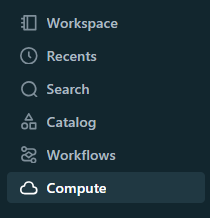
Navigate to “Compute” on the sidebar.
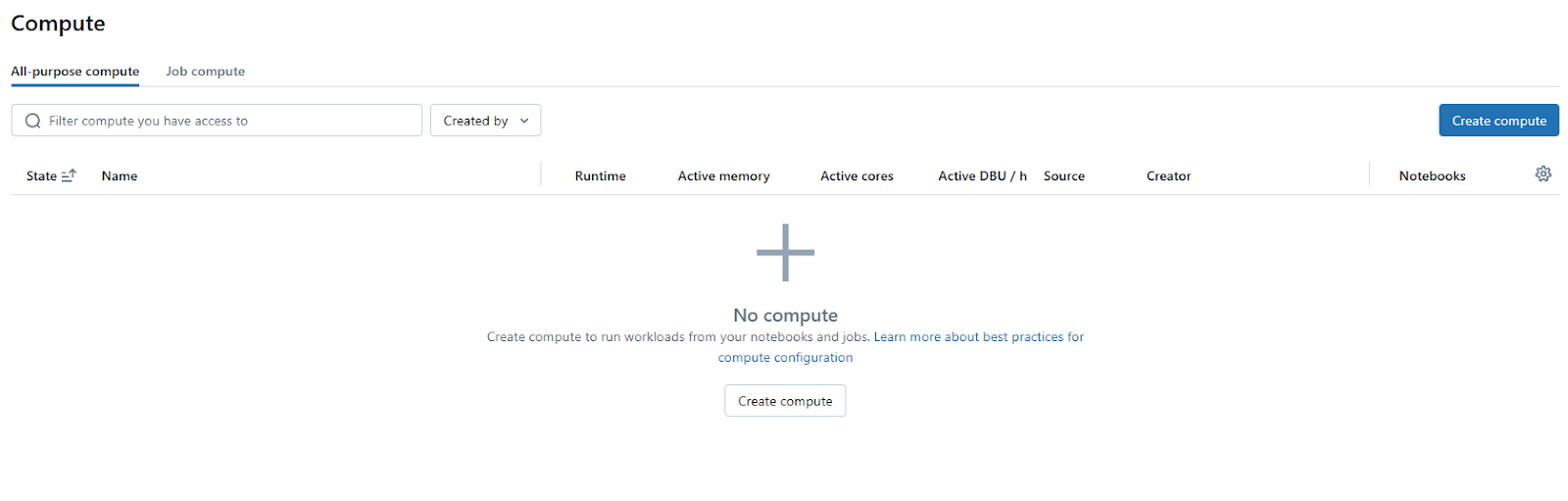
If needed, click “Create Compute” to set up a new cluster or select an existing one.
Check whether the cluster is running or set it to start automatically if idle.
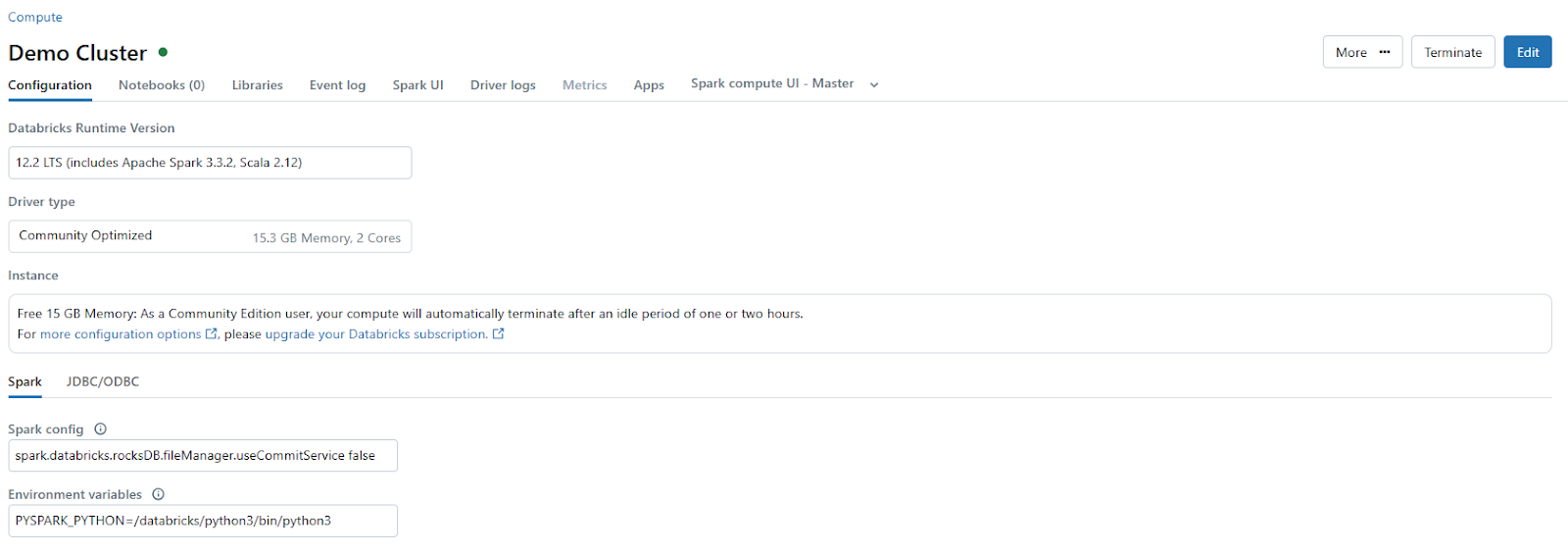
Go to “Libraries” > “Install New” > “PyPI” > enter pandas > click “Install”.
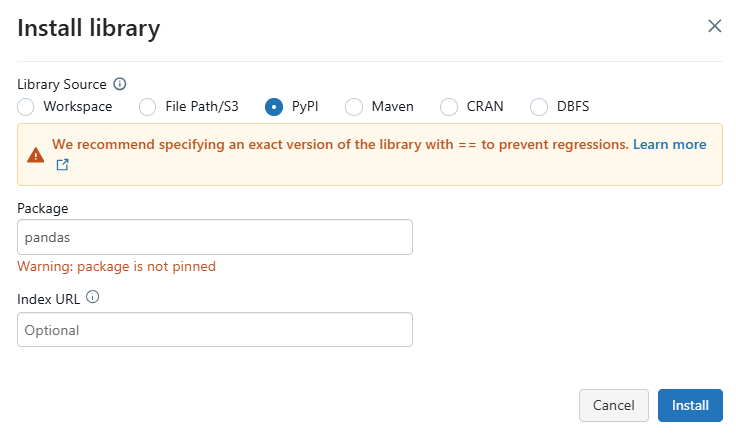
Step 4—Open Databricks Nnotebook and attach your compute
Create or open an existing Databricks Notebook within your workspace where you will execute Python code for converting your DataFrame. Then, attach your Databricks Notebook to this cluster or an existing one that’s running.
Step 5—Import required libraries
Now, in your Databricks Notebook cell, import the necessary libraries:
import pandas as pdfrom pyspark.sql import SparkSessionfrom pyspark.sql.types import StructType, StructField, StringType, IntegerType
Note on SparkSession: In Databricks notebooks, the Spark session is already available as a built-in variable. You typically don’t need to create one. The SparkSession.builder call below is shown for completeness, but in a Databricks notebook you can skip it and use spark directly.
Step 6—Create a Pandas DataFrame
You can create a simple Pandas DataFrame as follows:
data = {
		 'Name': ['Elon Musk', 'Jeff Bezos', 'Mark Zukerberg', 'Bill Gates', 'Larry Page'],
		 'Age': [55, 58, 35, 60, 50]
}
pandas_df = pd.DataFrame(data)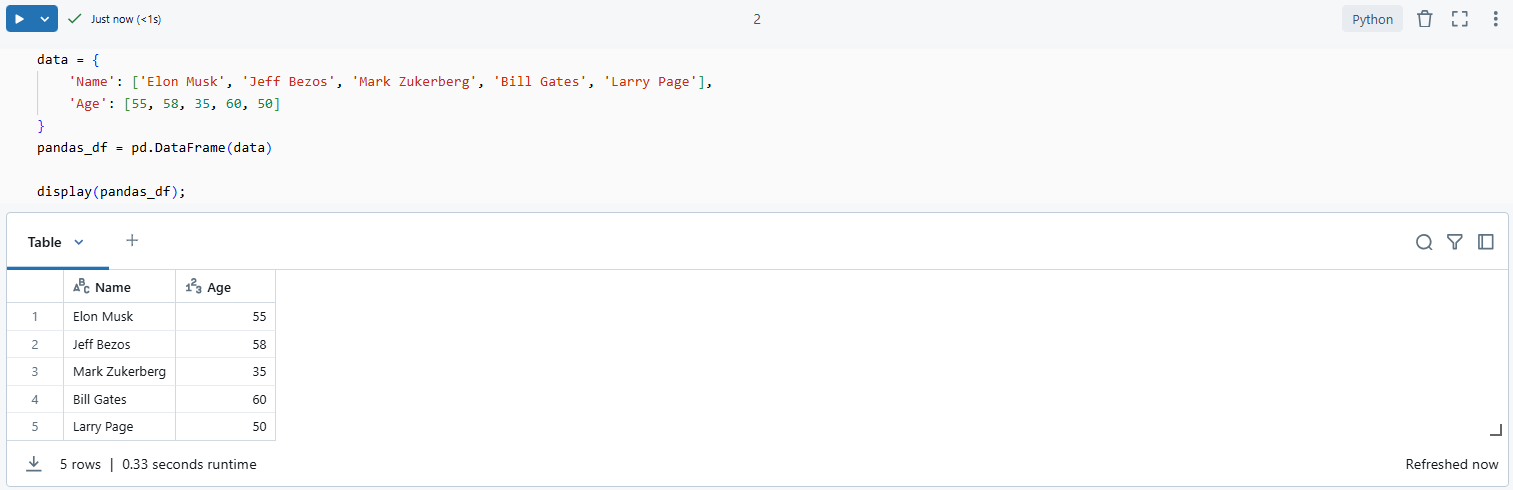
Step 7—Load data into a Pandas DataFrame (Optional)
Or, you can load data from Databricks DBFS:
pandas_df = pd.read_csv('/dbfs/FileStore/<path-to-file>/data.csv')Modern approach via Unity Catalog Volume path
pandas_df = pd.read_csv('/Volumes/<catalog>/<schema>/<volume>/data.csv
Make sure that your dataset fits into memory when using Pandas.
Check out this article to learn more in-depth on data loading via Databricks DBFS.
Step 8—Convert Pandas DataFrame to a PySpark DataFrame
Now, to convert Pandas DataFrame to table in Databricks first you need to convert the created Pandas DataFrame into a PySpark DataFrame:
To do so, first, create an instance of SparkSession if not already done:
spark = SparkSession.builder.appName('Example App').getOrCreate()
Then convert the Pandas DataFrame:
pyspark_df = spark.createDataFrame(pandas_df)
Note: that when converting a Pandas DataFrame to a PySpark DataFrame in Databricks, you might encounter several issues:
➥ Schema mismatches — Complex data types in Pandas, such as lists or dictionaries, do not directly map to Spark data types.
➥ Databricks cluster configuration issues — Your Databricks Notebook must be connected to an active cluster; otherwise, code execution will not proceed.
➥ Memory errors — Handling large datasets in Pandas before conversion can lead to memory issues. It is advisable to process data in chunks or use alternative methods.
To address schema mismatches during conversion, explicitly defining the schema can be helpful:
from pyspark.sql.types import StructType, StructField, StringType, IntegerType

# Define the schema
schema = StructType([
		 StructField("Name", StringType(), True),
		 StructField("Age", IntegerType(), True)
])

# Convert Pandas DataFrame to PySpark DataFrame with the defined schema
pyspark_df = spark.createDataFrame(pandas_df.values.tolist(), schema)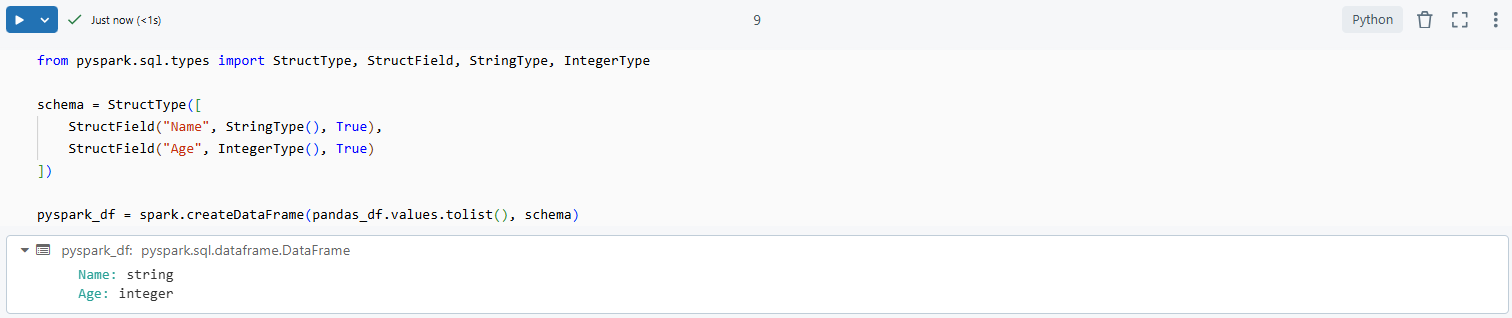
Step 9—Enable Apache Arrow for faster conversion (Optional)
Apache Arrow is an in-memory columnar data format that speeds up data transfer between the JVM (where Spark runs) and Python. When Arrow is active, conversions between pandas and PySpark DataFrames are significantly faster.
Arrow is enabled by default in most Databricks runtimes. You don’t need to turn it on manually for standard single-user clusters. The exception is High Concurrency clusters and user isolation clusters in Unity Catalog-enabled workspaces.
If, for some reason, it’s not active in your environment, you can enable it explicitly:
# Enable Arrow-based columnar data transfers
spark.conf.set("spark.sql.execution.arrow.pyspark.enabled", "true")
And if Arrow causes issues (a common pattern is type mismatches producing NaN values in numeric columns), you can disable it:
spark.conf.set("spark.sql.execution.arrow.pyspark.enabled", "false")
There’s also a fallback configuration that lets Spark retry without Arrow if Arrow fails mid-conversion:
spark.conf.set("spark.sql.execution.arrow.pyspark.fallback.enabled","true")
This is enabled by default. It means a failed Arrow conversion won’t crash your job; Spark will just fall back to the slower serialization path.
Arrow limitations to know:
- ArrayType of TimestampType is not supported
- MapType and ArrayType of nested StructType require PyArrow 2.0.0 or above
- When Arrow converts a StructType, it comes back as a pandas.DataFrame, not a pandas.Series
Step 10—Write the PySpark DataFrame to Databricks table
Now that you have converted your Pandas DataFrame into a PySpark DataFrame, you can write it as a table in Databricks. The standard approach:
pyspark_df.write.saveAsTable("students_table")
This command creates a managed Delta table in your current schema.
In Unity Catalog workspaces, you should use the three-part namespace to be explicit about where the table lives:
pyspark_df.write.saveAsTable("my-catalog.my_schema.students_table")
This is the recommended approach for production. It avoids any ambiguity about which catalog and schema the table lands in.
What if the table already exists? By default, saveAsTable will fail. Use the mode option to control behavior:
# Overwrite the existing table

pyspark_df.write.mode("overwrite").saveAsTable("my_catalog.my_schema.students_table")

# Append to the existing table

pyspark_df.write.mode("append").saveAsTable("my_catalog.my_schema.students_table")
Creating an external table
If you need an external table, the approach is different from what many older tutorials show. Simply calling .write.format(“parquet”).save(“/some/path”) writes files to storage but does not register a table in the metastore. You’ll have to register it explicitly.
Option A — Write first, then register via SQL:
# Write the data to external storage

pyspark_df.write.format("delta").save("/Volumes/my_catalog/my_schema/my_volume/students_table")

# Register it as an external table

spark.sql("""

    CREATE TABLE IF NOT EXISTS my_catalog.my_schema.students_table

    USING DELTA

    LOCATION '/Volumes/my_catalog/my_schema/my_volume/students_table'

""")
Option B — Use saveAsTable with a path option:
pyspark_df.write \

    .format("delta") \

    .option("path", "/Volumes/my_catalog/my_schema/my_volume/students_table") \

    .saveAsTable("my_catalog.my_schema.students_table")
Both approaches register the table in the metastore, which means it’s queryable by name.
Important: In Unity Catalog workspaces, external table paths must point to a registered external location. You can’t use arbitrary storage paths. Set up your external location via Catalog Explorer or the CREATE EXTERNAL LOCATION SQL command before referencing it.
Step 11—Verify the created table
To check that your table has been created successfully:
Run this command to display all tables available in your current database:
display(spark.sql("SHOW TABLES"))
To query the contents of your newly created table:
%sql
SELECT * FROM students_table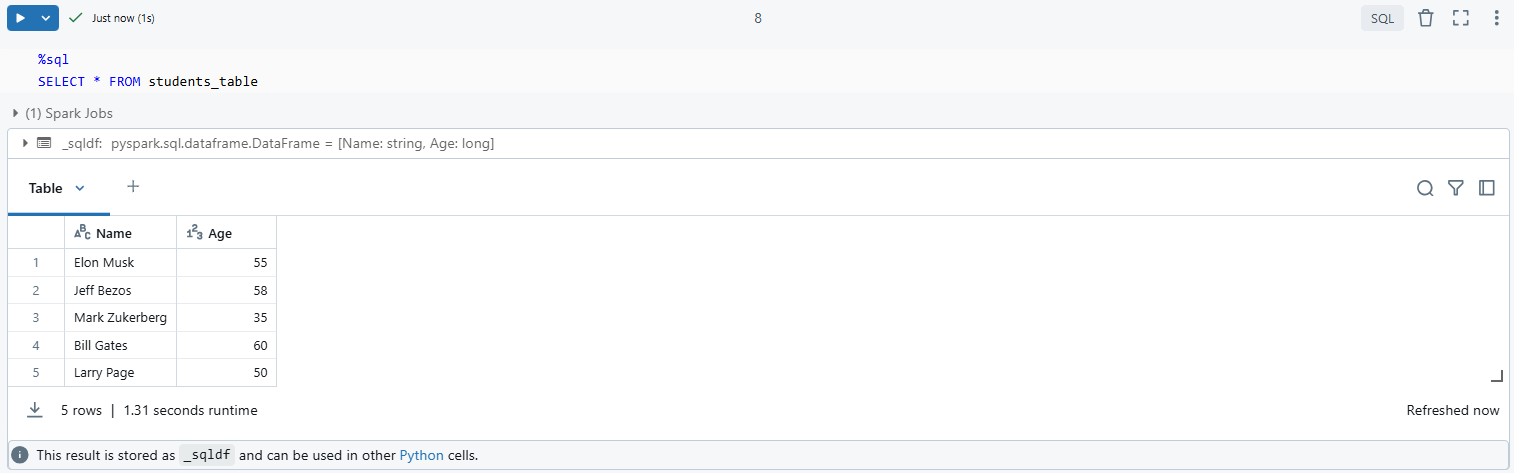
As you can see, this command retrieves all records from students_table, confirming that it was written correctly.
There you have it! You have successfully converted Pandas DataFrame to table in Databricks.
Save up to 50% on your Databricks spend in a few minutes!
Conclusion
And that’s a wrap! In this article, we’ve explored everything from the basics of DataFrames to the unique features of Pandas and PySpark DataFrames. We’ve broken down the key differences between the two, introduced the concept of Databricks Tables and even walked through a step-by-step guide to converting a Pandas DataFrame into a Databricks table.
FAQs
Does Databricks use pandas?
Yes. Databricks Runtime includes pandas as a standard Python package. Starting with Runtime 10.4 LTS, Databricks also ships the Pandas API on Spark (pyspark.pandas), which lets you write pandas-style code that runs on a distributed Spark cluster. So you can use pandas for small-scale work and scale up without rewriting everything.
Is a Spark table a DataFrame?
In PySpark’s world, yes. You can read a registered table into a DataFrame with spark.read.table(“my_catalog.my_schema.my_table”), and you can run SQL on a DataFrame by registering it as a temporary view. The two concepts are closely linked, though not identical.
Does PySpark have DataFrames?
Yes. PySpark DataFrames are the core abstraction for structured data in Apache Spark. They’re distributed, fault-tolerant and designed for large-scale processing.
Can I use large pandas DataFrames directly in Databricks?
Not recommended. Pandas runs entirely on the driver node, so a large pandas DataFrame will saturate driver memory and potentially crash your session. For large data, read directly into Spark using spark.read.csv(), spark.read.parquet() or similar methods.
What are the limitations of PySpark DataFrames compared to pandas?
PySpark handles scale that pandas can’t touch, but it trades some ergonomics to do it. Indexing is less flexible, some pandas-specific aggregation functions don’t exist in PySpark, and operations are lazily evaluated; nothing runs until you call an action like .show() or .count(). There’s also overhead to running distributed computations, so PySpark is actually slower than pandas on small datasets.
How do you save a PySpark DataFrame as a table in Databricks?
Use .write.saveAsTable(“catalog.schema.table_name”). Add .mode(“overwrite”) or .mode(“append”) if the table already exists.
Can I convert a PySpark DataFrame back to a pandas DataFrame?
Yes. Use .toPandas(). But be careful with large datasets. This operation pulls all data back to the driver node, which can cause memory errors if the DataFrame is large. Only use it on subsets of data or when you’re sure the result fits in driver memory.
What is Apache Arrow and how does it relate to conversions in Databricks?
Arrow is an in-memory columnar format that makes data transfers between Spark’s JVM process and Python much faster. In Databricks, Arrow-based conversion is enabled by default on most cluster types. It’s what makes createDataFrame(pandas_df) and df.toPandas() fast. You can disable it per-session with spark.conf.set(“spark.sql.execution.arrow.pyspark.enabled”, “false”) if it’s causing type-mismatch issues.
What should I do if I encounter schema mismatches?
Define the schema explicitly using StructType and StructField when calling spark.createDataFrame(). This removes any ambiguity about column types and prevents Spark from inferring the wrong one. If you’re seeing NaN values appear in numeric columns after writing to a table, that’s often a sign that Arrow is silently failing on type coercion ; try disabling Arrow for that specific conversion.
How do I append data to an existing table?
Convert your pandas DataFrame to PySpark, then:
pyspark_df.write.mode(“append”).saveAsTable(“my_catalog.my_schema.students_table”)
Can I run SQL queries on PySpark DataFrames?
Yes. Create a temporary view first:
pyspark_df.createOrReplaceTempView(“temp_students”)
result = spark.sql(“SELECT * FROM temp_students WHERE Age > 40”)
Temporary views exist only for the duration of your Spark session. For persistent queryability, write to a table.
What happens if I try to write incompatible data types to a Databricks table?
Spark raises an AnalysisException. For example, trying to insert a string value into a column defined as IntegerType will fail at write time. Clean and cast your data before writing.
How do I handle missing values before converting to PySpark?
Use pandas’ fillna() to replace nulls with a default value, or dropna() to drop rows with missing data. Clean your DataFrame before calling createDataFrame() to avoid null-handling surprises in Spark.
Can I use both Python and SQL in the same Databricks notebook?
Yes. Switch between languages per cell using magic commands:
- %python — runs the cell as Python
- %sql — runs the cell as SQL
- %scala — runs the cell as Scala
- %r — runs the cell as R
No configuration needed. Databricks supports all four natively in the same notebook.
Pramit Marattha
Pramit Marattha is a technical content writer and strategist with 5+ years of experience covering AI, data engineering, data cloud platforms and open source technologies. He turns complex technical concepts into clear, useful content for engineers and developers.